
Your screen is upside down. Maybe you accidentally hit a keyboard shortcut, maybe a coworker pranked you, or maybe you’re trying to set up a display for a specific project. Whatever the reason, flipping your computer screen back to normal shouldn’t stress you out—but there’s a right way and a wrong way to do it, depending on your operating system and hardware setup.
In this guide, I’ll walk you through every method to flip your computer screen, from the quickest keyboard tricks to the deeper settings adjustments. We’ll cover Windows, Mac, and Linux systems, plus some troubleshooting tips for when things get weird. By the end, you’ll know exactly how to flip your computer screen safely without messing up your system.
Flip Your Screen on Windows Using Keyboard Shortcuts
The fastest way to flip your computer screen on Windows is with a keyboard shortcut. This is your first line of defense when your display gets rotated accidentally.
The main shortcut is:
- Ctrl + Alt + Up Arrow – Rotates screen back to normal (landscape)
- Ctrl + Alt + Down Arrow – Flips screen upside down
- Ctrl + Alt + Left Arrow – Rotates 90 degrees counterclockwise
- Ctrl + Alt + Right Arrow – Rotates 90 degrees clockwise
These shortcuts work on most Windows 10 and Windows 11 systems with Intel, NVIDIA, or AMD integrated graphics. The catch? They only work if your graphics driver supports them. If you hit Ctrl + Alt + Up Arrow and nothing happens, don’t panic—your driver might just need updating, or you might need to access the rotation settings through the graphics control panel instead.
Pro Tip: If the keyboard shortcut works once, write it down somewhere visible. It’s easy to forget in a panic, and muscle memory doesn’t always kick in when you need it.
Real talk: These shortcuts are hit-or-miss depending on your hardware and driver version. If they don’t work, move on to the next method. There’s no shame in using the settings menu instead.
Flip Your Screen Through Windows Display Settings
If keyboard shortcuts don’t work, the Windows Display Settings menu is your reliable fallback. This method works on virtually every Windows system.
Here’s how to flip your computer screen using Windows settings:
- Right-click on your desktop (anywhere on the blank background)
- Select Display Settings from the context menu
- Scroll down to the Display section
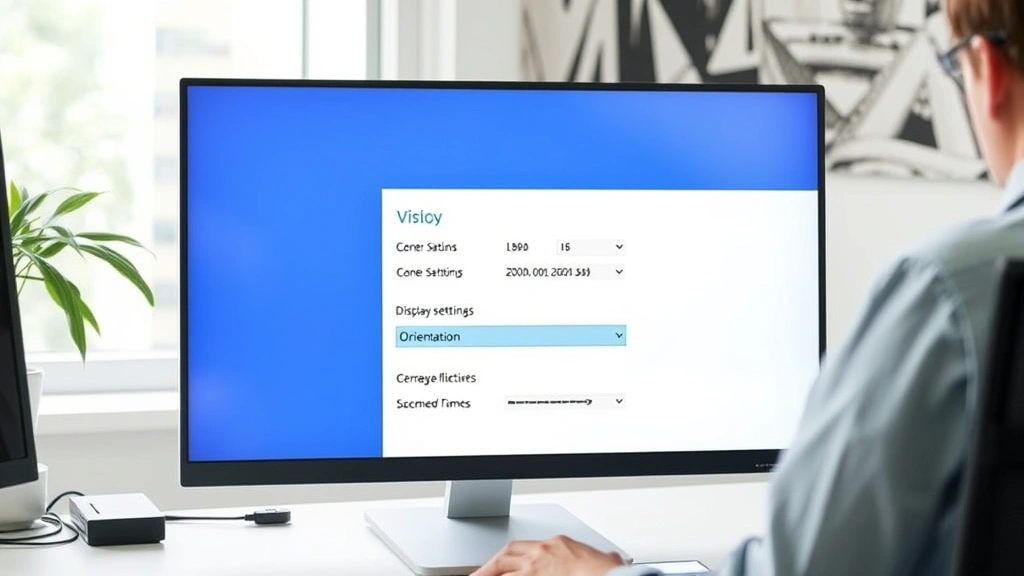
- Look for the Orientation dropdown menu
- Change it from Landscape to your desired orientation:
- Landscape (normal)
- Portrait
- Landscape (flipped)
- Portrait (flipped)
- Click Apply and confirm the change
Windows will ask you to confirm the new orientation within 15 seconds. If you don’t click the confirmation button, it’ll revert automatically. This is actually a safety feature—if you accidentally rotated your screen wrong, you won’t get stuck staring at an unreadable display.
The orientation dropdown is exactly where you’ll flip your computer screen to any angle. The Landscape (flipped) option is the full 180-degree rotation that makes everything upside down. Most of the time, you’ll want to go back to plain Landscape.
Safety Note: Windows gives you 15 seconds to confirm. If your screen becomes unreadable, just wait—it’ll automatically revert to the previous setting. Don’t panic and restart your computer.
Using Graphics Control Panels (NVIDIA, AMD, Intel)
If the standard Windows settings don’t have an orientation option, your graphics card’s control panel might have additional rotation settings. This is especially common on older systems or specialized graphics setups.
For NVIDIA Graphics:
- Right-click on your desktop
- Select NVIDIA Control Panel
- Go to Display → Rotate Display
- Choose your desired rotation angle
- Click Apply
For AMD/ATI Graphics:
- Right-click on your desktop
- Select AMD Radeon Settings or ATI Catalyst Control Center
- Navigate to Display → Rotation
- Select your rotation option
- Apply the changes
For Intel Integrated Graphics:
- Right-click on your desktop
- Select Intel Graphics Settings
- Go to Display → Rotation
- Choose your desired angle
- Save and apply
These control panels give you more granular control than Windows settings alone. You might find additional options like rotation acceleration or multi-monitor rotation settings. If you’re dealing with multiple monitors, you can usually rotate them independently here.
According to Family Handyman’s tech guides, understanding your hardware’s native control panel is crucial for advanced display management. Your graphics card manufacturer often has features that Windows doesn’t expose directly.
How to Flip Your Screen on Mac
Mac doesn’t have built-in keyboard shortcuts to flip your screen like Windows does, but you have a couple of options.
Method 1: System Preferences (Most Reliable)
- Click the Apple menu in the top-left corner
- Select System Preferences (or System Settings on newer macOS)
- Click Displays
- Look for the Rotation dropdown (if available on your Mac)
- Select your desired rotation
Here’s the thing with Mac: not all Macs support display rotation through the system settings. M1 and M2 Macs (the newer ones with Apple Silicon) have better rotation support, but older Intel-based Macs might not have this option at all. If you don’t see a rotation dropdown, your Mac might not support it natively.
Method 2: Third-Party Apps
If your Mac doesn’t have native rotation support, apps like Rotate My Mac or Screen Rotate can help. These are available on the Mac App Store and usually cost a few dollars. They work by creating a software layer that rotates your display without needing hardware support.
Real Talk: Most Mac users never need to flip their screen because the ecosystem is tightly controlled. If you’re trying to flip your Mac screen, you’re probably either testing something specific or dealing with a prank. Either way, the system preferences method is your go-to.
Flipping Your Screen on Linux
Linux gives you tons of flexibility for display rotation, but it varies depending on your desktop environment and graphics setup.
Using xrandr (Command Line):
If you’re comfortable with the terminal, xrandr is the most powerful tool for rotating displays on Linux.
- Open a terminal
- Type xrandr to list your displays
- Find your monitor’s name (usually HDMI-1, DP-1, or eDP-1)
- Use one of these commands to flip your computer screen:
- xrandr –output HDMI-1 –rotate normal
- xrandr –output HDMI-1 –rotate inverted (upside down)
- xrandr –output HDMI-1 –rotate left
- xrandr –output HDMI-1 –rotate right
Replace HDMI-1 with your actual display name.
Using GUI Settings (Easier):
Most Linux desktop environments (GNOME, KDE, Cinnamon) have display settings in their control centers.
- Open Settings or System Settings
- Navigate to Displays
- Look for the Orientation or Rotation option
- Select your desired rotation
- Apply the changes
Linux is actually more flexible than Windows or Mac when it comes to display rotation. You can rotate individual monitors independently, create custom rotation scripts, and even set up automatic rotation based on sensor data on supported hardware.
Troubleshooting Stuck or Rotated Displays
Sometimes your computer screen stays flipped even after you try to rotate it back. Here are the most common issues and how to fix them.
Problem 1: Keyboard Shortcuts Don’t Work
Your graphics driver might be outdated or your keyboard shortcuts might be disabled.
- Update your graphics driver (NVIDIA, AMD, or Intel)
- Check if your graphics control panel has rotation shortcuts disabled
- Use the Windows Display Settings method instead
- Restart your computer if nothing else works
Problem 2: Display Settings Won’t Save
Sometimes Windows forgets your rotation preference after restart.
- Make sure you clicked Apply, not just closed the window
- Confirm the rotation within the 15-second timer
- Check if your graphics driver is up to date
- Try setting the rotation through your graphics control panel instead
Problem 3: Only One Monitor is Rotated (Multi-Monitor Setup)
If you have multiple monitors and only one is flipped, you need to rotate each one individually.
- Open Display Settings
- Click on the specific monitor you want to rotate
- Change its orientation
- Apply the changes
- Repeat for each monitor
According to This Old House’s technology section, understanding your multi-monitor configuration is key to avoiding these issues. Each monitor has its own rotation setting, and they don’t always sync.
Problem 4: Screen is Flipped but Touchpad/Mouse is Inverted
This is rare, but sometimes rotating your display doesn’t rotate your input devices. You might need to adjust your mouse or touchpad settings separately. If you’re having issues with your pointing device, check out our guide on how to change mouse polling rate for additional mouse troubleshooting tips.
Pro Tip: If you’re dealing with a stuck rotated display and nothing works, try booting into Safe Mode with Networking. This loads minimal drivers and might let you reset your display settings to default.
Physical Monitor Rotation vs. Software Rotation
Here’s something most people don’t think about: you can rotate your monitor physically (by turning it 90 degrees), and you can also rotate it in software. These are different things, and they matter.
Software Rotation (What We’ve Been Discussing):
This is when you use Windows, Mac, or Linux settings to flip your computer screen digitally. Your monitor stays in the same position, but the operating system rotates the image. This is useful for:
- Pranks (obviously)
- Testing portrait-mode applications
- Accessibility (if you have physical limitations)
- Emergency fixes when someone accidentally rotates your display
Physical Rotation:
Some monitors support physical rotation—you can actually turn the monitor 90 degrees to portrait mode. This is common on newer monitors, especially those marketed for productivity work.
- Physically rotate your monitor to portrait mode
- Then use software settings to match the rotation
- This is ideal for programming, document editing, or web browsing
If your monitor supports physical rotation, you’ll usually find a pivot stand. Check your monitor’s manual or manufacturer website to see if yours does. Physical rotation is better than software rotation for extended use because it’s more ergonomic and doesn’t strain your graphics card.
According to Bob Vila’s comprehensive guides, proper monitor positioning is crucial for long-term eye health and productivity. Whether you’re rotating physically or digitally, make sure your setup is comfortable.
Real talk: If you’re rotating your screen permanently (not just fixing an accident), seriously consider a monitor that supports physical pivot rotation. It’s worth the investment for your neck and eyes.
Frequently Asked Questions
Why would someone flip a computer screen upside down?
– Accidental keyboard shortcuts are the most common reason. Ctrl + Alt + Down Arrow is easy to hit by mistake. Coworkers pranking each other is the second most common reason. Sometimes people also flip screens intentionally to test portrait-mode software or accessibility features.
Will flipping my screen damage my monitor or graphics card?
– No. Software rotation is completely safe. It’s just a digital transformation of the image—your hardware isn’t affected. Physical rotation (turning the monitor itself) is also safe if your monitor supports it with a pivot stand.
How do I flip my screen if I can’t see anything?
– Use keyboard shortcuts blind. Ctrl + Alt + Up Arrow should work even if your screen is unreadable. If that doesn’t work, right-click on your desktop (you can usually do this without seeing), then navigate to Display Settings using Tab and arrow keys. It’s annoying, but it works.
Can I rotate my screen on a laptop?
– Yes, absolutely. Laptops use the same rotation settings as desktop monitors. The keyboard shortcuts work the same way, and the Display Settings menu is identical. The only difference is that some laptops with accelerometers might have automatic rotation features.
What if my graphics driver doesn’t support screen rotation?
– Update your driver first. If that doesn’t work, you can sometimes use third-party software like RotateScreen or similar utilities. These create a software layer that rotates your display even if your driver doesn’t support it natively. They’re usually free or very cheap.
How do I rotate my screen back if the keyboard shortcut got me stuck?
– The easiest method is to use Display Settings (right-click desktop → Display Settings → Orientation). If that doesn’t work, try your graphics control panel (NVIDIA, AMD, or Intel). If both fail, restart your computer—Windows will usually revert to the previous rotation on startup.
Can I rotate individual monitors in a multi-monitor setup?
– Yes. Open Display Settings, click on the specific monitor you want to rotate, change its orientation, and apply. Each monitor has independent rotation settings. This is really useful if you want one monitor in portrait and another in landscape. If you’re setting up multiple monitors for the first time, check out our guide on how to connect two monitors to a laptop for the full setup process.
Is there a keyboard shortcut to flip my screen on Mac?
– No, Mac doesn’t have built-in keyboard shortcuts for screen rotation like Windows does. You’ll need to use System Preferences → Displays → Rotation (if available), or use a third-party app like Rotate My Mac.
Why does my screen keep rotating back to normal after I flip it?
– Windows has a 15-second confirmation timer. If you don’t click the confirmation button within 15 seconds, it automatically reverts. Make sure you’re confirming the rotation change. If it’s reverting even after you confirm, your graphics driver might be outdated or corrupted.

Can I create a keyboard shortcut to flip my screen on Mac?
– Not natively. Mac doesn’t support custom rotation shortcuts in System Preferences. However, some third-party apps like Rotate My Mac include keyboard shortcut options. You can also create an Automator script if you’re comfortable with that level of customization.
What’s the difference between “Landscape” and “Landscape (flipped)”?
– Landscape is the normal orientation. Landscape (flipped) is a 180-degree rotation, so everything appears upside down. Portrait rotates 90 degrees clockwise. Portrait (flipped) rotates 90 degrees counterclockwise. You’ll almost always want to go back to plain Landscape.


