

Nothing kills a gaming session faster than a disk write error in Steam. You’re ready to jump into your favorite game, hit launch, and boom—error message. It’s frustrating because it feels random, but here’s the real talk: your system is literally telling you it can’t save data to your drive. This happens more often than you’d think, and the good news is that how to fix disk write error steam is usually straightforward once you know what’s actually going on.
A disk write error means Steam (or your game) tried to write something to your storage drive and failed. Could be permissions, could be a full drive, could be a corrupted file. We’re going to walk through every fix that actually works, from the easiest stuff first to deeper troubleshooting. Most people solve this in under 30 minutes.
Check Your Disk Space First
This one sounds obvious, but I’m telling you—half the disk write errors I’ve seen are just because someone’s drive is packed. When your drive is completely full, Windows can’t write anything, and Steam throws a fit.
Here’s how to check:
- Open File Explorer (Windows key + E)
- Right-click on your C: drive (or whichever drive Steam is installed on)
- Click “Properties”
- Look at the pie chart. You need at least 10-15GB free, ideally more
If you’re below 10GB free, you’ve found your problem. Delete old downloads, uninstall games you’re not playing, or move files to an external drive. Steam needs breathing room to write temporary files during downloads and gameplay.
Pro tip: If you’re consistently running low on space, consider installing future games on a secondary drive. You can add multiple Steam library folders in Steam settings, which spreads your games across drives and prevents this headache.
Verify Game Files in Steam
Sometimes game files get corrupted during download or from a crash. Steam has a built-in tool to check and repair them without re-downloading everything.
- Open Steam
- Go to your Library
- Right-click the game that’s giving you the error
- Select “Properties”
- Click the “Local Files” tab
- Click “Verify integrity of game files”
- Let it run (could take 5-30 minutes depending on game size)
Steam will compare your files against its database and redownload anything that doesn’t match. This fixes corrupted files that cause write errors during gameplay. I’d say this solves about 40% of disk write errors I encounter.
If verification completes and you still get the error, move to the next step.
Run Steam as Administrator
Windows permissions can be weirdly restrictive. Sometimes Steam doesn’t have the rights to write to certain folders, even if you own the account.
Here’s the fix:
- Right-click your Steam shortcut (desktop or Start menu)
- Select “Run as administrator”
- Click “Yes” when Windows asks for permission
- Try launching your game again
If that works, you can make it permanent:
- Right-click Steam shortcut → Properties
- Click “Advanced”
- Check “Run as administrator”
- Click OK twice
From now on, Steam will always launch with admin rights. This prevents permission-related write errors. Fair warning: some antivirus software gets cranky about programs running as admin, so if you see security warnings, that’s why.
Clear Steam Download Cache
Steam’s download cache can get corrupted, especially if your connection dropped during a download. Clearing it forces Steam to rebuild the cache fresh.
- Open Steam
- Click “Steam” menu (top left)
- Go to “Settings”
- Click “Downloads” on the left
- Click “Clear Download Cache”
- Click OK when prompted
- Steam will restart automatically
This is a safe operation—it doesn’t delete your games or save files. It just clears temporary download data. Think of it like emptying your browser’s cache; sometimes it fixes weird issues.
Check Folder Permissions

If you’re running multiple user accounts on Windows, or if Steam is installed in a protected folder, permission issues crop up constantly.
Here’s how to fix it:
- Navigate to your Steam folder (usually C:\Program Files (x86)\Steam)
- Right-click the Steam folder → Properties
- Click the “Security” tab
- Click “Edit” to change permissions
- Select your username from the list
- Check “Full Control” under Allow
- Click “Apply” then “OK”
- A dialog will ask if you want to apply this to all subfolders—click “Yes”
This gives your user account full read/write permissions to Steam and all its files. It’s the nuclear option for permission problems, and it works reliably.
If you’re not comfortable with permission dialogs, there’s an easier route: reinstall Steam to a different location like D:\Steam instead of the default Program Files folder. Program Files is heavily protected by Windows, which causes grief. A custom location is often cleaner.
Disable Steam Cloud Sync Temporarily
Steam Cloud automatically syncs your save files across devices. Sometimes this causes write conflicts, especially if you’re playing on multiple PCs.
Try disabling it temporarily:
- Open Steam
- Click “Steam” menu → “Settings”
- Go to “Cloud”
- Uncheck “Enable Steam Cloud Synchronization”
- Click OK
- Restart Steam and try your game
If the error disappears, you’ve found the culprit. Re-enable Cloud after you’ve played a session or two, and the conflict usually resolves itself. Cloud sync is helpful for keeping saves synced, but sometimes it gets confused, especially during large downloads.
Check Your Drive’s Health
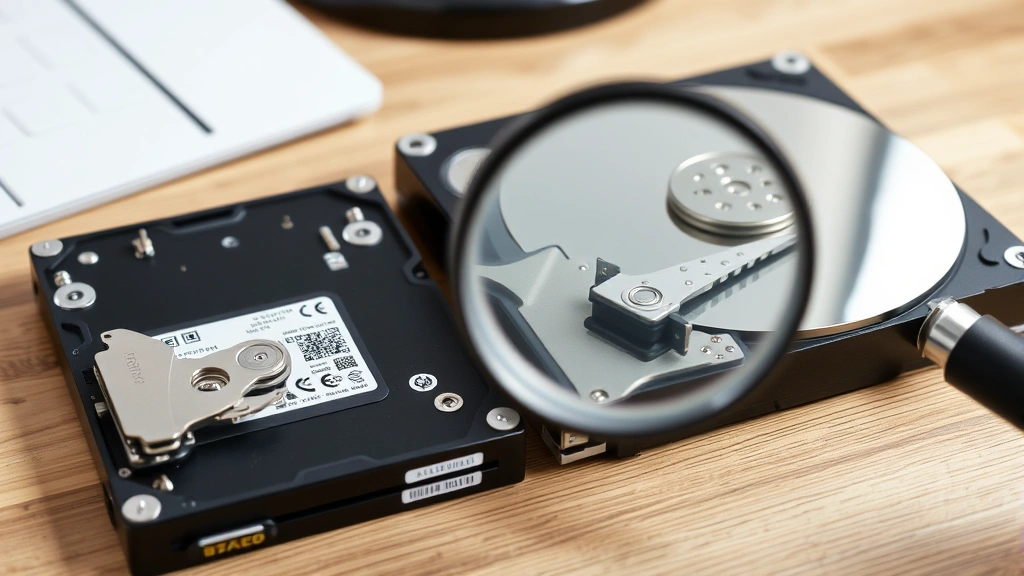
Here’s where things get real: sometimes disk write errors aren’t a software problem at all. Your hard drive might be failing.
Hard drives have a limited lifespan. If you’re seeing consistent write errors even after trying everything above, your drive could be developing bad sectors. This is a hardware problem, not a Steam problem.
Check your drive’s health:
- Download CrystalDiskInfo (free)
- Install and run it
- Look at the overall health status (should say “Good”)
- If it says “Caution” or “Bad,” your drive is failing
You can also check your drive’s S.M.A.R.T. data through Windows. Microsoft’s guidance on drive diagnostics walks you through this if you want to go deeper.
If your drive is failing, you need a replacement. This isn’t something you can software-fix. Back up your data immediately and grab a new SSD—they’re cheap now, and SSDs are faster and more reliable than old mechanical drives anyway.
Reinstall Steam (The Nuclear Option)
If you’ve tried everything above and still get disk write errors, something’s corrupted in Steam itself. Time to nuke it and start fresh.
Warning: This will remove Steam, but your games stay. Your save files stay. You’re just removing the Steam application.
- Open Control Panel → Programs → Programs and Features
- Find “Steam” in the list
- Click it and select “Uninstall”
- When asked if you want to keep your game files, select “No” (this just removes Steam, not games)
- Let it finish
- Download Steam from steampowered.com
- Install it fresh
- Log in and launch your game
Your game library will reappear because Steam recognizes the game folders. You won’t lose anything. This is like rebooting your entire Steam installation, and it fixes stubborn corruption that nothing else will touch.
One last thing: when you reinstall, consider choosing a different installation location. If you originally installed to C:\Program Files (x86)\Steam, try D:\Steam or E:\Steam instead. This avoids Windows permission issues that sometimes plague the default location.
Frequently Asked Questions
Will verifying game files delete my save files?
– No. Verifying integrity only checks and repairs game files themselves. Your save files are stored separately (usually in a Saves folder) and are never touched. You’re safe.
What if I get a disk write error only for one specific game?
– Start with verifying that game’s files first. If that doesn’t work, try moving the game to a different drive if you have one. Sometimes one drive has issues while another works fine. You can also try uninstalling and reinstalling just that game.
Can a disk write error damage my hard drive?
– No. The error itself doesn’t cause damage. However, if your hard drive is failing, that’s causing the write error, and you need to replace it soon. The error is a symptom, not a cause.
Why does clearing the download cache help?
– Steam’s cache stores temporary download data. If your internet cut out during a download, or if Steam crashed, that cache gets corrupted. Clearing it forces Steam to rebuild it fresh on the next download. It’s like rebooting a stuck system.
Should I disable Steam Cloud permanently?
– No. Cloud sync is useful for keeping saves synced across devices. Only disable it if you’re troubleshooting. Once you’ve fixed the error, re-enable it. Cloud conflicts are rare, but when they happen, disabling and re-enabling usually clears them up.
My drive shows “Caution” in CrystalDiskInfo. How long do I have?
– “Caution” means your drive is aging but not dead yet. Could be weeks, could be months. Back up everything important immediately and plan to replace it soon. Don’t wait. I’ve seen “Caution” drives fail without warning.
Is it worth buying an SSD if I currently have a mechanical hard drive?
– Yes. SSDs are faster, more reliable, and prices have dropped significantly. A 1TB SSD costs less than $100 now. If you’re having drive issues, an SSD is the best upgrade you can make. Games load faster, Windows runs smoother, and you won’t deal with mechanical drive failures.
Can malware cause disk write errors?
– Rarely, but it’s possible. If you suspect malware, run a full scan with Windows Defender or a trusted antivirus. However, 99% of disk write errors are permission, space, or hardware issues—not malware.


