
You’re sitting at your friend’s house, your phone is running low on data, and they say “just connect to the WiFi.” But then they can’t remember the password. Sound familiar? Finding a WiFi password on iPhone isn’t as straightforward as you’d think, but it’s absolutely doable—and I’m going to walk you through every method that actually works.
The truth is, Apple doesn’t make it easy to view saved WiFi passwords directly in Settings. But there are several solid workarounds, from using Keychain to checking your router settings. By the end of this guide, you’ll know exactly how to retrieve any WiFi password your iPhone has ever connected to.
Method 1: Use iCloud Keychain to Retrieve Your WiFi Password
This is the most reliable method if you’re signed into iCloud on your iPhone. iCloud Keychain stores your WiFi passwords securely, and you can access them through your Apple account. Here’s how:
- Open Settings on your iPhone
- Tap [Your Name] at the top (your Apple ID profile)
- Select iCloud
- Scroll down and make sure Keychain is toggled ON (it should be blue)
- If Keychain is already on, your WiFi passwords are being backed up automatically
The catch? You can’t directly view the passwords from your iPhone through this menu. But here’s what you can do: if you have a Mac computer, you can access these passwords through Keychain Access (see Method 3). If you don’t have a Mac, you’ll need to use one of the other methods below.
Pro Tip: Make sure you’re using the same Apple ID on all your devices. If you’ve switched Apple IDs or aren’t signed into iCloud, Keychain won’t sync your passwords across devices.
Method 2: Check Your Router’s Admin Panel
This is honestly the most practical method for finding any WiFi password, whether it’s your network or someone else’s (with permission, of course). Every router has an admin panel where the WiFi password is stored in plain text.
- Open a web browser on your iPhone (Safari, Chrome, etc.)
- Type 192.168.1.1 or 192.168.0.1 into the address bar (these are the most common router IP addresses)
- Press Enter. You should see a login screen
- Enter your router’s admin username and password (usually admin / admin, or check the sticker on the back of your router)
- Look for a section labeled WiFi Settings, Wireless, or Network
- Find the field labeled WiFi Password, Pre-Shared Key (PSK), or Security Key
- There’s your password in plain sight
The exact steps vary depending on your router brand (Netgear, TP-Link, Linksys, Arris, etc.), but the concept is always the same. If you can’t find the right IP address, try googling “[your router brand] default IP address.”
Safety Warning: Only access your own router’s admin panel. If you’re at someone else’s house, ask them to do this step themselves or provide you with the password directly.
Method 3: View Your WiFi Password on a Mac Computer
If you have a Mac and you’re signed into the same iCloud account, this is the easiest method. Mac’s Keychain Access app stores all your WiFi passwords and displays them clearly.
- On your Mac, open Spotlight (Command + Space)
- Type Keychain Access and press Enter
- In the left sidebar, make sure Passwords is selected
- In the search bar at the top right, type the name of the WiFi network you’re looking for
- Double-click the network name in the results
- A window will pop up. Check the box next to Show password
- Enter your Mac’s login password when prompted
- The WiFi password will now be visible in plain text
This method requires that your Mac and iPhone are synced through iCloud, and you need to know your Mac’s login password. But once you’re in Keychain Access, you can see every single WiFi password your Mac has ever connected to.
Method 4: Ask Siri (iOS 16 and Later)
Apple added a clever feature in iOS 16 that lets Siri help you find WiFi passwords. This only works if you’re asking about a network that’s currently in range and you’re connected to it.
- Make sure you’re connected to the WiFi network
- Activate Siri (press and hold the home button, or say “Hey Siri”)
- Ask: “What’s the WiFi password?” or “Show me the WiFi password”
- Siri will display the password on your screen
The limitation here is that this only works for networks you’re already connected to, and Siri needs to recognize your voice or face. It’s not the most reliable method, but it’s worth trying because it’s the fastest if it works.
Method 5: Reset WiFi Settings and Reconnect
If you need to reconnect to a WiFi network and you’ve forgotten the password, you can remove it from your iPhone and then reconnect—but you’ll need the password to do that. This method is more useful if you’re trying to troubleshoot connection problems.
- Go to Settings → WiFi
- Find the network you want to remove
- Tap the info icon (circle with an “i”)
- Select Forget This Network
- Confirm by tapping Forget
- Now, reconnect to the network (tap it from the WiFi list)
- Enter the password when prompted
This doesn’t help you find a forgotten password, but it does clear out old saved passwords if you want a fresh start. It’s useful if you suspect your password has been compromised or if you’re having persistent connection issues.
Method 6: Share WiFi Password Between Apple Devices
Here’s a feature that Apple got right: if you’re at someone’s house with an iPhone, iPad, or Mac, you can share the WiFi password directly without typing it out.
- Make sure you’re signed into iCloud on both devices
- Have the person whose WiFi you want to connect to stand nearby with their iPhone unlocked
- On your iPhone, go to Settings → WiFi
- Tap on the network you want to join
- A popup will appear on their iPhone asking if they want to share the password
- They tap Share Password
- Your iPhone automatically connects and saves the password
This is by far the easiest method if you’re with the person who owns the WiFi network. No typing, no admin panels, no Keychain hunting. It just works.
Troubleshooting Common Issues
“My Keychain isn’t syncing across devices.” Make sure you’re signed into the same iCloud account on all your devices. Go to Settings → [Your Name] → iCloud and toggle Keychain on. Sometimes it takes a few minutes to sync.
“I forgot my router’s admin password.” Most routers have a reset button on the back. Hold it for 10-15 seconds to factory reset the router. You’ll lose your current WiFi settings, but you can set up a new password. Check your router’s manual for exact instructions. For more detailed help, Family Handyman has a solid guide on resetting routers.
“The router IP address (192.168.1.1) isn’t working.” Try 192.168.0.1 instead. If neither works, check the back of your router—the IP address is usually printed on a sticker. You can also google “[your router model] default IP address.”
“I’m not connected to the WiFi anymore, so I can’t use Siri’s method.” You’ll need to use the router admin panel method or ask the network owner for the password directly.
“The password field shows asterisks instead of the actual password.” This is a security feature. On Mac’s Keychain Access, you need to check “Show password” and enter your Mac’s login password to reveal it. On iPhone, most methods won’t show the actual password for security reasons—which is why the router admin panel method is so useful.
Real Talk: If you’ve lost the password to your own WiFi network and can’t access the router, your internet provider might be able to help. This Old House has a great primer on home networks if you want to understand how everything connects.
Frequently Asked Questions
Can I see all my saved WiFi passwords on my iPhone?
– Not directly through Settings. Apple doesn’t provide a built-in menu to view all saved passwords on iPhone. Your best options are using Keychain Access on a Mac, accessing your router’s admin panel, or asking Siri (iOS 16+) while connected to the network.
Is it safe to use the router admin panel method?
– Yes, if it’s your own router. The admin panel is password-protected, so only someone with the admin credentials can access it. However, never share your admin password with others—give them the WiFi password instead.
Why can’t Apple just show me the password in Settings?
– Security. If passwords were easily visible in Settings, anyone with physical access to your iPhone could see them. Apple prioritizes security over convenience here, which is why they require you to use Keychain on Mac or access the router directly.
What if I’m at a public WiFi spot like a coffee shop?
– You can’t access the admin panel (it’s not your router), and Siri won’t help. Ask an employee for the password, or look for it on a receipt or posted sign. If you’ve already connected before, your iPhone should automatically reconnect.
Does the WiFi sharing feature work between iPhone and Android?
– No. The password-sharing feature only works between Apple devices (iPhone, iPad, Mac). If you want to share with an Android user, you’ll need to tell them the password verbally or type it out.
Can I recover a WiFi password if I’ve reset my iPhone?
– If you restored from an iCloud backup, your saved passwords will come back with the backup. If you did a factory reset without a backup, those passwords are gone. Your only option then is to ask the network owner or use the router admin panel method.
What’s the difference between WiFi password and network key?
– They’re the same thing. Different routers use different terminology. Some call it “WiFi Password,” others call it “Pre-Shared Key (PSK)” or “Network Security Key.” They all refer to the same password you type in to connect to the network.
Is there an app that can show me my saved WiFi passwords?
– Not officially. Apple restricts third-party apps from accessing Keychain for security reasons. Any app claiming to show WiFi passwords is likely a scam. Stick with the methods outlined in this guide.
Can I change my WiFi password from my iPhone?
– Yes, through the router admin panel method. Once you’re logged into your router’s settings (192.168.1.1 or similar), look for the WiFi Security or Wireless settings section and change the password there. The changes take effect immediately.
What if I’ve forgotten both my WiFi password AND my router admin password?
– Factory reset the router by holding the reset button for 10-15 seconds. This will erase all settings and return it to factory defaults (usually admin/admin for login). You’ll need to set up your WiFi network from scratch. Apple Support has a guide on managing WiFi networks on iPhone if you need help with the setup process.
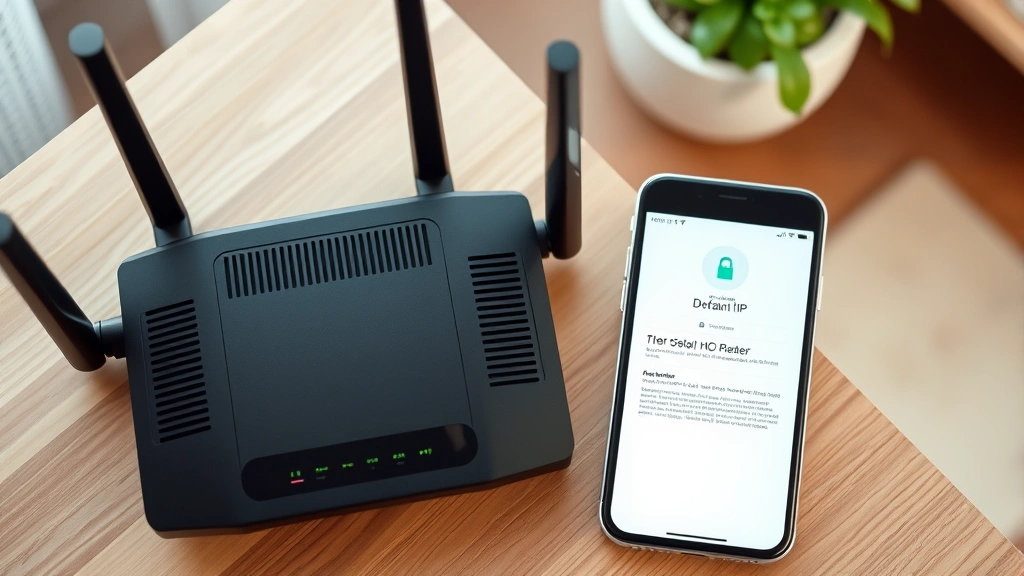
Finding your WiFi password on iPhone doesn’t have to be a hassle. Whether you use Keychain, your router’s admin panel, or Siri, you’ve got solid options. The key is knowing which method works best for your situation. And remember—if you’re trying to access someone else’s network, always ask permission first. That’s just good WiFi etiquette.
If you’re having other iPhone issues, you might also want to check out our guide on how to unblock a number on iPhone or learn about how to turn off iPhone without screen if you’re dealing with hardware problems. For more device management tips, see our articles on how to unhide apps on iPhone and how to delete duplicate photos on iPhone.


