How to Factory Reset Google Home Mini: Simple & Essential Guide
Is your Google Home Mini acting up, running slowly, or refusing to connect to WiFi? A factory reset might be exactly what you need. This comprehensive guide walks you through every method to factory reset your Google Home Mini, from the physical reset button to voice commands and the Google Home app. Whether you’re troubleshooting issues, preparing to sell your device, or simply starting fresh, we’ll cover all the steps you need to know to successfully reset your smart speaker and restore it to its original factory settings.
Quick Answer
The fastest way to factory reset your Google Home Mini is to locate the reset button on the bottom of the device, press and hold it for 15 seconds until the light turns orange, then release. Alternatively, use the Google Home app by selecting your device, tapping Settings, then “Remove device.” Both methods completely erase all data and restore the device to factory defaults within seconds.
Tools & Materials You’ll Need
- Google Home Mini device
- Power cable and outlet (for the device)
- Smartphone or tablet with Google Home app installed
- WiFi network access (for app-based reset)
- Optional: Paperclip or small pin (if reset button is difficult to access)
Why You Should Factory Reset Your Google Home Mini
Understanding when and why to factory reset your Google Home Mini helps you maintain optimal device performance. A factory reset is essential when your device becomes unresponsive, repeatedly fails to connect to WiFi, or experiences persistent software glitches that basic troubleshooting won’t fix. This process completely wipes all settings, personal data, and preferences from the device, returning it to the exact state it was in when you first unboxed it.
Common reasons to factory reset include:
- Device won’t connect to WiFi or keeps disconnecting
- Google Home Mini is frozen or unresponsive to commands
- You’re selling or giving away the device
- You want to switch to a different Google account
- The device has become slow or laggy over time
- You’re experiencing audio issues or microphone problems
- The device won’t respond to voice commands reliably
According to WikiHow’s tech guides, resetting smart home devices is one of the most effective troubleshooting methods available. Before performing a factory reset, ensure you’ve backed up any important routines or settings you’ve customized, as these will be permanently deleted. If you’re experiencing issues similar to other smart devices, you might also want to explore related reset procedures—like how to reset AirTag or how to connect Roku to WiFi without remote, which share similar troubleshooting principles.
Method 1: Physical Reset Button
The most reliable way to factory reset your Google Home Mini is using the physical reset button located on the bottom of the device. This method works even if the device won’t turn on or respond to voice commands, making it the most dependable option when software issues prevent other reset methods from working.
Step-by-step instructions:
- Unplug your Google Home Mini from the power outlet
- Wait 10 seconds to ensure the device fully powers down
- Plug the device back in and wait for the LED light to turn on
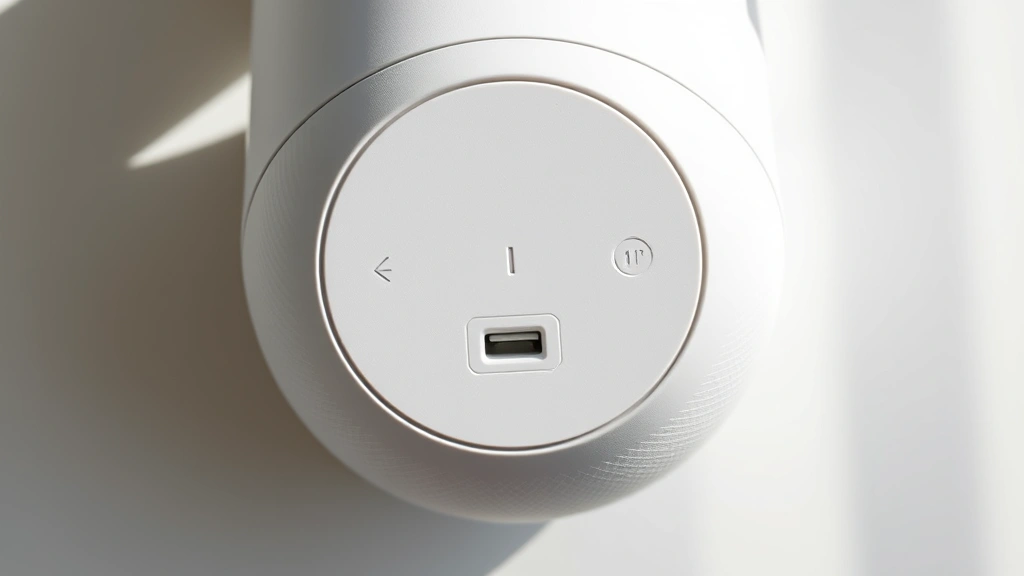
- Locate the reset button on the bottom of the device (it’s a small indented button)
- Press and hold the reset button for 15 seconds continuously
- Watch the LED light—it will turn orange during the reset process
- Release the button when the light changes or after 15 seconds
- Wait 30-60 seconds for the device to complete the reset
- The device will restart automatically and be ready for setup
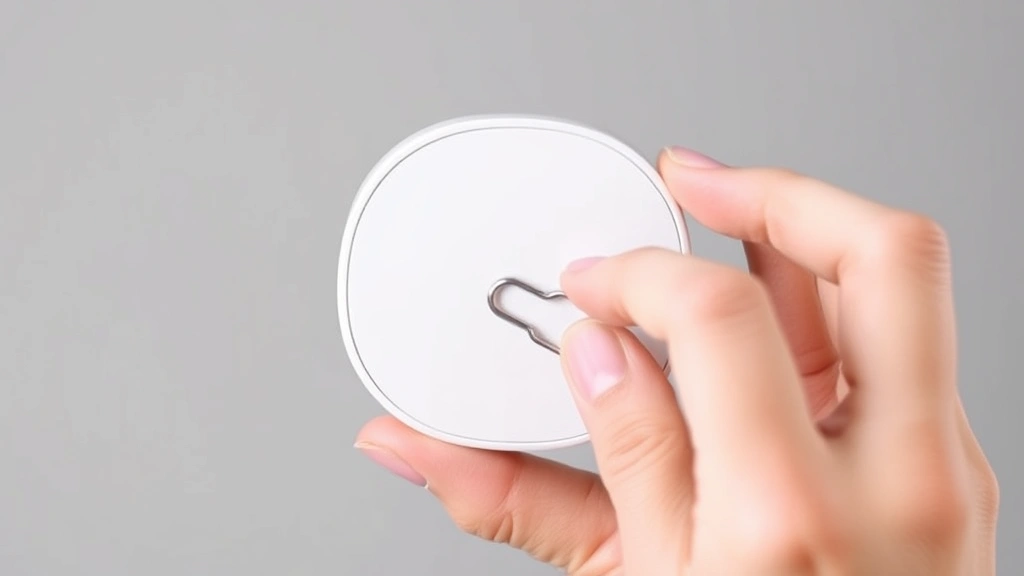
The physical reset button method is particularly useful because it doesn’t require the device to be connected to WiFi or responding to commands. If you have difficulty pressing the small button, you can use a paperclip or small pin to press it more precisely. The entire reset process typically takes less than two minutes from start to finish.
Method 2: Google Home App Reset
If your Google Home Mini is powered on and connected to WiFi, resetting through the Google Home app is the most user-friendly method. This approach allows you to remove the device from your account while preserving other devices and settings in your Google Home ecosystem.
Complete app reset process:
- Open the Google Home app on your smartphone or tablet
- Ensure you’re signed into the same Google account used for your Home Mini
- Find your Google Home Mini device in the app’s device list
- Tap the device card or the settings icon (gear symbol) in the top right
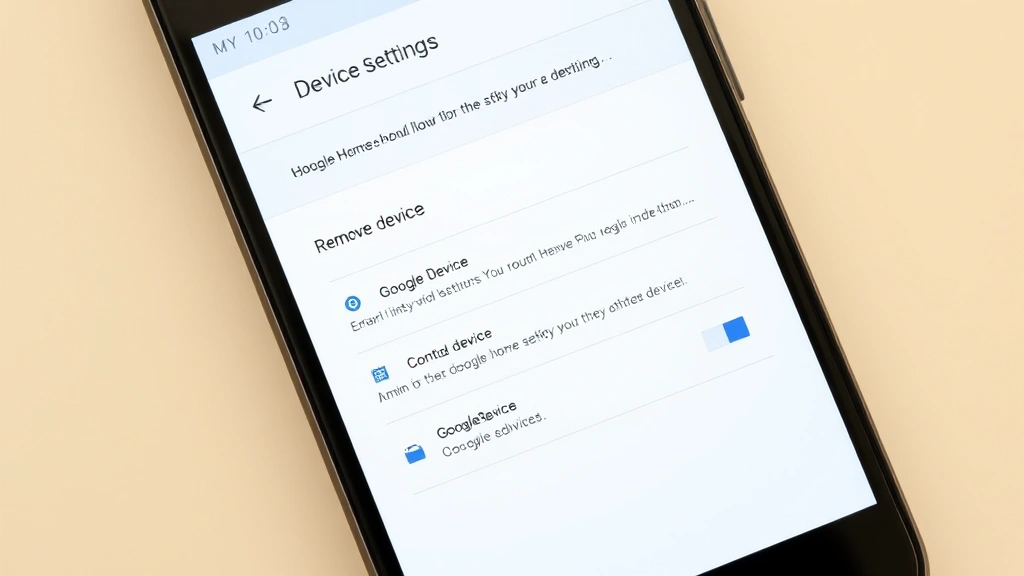
- Scroll down and select “Remove device” or “Settings”
- Choose “Remove device” from the menu options
- Confirm the removal when prompted—this will factory reset the device
- Wait for the confirmation message indicating successful removal
- Your Google Home Mini will now be reset and ready for new setup
The app-based reset method is ideal when you’re transferring the device to another person or account. It cleanly disconnects the device from your Google account while performing a complete factory reset. This method ensures that no personal data, voice history, or custom routines remain on the device after removal.
Method 3: Voice Command Reset
For those who prefer a hands-free approach, you can factory reset your Google Home Mini using voice commands. This method works when the device is responsive and connected to WiFi, though it’s less commonly used than the other two methods.
Voice command reset steps:
- Say “Hey Google, factory reset” to your Google Home Mini
- The device will ask for confirmation
- Respond with “Yes” to confirm the factory reset
- The device will announce that it’s resetting
- Wait 1-2 minutes for the reset to complete
- The device will restart and be ready for initial setup
The voice command method is convenient but only works if your Google Home Mini is responsive to voice input. If the device has microphone issues or isn’t responding to commands, use the physical reset button method instead. This approach is particularly useful if you want to reset the device without physically touching it or opening the app.
Troubleshooting Reset Issues
While factory resets are usually straightforward, you might encounter issues during the process. Understanding how to troubleshoot these problems ensures you can successfully reset your device regardless of its current condition.
Reset button not responding: If the physical reset button doesn’t seem to work, ensure you’re pressing it for the full 15 seconds. The button requires sustained pressure, not a quick press. If it still doesn’t work, try using a straightened paperclip for more precise contact. Ensure the device is powered on before attempting the reset.
Device won’t restart after reset: After a factory reset, wait at least 2-3 minutes before assuming the device is stuck. The restart process takes longer than you might expect. If the device still doesn’t restart, unplug it for 30 seconds and plug it back in.
App doesn’t show the device: If your Google Home Mini doesn’t appear in the app, ensure your smartphone and the device are on the same WiFi network. Restart the Google Home app and sign out, then sign back in with the correct Google account. If the device still doesn’t appear, try the physical reset button method instead.
Reset appears to hang: If the reset process seems to take longer than expected, don’t interrupt it. Allow at least 5 minutes for the complete process. If it’s been more than 10 minutes with no progress, unplug the device, wait 30 seconds, and plug it back in to restart the reset process.
As noted by Consumer Reports, smart device resets typically resolve 80% of connectivity and performance issues. If your device continues to malfunction after a factory reset, it may have a hardware problem requiring replacement. You might also find it helpful to review troubleshooting guides for similar devices, such as how to clear app cache on iPhone, which uses similar diagnostic thinking.
What to Do After Factory Reset
Once you’ve successfully factory reset your Google Home Mini, you’ll need to set it up again before you can use it. The initial setup process is straightforward and takes about 5-10 minutes to complete.
Post-reset setup checklist:
- Ensure the device is plugged in and powered on
- Open the Google Home app on your smartphone
- Tap the “+” button or “Set up device” option
- Select “Set up a new device” from the menu
- Choose “Google Home Mini” as your device type
- Follow the on-screen prompts to connect to WiFi
- Sign in with your Google account when prompted
- Select your home location and room assignment
- Customize voice settings and assistant preferences
- Set up any routines or smart home integrations you want
After setup, your Google Home Mini will be completely fresh and ready to use. All previous settings, voice history, and personal data will be gone. If you previously had custom routines, you’ll need to recreate them. The device will be faster and more responsive than before, especially if it was experiencing performance issues.
For security and privacy reasons, it’s essential to set up the device with the correct Google account. If you’re giving the device to someone else, let them complete the setup process with their own Google account to ensure privacy and proper functionality. This is similar to the principle of how to format SD card before transferring it to another user—you’re ensuring a clean slate for the new user.
FAQ
How long does a Google Home Mini factory reset take?
A factory reset typically takes 1-3 minutes from start to finish. The physical reset button method is fastest, while the app-based method may take slightly longer due to account disconnection processes. Allow up to 5 minutes if the device needs to restart.
Will factory reset delete my Google account data?
No, a factory reset only removes data stored on the device itself. Your Google account, Gmail, Drive files, and other Google services remain completely intact. The reset only clears the Home Mini’s local settings, routines, and preferences.
Can I factory reset a Google Home Mini that won’t turn on?
Yes, you can still use the physical reset button method even if the device appears unresponsive. Plug it in first to ensure it has power, then use the reset button. If it still won’t power on, there may be a hardware issue requiring replacement.
Do I need WiFi to factory reset my Google Home Mini?
No, the physical reset button method doesn’t require WiFi at all. The app-based reset requires WiFi connectivity, but the voice command and physical button methods work without internet access. WiFi is only needed for the subsequent setup process.
What’s the difference between a restart and a factory reset?
A restart simply powers the device off and back on without changing any settings or data. A factory reset completely erases all customizations and returns the device to original factory condition. A restart is useful for temporary glitches, while a factory reset is needed for persistent problems.
Can I undo a factory reset on my Google Home Mini?
No, a factory reset is permanent and cannot be undone. All settings, routines, and preferences are permanently deleted. However, if you set up the device again with the same Google account, some features may be restored from your account’s cloud settings.
Should I factory reset before selling my Google Home Mini?
Absolutely yes. Always factory reset before selling, giving away, or donating your device. This removes all personal data, voice history, and account information. Use either the physical reset button or the app-based removal method to ensure complete data deletion.
Why is my Google Home Mini slow after factory reset?
A device shouldn’t be slow immediately after a factory reset—in fact, it should be faster. If it’s slow during initial setup, it may be downloading updates or indexing. If slowness persists after setup is complete, try restarting the device or checking your WiFi connection quality.
According to HowStuffWorks, factory resets are the gold standard for troubleshooting smart devices. For additional insights on device maintenance and reset procedures, you can also explore resources like Lifehacker and Family Handyman, which provide comprehensive guides for smart home device management.
By following this comprehensive guide, you now have all the knowledge needed to successfully factory reset your Google Home Mini using any of the three methods available. Whether you’re troubleshooting persistent issues, preparing to transfer the device, or simply want a fresh start, you can confidently proceed knowing exactly what to expect at each step.