
Let’s be real: YouTube’s offline feature is limited, and sometimes you need to download YouTube videos on iPhone for legitimate reasons—road trips without WiFi, presentations, personal archives of content you created. Apple doesn’t make this super straightforward, but it’s absolutely doable once you know the actual methods that work.
The challenge? Apple restricts what apps can do, YouTube’s terms get murky, and half the “solutions” online are outdated or sketchy. This guide cuts through the noise and shows you the real, working ways to download YouTube videos on your iPhone right now.
YouTube Premium Offline Feature: The Official Route
If you’ve got a YouTube Premium subscription ($13.99/month), this is honestly the cleanest method. It’s built-in, it’s legal, and YouTube actively supports it. Here’s how it works:
- Open the YouTube app on your iPhone
- Find the video you want to save
- Tap the Share button (or the three dots menu)
- Select Save video or Add to Watch Later
- The video downloads automatically to your device
- Access it anytime under Library → Downloads
The catch? Downloaded videos expire after 30 days (YouTube refreshes them if you’re still subscribed), and you can only keep a limited number at once—typically around 100 videos depending on storage. It’s not permanent, but it’s reliable and doesn’t involve jailbreaking or sketchy third-party apps.
Pro Tip: Premium subscribers can also download entire playlists. Just tap the menu on the playlist and hit “Download.” Perfect for long road trips or flight prep.
Third-Party Apps That Actually Work
Here’s where it gets real: Apple’s App Store restrictions mean most “YouTube downloader” apps either don’t work or get pulled regularly. However, a few legitimate options exist:
Workflow & Automation Apps
Apps like Documents by Readdle (free with optional premium) include a built-in browser that can capture videos. It’s not officially a YouTube downloader, but the browser function works:
- Open Documents by Readdle
- Use the built-in browser to visit YouTube
- Play the video
- Tap and hold the video, select “Save Video”
- The file saves to your Documents library
This works because Documents isn’t marketed as a YouTube downloader—it’s a file manager with a browser. Apple’s rules are weird like that.
Screen Recording as a Workaround
If you just need audio or a lower-quality copy, Apple’s built-in screen recording is surprisingly effective:
- Open Control Center (swipe down from top-right on newer iPhones)
- Long-press the Record button
- Tap “Microphone” to capture audio
- Play the YouTube video fullscreen
- Hit Record and let it run
- Stop when done—the video saves to Photos
Quality won’t be perfect, but for personal use, it works. The file will be large though, so storage management matters (more on that below).
Using the Shortcuts App Method
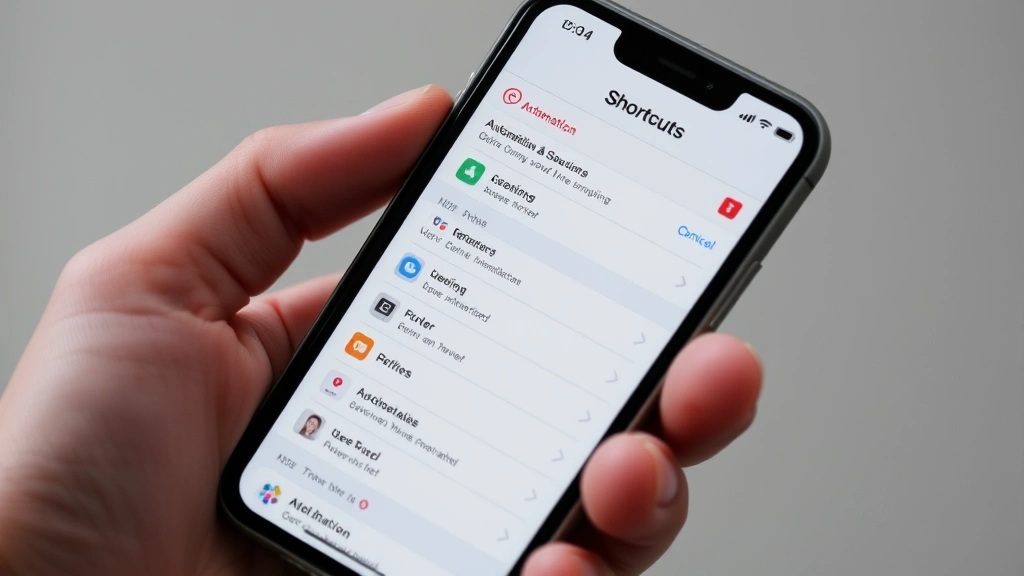
This is the “power user” route. Apple’s Shortcuts app lets you create automation scripts. Some clever developers have built Shortcuts that download videos using backend services:
- Open the Shortcuts app (built into iOS)
- Search the Shortcuts Gallery for “YouTube downloader” or “Video downloader”
- Look for shortcuts with good reviews and recent updates
- Tap “Get Shortcut” and confirm
- Go to YouTube, copy the video link
- Run your shortcut and paste the link when prompted
- Choose quality and format, then download
The tricky part? These shortcuts rely on third-party backend services (like yt-dlp wrappers or similar tools). They work, but Apple occasionally blocks them if they violate Terms of Service. Always check reviews to see if a shortcut is currently functional.
Safety Warning: Only download shortcuts from trusted sources with recent positive reviews. Some malicious shortcuts can steal data or create security issues. Read the comments first.
Safari & Shortcut Workarounds
Safari has some hidden power. Combined with Shortcuts, you can create a semi-automated download flow:
- In Safari, visit a video download website (like keepvid.com or y2mate.com—use caution with these)
- Paste your YouTube URL
- Select quality and format
- Download the file to your iPhone
- Use the Files app to manage or move it
Real talk: These sites exist in a gray area legally. They work, but YouTube actively fights them, so they change domains frequently. Plus, they’re loaded with ads and sketchy pop-ups. Not ideal, but it’s an option if nothing else works.
A better approach: Use FFmpeg or similar command-line tools on your Mac or PC, then transfer the files to your iPhone via AirDrop or cloud storage. This keeps everything legal and under your control.
Managing Downloaded Videos
Here’s where people mess up: they download a bunch of videos and suddenly their iPhone storage is maxed out. Video files are huge. A 10-minute 1080p video can easily be 100-200MB.
Check Your Storage
Before downloading, know how much space you have:
- Go to Settings → General → iPhone Storage
- See what’s using space and what’s available
- Aim to keep at least 1-2GB free (iOS needs breathing room)
Organize with the Files App
Downloaded videos usually land in your Photos app or a specific app’s folder. Use the Files app to organize:
- Open Files
- Navigate to “On My iPhone” or the app’s folder
- Create folders like “Downloaded Videos” or “Presentations”
- Move files into folders for easy finding later
Delete Strategically
Once you’re done with a video, delete it. This sounds obvious, but people hoard files. If you need it again, you can always re-download. Storage is more valuable than convenience here.
Legal & Terms of Service Reality
Let’s address the elephant in the room: YouTube’s Terms of Service technically prohibit downloading videos without permission. However, the legal reality is more nuanced.
When It’s Legal
- Your own content: If you uploaded the video, download away.
- Licensed creative commons: Some creators explicitly allow downloads.
- YouTube Premium: Officially supported by YouTube itself.
- Educational/fair use: Downloading for analysis, commentary, or education may fall under fair use (though this is contested).
When It’s Risky
- Copyrighted music/movies: Downloading a full movie or song without permission violates copyright law.
- Selling or redistributing: Taking someone else’s content and profiting from it is illegal.
- Circumventing protection measures: Using tools specifically designed to bypass YouTube’s restrictions can violate the DMCA (Digital Millennium Copyright Act).
The safest bet? Download only content you have permission to use, or use YouTube Premium for personal consumption. If you’re unsure, ask the creator or check their channel description for licensing info.
Common Problems & Fixes
“Download Failed” or “Video Not Available”
Problem: The app or shortcut says the video can’t be downloaded.
Fix: Some videos are blocked from downloading by the creator. Check if YouTube Premium offline works (if you have it). If not, the creator has restricted downloads intentionally. Respect that.
Downloaded Video Won’t Play
Problem: You downloaded a file, but it won’t open.
Fix: The file format might be incompatible. Try:
- Using VLC for iPhone (free app that plays almost any format)
- Converting the file on your Mac using HandBrake (free, open-source)
- Re-downloading in a different format (MP4 is most compatible)
Storage Full After Downloading
Problem: Your iPhone storage is suddenly maxed out.
Fix: Video files are massive. Delete older downloads and clear your cache:
- Go to Settings → General → iPhone Storage
- Tap apps and delete cache or the app itself if needed
- Delete downloaded videos you no longer need
- Empty recently deleted photos (they still take space)
- Updating the shortcut (if an update is available)
- Trying a different shortcut from the gallery
- Checking the comments section to see if others report issues
Shortcut Not Working
Problem: Your downloaded shortcut stopped working.
Fix: YouTube and download services constantly change. The shortcut’s backend service might be offline. Try:
Pro Tip: Keep your iPhone updated. iOS updates sometimes break older shortcuts, but they also improve security and stability. If a shortcut stops working after an update, it’s usually a sign to find a newer alternative.
Frequently Asked Questions
Is it legal to download YouTube videos on my iPhone?
– It depends. Downloading your own content or content with explicit permission is legal. Using YouTube Premium’s offline feature is legal and supported by YouTube. Downloading copyrighted content without permission violates YouTube’s Terms of Service and potentially copyright law. Always check the creator’s terms or ask permission when in doubt.
Can I download videos without YouTube Premium?
– Yes, but it requires third-party apps or workarounds like screen recording, the Shortcuts app, or browser-based download services. These methods are less reliable and may violate YouTube’s terms, so use them only for content you have permission to download.
Will downloading videos use a lot of my iPhone storage?
– Absolutely. A 10-minute video in 1080p can be 100-200MB or more. A one-hour video could be 1-2GB. Check your available storage before downloading multiple videos. You can always delete them later if you need space.
What’s the best quality I can download?
– YouTube Premium typically offers 720p or 1080p depending on the original upload. Third-party methods vary—some cap at 480p, others offer up to 4K. Check the download options before confirming to see what quality is available for that specific video.
Can I download videos for offline viewing on a trip?
– Yes, this is a primary use case for YouTube Premium’s offline feature. Download videos before your trip, and they’ll be available without internet. Just remember they expire after 30 days, so you’ll need to refresh them when you’re back online.
What if a shortcut stops working?
– YouTube and download services change constantly. If your shortcut breaks, check the comments in the Shortcuts app to see if others report the same issue. If it’s widespread, try a different shortcut from the gallery with recent positive reviews.
Can I download entire playlists?
– YouTube Premium allows this officially. For other methods, you’d need to download videos individually or use a Mac/PC with command-line tools like yt-dlp, then transfer the files to your iPhone.
Is screen recording a good way to download videos?
– It works for personal use and lower-quality copies, but the file sizes are large and quality isn’t great. It’s more of a last-resort option. If you need reliable downloads, YouTube Premium or a dedicated download app is better.


