

Let’s be honest—your Mac’s Messages app can turn into a digital junk drawer pretty fast. Thousands of old texts, screenshots, and links pile up, eating storage space and making it harder to find anything important. If you’re wondering how to delete messages on Mac, you’re not alone. Whether you need to clear out a single conversation, wipe an entire thread, or nuke your entire message history, we’ve got you covered with step-by-step instructions that actually work.
The good news? Deleting messages on Mac is straightforward once you know where to look. The bad news? Apple doesn’t exactly make it obvious. This guide walks you through every method—from deleting individual messages to clearing entire conversations, plus how to recover accidentally deleted messages if you panic later.
Delete a Single Message from a Conversation
This is the most common scenario. You sent something you regret, or you just want to clean up one specific message without torching the whole conversation.
- Open the Messages app on your Mac (or press Command + Space, type “Messages,” then hit Enter).
- Find the conversation containing the message you want to delete.
- Locate the specific message in the thread. This is where precision matters.
- Right-click (or Control-click) on the message you want to remove. A small context menu will pop up.
- Select “Delete” from the menu. The message vanishes instantly.
That’s it. The message is gone from your view, but here’s the thing—if you’re using iCloud sync, the deletion syncs across all your Apple devices. Your iPhone, iPad, and other Macs will all reflect that deletion.
Pro Tip: If you want to delete a message but keep the conversation, this is your move. It’s perfect for removing embarrassing typos or sensitive information from a thread you otherwise want to keep.
One thing to note: If you’re using Messages via iCloud, Apple stores a copy of your messages in the cloud. Deleting a message removes it from your local device and the cloud. If you’re paranoid about privacy, that’s actually a good thing. If you’re worried about recovery, well, we’ll talk about that later.
Delete an Entire Conversation
Sometimes you don’t need to be surgical. You just want to nuke an entire conversation thread—all the messages, all the context, gone. Maybe it’s an old group chat that’s been dead for years, or a conversation you’d rather not have sitting around.
- Open Messages and find the conversation you want to delete.
- Right-click on the conversation name in the left sidebar (where all your chats are listed).
- Select “Delete” from the context menu.
- Confirm the deletion if a prompt appears.
Boom. The entire conversation—every single message, every attachment, every link—is removed from your Mac. If you’re using iCloud sync, it’s also removed from your other devices.
Alternatively, you can click on a conversation and press the Delete key on your keyboard. Same result, slightly faster if you’re deleting multiple conversations in a row.
Safety Note: Once you delete a conversation, it’s gone from your main chat list. However, if you have backups enabled (which we’ll discuss later), you might be able to recover it. But from the Messages app itself? It’s deleted.
Bulk Delete Multiple Conversations
If you’re trying to clean house and you’ve got dozens of old conversations cluttering your Messages app, deleting them one at a time is tedious. Mac’s Messages app doesn’t have a built-in “select all and delete” feature, but there’s a workaround.
- Open Messages.
- Click on the first conversation you want to delete.
- Hold Shift and click on the last conversation in your group to select a range, or hold Command and click individual conversations to cherry-pick specific ones.
- Once you’ve selected multiple conversations, press the Delete key.
- Confirm the deletion.
This approach works well if you want to delete a chunk of old conversations at once. Just be careful—there’s no undo button here. Once you hit Delete, they’re gone (though backups might save you, as we’ll cover).
If you want to be extra cautious, you could export important conversations before deleting them. While Messages doesn’t have a native export feature, you can take screenshots or use third-party tools like backup software to archive your data before wiping conversations.
Clear Message Search History
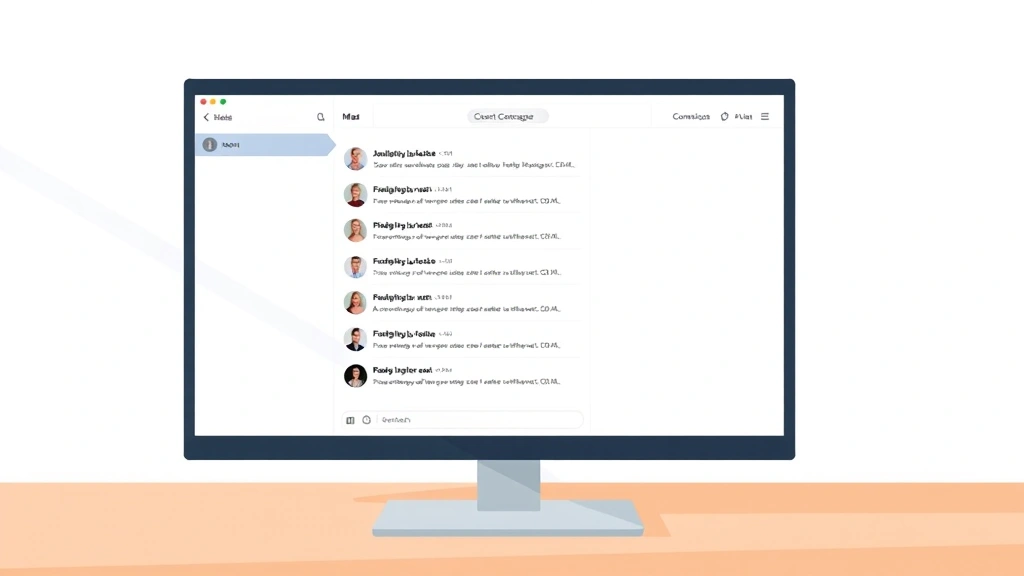
Here’s something most people don’t realize: every time you search for a message in the Messages app, Mac keeps a record of your search. Over time, this creates a search history that can pile up and clutter your experience.
Clearing your search history is simple but often overlooked:
- Open Messages.
- Click on the search bar at the top of the conversation list.
- Look for recent searches that appear (these show up as suggestions).
- To clear individual searches, hover over them and click the X that appears.
- To clear all search history, you’ll need to go deeper into your Mac’s settings.
For a complete search history wipe, you’ll want to access your Mac’s system settings. Here’s how:
- Open System Settings (or System Preferences on older macOS versions).
- Navigate to Privacy & Security.
- Look for Siri & Spotlight settings.
- Find the option to clear search history or disable indexing for Messages.
This is more about privacy and performance than storage, but it’s worth doing during a digital spring cleaning. If you’re concerned about someone seeing your search history, this is your move.
How Deleting Messages Affects Mac Storage
Let’s talk numbers. How much storage are we actually talking about here?
A single text message? Basically nothing—we’re talking kilobytes. But multiply that by thousands of messages, add in photos, videos, and voice notes, and suddenly you’re looking at gigabytes. If you’ve been using Messages for years without deleting anything, you could easily have 5-10 GB tied up in message data.
Here’s the breakdown:
- Text-only messages: Negligible storage impact (less than 1 KB each)
- Photos and videos: Where the real space gets eaten up. A single high-res photo can be 2-5 MB; a video could be 50+ MB.
- Voice messages: Usually 100-500 KB each, depending on length.
- Links and shared files: Minimal individual impact, but they add up.
When you delete messages, that storage space is freed up on your Mac. If you’re syncing with iCloud, it also reduces your iCloud storage usage, which matters if you’re bumping against your plan limit. According to Apple’s official documentation, Messages with iCloud sync stores your message data in iCloud, so deleting them reduces both your local and cloud storage.
To check how much space Messages is currently using:
- Click the Apple menu in the top-left corner.
- Select “About This Mac”.
- Click “Storage”.
- Look for “Messages” or “Documents” in the breakdown (Messages data sometimes falls under Documents).
If you see a huge chunk of storage dedicated to Messages, it’s time to do some cleanup.
Can You Recover Deleted Messages on Mac?
Okay, you deleted something you shouldn’t have. Panic mode activated. Can you get it back?
The short answer: Maybe. It depends on whether you have backups.
If you use Time Machine (Mac’s built-in backup system), you can potentially recover deleted messages:
- Open Time Machine (click the Time Machine icon in the menu bar, or go to System Preferences > Time Machine).
- Navigate backward in time to before you deleted the messages.
- Find the Messages app data and restore it.
The Messages app stores its data in a specific folder: ~/Library/Messages/. If you’re comfortable navigating your Mac’s file system, you can use Time Machine to browse this folder and restore a previous version.
If you use iCloud sync, here’s the catch: iCloud deletes are permanent and sync across devices. You can’t recover them through iCloud. However, if you had Time Machine running before the deletion, you can still restore from that backup.
Important: If you want to be able to recover deleted messages, you need to have Time Machine enabled before you delete them. You can’t go back and enable it after the fact. Set this up now if you haven’t already.
For more detailed information on Mac backups and data recovery, check out Apple’s Time Machine support page.
If you deleted messages months ago and don’t have a recent backup, unfortunately, they’re gone for good. There’s no “Trash” folder in Messages like there is in Mail. Deletion is final unless you have a backup to restore from.
Keyboard Shortcuts to Speed Things Up
If you’re deleting a lot of messages, keyboard shortcuts are your friend. They’re faster than right-clicking and selecting from menus.
- Delete a single message: Select it and press Delete or Backspace.
- Delete a conversation: Click on it in the sidebar and press Delete.
- Select multiple conversations: Hold Command and click each one, then press Delete.
- Select a range of conversations: Click the first, hold Shift, and click the last, then press Delete.
- Open Messages: Command + Space, type “Messages”, press Enter.
- Search messages: Command + F (opens the search bar).
These shortcuts work on any recent version of macOS. If you’re using an older Mac, some shortcuts might vary slightly, but the core Delete key functionality remains consistent.
Pro move: If you’re regularly cleaning up old messages, set a reminder to do it monthly. It takes 10 minutes and keeps your Messages app running smoothly.
Frequently Asked Questions
Does deleting messages on Mac delete them from my iPhone too?
– Yes, if you use iCloud sync (Messages in iCloud). When you delete a message on your Mac, it syncs across all your Apple devices—iPhone, iPad, Apple Watch, etc. If you’re not using iCloud sync, deletions only affect the device where you made them. To check if you’re using iCloud sync, go to Messages > Preferences > Accounts and look for “Messages in iCloud” or similar settings.
Can someone see my deleted messages?
– No. Once you delete a message, it’s gone from the conversation thread. The person you were messaging won’t see a notification that you deleted it. However, they still have the message on their device unless they delete it too. Think of it like erasing your side of a conversation—their side remains unless they also erase it.
Will deleting messages speed up my Mac?
– Potentially, yes. If you have thousands of messages with photos and videos, deleting them frees up storage space and can reduce the load on your system. However, the Messages app itself is pretty lightweight. You’ll see more noticeable improvements if you’re using iCloud sync and you’ve hit your storage limit. Deleting messages won’t make your Mac faster in the sense of improving processor speed, but it will give you more available storage.
Is there a way to delete all messages at once?
– Not through the Messages app’s interface. You can select multiple conversations using Command+Click or Shift+Click and delete them in batches, but there’s no “Select All” button. If you want to nuke everything, your best bet is to backup your data, then delete the Messages folder from ~/Library/Messages/ using Finder. This is nuclear option territory and should only be done if you’re sure you want to lose all local message data.
What happens to my messages if I delete the Messages app?
– If you delete the Messages app itself (not the messages, but the app), your message data remains stored on your Mac. When you reinstall Messages, your data will still be there (assuming you have backups or iCloud sync enabled). However, if you delete the Messages data folder from ~/Library/Messages/, that’s permanent unless you have Time Machine backups.
Can I delete messages from a specific person without deleting the whole conversation?
– Yes. You can delete individual messages from any person in a group chat or one-on-one conversation. Right-click on the specific message and select Delete. This leaves the conversation intact but removes that particular message.
Does Messages have a “read receipts” setting that shows if I deleted a message?
– No. Deleting a message doesn’t notify the other person. However, if you’re using iMessage (Apple’s encrypted messaging service), they might notice a message is missing if they look at the conversation history. But there’s no automatic notification or indicator that you deleted something.
What’s the difference between deleting a message and editing it?
– On newer versions of macOS and iOS, you can edit messages (which shows “(Edited)” under the message). Deleting completely removes the message. Editing is better if you just want to fix a typo; deleting is better if you want the message gone entirely. Other people will see both edits and deletions in their conversation view.

How do I prevent accidental message deletion?
– Unfortunately, macOS Messages doesn’t have a confirmation dialog before deleting (though you can enable one for some actions in System Preferences). Your best protection is enabling Time Machine backups so you can recover accidentally deleted messages. Alternatively, be deliberate when right-clicking—it’s easy to accidentally hit Delete when you meant to do something else.
Can I delete messages from my Mac without affecting iCloud?
– If you have iCloud sync enabled, no—deletions sync to the cloud automatically. If you want to keep messages in iCloud but delete them locally, you’d need to disable iCloud sync, delete them, then re-enable sync. This is not recommended because it’s confusing and error-prone. Best practice: If you want messages deleted, delete them everywhere.


