How to Delete DoorDash Account: Easy & Complete Guide
Ready to remove your DoorDash account? Whether you’re switching to another delivery service, taking a break from food delivery, or simply cleaning up your digital footprint, deleting your DoorDash account is straightforward. This comprehensive guide walks you through every step of permanently removing your account, canceling active orders, and understanding what happens to your data.
Quick Answer: To delete your DoorDash account, open the app or website, navigate to Account Settings, scroll to the bottom, and select “Delete Account.” You’ll need to confirm your password, review the deletion terms, and submit your request. DoorDash will process the deletion within a few business days. All personal data, payment methods, and order history will be permanently removed.
Tools & Materials You’ll Need
- Smartphone or computer with internet access
- Your DoorDash login credentials (email and password)
- Active internet connection
- Optional: List of active orders or pending credits
Why You Might Want to Delete Your DoorDash Account
There are several legitimate reasons why you might consider deleting your DoorDash account. Understanding your motivation helps ensure you’re making the right decision and taking the appropriate steps beforehand. Many users choose to delete their accounts when switching to competitors or consolidating their delivery service subscriptions.
Privacy concerns drive another significant portion of account deletions. If you’re concerned about data collection, targeted advertising, or your personal information being stored, deleting your DoorDash account removes your profile from their servers. Additionally, some users delete accounts to break spending habits, reduce subscription costs, or simply declutter their digital life. Whatever your reason, the process remains consistent and user-friendly.
Before proceeding with account deletion, you should resolve any outstanding issues. Cancel active orders, use up remaining credits, confirm all refunds have processed, and ensure no pending transactions exist. This prevents complications and ensures a smooth deletion experience.
How to Delete DoorDash Account on Mobile App
Deleting your DoorDash account through the mobile app is the most convenient method for most users. The process takes approximately 3-5 minutes and requires only your login credentials. Follow these step-by-step instructions to permanently remove your account from the DoorDash platform.
Step 1: Open the DoorDash App and Log In Launch the DoorDash application on your smartphone and ensure you’re logged into the account you wish to delete. If you’re unsure which account is active, check the email displayed in your profile section.
Step 2: Navigate to Account Settings Tap the account icon in the bottom right corner of the screen. This typically displays your profile picture or initials. Select “Account” from the menu options that appear.
Step 3: Access Settings and Preferences Look for a “Settings” or “Preferences” option within your account menu. Scroll down through all available options to locate the account management section. This is where the deletion option resides, typically at the very bottom of the settings list.
Step 4: Find the Delete Account Option Continue scrolling until you see “Delete Account,” “Close Account,” or similar language. Tap this option to initiate the deletion process. DoorDash will present a confirmation screen explaining the consequences of deletion.
Step 5: Confirm Your Password For security purposes, you’ll be asked to re-enter your password. This verification step ensures that only authorized account holders can delete the account. Type your password carefully and proceed.
Step 6: Review Deletion Terms Read through DoorDash’s deletion policy carefully. This screen explains what data will be deleted, whether you can recover your account, and any other important terms. Most importantly, understand that this action is permanent and cannot be easily reversed.
Step 7: Submit Your Deletion Request Once you’ve confirmed all details and re-entered your password, tap “Confirm Deletion” or the equivalent button. DoorDash will process your request, and you’ll receive a confirmation message.
How to Delete DoorDash Account on Website
If you prefer using a computer or want a larger interface, deleting your DoorDash account through the website offers the same functionality with potentially clearer visibility of all options. The web-based process is nearly identical to the mobile app but may feel more intuitive for some users.
Step 1: Visit DoorDash.com and Log In Open your web browser and navigate to www.doordash.com. Click the account icon in the top right corner and select “Sign In.” Enter your email address and password to access your account.
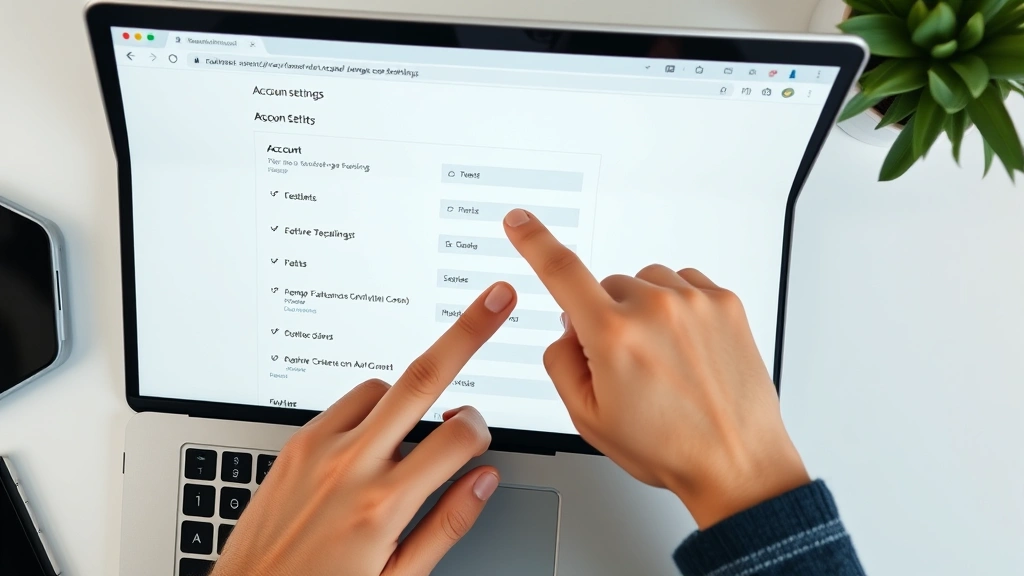
Step 2: Access Your Account Settings Once logged in, click on your profile icon or name in the upper right corner. Select “Account” or “Settings” from the dropdown menu. You may see options for “Preferences,” “Payment Methods,” and “Addresses.”
Step 3: Scroll to Account Management Navigate to the account settings page and scroll down to the bottom of all available options. Unlike the mobile app, the website often displays all settings on one long page, so you may need to scroll significantly to find the deletion option.
Step 4: Locate Delete Account Option At the bottom of your account settings, you should see “Delete Account,” “Close Account,” or “Remove Account.” Click this link to proceed with the deletion process.
Step 5: Enter Your Password for Verification A dialog box will appear requesting your password for security verification. This ensures that only the legitimate account owner can delete the account. Enter your password carefully and click “Continue” or “Next.”
Step 6: Review the Deletion Policy DoorDash will display important information about what happens when you delete your account. This includes details about data removal, inability to recover the account, and any final warnings. Read this carefully before proceeding.
Step 7: Confirm Your Deletion Request Click the final confirmation button, typically labeled “Delete Account” or “Confirm Deletion.” Once submitted, your request enters DoorDash’s processing queue, and you’ll receive confirmation via your registered email address.
What Happens to Your Data After Deletion
Understanding the data implications of deleting your DoorDash account helps you make an informed decision. When you request deletion, several things occur automatically. Your personal information, including name, address, phone number, and email, will be removed from DoorDash’s active systems within a specified timeframe.
Payment method information is immediately purged from their servers. Your order history, delivery addresses, favorite restaurants, and saved preferences are all permanently deleted. DoorDash cannot recover this information once the deletion process completes, so you cannot retrieve past orders or reactivate your account with the same data.
However, certain information may be retained for legal, tax, or compliance purposes. If you made purchases that required invoices or tax documentation, DoorDash may retain anonymized transaction records for financial reporting. Additionally, if you have ongoing disputes or refund claims, relevant documentation may be preserved until resolution.
According to Consumer Reports, understanding data retention policies is crucial when deleting any digital service account. Your deleted account cannot be used to create a new account with the same email address immediately; there may be a waiting period before that email becomes available for a fresh account.
Handling Credits and Refunds Before Deletion
Before you proceed with deleting your DoorDash account, address any outstanding credits, promotional balances, or pending refunds. DoorDash credits cannot be transferred or refunded once your account is deleted, so use them strategically beforehand.
Check Your Account Balance: Log into your account and navigate to your payment or wallet section. Look for any promotional credits, DoorDash Cash, or gift card balances. Note the exact amount so you know how much you have to spend.
Place Orders to Use Credits: If you have substantial credits, place orders to use them before deletion. This ensures you get value from your balance rather than losing it. You can order from restaurants you’ve been wanting to try or purchase items you need anyway.
Request Refunds for Pending Issues: If you have unresolved refund requests or dispute claims, contact DoorDash customer service before deleting your account. Once your account is deleted, you cannot access support tickets or follow up on pending refunds. Ensure all refund processes are complete.
Cancel Active Subscriptions: If you have DoorDash+ membership or any other active subscriptions, cancel them before deletion. While account deletion technically cancels subscriptions, manually canceling first ensures you’re not charged for another billing cycle and confirms the cancellation in your records.
Download Your Data: Some users prefer downloading their order history or data before deletion. While DoorDash doesn’t provide an official data export feature like some services do, you can take screenshots of important information if needed for personal records or tax purposes.
Troubleshooting Common Deletion Issues
Most DoorDash account deletion requests process smoothly, but occasionally users encounter obstacles. Understanding common issues and their solutions helps you navigate problems efficiently. Similar to how you might cancel other services like canceling Audible membership or canceling YouTube TV, subscription services sometimes require specific troubleshooting steps.
“Delete Account Option Not Appearing”: If you cannot find the delete account option, ensure you’re looking in the correct location. On mobile, it’s at the bottom of Account Settings after scrolling. On web, it’s at the bottom of the Account page. Try logging out and back in, or clearing your app cache. If the option still doesn’t appear, your account may have restrictions preventing deletion.
“Active Orders Preventing Deletion”: DoorDash won’t allow account deletion if you have active orders or pending deliveries. Cancel any active orders first through the app or contact customer service for immediate cancellation. Wait for confirmation that orders are fully canceled before attempting deletion again.
“Password Not Being Accepted”: If your password isn’t working during the verification step, click “Forgot Password” to reset it. You’ll receive a reset link via your registered email. Complete the password reset, log back in, and attempt the deletion process again with your new password.
“Account Locked or Restricted”: If your account is locked due to suspicious activity or policy violations, you cannot delete it immediately. Contact DoorDash customer support to address the restriction. Once resolved, you can proceed with deletion. This protection exists to prevent unauthorized account access.
“Deletion Not Completing After 7 Days”: Normally, deletion processes within 3-7 business days. If your account still exists after a week, contact DoorDash support with your deletion request confirmation number. Provide details about when you submitted the request and any confirmation emails received.
“Unable to Create New Account with Same Email”: If you want to create a new DoorDash account after deletion, wait at least 24-48 hours. The email address remains reserved during this period. After waiting, you should be able to register a new account with the same email address.
Alternatives to Full Account Deletion
Before permanently deleting your DoorDash account, consider whether full deletion is necessary. Several alternatives exist that might better suit your needs without losing access to the service entirely. These options provide flexibility if you might want to use DoorDash again in the future.
Deactivate Your Account Temporarily: Some users find that deactivating rather than deleting works better. This option, if available in your account settings, temporarily hides your account without permanent deletion. You can reactivate it later without losing your history or recreating everything from scratch.
Pause Notifications and Marketing: If your concern is excessive notifications or marketing emails, adjust your notification settings instead of deleting. Go to Account Settings, find Notifications or Email Preferences, and disable all marketing communications. You’ll still have your account but won’t receive unwanted messages.
Remove Payment Methods: For privacy or security concerns, simply delete your saved payment methods instead of the entire account. This prevents accidental charges while keeping your account available if you change your mind. You can always add new payment methods later.
Clear Saved Addresses and Preferences: If you’re concerned about data collection, clear your saved addresses, favorite restaurants, and preferences. This removes personal information from your profile without deleting the account itself. You can rebuild your preferences gradually if you use the service again.
Switch to a Different Delivery Service: Rather than deleting DoorDash, you might simply use competitors like Uber Eats, Grubhub, or local delivery services. This allows you to keep your DoorDash account inactive while exploring alternatives. According to Lifehacker, maintaining multiple accounts gives you flexibility to choose the best service for each order.
Use Parental Controls or App Restrictions: If you’re trying to limit spending or usage, use your phone’s built-in parental controls or app restrictions to limit DoorDash access rather than deleting it. This prevents accidental usage while keeping the account available.
FAQ
Q: Can I recover my DoorDash account after deletion?
A: No, account deletion is permanent. Once your account is deleted, you cannot recover it. You would need to create a completely new account with the same or different email address. DoorDash cannot restore deleted accounts or associated data.
Q: How long does DoorDash account deletion take?
A: DoorDash typically processes account deletion within 3-7 business days. You’ll receive a confirmation email when the deletion is complete. During this period, your account may still appear in your email or app, but it’s marked for deletion in their system.
Q: Will deleting my DoorDash account affect my credit card or bank account?
A: No, deleting your account only removes your information from DoorDash’s servers. It does not affect your credit card, bank account, or credit score. However, ensure all pending charges and refunds are processed before deletion to avoid complications.
Q: What happens to my DoorDash+ membership when I delete my account?
A: Your DoorDash+ membership automatically cancels when you delete your account. You won’t be charged for future months. If you paid for a month you won’t use, DoorDash typically will not refund unused membership time, so cancel your subscription before account deletion if this concerns you.
Q: Can I delete my account if I have a pending refund?
A: It’s not recommended. Complete all refund processes before deleting your account. Once deleted, you cannot access your account to follow up on refund status. Contact DoorDash support to ensure refunds are processed before proceeding with deletion.
Q: Why can’t I find the delete account option in my app?
A: Ensure you’re looking in the correct location—at the bottom of Account Settings after scrolling. If it’s not there, try updating your app to the latest version. Older app versions may not display the deletion option. Clear your app cache or reinstall if necessary.
Q: Can I delete my account through customer service?
A: Yes, you can contact DoorDash customer support and request account deletion. They can process your request, though you may still need to verify your password via email link. This method is useful if you’re experiencing technical issues with the in-app deletion option.
Q: What email will I receive after deleting my account?
A: You’ll receive a confirmation email at your registered email address confirming that your deletion request has been submitted. A follow-up email will arrive within 7 business days confirming that your account and all associated data have been permanently deleted.
Q: Can I use the same email to create a new DoorDash account immediately after deletion?
A: No, you must wait 24-48 hours after deletion before using the same email to create a new account. DoorDash reserves the email during this period to prevent accidental recreation. After the waiting period, you can register a fresh account.
Q: Does deleting my DoorDash account delete my Dasher account if I’m a driver?
A: If you have both a customer account and a Dasher (driver) account, you must delete them separately. Deleting your customer account does not affect your Dasher account. Access your Dasher account separately and follow the same deletion process if you wish to remove that as well.
For additional guidance on managing digital accounts, explore resources like WikiHow’s comprehensive guides and Family Handyman’s tutorials for related account management topics. If you’re managing multiple subscription services, similar deletion processes apply to platforms like Zelle for payment management.
Conclusion: Deleting your DoorDash account is straightforward and takes just minutes through either the mobile app or website. Whether you’re concerned about privacy, reducing spending, or simply decluttering your digital life, the process is user-friendly and irreversible. Remember to use any remaining credits, cancel active orders, and ensure all refunds are processed before submitting your deletion request. If you have any complications, DoorDash’s customer support team can assist you throughout the process. Take your time reviewing the deletion terms, and once you’re certain about your decision, your account will be permanently removed within a week.