
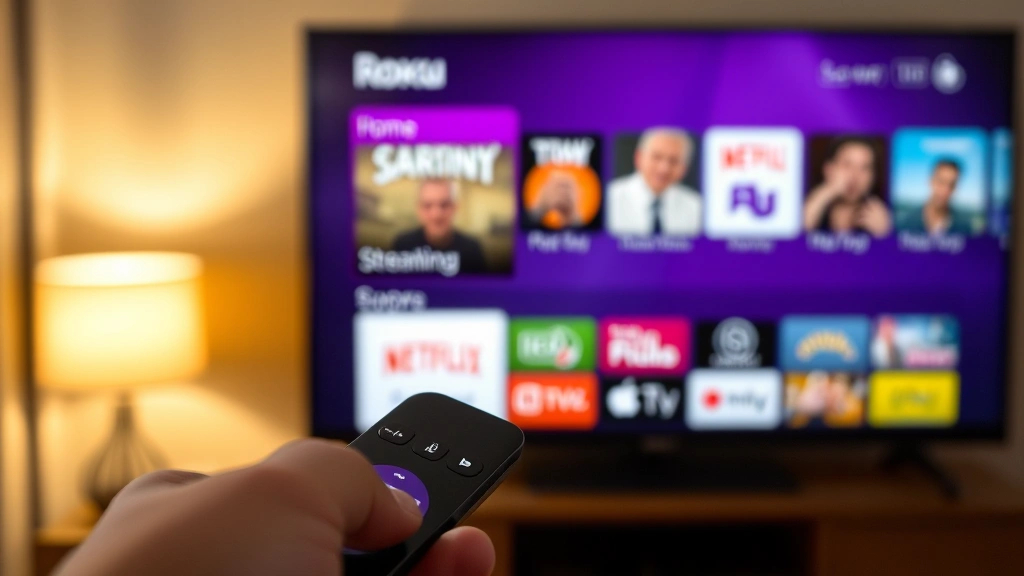
Your Roku is cluttered. You’ve got streaming apps you haven’t touched in months, games that drain your remote battery faster than you can say “buffering,” and that one app you installed at 2 AM that you can’t even remember downloading. Sound familiar? Learning how to delete apps on Roku is one of the easiest ways to clean up your device, speed things up, and reclaim your home screen from app chaos. The good news: it takes about 30 seconds per app, and you won’t break anything.
Unlike some tech tasks that feel risky, deleting apps on Roku is genuinely safe. You’re not messing with system files, you’re not voiding warranties, and you can always reinstall anything you remove. Let’s walk through exactly how to do it—plus some real-world tips for keeping your Roku running smooth.
Quick Answer: Delete Apps in 30 Seconds
Go to your Roku home screen → highlight the app you want to remove → press the Options button (the star icon) on your remote → select Remove channel → confirm. Done. The app is gone from your home screen and your device storage.
That’s it. No settings menus, no confirmation dialogs that last forever, no warnings that you’re about to destroy your Roku. It’s straightforward because Roku designed it that way.
Why You Should Delete Apps from Your Roku
Before we get into the how, let’s talk about the why. Some people think deleting apps is pointless on a streaming device. They’re wrong—for a few reasons.
Your home screen gets overwhelming. If you have 40 apps installed, finding the one you actually want to watch becomes a scrolling nightmare. Every time you turn on your Roku, you’re hunting through a digital junkyard. Deleting the apps you never use means your home screen becomes your actual favorite channels, not a museum of impulse downloads.
Background processes matter more than you think. While Roku devices are generally lightweight compared to smartphones or computers, having fewer apps running in the background means fewer processes competing for your device’s attention. Apps like Spotify, games, and niche streaming services can consume memory and processing power even when you’re not actively using them. If you’re experiencing lag when scrolling or slow boot times, a cluttered app library could be part of the problem.
Security and privacy.** Every app is a potential vector for data collection or security issues. The less software running on your device, the smaller your attack surface. If you installed an app from a third-party source (more on that in a moment), removing it eliminates any risk it poses. According to OSHA guidelines on device safety, minimizing unnecessary software is a basic security principle.
It’s just cleaner.** Sometimes the best reason is the simplest one: you want your device organized the way you like it. Your Roku should work for you, not the other way around.
Step-by-Step: How to Delete Apps on Roku
Let’s break this down into the exact steps. I’m assuming you’re using a standard Roku remote (the one with the circular directional pad and a star-shaped Options button). If you’re using a voice remote or a third-party remote, the button layout might differ slightly, but the concept is the same.
Method 1: Delete from Home Screen (Fastest)
- Turn on your Roku and wait for the home screen to load. You should see your installed channels displayed horizontally.
- Navigate to the app you want to delete. Use the left and right arrows on your remote to highlight it. The selected app will usually have a highlight or border around it.
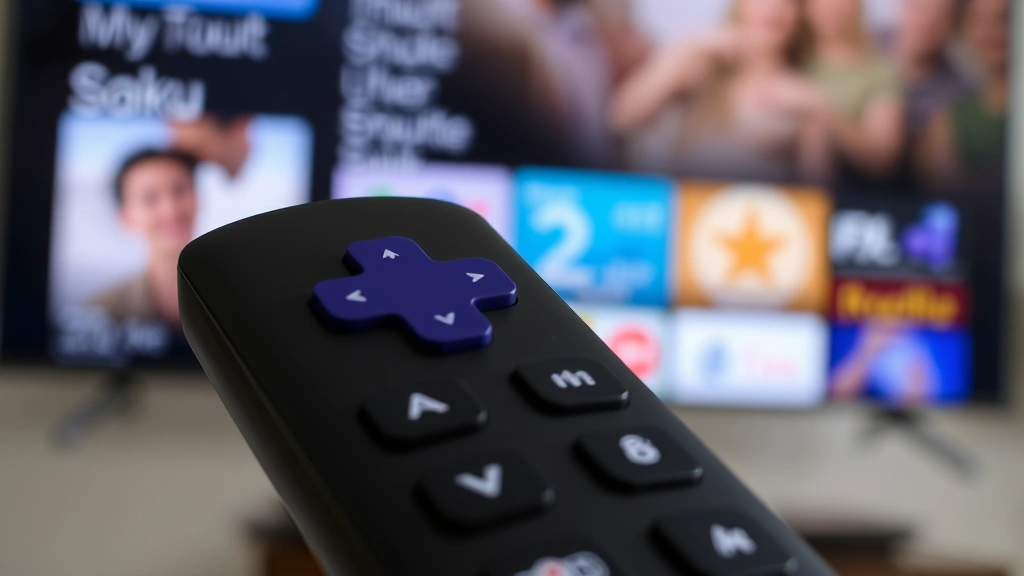
- Press the Options button (the star icon) on your remote. A small menu will pop up with a few options.
- Select “Remove channel” using the up/down arrows, then press OK. Some older Roku models might say “Delete” instead of “Remove channel”—same thing.
- Confirm the deletion if prompted. Some Roku devices ask for confirmation; others don’t. Either way, the app is now removed.
That’s the standard method, and it works on 99% of Roku devices. The whole process takes maybe 20-30 seconds per app.
Method 2: Delete from the Channel Store (Alternative)
If the app isn’t on your home screen (maybe you’ve hidden it or it’s buried in your library), you can also delete it through the Channel Store.
- Go to Home on your Roku.
- Select “Streaming Channels” or “Channels” (the name varies by Roku model).
- Navigate to “My Channels” or “My Active Channels.”
- Find the app you want to remove and highlight it.
- Press Options and select “Remove channel.”
This method is useful if you’ve got an app installed but it’s not visible on your home screen. It also gives you a complete view of everything you have installed, which is handy if you’re doing a major cleanup.
Does This Work on All Roku Models?
The short answer: yes, with minor variations. Whether you’re using a Roku Streaming Stick 4K, a Roku Ultra, a Roku Express, or an older Roku 3, the basic process is identical. The Options button (star icon) has been standard on Roku remotes for years.
The only exception is if you’re using a Roku TV (a television with Roku built in). The process is the same, but you access it through your TV remote instead of a standalone Roku remote. The button layout might be slightly different—some Roku TV remotes have a dedicated menu button instead of a star-shaped Options button—but the principle is identical.
If you’re unsure which button is the Options button on your specific remote, check the official Roku support documentation for your model. It takes 30 seconds to look up, and it’ll save you from fumbling around.
The Storage Myth: Will Deleting Apps Actually Speed Up Your Roku?
Here’s where I need to be real with you: deleting apps will not dramatically speed up your Roku unless you’re dealing with a very old device or you’ve installed an absurd number of apps.
Roku devices come with storage capacities ranging from 256 MB to 4 GB, depending on the model. Most modern Roku devices have at least 1-2 GB of usable storage after accounting for the operating system. Individual streaming apps typically consume 50-200 MB each, so even if you’ve installed 20 apps, you’re probably only using 1-2 GB of your available space.
That said, here’s where it actually matters: if your Roku is old (5+ years) or you’ve installed 30+ apps, you might see a performance improvement. Older Roku devices had much less RAM and storage, and they can genuinely struggle with a bloated app library. Additionally, even though apps aren’t actively running all the time, they do consume background resources when they’re installed. Fewer apps = fewer background processes = slightly snappier performance.
Think of it like this: your Roku’s RAM is like a small desk. Every app installed is a stack of papers on that desk, even if you’re not actively reading them. Remove the stacks you don’t need, and you’ve got more space to work with.
For most people with modern Roku devices, the real benefit of deleting apps is organization and peace of mind, not a massive speed boost. But if you’re running an older Roku and you’ve got a ton of apps, clearing out the deadwood can help.
How to Reinstall Apps You Delete
This is important: deleting an app is not permanent. You can reinstall it anytime you want, and it takes maybe two minutes.
- Go to Home on your Roku.
- Select “Streaming Channels” or “Channels.”
- Search for the app you want to reinstall (use the search function or browse by category).
- Select the app and choose “Add channel.”
- Wait for the installation to complete. This usually takes 10-30 seconds, depending on your internet speed and the app’s size.
- The app will appear on your home screen (or in your active channels list) once the installation is done.
The beauty of this is that you can experiment. If you delete an app and realize you actually miss it, you’re not stuck. Just add it back. Your login credentials and preferences are usually saved in the cloud, so you won’t lose your place in shows or your settings.
Channels vs. Apps: What’s the Difference?
You might notice that Roku uses the terms “channel” and “app” interchangeably. Technically, they’re the same thing—a piece of software that runs on your Roku device. Roku just calls them “channels” because the terminology dates back to when streaming services were marketed as “channels” (like cable TV channels). The term stuck, even though modern Roku devices call them apps in some menus and channels in others.
For your purposes, don’t worry about the distinction. When you delete a channel, you’re deleting an app. When you add a channel, you’re installing an app. They’re the same action.
There’s one important exception: you cannot delete the built-in Roku channels like the Roku Store, Roku Feed, or the Settings menu. These are system apps that are essential to your device’s operation. If you try to delete one, you’ll get an error message, and the option won’t be available. This is a safety feature to prevent you from accidentally disabling your Roku entirely.
Troubleshooting: When Apps Won’t Delete
In rare cases, you might try to delete an app and run into an issue. Here’s what to do.
The “Remove Channel” Option Doesn’t Appear
If you press Options and don’t see a “Remove channel” option, you’re probably trying to delete a system app or a channel that’s managed by Roku. These can’t be deleted. Try highlighting a different app and see if the option appears. If it does, you’ll know the first app is a system app.
The App Deletes But Comes Back
This is weird but it happens occasionally. If an app keeps reappearing after you delete it, it might be a pre-installed app that Roku automatically reinstalls. Some Roku models come with default channels that Roku pushes back onto your device. If this is annoying you, try resetting your Roku device to factory settings. This will wipe everything and let you start fresh, installing only the apps you actually want.
Before you do that, though, understand that a factory reset will delete all your login credentials and preferences. You’ll have to set up your Roku again from scratch. Only do this if the phantom app is really bothering you.
Your Roku Is Frozen or Won’t Respond
If your Roku becomes unresponsive while you’re deleting apps, don’t panic. Unplug the device for 30 seconds, plug it back in, and wait for it to fully boot. This almost always fixes temporary freezes. If the problem persists, try a factory reset.
You Accidentally Deleted an Important App
No problem. Just reinstall it using the steps in the “How to Reinstall Apps” section above. Your Roku will remember your logins and preferences for most apps, so you won’t lose your place or your settings.
For more detailed troubleshooting on Roku performance issues, This Old House’s tech section has some solid general device maintenance tips that apply to streaming devices too.
Frequently Asked Questions
Can I delete apps on my Roku without a remote?
– Yes, if your Roku model supports the mobile app. Download the official Roku app on your smartphone, connect it to your Roku, and you can control everything, including deleting apps. The process is the same—navigate to the app and select the remove option. If your Roku doesn’t support the mobile app (very old models), you’ll need a remote or a universal remote that’s compatible with Roku.
Will deleting apps free up enough storage to notice a difference?
– Probably not on modern Roku devices. A typical streaming app is 50-200 MB, so even deleting 10 apps only frees up 500 MB to 2 GB. Most Roku devices have 1-4 GB of storage, so you’re looking at maybe 20-50% of your available space. That said, if you’re using an older Roku with very limited storage (256 MB or 512 MB), deleting apps can make a meaningful difference in performance.
Do I need to delete apps to keep my Roku secure?
– Not necessarily, unless you installed an app from a non-official source. Apps from the official Roku Channel Store are vetted and generally safe. However, if you sideloaded an app (installed it from outside the official store), deleting it is a good idea if you’re not using it. Fewer third-party apps = smaller security risk.
Can I hide apps instead of deleting them?
– Yes. If you want to keep an app installed but remove it from your home screen, you can hide it. Press Options on the app and select “Hide channel” instead of “Remove channel.” The app stays installed and you can unhide it anytime, but it won’t clutter your home screen. This is useful for apps you use occasionally but don’t want to see every day.
What happens to my watch history and logins if I delete an app?
– Your watch history and logins are usually saved in the cloud (on the streaming service’s servers), not on your Roku device. So if you delete Netflix and reinstall it later, you’ll log back in and your watch history will still be there. The exception is if the app stores data locally on your Roku—this is rare, but it can happen with some games or offline apps. When in doubt, check the app’s settings before deleting it.
Is there a way to delete multiple apps at once?
– Not in the traditional sense. You have to delete them one at a time using the Options menu. However, if you want to do a complete wipe, you can do a factory reset, which removes all non-system apps at once. Just be aware that this also deletes all your login credentials and preferences, so you’ll have to set up your Roku again.
Can I delete apps on a Roku TV the same way?
– Yes, the process is identical. Use your Roku TV remote to navigate to the app, press Options (or the equivalent button on your TV remote), and select “Remove channel.” The only difference is the remote layout, which varies by TV manufacturer.
Why can’t I delete some pre-installed apps?
– Roku includes certain system apps that are essential to your device’s operation, like the Settings menu, the Roku Store, and sometimes a default streaming app. These can’t be deleted because removing them would break your Roku. If you’re annoyed by a pre-installed app that you can delete, it’s safe to remove—Roku wouldn’t offer the option if it would cause problems.


