
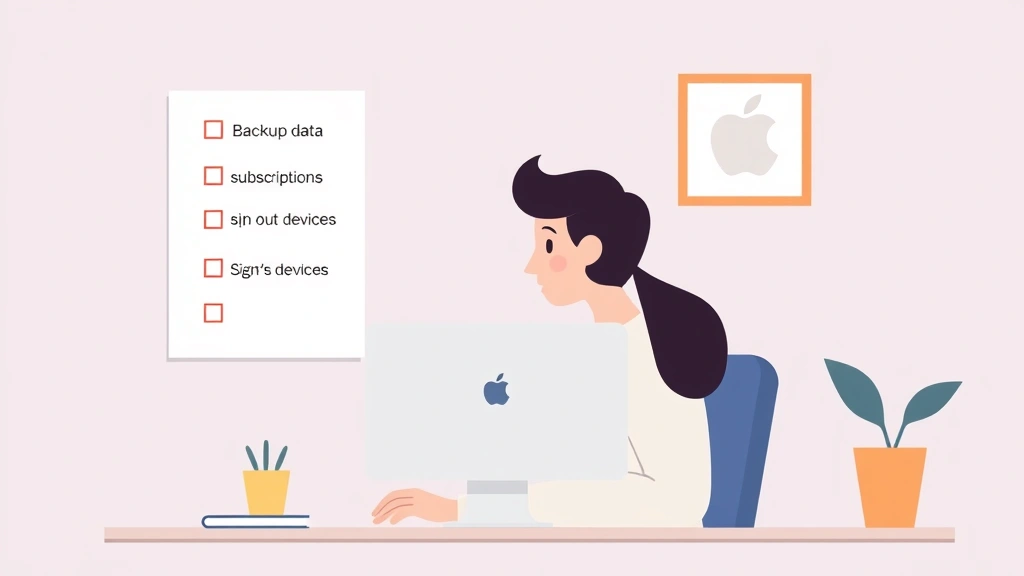
Deleting your Apple ID is one of those tasks that feels scarier than it actually is. Maybe you’re switching to Android, closing out an old account, or just want a fresh start. Whatever the reason, knowing how to delete Apple ID properly means you won’t get stuck with a ghost account haunting your devices or lose access to important data you actually need.
Here’s the real talk: Apple makes this process intentionally careful—which is good for security, but can feel like jumping through hoops. The good news? It’s straightforward once you know the steps. This guide walks you through exactly what to do, what to watch out for, and how to avoid the common mistakes that’ll leave you frustrated.
Before You Start: What You Need to Know
Think of your Apple ID like the key to your entire Apple ecosystem. It unlocks your devices, your purchases, your cloud storage, your payment methods—everything. When you delete it, you’re not just closing an account. You’re severing ties with all of that. So before you hit the delete button, understand what’s actually happening.
Deletion is permanent. Once you confirm, Apple gives you a 30-day window to change your mind. After that? The account is gone for good. You can’t recover emails, photos in iCloud, app purchases, or anything else tied to that ID. This isn’t like deleting an email folder where you can dig through trash. This is nuclear.
Your devices won’t automatically stop working, but they’ll lose access to iCloud services. If you have an iPhone, iPad, or Mac signed in with this Apple ID, they’ll still function—but iCloud backup, Find My, iMessage, FaceTime, and the App Store will all stop working until you sign in with a different Apple ID.
Also worth knowing: if you’ve purchased apps, music, movies, or books through this Apple ID, you won’t be able to re-download them with a new ID. Your purchase history is tied to the account you’re deleting. Some people keep an old Apple ID around just for this reason.
Pro Tip: If you’re worried about losing access to your purchases, don’t delete the account. Instead, just stop using it. You can create a new primary Apple ID for your devices while keeping the old one dormant for re-downloads. It’s the middle ground that saves headaches.
Back Up Your Data First
This is non-negotiable. Before you even think about deletion, get your data off Apple’s servers and onto your computer or another cloud service. Here’s what you need to save:
- iCloud Photos & Documents: Go to iCloud.com, sign in, and download everything. Or use your Mac or Windows PC to sync iCloud Drive locally.
- Email: If your Apple ID email is your primary email, forward important messages to a Gmail or Outlook account. Or download them using an email client like Thunderbird.
- Contacts & Calendars: Export these from iCloud.com before deletion. You’ll want a .vcf or .ics file you can import elsewhere.
- App Data: Some apps store data in iCloud. Check your most-used apps to see if they sync to the cloud. If they do, export that data if possible.
- Payment Methods: Screenshot or write down any payment methods saved to your Apple ID. You’ll need to add them to a new ID if you keep using Apple devices.
Pro move: Use a tool like iCloud.com to download all your data at once. Apple actually makes this pretty easy—just go to Settings, scroll to “Download Your Data,” and follow the prompts. You’ll get a zip file with everything.
If you’re switching phones entirely (say, from iPhone to Android), backing up your photos and contacts is especially critical. These are the things you’ll actually miss.
Delete Apple ID via Apple ID Website
The actual deletion happens on Apple’s account management website. This is the official, sanctioned way to do it—not through Settings on your device. Here’s the step-by-step:
- Go to appleid.apple.com in a web browser.
- Sign in with your Apple ID and password.
- If you have two-factor authentication enabled (which you should), you’ll need to verify with a trusted device. Apple will send a code to your phone or another device. Enter it.
- Once you’re signed in, look for “Account” in the left sidebar and click it.
- Scroll down to the bottom. You’ll see a section called “Delete Account” or “Delete Apple ID.”
- Click the button. Apple will ask you to confirm and explain the consequences. Read it—seriously. This is your last warning.
- You’ll be asked to choose what to do with your data. Apple will give you options: keep a copy, transfer it, or delete it. Choose what makes sense for you.
- Confirm your password one more time.
- If you have any subscriptions (Apple Music, Apple TV+, iCloud+), you’ll need to cancel those first. Apple won’t let you delete your ID while subscriptions are active.
After you hit confirm, you’ll get an email from Apple saying your account is scheduled for deletion. You have 30 days to change your mind. If you do nothing, it’s gone after day 30.
Safety Warning: Make absolutely sure you’re on the real Apple ID website. Scammers love creating fake Apple login pages. Check the URL—it should be “appleid.apple.com” with no weird variations. If you’re unsure, go to apple.com first, then navigate to Account from there.
Remove Your Devices from Apple ID
Before deletion, you should remove all your devices from the Apple ID account. This prevents confusion later and makes sure your devices don’t try to sync with a deleted account.
On Mac:
- Go to System Settings → [Your Name] (at the top).
- Click “Family” or scroll down to find “Other Accounts.”
- Select your Apple ID and click the minus (-) button to remove it.
- You’ll be asked if you want to keep a copy of the data on your Mac. Choose “Keep a Copy” unless you’re sure you don’t need it.
On iPhone or iPad:
- Open Settings → [Your Name] at the top.
- Scroll to the bottom and tap “Sign Out.”
- You’ll need to enter your password to turn off Find My iPhone/iPad. Do that.
- Choose whether to keep or delete data on the device.
- Tap “Sign Out” again to confirm.
If you have an Apple Watch, the process is similar to turning off other Apple devices—go to Settings, scroll to your account, and sign out. You might also want to reset any AirPods or other accessories so they’re not tied to the old account.
Removing devices from your Apple ID before deletion is like cleaning out your desk before leaving a job. It’s the professional move.
Sign Out Everywhere
Your Apple ID might be signed in on devices you forgot about. That old iPad in the closet. The Apple TV in the bedroom. The Mac you sold on Craigslist (hopefully you signed out). Before deletion, you want to sign out everywhere you can reach.
On the Apple ID website:
- Go back to appleid.apple.com and sign in.
- Click “Security” in the sidebar.
- Scroll to “Your Devices” or “Where You’re Signed In.”
- You’ll see a list of every device currently using this Apple ID. Click on each one and select “Remove from Account.”
- Do this for all devices you can reach.
For devices you can’t physically access (like a device you sold or gave away), you can remotely sign out through this same menu. Apple will send a notification to that device, but the sign-out will go through.
If you’ve lost a device or it’s been stolen, this is also where you’d remove it. It’s actually a helpful security feature—you’re essentially telling Apple, “This device is no longer mine, stop trusting it.”
What Happens After Deletion
You’ve hit delete. You’ve confirmed. You’ve received the email from Apple. Now what? Here’s what actually happens over the next 30 days and beyond:
Days 1-30 (The Grace Period): Your account still technically exists, but it’s marked for deletion. You can sign back in using your Apple ID and password if you change your mind. Just go to appleid.apple.com, sign in, and look for the option to cancel the deletion request. Apple will walk you through it. This is your safety net.
Day 31+: The account is permanently deleted. Your Apple ID email address becomes available for someone else to use. Your iCloud data is gone. Your app purchases are gone. Everything tied to that ID is wiped from Apple’s servers.
Your Devices: If you signed out before deletion, your devices will just sit there waiting for a new Apple ID to sign in. If you didn’t sign out, they might show an error when trying to access iCloud services. But they won’t break or become unusable. You just need to sign in with a different Apple ID to get services working again.
Your Email: If your Apple ID email address (the one you used to sign up) is something like “yourname@icloud.com,” that email address is also deleted. You won’t be able to receive emails at that address anymore. Any messages sent there will bounce back.
Your Purchases: Apps, music, books, movies—all gone from your library. You won’t be able to re-download them with this account. If you create a new Apple ID, you’d have to buy them again. This is why some people keep old IDs alive.
Pro Tip: If you’re keeping Apple devices, create a new Apple ID before you delete the old one. That way, you can sign your devices into the new account immediately and never lose access to services like iCloud, Find My, or the App Store.
Common Problems & Fixes
Problem: “You can’t delete your account because you have an active subscription.”
Fix: You need to cancel all subscriptions tied to this Apple ID first. Go to appleid.apple.com → Subscriptions, and cancel everything (Apple Music, Apple TV+, iCloud+, etc.). Wait a few minutes for the cancellations to process, then try deleting again. This is the #1 reason people get stuck.
Problem: “Two-factor authentication failed. I can’t verify.”
Fix: Make sure you have a trusted device nearby. You need to receive the verification code on another Apple device or your phone number. If you don’t have access to any trusted devices, you might need to contact Apple Support. Go to support.apple.com and start a chat with an agent. They can help you regain access.
Problem: “I forgot my password.”
Fix: On the Apple ID login page, click “Forgot Apple ID or password?” and follow the recovery process. You’ll need access to your recovery email or phone number. If you don’t have those, Apple can verify your identity using other methods. This might take a few days.
Problem: “My account is still there after 30 days.”
Fix: This is rare, but it happens. Contact Apple Support directly. They can manually verify that the deletion went through or investigate why it didn’t. Have your Apple ID email and any documentation ready.
Problem: “I changed my mind. Can I undo the deletion?”
Fix: As long as you’re within the 30-day window, yes. Sign back into appleid.apple.com with your Apple ID and password. Look for the option to cancel the deletion request. Click it and confirm. Your account will be restored immediately.
If you’re past 30 days, the account is gone. You’d need to create a new Apple ID. It’s not the end of the world, but it does mean losing your purchase history and any data that was stored in iCloud.
Frequently Asked Questions
Can I delete my Apple ID without losing my iPhone?
– Yes. Your iPhone will keep working, but you’ll lose iCloud services like backup, Find My, iMessage, and the App Store until you sign in with a different Apple ID. You can create a new Apple ID and sign into your phone with that instead. The device itself won’t be affected.
What happens to my iCloud photos if I delete my Apple ID?
– They’re deleted from Apple’s servers. If you don’t download them first, they’re gone. This is why backing up before deletion is so important. Use iCloud.com or your computer to download everything before you proceed with deletion.
Can someone else use my Apple ID email address after I delete it?
– Yes. After 30 days, your Apple ID email becomes available for someone else to create an account with. This is another reason to be careful about deletion. If you change your mind later, you might not be able to get that email address back.
Do I need to delete my Apple ID to switch to Android?
– No. You don’t have to delete it at all. Many people keep their Apple ID around for re-downloading apps and accessing old purchases, even after switching phones. Just stop using it as your primary account. Create a Google account for Android instead.
What if I’m selling my iPhone? Should I delete my Apple ID?
– No. Sign out of the device, don’t delete the account. Go to Settings → [Your Name] → Sign Out. This removes your account from that specific phone but keeps the account alive. The new owner can then sign in with their own Apple ID. If you delete the account, you lose your purchase history and can’t re-download apps later.
Can I delete my Apple ID from my iPhone’s Settings app?
– You can sign out from your iPhone, but that’s not the same as deleting the account. Signing out removes your account from that device. Deleting the account removes it from Apple’s servers entirely. Use appleid.apple.com to actually delete the account.
How long does Apple ID deletion take?
– Immediate confirmation, but the actual deletion takes up to 30 days. During that time, you can undo it. After 30 days, it’s permanent and can’t be undone.
Will deleting my Apple ID affect my family sharing?
– Yes. If you’re the organizer of a family sharing group, you need to transfer that role to someone else before deletion. If you’re just a member, you’ll be removed from the group when your account is deleted. Family members won’t lose access to their own accounts, but they won’t be able to share purchases or see your location anymore.
Can I delete an Apple ID that has an unpaid balance?
– No. Apple won’t let you delete an account with outstanding charges. You need to pay any balance first. Check your payment methods and recent charges on appleid.apple.com before attempting deletion.
What’s the difference between deleting my Apple ID and signing out?
– Signing out removes your account from a specific device but keeps the account alive. You can still sign back in later. Deleting your Apple ID removes the account from Apple’s servers entirely. After 30 days, it’s gone permanently. Signing out is reversible; deletion is not (after the grace period).

Deleting your Apple ID is straightforward once you understand the consequences and follow the steps in order. The key is being intentional about it. Back up your data, cancel subscriptions, sign out of devices, and then delete through the official website. Don’t rush it. Take the 30-day grace period seriously—if you have any doubt, wait and see if you actually miss the account. Most of the time, people realize they didn’t need to delete it at all.
If you’re just looking to move on from Apple products, consider managing your apps and data more carefully before making any permanent decisions. Sometimes it’s not about deleting—it’s about organizing and simplifying what you already have.


