
We’ve all been there—finger hovering over the Send button at 11 PM, knowing full well that firing off that email right now is a mistake. Maybe you’re drafting a response in anger, or you just realized you forgot an attachment, or you want to make sure your message lands in someone’s inbox at the perfect time. The good news? You don’t have to hit Send and immediately regret it. Outlook has built-in tools that let you delay sending an email, giving you a safety net and strategic control over when your messages actually reach people.
This guide walks you through exactly how to delay sending an email in Outlook—whether you’re using the desktop app, web version, or mobile. We’ll cover the Delay Delivery feature, the Scheduled Send option, and practical strategies to avoid common pitfalls. By the end, you’ll have the confidence to compose and control your outgoing mail like a pro.
What Is Delay Delivery in Outlook?
Delay Delivery is Outlook’s feature that holds your email in the Outbox for a set period before actually sending it. Think of it like scheduling a text message—you write it now, but it doesn’t go out until you say so. This gives you a grace period to catch mistakes, reconsider tone, or strategically time when your message arrives.
There are actually two related features in Outlook that people often confuse:
- Delay Delivery: Holds the email in your Outbox for a short window (minutes to hours). You can still recall or edit it before it sends.
- Scheduled Send: Lets you pick an exact date and time for the email to go out, sometimes days or weeks in advance.
Both are lifesavers. The first is your safety net for “oops” moments. The second is your strategic tool for timing emails to land when recipients are most likely to read them. We’ll cover both in detail below.
Pro Tip: Many workplace email disasters could’ve been prevented with a 5-minute delay. Use this feature religiously on sensitive emails—performance reviews, difficult feedback, anything emotional.
How to Delay Sending on Outlook Desktop
If you’re using Outlook on your computer (Windows or Mac), the process is straightforward and takes about 30 seconds once you know where to look.
Step 1: Compose Your Email
Write your email as you normally would. Add recipients, subject line, body text, attachments—everything. Don’t worry about hitting Send yet.
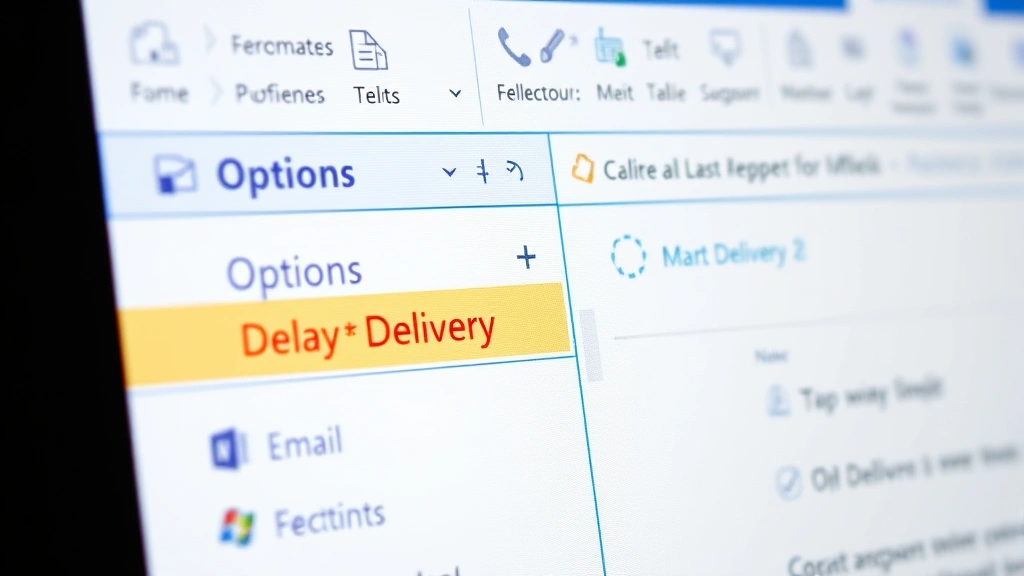
Step 2: Look for the Delay Delivery Button
Here’s where it gets version-specific. In newer versions of Outlook (2019 and later, plus Office 365):
- Look at the ribbon at the top of your compose window.
- Find the Options tab (not Home—Options is to the right).
- In the Options tab, you’ll see a button labeled Delay Delivery or Delay Send.
If you don’t see it immediately, click the small arrow next to the More Options button—it might be tucked away there.
Step 3: Set Your Delay Time
Click Delay Delivery. A dialog box opens with a checkbox: “Do not deliver before” and a date/time picker. Select the date and time when you want the email to actually send. You can set it for 5 minutes from now or three weeks from now—whatever you need.
Step 4: Hit Send
Click Send. The email moves to your Outbox instead of going straight out. You’ll see it sitting there, and you can open it again to review or edit it anytime before the delay window closes.
Once the time arrives, Outlook automatically sends it. You don’t have to do anything else.
Safety Warning: If your computer is shut down or Outlook is closed when the delay time arrives, the email won’t send until you restart Outlook. Plan accordingly for time-sensitive messages.
How to Delay Sending on Outlook Web
Using Outlook online (outlook.office.com or outlook.live.com)? The process is slightly different but just as easy.
Step 1: Compose Your Message
Click New Mail or reply to an existing message. Fill in all the details—to, subject, body, attachments.
Step 2: Find the Schedule Send Option
At the bottom of your compose window, look for a button that says Schedule Send or a clock icon. It’s usually near the Send button. Click it.
Step 3: Choose Your Delivery Time
A small popup appears with preset options:
- Tomorrow at 9 AM
- Tomorrow at 6 PM
- Monday at 9 AM
- Custom date and time
If the presets don’t work, select Custom and pick your exact date and time. This is where web Outlook shines—it’s actually more flexible than the desktop version for scheduling far into the future.
Step 4: Confirm
Click the date/time you want, and the email is scheduled. You’ll see a confirmation message, and the email disappears from your compose window. It’ll send automatically at the scheduled time.
Pro Tip: Outlook web version syncs with your desktop app. If you schedule an email to send tomorrow via the web, and then open Outlook on your computer, you’ll see it in the Outbox with the scheduled time noted.
For more details on how scheduling works across platforms, check out our guide on how to schedule send in Outlook.
How to Delay Sending on Outlook Mobile
Using the Outlook app on your phone (iOS or Android)? You have the same capability, though the interface is slightly more compact.
On iPhone (Outlook iOS App)
- Tap the pencil icon to compose a new email.
- Fill in your message details.
- Tap and hold the Send button (or swipe left on it if that’s enabled).
- A menu appears with options including Schedule Send.
- Tap Schedule Send and choose your date and time from the popup.
- Confirm, and the email is scheduled.
On Android (Outlook Android App)
- Tap the pencil icon to compose.
- Complete your message.
- Tap the three-dot menu icon in the top-right corner of the compose window.
- Select Schedule Send.
- Pick your delivery date and time.
- Tap Schedule or Confirm.
Mobile is actually faster than you’d think once you get the hang of where the button is. The main catch: make sure your phone has internet when the scheduled time arrives, though Outlook will queue it and send when connection is restored.
Common Mistakes and How to Avoid Them
Delay sending sounds simple, but people mess it up regularly. Here are the real-world gotchas.
Mistake #1: Not Checking the Time Zone
You schedule an email to send at 9 AM, but you didn’t notice Outlook defaulted to your old time zone. It sends at the wrong time. Always double-check the time zone selector when you set a delay, especially if you travel or work across regions.
Mistake #2: Forgetting the Email Is Still in Your Outbox
A delayed email sits in your Outbox. If someone asks you “Did you send that to me?” and you say yes, but you actually scheduled it for tomorrow, you’ve created confusion. Be aware of what’s pending.
Mistake #3: Leaving Critical Info Out of the Subject Line
When you delay an email, you might forget about it. Then it sends three days later, and the context is gone. Use specific subject lines so the email makes sense whenever it lands. Instead of “Quick question,” try “Quick question about the Johnson proposal—feedback needed by Friday.”
Mistake #4: Not Testing the Recipient Email Address
You’re scheduling an email for next week, but you typo the recipient’s address. The delay feature won’t catch that—it’ll just send to the wrong place later. Double-check addresses before you hit Schedule Send.
Mistake #5: Relying on Delay for Recall
Delay Delivery is not the same as the Recall feature. If you send an email and then immediately try to recall it, that’s a different tool. Delay is for before you send. Once the delay window closes and it’s sent, you’ll need to use the recall feature if you want to try to pull it back. Learn more about this in our guide on how to recall an email in Outlook.
Real Talk: Recall rarely works perfectly—recipients might see both the original and the recall notice. Don’t rely on it. Use delay delivery to prevent the problem in the first place.
Best Practices for Delayed Emails
Knowing how to delay an email is one thing. Using it strategically is another.
The 5-Minute Rule
For any email where emotion is involved—frustration, anger, disappointment—set a 5-minute delay minimum. This gives you time to cool down, reread, and decide if you really want to send it as written. Most regrettable emails would never be sent if people just waited five minutes.
The Timing Strategy
Research from workplace productivity experts shows that emails sent in the morning (8–10 AM) get higher open rates than those sent at 3 PM or after hours. If you’re composing an important message at night, schedule it for 9 AM the next day. Your recipients are more likely to actually read it.
The Batch-and-Schedule Approach
Some people compose multiple emails in one sitting, then schedule them to send throughout the day or week. This is a smart productivity tactic—you’re in “compose mode” for 30 minutes, then Outlook handles the sending on your schedule. Less context-switching for you.
The Double-Check Before Delay
Before you click Delay Delivery or Schedule Send, read the email one more time out loud. Seriously. You’ll catch tone issues and typos you’d miss reading silently. It takes 20 seconds and prevents embarrassment.
The Recipient Consideration
Don’t schedule an email to arrive at 6 PM on a Friday unless the recipient specifically works late. A Saturday morning email to someone’s work inbox might get buried. Think about when the recipient actually works and when they’re likely to act on your message.
For more on managing your email workflow overall, check out our guide on how to mass delete emails on Gmail—keeping your inbox clean is part of email strategy too.
The Follow-Up Plan
If you’re scheduling an email that requires a response—a question, a request, a deadline—make a note in your calendar to follow up if you don’t hear back. A delayed email is still just an email; it can get missed or forgotten. Don’t assume the delay means the recipient will definitely see it.
Frequently Asked Questions
Can I edit a delayed email after I’ve scheduled it?
– Yes, absolutely. As long as the email hasn’t sent yet, you can open it in your Outbox, click it, and edit the content, recipients, or even the delay time itself. Once the scheduled time arrives and it sends, you can’t edit it anymore—but you can use the recall feature to try to pull it back (though this isn’t always successful).
What happens if my computer is off when the delayed email is supposed to send?
– If you’re using Outlook desktop and your computer is off, the email won’t send at the scheduled time. It’ll send the next time you open Outlook. If you’re using Outlook web or mobile, it doesn’t matter—the email sends from Microsoft’s servers, not your device, so it’ll go out on schedule regardless.
Can I delay an email I’ve already sent?
– No. Delay Delivery only works before you send. Once an email is sent, you’d need to use the Recall feature, which is different and less reliable. Always set up the delay before hitting Send.
Is there a maximum delay time I can set?
– Not really. You can schedule emails weeks or even months in advance. Some people schedule birthday emails or anniversary messages for years ahead. The only limit is practical—if you schedule something too far out, you might forget about it or the context might become irrelevant.
Do recipients know the email was delayed?
– No. The recipient sees the email as if you sent it at the scheduled time. There’s no “This email was delayed” note or indicator. The sent timestamp will show the actual send time, not when you composed it.
Can I delay an email in Outlook if I’m using a Gmail account?
– If you’re accessing Gmail through Outlook (using IMAP or Exchange), the delay feature depends on your setup. Web Outlook can schedule sends for most accounts, but desktop Outlook’s delay feature is primarily for Outlook/Exchange accounts. Gmail has its own Schedule Send feature if you use Gmail directly.
What’s the difference between Delay Delivery and Schedule Send?
– They’re essentially the same feature—Outlook just uses different names depending on the version. Desktop Outlook calls it “Delay Delivery,” while web Outlook calls it “Schedule Send.” The functionality is identical: you pick a date and time, and the email sends then.
Can I schedule a recurring email to send multiple times?
– Not directly through Outlook’s schedule feature. You’d need to create separate scheduled sends for each date, or use a third-party automation tool. For recurring messages (like weekly reports), it’s often easier to just compose and schedule each one individually.
If I schedule an email and then delete my Outlook account, what happens?
– If it’s a web/cloud-based account (Outlook.com, Office 365), the email won’t send if the account is deleted before the scheduled time. If it’s a desktop Outlook account, it depends on your setup, but generally the email won’t send if the account is no longer active.
Can I schedule an email to send to multiple recipients at different times?
– No. When you schedule a send, everyone on the to/cc/bcc line receives it at the same time. If you need to send the same message to different people at different times, you’d need to create separate emails and schedule each one.


