
Let’s be honest—creating labels in Word feels like it should be simpler than it actually is. You’ve got a pile of addresses to print, product stickers to make, or name tags for an event, and you’re staring at a blank document wondering where to even start. The good news? Once you know how to create labels in word, you’ll never waste time manually formatting again. This guide walks you through every method, from the built-in Label Wizard to custom designs that actually look professional.
Pro Tip: Word’s Mail Merge feature is the secret weapon for printing dozens of labels at once. Most people miss it entirely and manually type each one.
Using Mail Merge to Create Labels
This is the heavy hitter for anyone who needs to print multiple labels. Mail Merge takes data from a spreadsheet or database and automatically fills your label template. Think of it like a photocopier that fills in different information on each copy.
Here’s the real workflow:
- Open Word and click Mailings tab
- Select Start Mail Merge → Labels
- Choose your label size (Avery 5160 is the standard for address labels)
- Click Next: Select recipients
- Choose Use an existing list and browse to your Excel file or contact list
- In the label template, click where you want data and select Insert Merge Field
- Pick the field (FirstName, LastName, Address, etc.)
- Click Update Labels to apply the merge field to all labels
- Preview your work, then Finish & Merge → Print
The beauty here? You’re not typing anything twice. If you have 500 addresses in Excel, they’re all formatted and ready to print in minutes. This beats manually entering data by about 499 times.
Safety Note: Always do a test print on regular paper first. Label sheets aren’t cheap, and there’s nothing worse than printing 100 labels with the wrong alignment.
The Label Wizard Method
Not everyone has a spreadsheet ready to go. Sometimes you just need to create a few labels quickly. That’s where the Label Wizard comes in—it’s Word’s built-in shortcut for people who don’t need the Mail Merge complexity.
Step-by-step:
- Go to Mailings → Start Mail Merge → Labels
- A dialog box appears asking for your label type
- Select the manufacturer (Avery, Staples, etc.) and product number
- Click OK
- Word creates a template with the correct spacing and margins
- Type your content in the first label box
- Click Update Labels to copy the content to all labels on the sheet
This method works great for simple labels where every label is identical—like homemade jam jars, storage bins, or event name tags. You get professional spacing without touching a single margin setting.
Designing Custom Labels
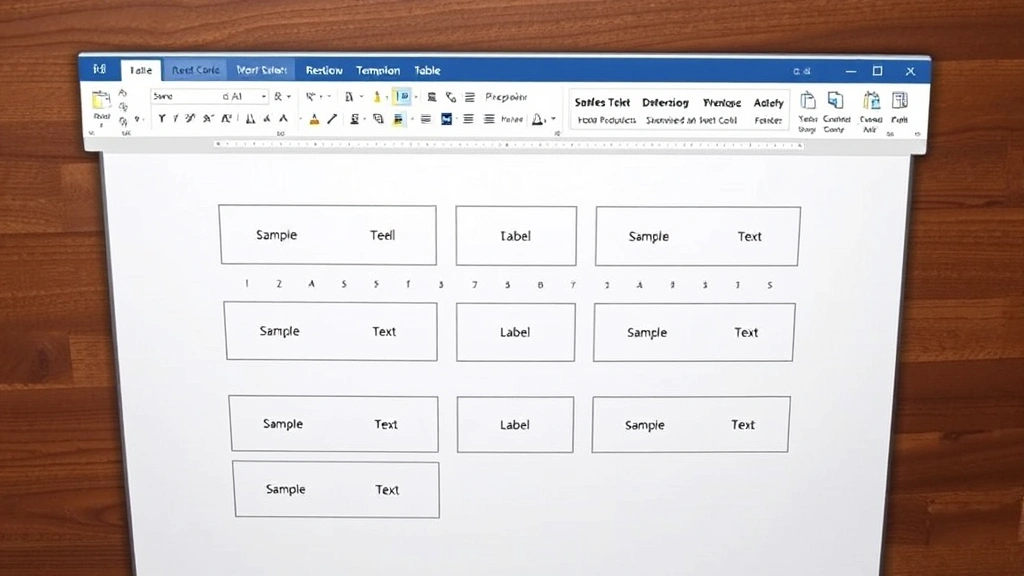
Sometimes you need something the standard templates don’t offer. Maybe you want rounded corners, a company logo, or a specific color scheme. That’s when you build labels from scratch using a table.
The table approach:
- Start with a blank document
- Go to Insert → Table
- Create a table with the right dimensions. For standard 8.5″ × 11″ label sheets with 2 columns and 5 rows, that’s 10 labels
- Set column width to about 3.75″ and row height to 2.1″
- Remove borders (or keep them for guides during design)
- Add your content—text, images, shapes, whatever you need
- Copy and paste the cell design to all other cells for consistency
- Adjust margins on the page to match your label sheet specifications
This method gives you total control. Want to insert a line in Word as a divider between labels? Done. Need to insert a checkbox in Word for task labels? You’ve got it.
The downside is that it takes longer and requires more manual setup. But if you’re creating a template you’ll use repeatedly, the time investment pays off fast.
Formatting Tips That Actually Work
Creating labels is one thing. Making them look professional is another. Here are the formatting tricks that separate amateur labels from ones that actually impress.
Font selection matters more than you’d think. Avoid anything too fancy or thin. Arial, Calibri, and Helvetica work for almost everything. For address labels, 10-11pt is standard. For product labels, you might go bigger (14-18pt) depending on space. The key is readability—if someone has to squint, you’ve gone wrong.
Spacing is your friend. Don’t cram text into every corner. Leave breathing room around the edges. A label that looks busy is harder to read, even if it has less text. Think of it like a poster—the white space makes the important stuff stand out. If you’re struggling with line spacing elsewhere in your document, check out our guide on how to double space in Word.
Color and contrast. Dark text on a light background is always safer than light text on dark. If you’re using colored backgrounds, test print on actual label stock—colors look different on the label material than on regular paper.
Alignment options:
- Left-aligned: Best for address labels and most text-heavy designs
- Centered: Works for logos, names, and short content
- Right-aligned: Rarely needed, but useful for date stamps or product codes
For most labels, left or center alignment looks more polished than a mix of both.
Images and logos. If you’re adding graphics, keep them small and high-quality. Pixelated images on a label look cheap. Size them to about 0.5″ to 1″ depending on label size. Always anchor images to the cell so they don’t shift when you move content around.
Pro Tip: Use Word’s built-in shapes (rectangles, circles, lines) to create borders or design elements. They’re simple, professional, and print reliably. Go to Insert → Shapes to explore options.
Common Problems and Fixes
Even experienced Word users hit snags with labels. Here are the most common headaches and how to fix them.
Problem: Labels print off-center or misaligned.
Solution: Check your page margins first. Go to Layout → Margins and select Custom Margins. Set all margins to 0.5″ unless your label sheet specifies otherwise. If that doesn’t work, your printer might have a hardware offset—try adjusting in the printer settings, not Word.
Problem: Text runs off the edge of the label.
Solution: You’ve either chosen the wrong label size or your text box is too wide. Double-check that you selected the correct Avery (or other brand) product number. If you’re using custom labels, measure your actual label dimensions and adjust the table cell sizes accordingly.
Problem: Mail Merge isn’t showing all my data.
Solution: Make sure your Excel file has headers in the first row. Mail Merge uses those headers as field names. Also, check that your data doesn’t have extra spaces or hidden characters—these can cause merge fields to fail silently.
Problem: Borders print when I only want them for guides.
Solution: Select your table, right-click, choose Borders and Shading, and set borders to None. If you need guides while designing, use a light gray color instead—it’s less visible when printed.
Problem: Labels look great on screen but terrible when printed.
Solution: Always print a test on regular paper first. Label materials reflect light differently. Also, check your printer’s quality settings—set it to Best or High quality, not draft mode.
Advanced Label Techniques
Once you’ve mastered the basics, these tricks take your labels to the next level.
Conditional formatting with Mail Merge. You can set up rules so that certain information displays differently based on the data. For example, if a customer is VIP, their label could have a gold background. This requires some advanced Mail Merge fields, but it’s worth learning if you’re printing labels regularly.
Barcodes and QR codes. Word can generate barcodes and QR codes if you install the right fonts or use fields. Go to Insert → Field and look for barcode options. This is especially useful for inventory or product labels. Many label printing services (like those at FamilyHandyman.com) have resources on integrating barcodes into designs.
Using Excel data with more control. If you’re familiar with how to combine two cells in Excel, you can pre-format your data there before importing to Word. This gives you more flexibility—combine first and last names, format phone numbers, etc. before the merge happens.
Creating label templates for reuse. Once you’ve designed a label, save it as a template (.dotx file). Next time you need similar labels, you’re not starting from scratch. Just open the template, update the data, and print. This saves hours over a year if you print labels regularly.
Integrating with databases. For large-scale operations, Word can pull data directly from Access databases or even web services. This is beyond most home users, but if you’re managing a business or organization, it’s worth exploring. Resources like Microsoft’s official documentation cover this in detail.
Printing Your Labels Correctly
The best-designed labels fail if you don’t print them right. Here’s how to nail it.
Printer settings matter. Open the print dialog and check:
- Paper size: Should match your label sheet (usually Letter 8.5″ × 11″)
- Orientation: Portrait for most labels, landscape for some specialty sizes
- Quality: Set to Best or High—don’t skimp here
- Color: If using colors, make sure color printing is enabled
- Scaling: Keep at 100%—don’t let Word auto-scale
Test before you commit. Print one sheet on regular paper. Hold it up to a light and compare it to your actual label sheet. The alignment should be perfect. If it’s off, adjust margins in Word before printing on expensive label stock.
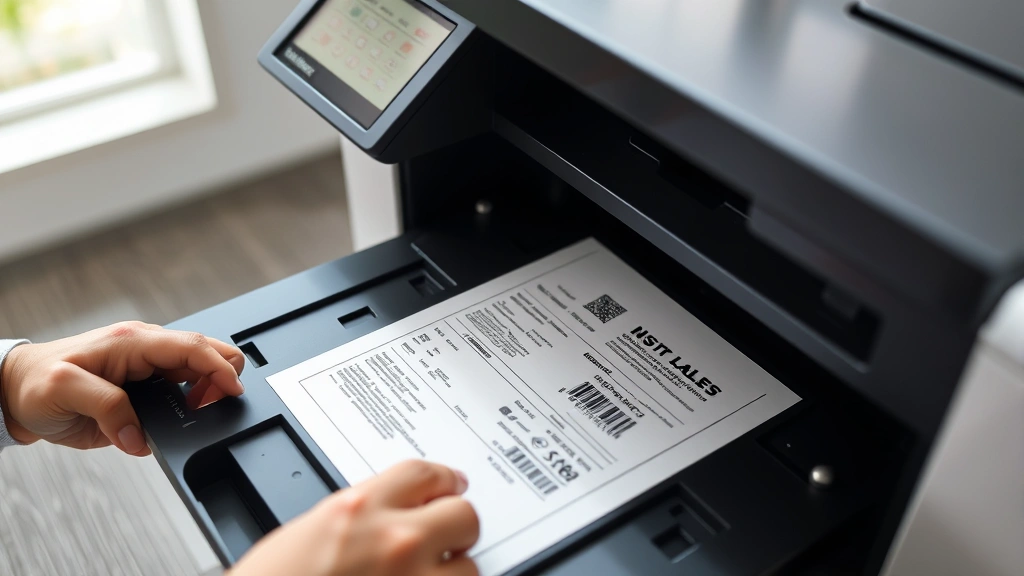
Feed the label sheets correctly. Most label sheets feed from the bottom of the tray, face-up. Check your printer manual—feeding them wrong wastes a sheet instantly. Some printers have a specific tray for label sheets; use it if available.
Don’t print multiple copies at once if you’re new to this. Print one sheet, verify alignment, then do the rest. It’s slower but safer than discovering a misalignment after printing 50 sheets.
Storage and handling. Once printed, let labels dry for a minute before stacking. Store label sheets flat in a cool, dry place. Heat and humidity can cause adhesive issues.
Pro Tip: If you’re printing dozens of label sheets, consider using a commercial printing service. The per-label cost drops significantly, and professionals have equipment that handles alignment perfectly. For occasional labels, printing at home is fine. For bulk orders, outsource.
Frequently Asked Questions
Can I create labels in Word without using Mail Merge?
– Yes, absolutely. You can create a table with the correct dimensions and manually enter content, or use the Label Wizard to generate a template. Mail Merge is just faster if you have many labels with different data. For a handful of identical labels, the simple table method works great.
What’s the most common label size in Word?
– Avery 5160 is the industry standard for address labels. It’s 1″ × 2.625″ with 30 labels per sheet. Most label templates default to this size because it’s widely available and works for almost any purpose.
Why do my labels print misaligned?
– Misalignment usually comes from incorrect page margins, wrong label template selection, or printer hardware offset. Start by checking your margins (should be 0.5″ on all sides for most labels), verify you selected the right label product number, and test-print on regular paper first.
Can I use images in labels?
– Yes. Insert images into table cells or label spaces, then resize them to fit. Keep image quality high—low-resolution images look blurry on small labels. Anchor images to cells so they don’t move when you edit text.
How do I save a label design to use again?
– Save your document as a template (.dotx file) by going to File → Save As and choosing Word Template format. Next time you need similar labels, open the template, update the content, and print. This saves hours if you create labels regularly.
What font size should I use for labels?
– For address labels, 10-11pt is standard. For product or name tag labels, 12-18pt depending on how much space you have. Always test-print to make sure text is readable—if you squint to read it on a label, customers will too.
Can Word create barcode labels?
– Yes, Word can generate barcodes if you install barcode fonts or use field codes. Go to Insert → Field and look for barcode options. This is useful for inventory, shipping, or product labels. Some external services (like BobVila.com‘s printing guides) cover barcode best practices too.
How many labels can I print on one sheet?
– It depends on label size. Standard Avery 5160 (1″ × 2.625″) fits 30 labels per sheet. Larger labels might be 10-20 per sheet, while smaller specialty labels could be 80+. Check your specific label product’s specifications.
What if I only need a few labels?
– For just a few, the simple table method is fastest. Create a table, add your content, and print. No need to set up Mail Merge for 3 labels. Save the document if you think you’ll need the same design again.
Can I print labels in color?
– Yes, if your printer supports color. Make sure your document has colors, enable color printing in the print dialog, and use a color-capable label sheet. Test-print first—colors look different on label material than regular paper.


