
Going on vacation? Taking a mental health day? Stepping away from work for any reason? One of the smartest things you can do is set up an out of office reply in Outlook. Think of it like a bouncer at the door of your inbox—it greets people, explains you’re away, and directs them where they need to go.
Here’s the real talk: if you don’t set this up, people will send you emails expecting immediate responses. You’ll come back to hundreds of messages, some marked urgent, some actually important. An out of office reply isn’t just polite—it’s damage control. It manages expectations, reduces follow-up emails, and tells people exactly when you’ll be back and who to contact in your absence.
This guide walks you through how to create an out of office reply in Outlook, whether you’re using the desktop app, web version, or mobile. We’ll cover the basics, advanced tricks, and common mistakes that trip people up.
Setting Up Out of Office in Desktop Outlook
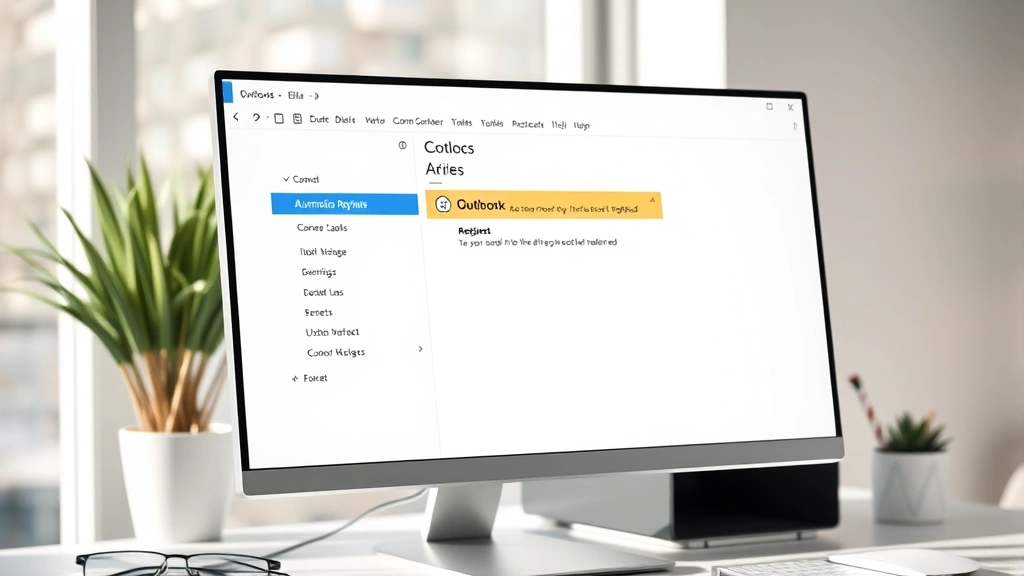
If you’re using the traditional Outlook desktop application (the one installed on your computer), the process is straightforward. Open Outlook and look at the top menu bar.
- Click on “File” in the upper left corner.
- Select “Info” from the left sidebar.
- Look for “Automatic Replies” or “Out of Office”—the exact wording depends on your Outlook version. Click it.
- Check the box that says “Send automatic replies” or “I’m currently away.”
- Set your date range by clicking the start and end date fields. This is crucial—your reply will only send during this window.
- Type your message in the main text area. Keep it professional but warm.
- Click “OK” to save.
That’s it. Your out of office reply is now active. But here’s where people mess up: they forget to actually turn it OFF when they get back. Set a calendar reminder for your return date, or you’ll be sending automated replies to actual work emails for days.
Pro Tip: In Outlook desktop, you’ll often see a tab for “Inside My Organization” and “Outside My Organization.” You can set different messages for internal employees versus external clients. This is smart—your boss doesn’t need the same level of detail as a vendor.
Out of Office Reply in Outlook Web
Using Outlook online (Outlook.com or your company’s web portal)? The steps are slightly different but equally simple.
- Log into your Outlook web account.
- Click the gear icon in the top right corner (Settings).
- Select “View all Outlook settings” or just “Settings.”
- Find “Mail” > “Automatic Replies” in the left navigation panel.
- Toggle “Turn on automatic replies” to the ON position.
- Select your date and time range. Outlook web is more precise here—you can set specific times, not just dates.
- Enter your message.
- Click “Save.”
The web version is actually cleaner than desktop Outlook in my opinion. The interface is less cluttered, and you’re less likely to accidentally leave replies on when you return.
One thing to watch: if you’re using a corporate email through your company’s Exchange server, your IT department might have restrictions on automatic replies. Some companies disable them entirely for security reasons. If the option doesn’t appear, contact your IT support—they can enable it or set it up for you.
Mobile Outlook Out of Office
Mobile Outlook (iPhone or Android) doesn’t have a native automatic replies feature built into the app itself. This is one of the app’s limitations. However, you have options:
- Use the web version on your phone: Open your mobile browser, go to outlook.com, log in, and follow the web steps above. It works perfectly fine on mobile.
- Set it up before you leave: Configure your out of office reply on your desktop or web version before you travel. It will remain active on your phone automatically.
- Use your phone’s email app: If you’re using the native iOS Mail or Gmail app instead of Outlook, check that app’s settings for automatic replies—most have them.
The mobile limitation isn’t a huge deal because you’re usually setting this up before you leave, not while you’re already away.
Crafting the Perfect Out of Office Message

The message itself matters. A lazy “I’m out, will reply when back” response is technically functional but misses opportunities. Here’s what a solid out of office message includes:
- A greeting: “Thank you for your email” or “Thanks for reaching out.”
- Clear dates: “I will be out of the office from January 15-22.”
- When they’ll hear back: “I will respond to your email upon my return on January 23.”
- Urgency direction: “If your matter is urgent, please contact [Name] at [email].”
- A closing: “Looking forward to connecting with you soon.” Keep it warm.
Example message:
Thank you for your email. I am currently out of the office from January 15-22 with limited access to email. I will respond to your message upon my return on January 23. If you need immediate assistance, please reach out to Sarah Chen at sarah.chen@company.com. Best regards, [Your Name]
Notice what this does: it sets expectations (you’ll respond, but not today), provides a backup contact (reduces panic), and stays professional without sounding robotic.
What to avoid:
- Too much detail about where you’re going (security risk).
- Jokes or overly casual tone (unless your workplace culture is extremely informal).
- Vague dates like “a few weeks” (people hate uncertainty).
- Spelling errors or typos (automated or not, it reflects on you).
- Making it too long (people skim these; keep it under 5 sentences).
Advanced: Automatic Rules and Delegation
If you want to get sophisticated, Outlook lets you set up rules that do more than just send a reply. You can automatically sort incoming emails, flag important ones, or forward messages to a colleague.
Setting up forwarding alongside your out of office reply:
- Go to File > Info > Automatic Replies (desktop) or Settings > Mail > Forwarding (web).
- Check the box for “Forward my emails to another mailbox.”
- Enter your colleague’s email address.
- Decide whether to keep a copy in your inbox (usually yes).
This is different from automatic replies—it actually redirects emails to someone else while also sending the auto-reply. It’s powerful for team coverage.
Creating rules for specific senders:
If you want your boss’s emails to get special treatment (flagged or forwarded immediately), you can create rules. In Outlook desktop:
- Go to Home > Rules > Manage Rules & Alerts.
- Click “New Rule.”
- Choose “Apply rule on messages I receive.”
- Set conditions (e.g., “from [boss’s email]”).
- Set actions (e.g., “forward to [colleague],” “mark as important”).
- Click OK.
This runs independently of your out of office reply and is active even when the auto-reply is off. It’s perfect for ensuring critical emails don’t get buried.
For a deeper dive on email management, check out how to recall an email in Outlook if you need to pull back a message you sent by mistake, or how to retract an email in Outlook for similar situations.
Timing, Activation, and Deactivation
Here’s where people often slip up: they either turn on their out of office reply too late or forget to turn it off.
Best practice timeline:
- One week before departure: Set up your out of office reply with the correct dates and times.
- The day before you leave: Double-check that it’s active and the dates are correct.
- Your last day in the office: Send a heads-up email to key contacts: “Heading out tomorrow—I’ve set up an auto-reply.” This prevents the “why didn’t you respond?” panic.
- The day you return: Turn off the automatic reply FIRST thing. Before checking email, before anything. This prevents sending replies to work emails you actually need to address.
Setting specific times:
If you’re leaving midday, Outlook web lets you set specific times (e.g., 2:00 PM on Friday). Desktop Outlook is date-only, so if you need precision, use the web version.
One more thing: if your company uses Microsoft Exchange (common in corporate settings), your IT team might have set policies that automatically disable your out of office reply after a certain date. Check with them if you’re setting up something long-term (like a month-long sabbatical).
Troubleshooting Common Issues
Problem: My out of office reply isn’t sending.
Check these things in order:
- Is the toggle actually ON? Sounds silly, but it’s the #1 culprit.
- Are the dates correct? If today is outside your date range, it won’t send.
- Is your message blank? Outlook requires at least some text.
- Are you using an older Outlook version? Update to the latest version—old versions sometimes have bugs with automatic replies.
- Is your mailbox full? A completely full mailbox can prevent automatic replies from sending. Delete some old emails and try again.
Problem: I’m getting replies to my out of office message.
This is actually normal behavior. Some email systems send a reply to your auto-reply (creating a loop). To minimize this:
- Most modern systems are smart enough to not reply to auto-replies, so this is rare.
- If it happens, check your rules—you might have accidentally forwarded your own auto-reply to yourself.
- Turn off the out of office reply immediately and contact your IT support.
Problem: My out of office reply went out to people I didn’t want it to.
This happens when you set it to “Outside My Organization” but didn’t realize your entire contact list is technically external. Use the “Inside My Organization” option if you only want internal recipients to see it. You can also set different messages for each group, which is a smart move for professional situations.
Problem: I forgot to turn off my out of office reply and it’s been active for three days.
Don’t panic. Turn it off immediately by going back to Automatic Replies and unchecking the box. Then, send a quick email to your team or key contacts: “My apologies—I had my out of office reply on longer than intended. I’m back and checking emails now.” It’s awkward but not a career-ending mistake. Most people have done this.
Problem: Outlook won’t let me access Automatic Replies.
This usually means your company has restricted the feature. Contact your IT department. They might need to enable it in your account settings, or they might have a policy against it. Some companies require you to use their own system for out of office notifications instead.
For related help with email management, check out how to set out of office in Outlook for additional context, or if you’re dealing with broader communication issues, how to change my voicemail can help you set up voice mail to match your email absence.
Frequently Asked Questions
Can I send different out of office messages to different people?
– Yes, absolutely. Most versions of Outlook let you set separate messages for “Inside My Organization” and “Outside My Organization.” This is perfect if you want to send a detailed message to colleagues but keep external clients in the dark about your exact return date. Some advanced users also set up rules to send custom messages to specific senders, though this requires more setup.
What happens to emails while my out of office reply is on?
– They still arrive in your inbox normally. The out of office reply is just a response that gets sent to the sender; it doesn’t affect the email itself. When you return, all emails will be waiting for you. This is why you might come back to hundreds of messages—the out of office reply doesn’t sort or delete anything.
Will my out of office reply send to spam or marketing emails?
– Ideally, no. Most email systems are smart enough to not send auto-replies to automated emails (like newsletters or notifications). However, if you’re worried, you can set up rules to exclude certain senders. In Outlook, create a rule that doesn’t apply to emails from specific addresses or domains.
Can I schedule my out of office reply to turn on automatically?
– Not directly in Outlook’s interface—you have to manually turn it on. However, if you’re using Outlook desktop, you can set the date range in advance and just leave the reply active. The dates will control when it sends. For web Outlook, the same applies. Plan ahead and set it up a few days before you leave.
What if I need to check email while I’m supposed to be out of office?
– Leave the out of office reply on. It’s designed for this exact situation. You can still access and respond to emails normally; the auto-reply just sends to anyone who emails you. If you want to respond to something urgent, just reply normally—your personal response will go out in addition to (or instead of) the auto-reply for that thread.
Does the out of office reply work on my phone?
– The Outlook mobile app doesn’t have a built-in automatic replies feature, but you can set it up on the web or desktop version, and it will remain active when you check email on your phone. So yes, it works on your phone—you just can’t manage it from the app itself.
What’s the difference between out of office and away status?
– Out of office reply is an automated email response to anyone who sends you a message. Away status (the little icon next to your name in Teams or Slack) just tells people you’re not actively working. They’re separate things. You can have both on, or just one. The out of office reply is more formal and email-focused; away status is more casual and chat-focused.
Can my company see that I set an out of office reply?
– In most corporate setups, yes—your IT department can see it if they check your mailbox settings. However, they’re not monitoring you. It’s just part of the system. Setting an out of office reply is completely normal and expected when you’re away. Don’t worry about this.
What if I’m coming back early and need to turn off my out of office reply?
– Just go back to Automatic Replies and uncheck the box. It turns off immediately. Then send a quick note to anyone you’re meeting with that day to let them know you’re back early. Simple as that.
Is there a way to test my out of office reply before I leave?
– Not built-in to Outlook, but you can send yourself a test email from a different account (like Gmail) to see if the reply comes through. Just don’t do this on your actual out of office dates, or you’ll get confused about whether it’s working. Test it a few days before you leave.


