
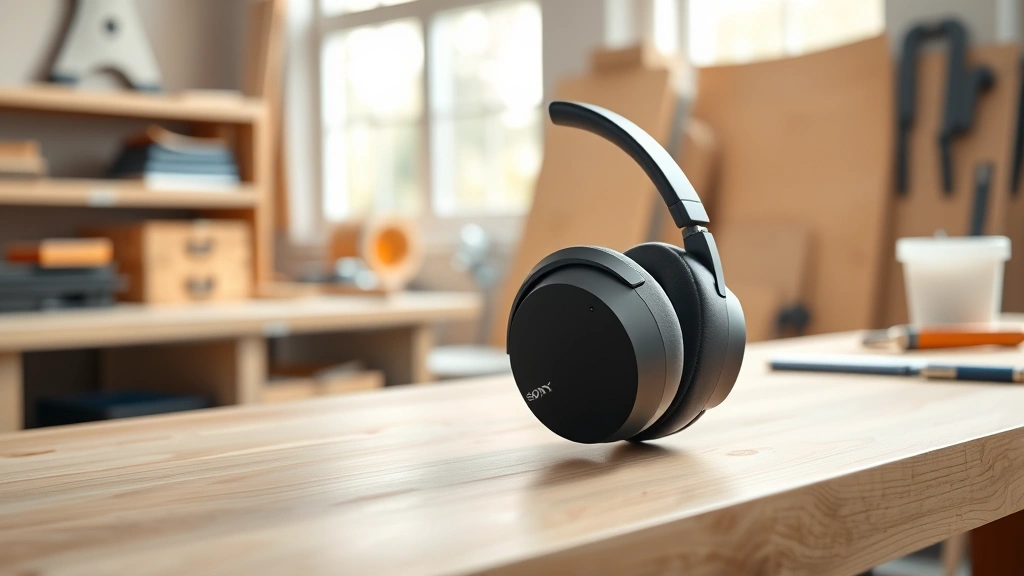
Learning how to connect Sony WH-1000XM4 headphones is straightforward, whether you’re pairing them with your phone, laptop, or tablet. These premium noise-canceling headphones use Bluetooth technology to link with your devices, and the process takes just a few minutes. I’ll walk you through every step so you can start enjoying crystal-clear audio without the hassle.
Table of Contents
Initial Setup and Charging
Before you even think about connecting your WH-1000XM4 headphones, they need juice. Fresh out of the box, these headphones come partially charged, but you’ll want to give them a full charge first. Grab the included USB-C cable and plug it into the charging port on the bottom of the left ear cup. A full charge takes about three hours and gives you up to 30 hours of listening time with noise cancellation on.
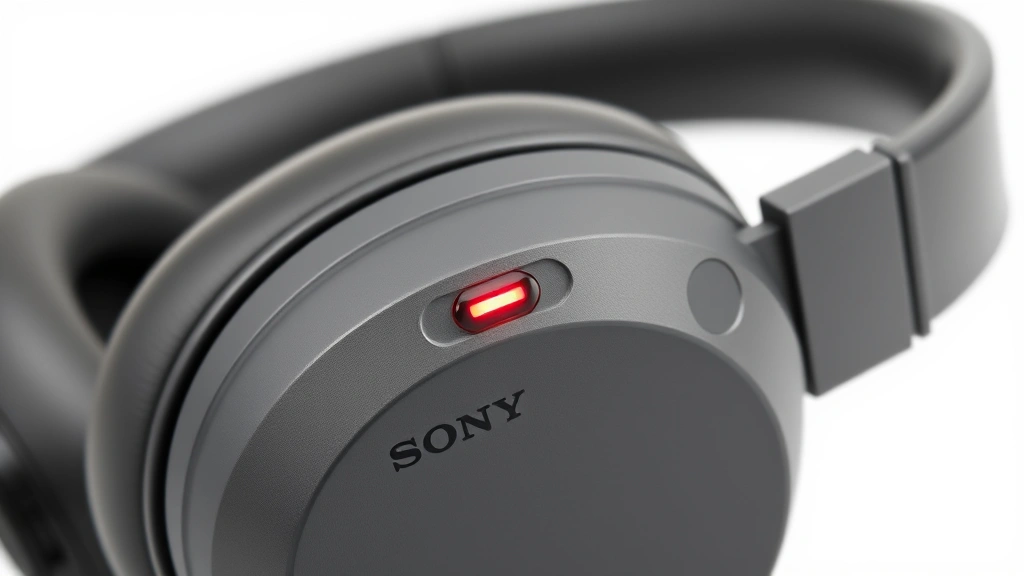
While charging, locate the power button on the right ear cup. You’ll notice it’s a smooth, circular button—this is your gateway to the wireless world. Once fully charged, press and hold the power button for about three seconds until you hear a startup sound and see the LED indicator light up. The headphones are now in pairing mode, ready to find their first Bluetooth partner.
Bluetooth Pairing Basics
Bluetooth pairing is the foundation of connecting your WH-1000XM4 to any device. Think of it like introducing two people—they need to meet and exchange information before they can communicate regularly. When you first power on your headphones, they automatically enter pairing mode for about five minutes. During this window, your device can discover and connect to them.
The LED indicator on your headphones will flash blue and white, signaling that they’re in pairing mode. On your device—whether it’s a smartphone, tablet, or computer—open your Bluetooth settings and look for ‘WH-1000XM4’ in the available devices list. Once you see it, tap or click to pair. Your device will confirm the connection, and you’ll hear a confirmation sound from the headphones. Congratulations—you’ve completed your first connection.
Connect to Your Smartphone
Connecting your WH-1000XM4 to an iPhone or Android phone is the most common use case. Start by powering on your headphones and making sure they’re in pairing mode. On your iPhone, go to Settings > Bluetooth and toggle Bluetooth on. You’ll see ‘WH-1000XM4’ appear in the list of available devices. Tap it, and within seconds, your phone will display ‘Connected’ next to the headphone name.
For Android users, the process is nearly identical. Navigate to Settings > Bluetooth, ensure Bluetooth is enabled, and look for your WH-1000XM4 in the available devices. Tap to pair, and you’re done. Once paired, your phone will remember these headphones. The next time you turn on your WH-1000XM4 near your phone, they’ll automatically reconnect without any additional steps. This is where the magic of modern Bluetooth really shines—convenience at its finest.
If you’re having trouble finding your headphones on your phone, make sure they’re in pairing mode. If they’ve been powered off for a while, they might have exited pairing mode automatically. Simply press and hold the power button again for three seconds to re-enter pairing mode.
Connect to Your Computer
Whether you’re using a MacBook or a Windows laptop, connecting your WH-1000XM4 is just as easy as with your phone. On a Mac, click the Apple menu, go to System Preferences > Bluetooth, and ensure Bluetooth is on. Power on your headphones in pairing mode, and ‘WH-1000XM4’ will appear in the available devices list. Click ‘Connect,’ and you’re ready for video calls or music streaming on your computer.
Windows users should right-click the Bluetooth icon in the system tray, select ‘Add a device,’ and choose Bluetooth from the menu. Your WH-1000XM4 will show up in the list. Click to pair, and Windows will handle the rest. One thing I’ve found helpful: if you’re using your headphones with multiple devices, knowing how to navigate your computer settings smoothly makes the whole process faster.
After your first connection, your computer will remember your headphones. On subsequent uses, they’ll connect automatically when Bluetooth is enabled on both devices. This is perfect for those of us who bounce between devices throughout the day.
Multipoint Connection Magic
Here’s where the WH-1000XM4 really flexes its muscles—multipoint connection. This feature lets you pair your headphones with two devices simultaneously, so you can switch between them without manual disconnection. Imagine taking a call on your laptop while your phone is nearby; your headphones will intelligently switch between them.
To set up multipoint connection, first pair your headphones with your primary device. Then, while keeping them connected to that device, put them back into pairing mode by pressing and holding the power button. Grab your second device and pair it through its Bluetooth settings just like you did the first time. Your headphones now remember both devices and will maintain connections to both.
When a call or notification comes in on either device, your WH-1000XM4 will prioritize the active connection. If you’re listening to music on your computer and get a call on your phone, the headphones will pause the music and route the call audio through automatically. It’s seamless once you get the hang of it, though it takes some practice to master the switching behavior.
Troubleshoot Connection Issues
Sometimes connections don’t work as smoothly as we’d like. If your WH-1000XM4 won’t connect to a device, start by forgetting the device from your headphones’ memory and trying again. To do this, put the headphones in pairing mode and hold the power button for about seven seconds until you hear a reset sound. This clears all paired devices, so you’ll need to re-pair everything, but it often solves stubborn connection problems.
Another common issue: your headphones connect to the wrong device first. If you have multiple Bluetooth devices nearby, your WH-1000XM4 might connect to your computer when you wanted your phone. The solution is simple—disable Bluetooth on the unwanted device before turning on your headphones, or manually disconnect from one device before connecting to another through your device’s Bluetooth settings.
If you’re experiencing audio dropouts or intermittent disconnections, check that your headphones are within 30 feet of your device and that there are no major obstacles between them. Thick walls or metal objects can interfere with Bluetooth signals. Also, make sure your headphones’ firmware is up to date by using the Sony Headphones app, which we’ll cover next.
Using the Sony Headphones App
Sony provides a dedicated app for WH-1000XM4 management, available on both iOS and Android. Download the Sony Headphones app from your device’s app store and open it with your headphones connected via Bluetooth. The app lets you check battery levels, adjust sound quality settings, enable or disable noise cancellation, and most importantly, update your headphones’ firmware.
Firmware updates occasionally roll out to improve connectivity and add features. In the app, navigate to the settings or system section and look for firmware updates. If one is available, follow the on-screen prompts to install it. Keep your headphones charged and your device nearby during updates—interrupting a firmware update can cause problems.
The app also lets you customize your listening experience with equalizer settings and ambient sound control. While these features aren’t directly related to connection, they enhance your overall experience once you’re connected. I recommend spending a few minutes exploring the app to understand all the capabilities of your headphones.
Disconnect and Reconnect Devices
There are times when you need to disconnect your WH-1000XM4 from one device to use them with another. The easiest method is to go to your device’s Bluetooth settings and click ‘Disconnect’ or ‘Forget Device’ next to the WH-1000XM4 entry. This severs the connection but keeps the device in your paired list, so reconnecting later is automatic.
If you want to completely unpair and start fresh, select ‘Forget Device’ instead of ‘Disconnect.’ This removes the headphones from your device’s memory entirely. You’ll need to go through the full pairing process again the next time you want to connect, but this is useful if you’re selling your headphones or troubleshooting persistent problems.
On your headphones themselves, you can forget all paired devices by entering pairing mode and holding the power button for about seven seconds. You’ll hear a confirmation sound, and all device memories are cleared. This is a nuclear option that should only be used when you need a complete reset.
Frequently Asked Questions
How long does it take to connect WH-1000XM4 to a device?
Once your headphones are in pairing mode and you’ve selected them in your device’s Bluetooth settings, the connection completes in just a few seconds. If they’re already paired and simply reconnecting, it’s nearly instantaneous—usually under two seconds.
Can I use WH-1000XM4 with multiple devices at once?
Yes, the multipoint connection feature lets you pair with two devices simultaneously. Your headphones will intelligently switch between them based on which device has active audio or incoming calls. However, they can only actively play audio from one device at a time.
Why won’t my WH-1000XM4 stay connected?
Intermittent disconnections usually result from outdated firmware, Bluetooth interference, or devices being too far apart. Update your firmware through the Sony app, move closer to your device, and ensure no major obstacles block the Bluetooth signal. If problems persist, try forgetting the device and re-pairing from scratch.
Do I need the Sony app to connect my headphones?
No, the Sony app is optional. You can connect your WH-1000XM4 using standard Bluetooth settings on any device without downloading the app. However, the app provides valuable features like firmware updates and sound customization, so I recommend installing it.
How do I know if my headphones are in pairing mode?
When in pairing mode, the LED indicator on your WH-1000XM4 will flash blue and white alternately. You’ll also hear a startup sound when you first power them on. If the LED is solid blue or not flashing, they’re not in pairing mode—press and hold the power button for three seconds to enter it.
Can I connect WH-1000XM4 to multiple phones?
Absolutely. You can pair your headphones with as many phones as you want. However, only two devices can maintain an active connection simultaneously due to the multipoint connection limitation. To switch to a third device, you’d need to disconnect from one of the first two.
Final Thoughts
Connecting your Sony WH-1000XM4 headphones is a breeze once you understand the fundamentals. Whether you’re pairing with a smartphone, computer, or juggling multiple devices with multipoint connection, the process remains consistent and intuitive. Start with a full charge, enter pairing mode, and select your device from the Bluetooth menu—that’s the foundation of everything.
Don’t overlook the Sony Headphones app; it’s your ticket to firmware updates and customization options that enhance your listening experience. And remember, if something goes wrong, a complete reset and re-pairing usually solves the problem. With these WH-1000XM4 headphones in your arsenal, you’re equipped with some of the best noise-canceling audio technology on the market. Enjoy the peace and quiet, and happy listening.
For more tech setup guidance, check out our guide on how to unhide an app on iPhone if you need help organizing your device. You might also find it useful to learn how to forward a text message on iPhone for quick communication while using your new headphones. And if you’re working across multiple Apple devices, our article on how to purchase Kindle books covers ecosystem navigation that complements your wireless setup perfectly.


