
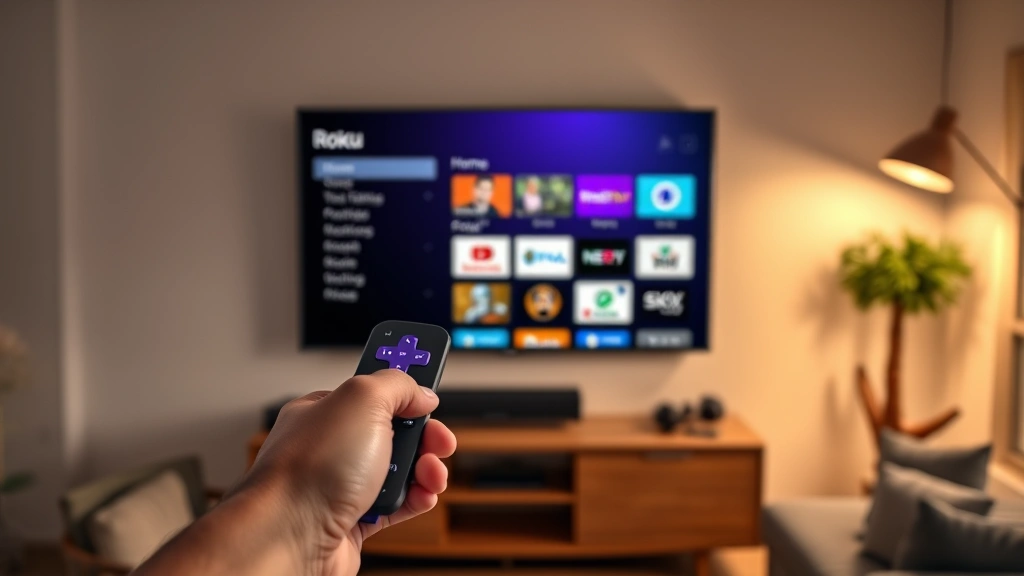
Learning how to connect Roku remote to TV is one of those tasks that sounds more complicated than it actually is—and once you nail it, you’ll wonder why you ever stressed about it. Whether you’re setting up a brand-new Roku device or re-pairing a remote that’s gone rogue, this guide walks you through every scenario without the corporate jargon.
Table of Contents
Before You Start
Before diving into the technical stuff, let’s make sure you’ve got the basics covered. Your Roku remote communicates with your TV using infrared (IR) or wireless technology, depending on which model you own. Most newer Roku remotes use wireless, which means they need to be paired—kind of like connecting Bluetooth headphones to your phone.
Grab your Roku remote and your Roku-enabled TV or device. Make sure both are powered on and within arm’s reach. You’ll want fresh batteries in that remote too, because a dead battery is the number-one reason people think their remote is broken when it’s really just sleeping.
Standard Pairing Method
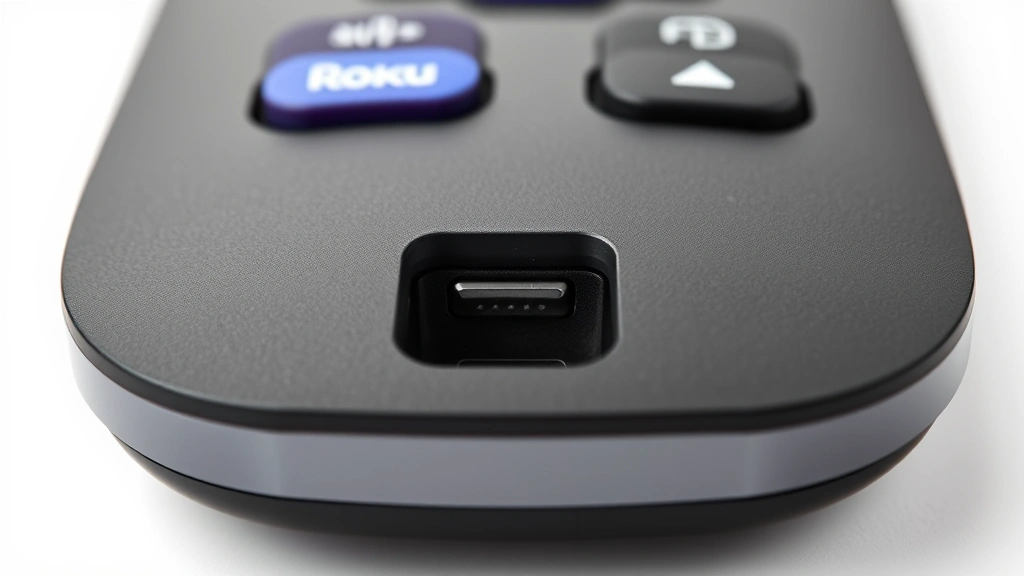
This is the bread-and-butter approach that works for most Roku remotes. On the back or bottom of your remote, you’ll find a small pairing button—it’s usually recessed so you don’t accidentally hit it. Grab a paperclip or the end of a pen.
Hold down that pairing button for about 3-5 seconds until you see lights flashing on your remote. Don’t let go too early—you want to hold it long enough for the pairing process to kick in. While you’re holding the button, look at your Roku device or TV screen. You should see a pairing prompt appear, or at minimum, the device will acknowledge that it’s looking for a remote.
Once the lights stop flashing and settle into a steady glow, your remote should be paired. Test it out by pressing a few buttons. If the TV responds, you’re golden. If not, don’t worry—we’ll cover troubleshooting in a moment.
Pairing Without Button
Some Roku remotes—especially the newer streaming stick models—don’t have a visible pairing button. If you’re stuck with one of these, check out our detailed guide on how to sync Roku remote without pairing button, which covers alternative methods like using the Roku app or accessing pairing through your device’s settings menu.
The basic idea is the same: your remote and device need to establish a connection. Without a physical button, you’ll navigate to your Roku’s settings, find the remote pairing option, and activate pairing mode from there. Then your remote will automatically detect the signal and connect.
Troubleshooting Connection Issues
If your remote isn’t responding after pairing, don’t assume it’s broken. Nine times out of ten, it’s something simple. Start by checking the line of sight between your remote and the Roku device. These remotes need a clear path—if there’s a big lamp or your cat blocking the signal, that could be your culprit.
Make sure your Roku device is actually powered on. This sounds obvious, but it’s easy to miss. If your TV is on but your Roku device is in standby mode, the remote won’t work. Check for a small LED light on the device itself.
Distance matters too. Move closer to your Roku device and try again. If the remote works from three feet away but not from across the room, you might have a signal strength issue, which usually points back to batteries or interference from other electronics.
Replacing Batteries First
Before you do anything else, swap out those batteries. Most Roku remotes use AA or AAA batteries, and they drain faster than you’d think. Open the battery compartment on the back of your remote—usually there’s a small tab or sliding door.
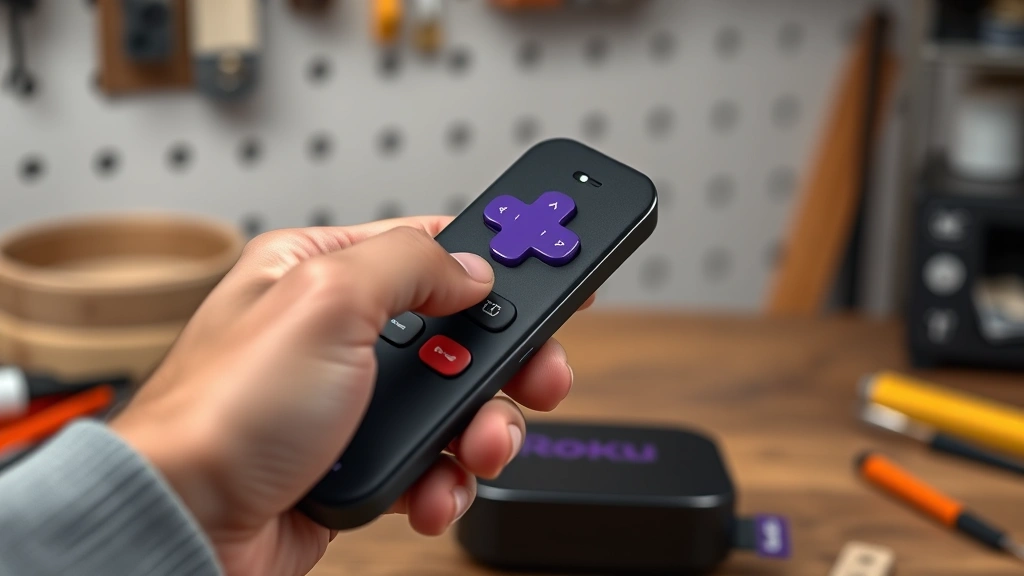
Pop out the old batteries and replace them with fresh ones. Make sure you’re putting them in the right direction: the positive end should face the spring. It’s a small detail that trips up a lot of people. Close the compartment and try pairing again.
Fresh batteries alone solve about 40% of remote connection problems. It’s the first thing I always check when someone tells me their remote stopped working.
Factory Reset Your Remote
If fresh batteries don’t solve the problem, it’s time to reset the remote itself. This clears out any corrupted pairing data and gives you a clean slate. On most Roku remotes, you’ll hold down the reset button (usually on the back, near the pairing button) for 10-15 seconds.
You’ll see the LED lights flash, sometimes rapidly. Keep holding until they stop flashing and go dark. This means the remote has been wiped. Now you can pair it again using the standard method we covered earlier.
A factory reset doesn’t erase anything on your Roku device—it only resets the remote itself. So don’t worry about losing your apps or settings.
Restarting Your Roku Device
Sometimes the problem isn’t the remote—it’s the Roku device itself. If your remote won’t pair no matter what you do, try restarting your Roku box or streaming stick. Unplug it from the power outlet, wait 30 seconds, and plug it back in.
While it’s booting back up, don’t try pairing yet. Let it fully load into the home screen. You should see the Roku logo disappear and your normal menu appear. Now try pairing your remote again.
A simple restart clears out temporary glitches and often fixes connection problems that seem stubborn. It’s one of those tech-world band-aids that actually works.
Advanced Pairing Tricks
If you’re still having trouble, there are a few advanced moves worth trying. First, check if there’s a firmware update available for your Roku device. Old firmware can sometimes cause pairing issues. Go to Settings > System > System Update and see if anything’s waiting.
Second, if you have other wireless devices nearby—like a router, cordless phone, or microwave—move them away from your Roku setup temporarily. These can create interference that disrupts the pairing signal. Once you’ve paired successfully, you can move them back.
Third, try using the Roku mobile app as a temporary remote while you troubleshoot. Download the free Roku app on your phone, connect it to the same WiFi network as your Roku device, and use your phone as a remote. This tells you whether the issue is specific to the physical remote or if it’s a broader device problem.
Frequently Asked Questions
Why won’t my Roku remote pair with my TV?
The most common culprits are dead batteries, interference from other electronics, or the remote being too far from the device. Start with fresh batteries and try pairing from within three feet of your Roku device. If that doesn’t work, restart both the remote and the Roku device.
Can I use a universal remote with Roku?
Yes, many universal remotes support Roku devices. You’ll need to program the universal remote with your Roku device’s code, which you can usually find in the manual or on Roku’s website. However, some advanced features might not work with a third-party remote.
How do I know if my remote is paired?
Once paired, your remote should respond immediately when you press buttons. The Roku device will also show a confirmation message on-screen during the pairing process. If you’re unsure, try pressing the Home button—if the Roku home screen appears, you’re paired.
What if my remote has a pairing button but I can’t find it?
Check the back and bottom of the remote carefully. It’s usually a small, recessed button that requires a paperclip or similar tool to press. If you absolutely can’t find it, consult your remote’s manual or visit Roku’s support site for your specific model.
Can I pair multiple remotes to one Roku device?
Technically, you can pair multiple remotes to a single Roku device, but only one remote will be active at a time. If you pair a second remote, it will replace the first one’s connection. If you need multiple remotes, you’ll need to re-pair whichever remote you want to use.
Final Thoughts
Connecting your Roku remote to your TV is genuinely straightforward once you know the steps. The standard pairing button method works for most remotes, and if it doesn’t, the troubleshooting path is predictable: batteries, reset, restart, and then advanced moves.
Remember that most connection problems boil down to dead batteries or simple interference. Before you assume your remote is broken, try the basics first. And if you’re dealing with a remote that doesn’t have a pairing button, our guide on syncing Roku remotes without a pairing button has you covered with alternative methods.
For additional tech setup help, you might find our articles on connecting devices to WiFi useful for understanding wireless pairing in general. And if you’re setting up your whole entertainment space, exploring related guides like framing a puzzle can help you personalize your setup area.
Once your remote is paired and working, you’re ready to stream without frustration. Grab a snack, settle in, and enjoy your shows knowing your remote will respond instantly. That’s the whole point of getting this right.


