
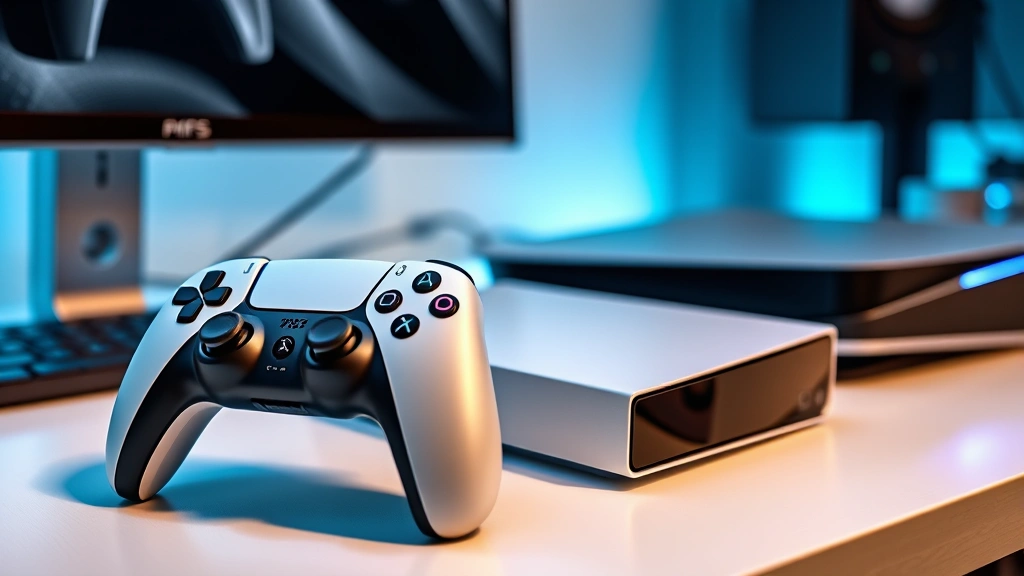
Learning how to connect PS5 controller to PS5 is one of those tech tasks that sounds more complicated than it actually is—once you know the steps, you’ll be gaming in minutes. Whether you’re setting up a brand-new DualSense controller or reconnecting one that’s been sitting in a drawer, the process is straightforward and doesn’t require any special tech skills or fancy equipment. In this guide, I’ll walk you through every method so you can get your controller paired up and ready to dominate your favorite games.
Table of Contents
Wireless Pairing Method
The easiest way to connect your PS5 controller wirelessly is the method most people use once they know about it. Start by making sure your PS5 is powered on and you’re at the home screen. Grab your DualSense controller and locate the small pairing button on the back—it’s tucked near the top, between the shoulder buttons. You’ll need something thin like a paperclip or a ballpoint pen to press it.
Hold down that pairing button for about three to five seconds until you see the light bar on the front of the controller start flashing white. This flashing light tells you the controller is in pairing mode and searching for your console. Now head to your PS5’s Settings menu. Navigate to Settings > Bluetooth Accessories and your console will automatically search for nearby controllers. When your controller appears in the list, select it and confirm the pairing. The light bar will stop flashing and stay solid once the connection is established—you’re done.
USB Cable Connection
Sometimes the wireless method doesn’t work right away, or you might prefer a hardwired connection for your initial setup. That’s where the USB cable method comes in handy. Your PS5 likely came with a USB-C cable in the box, or you can use any standard USB-C to USB-A cable you have lying around.
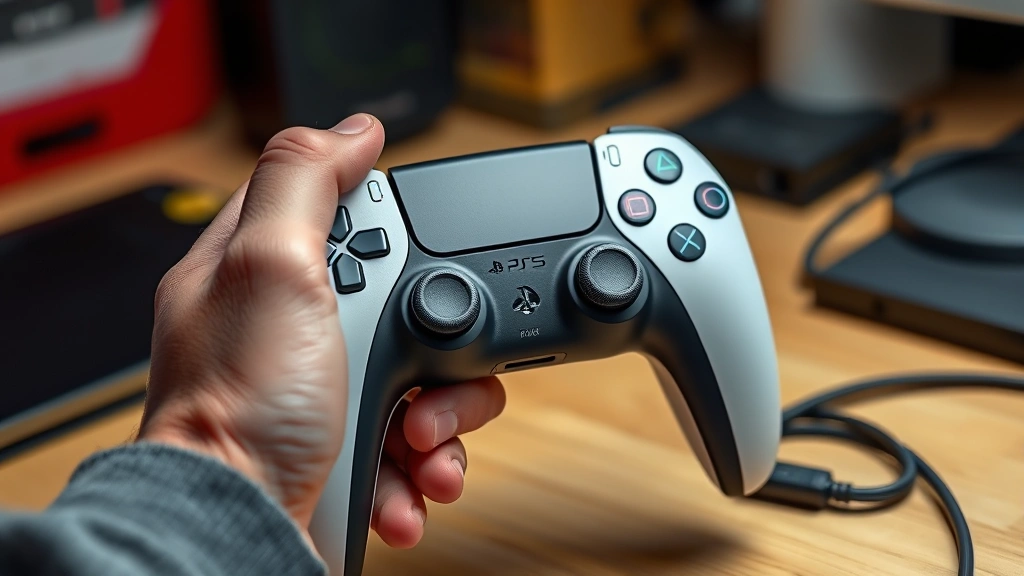
Plug one end of the USB-C cable into the port on the bottom of your DualSense controller and the other end into one of the USB ports on the front of your PS5 console. Once connected, the controller will automatically pair with the console—no button pressing required. You’ll see the light bar illuminate, and within a few seconds, the connection will be established. This method is particularly useful if you’re having battery issues or if you want to charge while you play.
Resetting Your Controller
If your controller isn’t pairing no matter what you try, a factory reset might be necessary. This is like giving your controller a fresh start, similar to how to unlock keyboard settings when they get stuck. Locate the small reset button on the back of the controller—it’s a tiny hole near the bottom. You’ll need a thin object like a paperclip to press it.
With the controller unplugged from any cables, press and hold that reset button for about five to ten seconds. You’ll notice the light bar might flicker or do something unusual—that’s normal. After releasing the button, wait a moment and then try pairing your controller again using either the wireless or USB method. A reset clears any pairing history and often solves stubborn connection problems.
Troubleshooting Connection Issues
Sometimes things don’t go smoothly on the first try, and that’s perfectly normal. If your controller won’t connect, start with the basics: make sure your PS5 is fully powered on and not in rest mode. Check that your controller has enough battery charge—a completely dead controller won’t pair. Plug it in for a few minutes and try again.
If wireless pairing still won’t work, try the USB cable method instead. This often bypasses whatever issue is preventing wireless connection. Also, make sure there are no other devices nearby that might be interfering with the Bluetooth signal—move your phone or other wireless devices a bit farther away. If you’re still stuck, try unplugging your PS5 completely for 30 seconds, then powering it back on. This soft reset can work wonders for connection issues.
Pairing Multiple Controllers
Want to game with friends or family? Pairing multiple DualSense controllers to your PS5 is just as easy as pairing the first one. Follow the same wireless pairing process for each additional controller. Press the pairing button on the second controller, go to Settings > Bluetooth Accessories, and select it from the list. You can pair up to four controllers to a single PS5 console, which is perfect for multiplayer gaming sessions.
Each controller will maintain its connection independently, so you don’t need to worry about one disconnecting when you add another. This setup is similar to how you might pair Bose headphones to multiple devices—each one connects on its own timeline.
PS5 Settings Guide
Understanding your PS5’s controller settings gives you more control over your gaming experience. Beyond just pairing, you can customize button assignments, adjust trigger sensitivity, and manage controller preferences through the Settings menu. Navigate to Settings > Controllers and Devices > Controllers to see all your connected devices and manage their settings.
In this menu, you can check battery levels for all your controllers, rename them if you have multiple, and access advanced settings like haptic feedback and adaptive trigger adjustments. Some games let you customize these features per-game, which is worth exploring if you’re playing titles that make heavy use of these features. You can also manage which controller is your primary device if you’re using multiple controllers simultaneously.
Controller Maintenance Tips
Keeping your DualSense controller in good shape ensures reliable connections and longer lifespan. Clean the controller regularly with a soft, slightly damp cloth—avoid getting moisture in any openings. The charging port on the bottom is particularly important to keep clean since dirt buildup can prevent proper charging and connection.
Store your controllers in a cool, dry place when not in use. Avoid leaving them in direct sunlight or in hot cars, as heat can damage the battery. If you’re not using a controller for an extended period, charge it to about 50% and store it that way—completely draining or overcharging batteries long-term can reduce their lifespan. Think of it like maintaining any electronic device; a little care goes a long way.
Frequently Asked Questions
Why won’t my PS5 controller connect wirelessly?
Wireless connection issues usually stem from a dead battery, interference from other devices, or the controller being too far from the console. Try charging the controller first, then move it closer to the PS5. If that doesn’t work, use the USB cable method to establish a wired connection, which often resolves the issue.
Can I use a PS4 controller on PS5?
No, PS5 only works with DualSense controllers for native PS5 games. You can use a PS4 controller for backwards-compatible PS4 games, but it won’t work for new PS5 titles. This is a hardware limitation built into the system.
How long does it take to pair a PS5 controller?
The pairing process typically takes less than a minute. Wireless pairing usually completes within 30 seconds once you’ve pressed the pairing button and selected the controller in your PS5 settings. USB cable pairing is even faster—it’s often instantaneous.
Is it better to use wireless or wired connection?
Wireless is more convenient for most gaming sessions. However, wired connection via USB is better if you’re experiencing connection drops or if you want to charge while playing. There’s no performance difference between the two methods.
What if my controller keeps disconnecting?
Persistent disconnections usually mean the controller needs a factory reset. Use the reset button on the back, then re-pair it. If that doesn’t work, check for firmware updates through your PS5 settings, as outdated software can cause connection issues.
Final Thoughts
Connecting your PS5 controller to your PS5 is genuinely simple once you know the process. Whether you go wireless or wired, you’ll have your controller paired and ready to go in just a few minutes. The wireless method is usually your best bet for everyday gaming, but don’t hesitate to use the USB cable method if you run into any hiccups—it’s a reliable backup that almost always works.
Keep your controller charged, store it properly, and you’ll enjoy years of reliable gaming. If you ever have connection issues in the future, you now know exactly how to troubleshoot them. For more tech setup guides, check out our article on how to program a key fob and learn about other wireless pairing techniques that work similarly across different devices.
External Resources: For official PlayStation support, visit PlayStation Support. For hardware troubleshooting advice, Family Handyman’s tech guides offer additional perspectives on electronics maintenance.


