
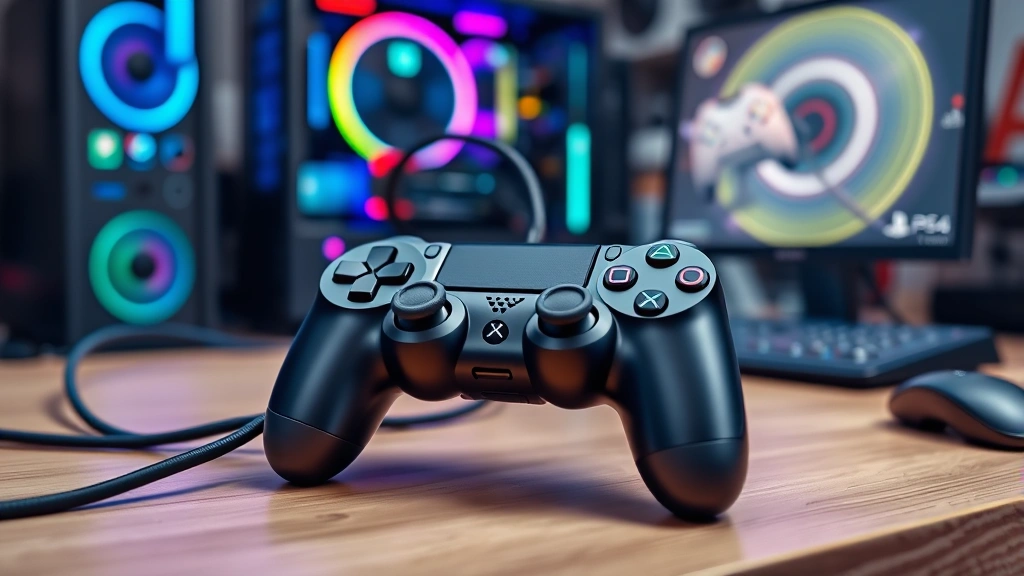
Learning how to connect PS4 controller to PC is easier than you’d think, and it opens up a whole new world of gaming possibilities on your computer. Whether you’re a casual player or a hardcore gamer, your DualShock 4 controller can become your go-to input device for PC gaming, and I’m here to walk you through every step of the process.
Table of Contents
Why Use PS4 Controller on PC
Before we dive into the technical stuff, let me tell you why this matters. The PS4 DualShock 4 controller is one of the most reliable and ergonomic gaming peripherals ever made. It’s got responsive buttons, a solid D-pad, and those analog sticks feel premium compared to many third-party options. Plus, if you already own one, you’re saving yourself fifty bucks.
PC gaming doesn’t lock you into any specific controller ecosystem. You can use PlayStation, Xbox, or Nintendo controllers on your computer, and the DualShock 4 remains a favorite among PC gamers for good reason. The haptic feedback and motion controls work beautifully in supported games, giving you an experience that’s genuinely different from standard mouse-and-keyboard gaming.
Wired Connection Method
The simplest way to get your PS4 controller working on PC is through a USB cable connection. This is the most reliable method and requires zero Bluetooth setup hassle. Grab a standard micro-USB cable—the same one that charges your controller—and connect it directly to an available USB port on your computer.
Once you plug it in, Windows should recognize the controller automatically. If you’re running Windows 10 or later, the operating system has built-in support for DualShock 4 controllers. You’ll see the controller light up, and within seconds, you’re ready to game. This wired approach is perfect if you’re sitting at a desk or don’t mind having a cable attached to your controller.
The wired method also means you never have to worry about battery life during gaming sessions. Your controller charges while you play, and you get zero input lag. For competitive gaming or situations where you need absolute reliability, this is your best bet.
Wireless Bluetooth Setup
Now, if you want true wireless freedom, Bluetooth is your answer. First, make sure your PC has Bluetooth capability. Most modern laptops have it built-in, but desktop computers might need a Bluetooth dongle (they’re cheap and widely available). You can find quality options at any electronics retailer.
Put your PS4 controller into pairing mode by holding the Share button and the PlayStation button simultaneously for about three seconds. The light bar will start blinking, indicating it’s ready to pair. On your PC, open Settings, go to Bluetooth & devices, and select “Add device.” Choose Bluetooth from the menu, and your controller should appear in the list within moments.
Click on your DualShock 4 controller when it appears, and Windows will handle the pairing process automatically. Once connected, the light bar will stop blinking and remain steady, confirming a successful connection. You’re now free to move around with your controller, perfect for games where you want to relax on the couch or play from across the room.
Installing Necessary Drivers
Here’s where things get slightly technical, but don’t worry—it’s straightforward. Windows has native support for DualShock 4 controllers, but for full functionality and the best compatibility, you might want to install additional software. The most popular option is DS4Windows, a free community-developed utility that gives you granular control over your controller’s settings.
Download DS4Windows from the official GitHub repository (it’s free and open-source). Install it, and the program will automatically detect your connected controller. This software lets you customize button mapping, adjust sensitivity, enable motion controls, and even remap triggers for specific games. It’s genuinely useful if you plan to use your controller frequently.
Alternatively, Steam has built-in DualShock 4 support. If you’re primarily gaming through Steam, you don’t need any additional software—just enable PlayStation controller support in Steam’s Big Picture Mode settings. Steam will handle everything automatically, and you can map buttons specifically for different games.
Troubleshooting Common Issues
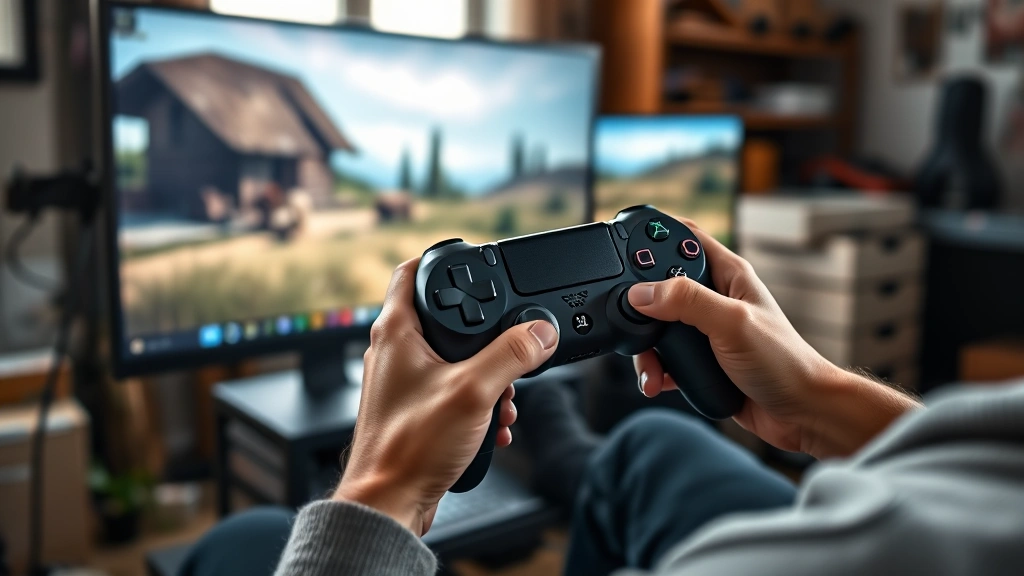
Sometimes things don’t work perfectly on the first try, and that’s normal. If your controller isn’t being recognized, start by checking your USB cable quality. A damaged or low-quality cable can cause connection failures. Try a different USB port on your computer—sometimes specific ports have power management issues.
For Bluetooth problems, make sure your controller is fully charged and try re-pairing it. Delete the existing pairing from your Bluetooth settings and go through the pairing process again from scratch. If your PC’s Bluetooth adapter is acting up, restarting your computer often solves the problem. You can also try moving your controller closer to your PC to rule out range issues.
If the controller connects but buttons aren’t responding correctly, you likely need to adjust your settings in DS4Windows or Steam. Each game might require different button configurations, and these tools let you create game-specific profiles. Don’t assume the hardware is broken—it’s almost always a software configuration issue.
Game Compatibility Check
Not every PC game supports PlayStation controllers natively, but most modern titles do. Check your game’s settings menu first—many games have controller configuration options built right in. If native support isn’t available, DS4Windows can emulate an Xbox controller, which has broader compatibility across older games.
Steam’s controller support is excellent and covers thousands of games. Even games that don’t officially support controllers can often be played with custom control schemes through Steam’s configuration system. You can map keyboard and mouse inputs to controller buttons, essentially creating your own control scheme for any game.
Before purchasing a game, quickly check the store page or community forums to see if other players have successfully used PS4 controllers. Most modern AAA titles, indie games, and fighting games have excellent DualShock 4 support. You’ll rarely run into compatibility issues with current-generation games.
DualSense PS5 Controller Option
If you’re considering upgrading, the PS5 DualSense controller also works beautifully on PC. It connects via the same methods—wired USB-C or Bluetooth—and offers even better features like advanced haptic feedback and adaptive triggers. Many newer games are starting to support DualSense-specific features on PC.
The DualSense is slightly more expensive than a DualShock 4, but if you’re building a new gaming setup, it’s worth considering. The haptic feedback in games like Returnal or Control creates an incredibly immersive experience that you simply can’t get with older controllers. Windows 11 has native DualSense support, and compatibility continues to improve.
Keep in mind that the DualSense’s battery life is slightly shorter than the DualShock 4, and the controller is a bit larger. Some people with smaller hands prefer the DualShock 4 for this reason. Both controllers are excellent choices—it really comes down to your personal preference and budget.
Optimize Controller Settings
Once your controller is connected and working, spend some time optimizing the settings for your gaming style. In DS4Windows, you can adjust stick sensitivity, deadzone settings, and trigger sensitivity. Tighter deadzones give you more precise control, while looser settings are better for relaxed gameplay.
Create game-specific profiles for your most-played titles. Fighting games benefit from tight, responsive settings, while racing games might need different trigger sensitivity. You can set DS4Windows to automatically switch profiles when you launch specific games, saving you from manual adjustments every time.
Don’t overlook motion controls if your games support them. Games like Portal 2 or Superhot become genuinely different experiences with gyro aiming. Experiment with motion sensitivity settings until they feel natural. It takes a few minutes to adjust, but once you dial it in, you’ll wonder how you ever played without it.
Frequently Asked Questions
Can I use a PS4 controller on PC without any software?
Yes, absolutely. Windows 10 and later have native DualShock 4 support, so basic functionality works immediately after connecting via USB or Bluetooth. However, installing DS4Windows or using Steam’s controller settings gives you more customization options and better game compatibility.
Do I need a Bluetooth adapter for wireless connection?
Only if your PC doesn’t have built-in Bluetooth. Most modern laptops include Bluetooth, but many desktop computers don’t. A USB Bluetooth adapter costs fifteen to thirty dollars and is a worthwhile investment if you want wireless gaming without cables.
Why is my controller disconnecting randomly?
Random disconnections usually indicate a Bluetooth range issue, interference from other wireless devices, or low battery. Try moving closer to your PC, charging your controller fully, or switching to wired connection temporarily. If the problem persists, your Bluetooth adapter might need replacing.
Can I use multiple PS4 controllers simultaneously on PC?
Yes, you can connect multiple DualShock 4 controllers to your PC for multiplayer gaming. Windows recognizes each controller independently, and most games support multiple controllers natively. This is perfect for local co-op gaming sessions.
Is the PS4 controller better than an Xbox controller for PC gaming?
That’s purely personal preference. The PS4 controller has excellent ergonomics and touchpad functionality, while Xbox controllers have slightly better button layout for many gamers. Both work flawlessly on PC—choose whichever feels more comfortable in your hands.
What should I do if my controller isn’t recognized by my PC?
First, try a different USB cable and port. Update your Windows drivers and Bluetooth adapter firmware. Restart your computer and controller. If using Bluetooth, forget the device from your settings and re-pair it. As a last resort, try connecting via USB first to ensure the hardware works.
Can I charge my PS4 controller while playing on PC?
Yes, if you’re using a wired USB connection, your controller charges while connected. For wireless play, you’ll need to charge separately using a USB cable or charging dock. The DualShock 4 battery typically lasts eight to ten hours on a full charge.
Final Thoughts
Getting your PS4 controller working on PC is genuinely simple, whether you choose wired or wireless connection. The process takes minutes, and you’ll immediately have access to one of gaming’s best controllers. Windows handles the heavy lifting automatically, and optional software like DS4Windows lets you customize everything to your exact preferences.
Start with the wired method if you want zero hassle and immediate results. Once you’re comfortable, experiment with Bluetooth for wireless freedom. Either way, you’re looking at a reliable, responsive controller that’ll serve you well for years of PC gaming. Your DualShock 4 is about to get a second life, and you’re going to enjoy every minute of it.


