
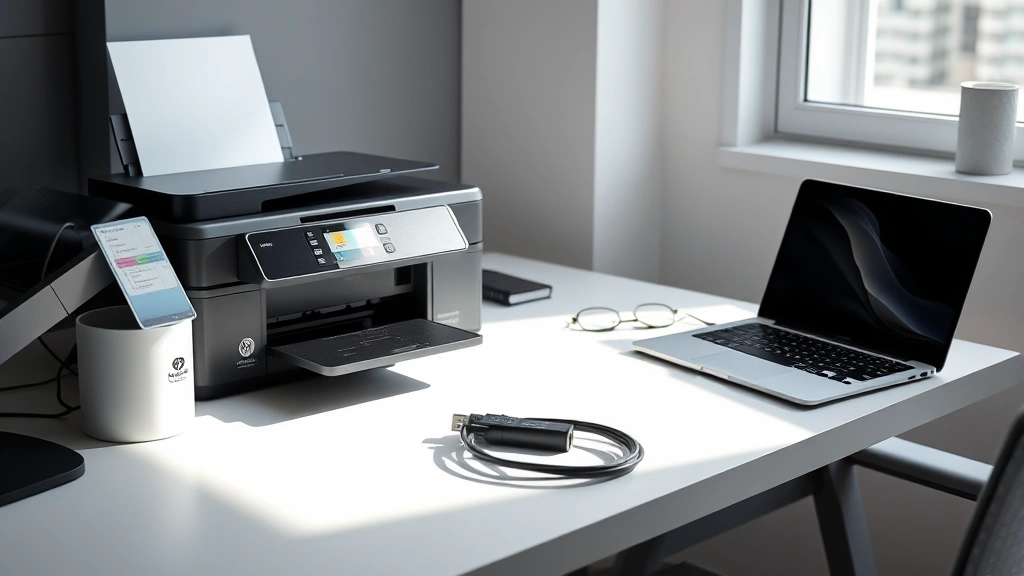
Connecting a printer to your computer shouldn’t feel like you’re defusing a bomb. Yet somehow, it does for a lot of people. The good news? It’s actually straightforward once you know what you’re doing. Whether you’re dealing with a brand-new printer fresh out of the box or dusting off an old one, I’m going to walk you through exactly how to connect printer to computer—no tech jargon, no fluff, just real steps that work.
The frustration usually comes from not knowing which method fits your setup. USB cable? Wireless? Network printer? They’re all different animals, and picking the wrong approach wastes time. That’s why I’m breaking this down by connection type, so you can skip straight to what applies to you.
USB Connection: The Simplest Route
Let’s start with the most straightforward method: plugging in a USB cable. This is your go-to if you’ve got a basic printer and don’t mind having a cable running across your desk. Think of it like connecting any other peripheral—it’s the path of least resistance.
Here’s what you need:
- A USB cable (usually comes with the printer)
- Your computer powered on
- The printer powered on
- The printer driver (more on this in a moment)
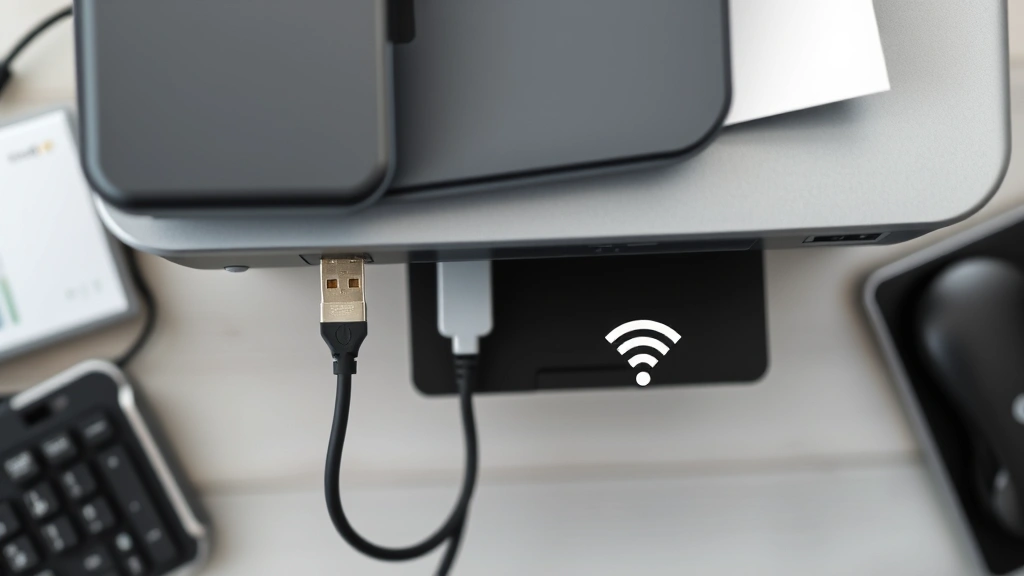
The actual connection process is dead simple: plug the USB cable into the printer’s USB port, then plug the other end into an available USB port on your computer. That’s it for the hardware side. Your computer will detect the printer almost immediately—you’ll usually see a notification pop up saying new hardware was found.
Here’s where most people trip up: they assume the connection is complete. It’s not. You need to install the printer driver next, which is software that tells your computer how to talk to the printer. Without it, your computer recognizes the printer exists, but can’t actually send print jobs to it. It’s like having someone’s phone number but not knowing their language.
Windows will sometimes try to install a generic driver automatically. This might work for basic printing, but you’ll want the official driver from the manufacturer for full functionality. Go to the printer maker’s website (HP, Canon, Brother, Epson, etc.), find your exact model, and download the driver. Run the installer and follow the prompts. It usually takes less than five minutes.
Pro Tip: Keep that USB cable plugged in once it’s working. Moving the printer around or unplugging it repeatedly can cause connection issues. If you must move it, power everything down first, move the printer, then power back up.
Wireless Setup: WiFi Printing Made Simple
Wireless printing is where things get interesting—and where a lot of people panic unnecessarily. The truth is, most modern printers handle WiFi setup pretty smoothly if you follow the right steps.
First, check if your printer even supports wireless. Look at the specs or the printer manual. If it does, you’ll typically find a WiFi button or menu on the printer’s control panel. Some printers have a small screen; others just have buttons.
The basic process:
- Power on the printer and locate the WiFi settings (usually in a menu on the control panel or a dedicated WiFi button)
- Select your home or office network from the list of available networks
- Enter your WiFi password when prompted
- The printer will connect and usually display a confirmation message
- On your computer, go to Settings > Devices > Printers & Scanners
- Click “Add a printer or scanner”
- Select your printer from the list and click “Add device”
The printer and computer need to be on the same WiFi network. This is non-negotiable. If your printer is on the 5GHz band and your computer is on 2.4GHz (or vice versa), they won’t see each other. Most routers broadcast both simultaneously, so this rarely happens, but it’s worth checking if things aren’t working.
One thing people don’t realize: wireless printing is slower than USB, but not by much. The real advantage is freedom. You can print from anywhere in the house without running cables. You can also print from multiple computers and phones on the same network.
Safety Note: Keep your WiFi password secure. Any device that connects to your network can potentially access shared files. Use a strong password and consider a separate guest network if you have visitors printing frequently.
Network Printer Connection
Network printers are a step up in complexity, but they’re common in offices and larger homes. Instead of connecting directly to one computer, the printer gets its own IP address on your network and any device can print to it.
Most modern network printers handle this automatically through DHCP (Dynamic Host Configuration Protocol). Your router assigns the printer an IP address, and your computer finds it on the network just like it would any other device.
To set up a network printer:
- Connect the printer to your network using Ethernet cable or WiFi (same WiFi process as above)
- On your computer, go to Settings > Devices > Printers & Scanners
- Click “Add a printer or scanner”
- Wait 30-60 seconds for your computer to scan the network
- Your printer should appear in the list
- Click it and select “Add device”
If your printer doesn’t appear after waiting, you might need to install the driver first. Download it from the manufacturer’s website and run the installer. This often includes network discovery software that helps locate the printer.
Some older network printers require you to manually enter the printer’s IP address. You can find this by printing a network configuration page directly from the printer (usually through its menu), or by checking your router’s connected devices list.
According to Family Handyman’s guide on network printing, ensuring your printer firmware is up to date prevents most connectivity headaches. Check the manufacturer’s website for firmware updates and install them before troubleshooting connection problems.
Installing Printer Drivers Correctly
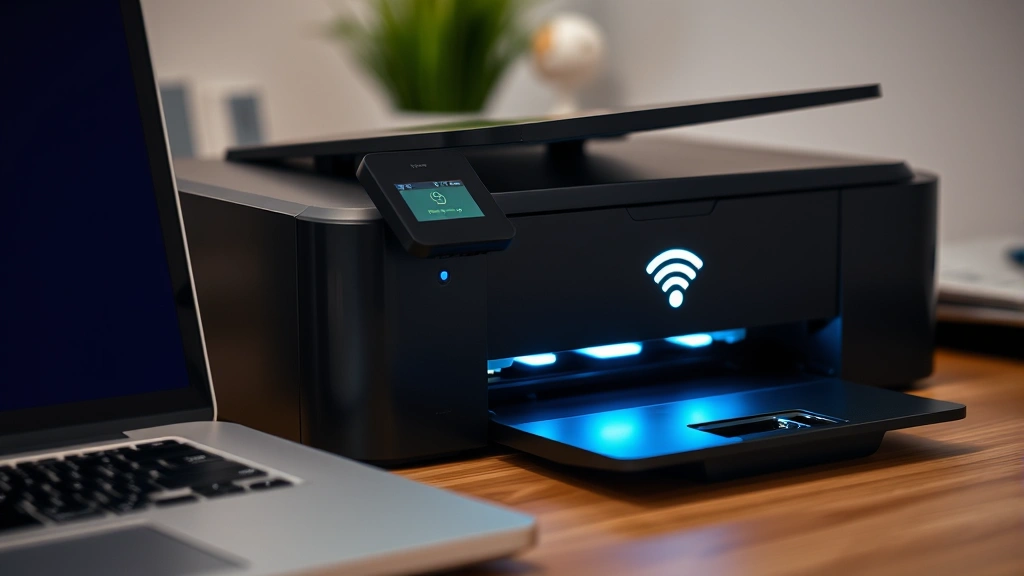
Drivers are the unsung heroes of printer connectivity. They’re basically the translator between your computer’s operating system and the printer’s hardware. Without the right driver, your computer and printer are speaking different languages.
Here’s the hierarchy of driver quality:
- Official manufacturer drivers: Best option. Full features, regular updates, most stable.
- Generic Windows/Mac drivers: Basic printing works, but you might lose advanced features like color correction or specialty paper settings.
- Outdated drivers: Can cause connection issues, especially after OS updates.
To install the correct driver:
- Visit the printer manufacturer’s official website (HP.com, Canon.com, BrotherInternational.com, etc.)
- Find the “Support” or “Downloads” section
- Enter your exact printer model number (found on the printer itself or in the manual)
- Select your operating system (Windows 10, Windows 11, macOS, etc.) and version
- Download the driver software (not just the printer software suite, unless you want extra features)
- Run the installer and follow the on-screen instructions
- Restart your computer when prompted
A lot of people download the entire software suite, which includes scanning software, photo editing tools, and other bloat. If you just want to print, grab the driver-only option. It’s faster to install and uses less disk space.
If you can’t find your exact model online, try searching for the closest model number. Drivers are often backward and forward compatible within a product line. For example, an HP LaserJet Pro M404 driver might work for the M405 model.
Pro Tip: After installing a new driver, restart your computer before printing. This ensures Windows loads the driver correctly and clears any conflicts with the old driver.
Troubleshooting Connection Issues
Even with perfect steps, things sometimes go sideways. Here’s how to diagnose and fix the most common problems.
Computer doesn’t detect the printer (USB):
- Try a different USB port on your computer. Some ports have power issues.
- Use a different USB cable if available. Cables fail more often than people think.
- Restart both the computer and printer.
- Check Device Manager (Windows) or System Report (Mac) to see if the printer appears as an unknown device. If it does, the driver didn’t install correctly.
Printer appears but won’t print:
- Check the printer’s display panel for error messages (out of paper, toner low, paper jam).
- Open Devices > Printers & Scanners, right-click your printer, and select “Open queue.” Look for stuck print jobs and delete them.
- Restart the printer’s spooler service (Windows). Press Windows+R, type “services.msc”, find “Print Spooler”, right-click and select “Restart.”
- Reinstall the driver if nothing else works.
WiFi printer won’t connect:
- Verify the printer and computer are on the same WiFi network. Check your router’s connected devices list.
- Restart the printer and your WiFi router. Power them off for 30 seconds, then back on.
- Move the printer closer to the router temporarily to rule out range issues.
- Forget the network on the printer and reconnect. Go to the printer’s WiFi settings, select your network, and re-enter the password.
According to This Old House’s wireless printer setup guide, the most overlooked issue is an outdated router. If your router is over five years old, consider updating it. Older routers sometimes struggle with modern printer WiFi protocols.
Driver conflicts:
- If you’ve had multiple printers or recently switched models, old drivers can interfere. Go to Control Panel > Programs > Programs and Features, find old printer drivers, and uninstall them.
- Download the latest driver for your current printer from the manufacturer.
- Restart and reinstall.
If you’re still stuck after these steps, contact the printer manufacturer’s support. Most have phone lines, chat support, or email. Have your printer model number and operating system version ready.
Mac vs. Windows: What’s Different
The core process is the same, but the interface differs. Here’s what changes.
Windows: Settings > Devices > Printers & Scanners is where you manage printers. Drivers are usually installed automatically or through an executable installer you download. Windows is more forgiving with generic drivers, so basic printing often works without the official driver.
Mac: System Preferences > Printers & Scanners is the equivalent. Macs handle printer discovery better than Windows—they often find printers on the network without any driver installation. However, for advanced features, you still want the official driver. Mac drivers are usually DMG files (disk images) that you mount and run.
For USB connections, both systems work identically. Plug in the cable, install the driver, done.
For wireless, the setup is nearly identical too. The printer connects to WiFi, you add it in Printers & Scanners, and you’re printing. Macs sometimes find wireless printers faster than Windows, but this varies by printer and router.
One real difference: Macs handle AirPrint (Apple’s wireless printing standard) natively. If your printer supports AirPrint, it’ll work with any Mac on the same WiFi without installing a driver. Windows doesn’t have an equivalent, so you’ll always need a driver for Windows machines.
Running Your First Test Print
Once everything is connected and the driver is installed, don’t just assume it works. Run a test print to confirm.
On Windows:
- Open Devices > Printers & Scanners
- Find your printer in the list
- Click it and select “Open queue”
- Go to Printer > Print Test Page
- Watch for the page to print
On Mac:
- Open System Preferences > Printers & Scanners
- Select your printer
- Click “Options & Supplies”
- Click “Utility”
- Click “Print Test Page”
If the test page prints, you’re golden. If it doesn’t, go back to the troubleshooting section above. Most issues show up immediately, not later.
After the test print works, try printing from an actual application like Word or your browser. This confirms the driver works in real-world scenarios, not just in test mode.
One final check: make sure the printer is set as your default printer. Windows and Mac both prioritize the default printer when you print without explicitly choosing one. You can change this in Printers & Scanners by right-clicking (Windows) or selecting options (Mac).
Pro Tip: Keep a copy of the printer manual or the manufacturer’s support page bookmarked. When issues pop up months later, you’ll have quick access to model-specific troubleshooting.
Frequently Asked Questions
Can I connect multiple computers to the same printer?
– Absolutely. With USB, you’d need to physically move the cable or use a USB switch box. With wireless or network printers, every device on the same network can print to it simultaneously. This is one of the biggest advantages of going wireless. Just make sure each computer has the printer driver installed.
Do I need to install a driver if I’m using AirPrint or Google Cloud Print?
– No. AirPrint (Apple) and Google Cloud Print work without drivers because they handle the translation in the cloud. However, you’ll only get basic printing features. For advanced options like double-sided printing or color correction, you’ll want the official driver.
Why does my printer keep disconnecting from WiFi?
– Usually it’s one of three things: the printer is too far from the router (move it closer), your WiFi password changed (update it on the printer), or the printer’s firmware is outdated (check the manufacturer’s website for updates). Also, make sure your router isn’t overloaded with devices. Older routers struggle with 10+ connected devices.
Is USB or wireless printing better?
– USB is faster and more stable, but less convenient. Wireless is slower and can have connectivity hiccups, but it’s way more flexible. For a home office, wireless wins. For a small business where speed matters, USB is solid. For a large office, a dedicated network printer is the answer.
What if my printer is really old and the manufacturer doesn’t have drivers online anymore?
– First, try Windows or Mac’s built-in generic drivers. They work for basic printing on older printers. If that fails, search for the driver on archived sites like Microsoft’s driver support page. If the printer is truly ancient, it might be time to upgrade. Printers are cheap now compared to 10-15 years ago.
Can I print from my phone to my computer’s printer?
– Only if the printer is on the same WiFi network. USB printers are only accessible from the computer they’re plugged into. Wireless and network printers can print from phones via AirPrint (iOS), Google Cloud Print (Android), or the printer manufacturer’s app. You’ll need to install the app or enable the printing feature in your phone’s settings.
Should I leave my printer on all the time?
– It’s fine to leave it on, but not necessary. Printers have low power consumption in sleep mode. If you’re concerned about electricity, turn it off when you’re not using it for extended periods. For wireless printers, turning them off and on occasionally (once a week) can prevent connection issues.
What’s the difference between a printer driver and printer software?
– The driver is the essential software that lets your computer communicate with the printer. Printer software is the bundle that includes the driver plus extra tools like scanning software, photo editors, or printer management utilities. You need the driver. The software is optional unless you want those extra features.


