
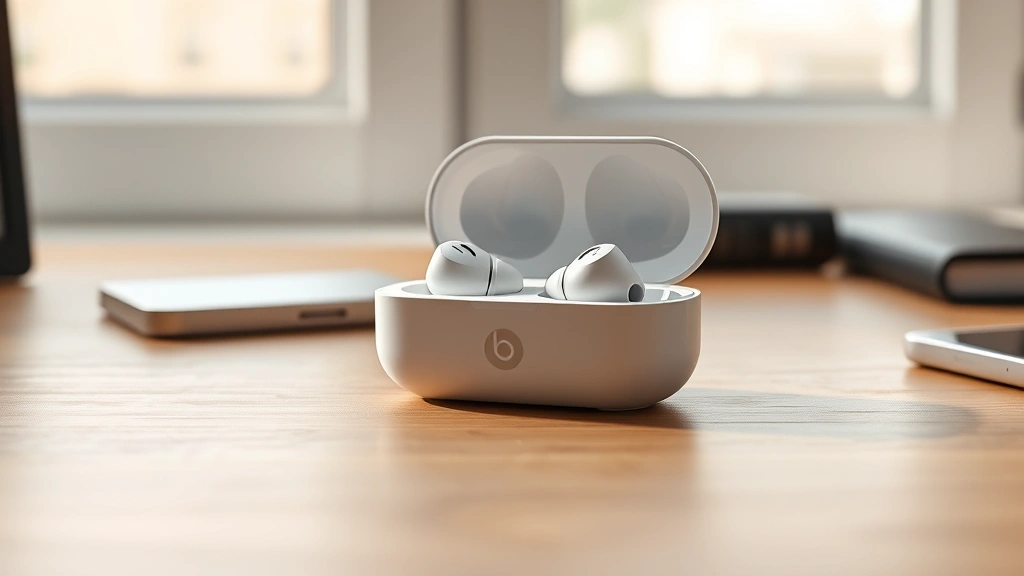
Learning how to connect Beats earbuds to your device is one of those tech tasks that seems intimidating until you actually do it—then you realize it’s dead simple. Whether you’ve got Beats Studio Pro, Beats Fit Pro, or any other model in the lineup, the connection process is basically the same across the board. I’m going to walk you through every step, troubleshoot common hiccups, and get you listening to your favorite tracks in minutes, not hours.
Table of Contents
Before You Start
Before diving into the actual connection process, there are a few prep steps that’ll save you headaches. First, make sure your Beats earbuds are charged—a dead battery is the sneaky culprit behind most connection failures. Grab the charging case and let them juice up for at least 15-20 minutes if they’re completely drained.
Next, check that Bluetooth is enabled on your device. This is the foundation of everything. On iPhones and iPads, swipe down from the top-right corner to open Control Center and tap the Bluetooth icon. On Android, pull down from the top twice to access Quick Settings and enable Bluetooth. On computers, dig into your system settings and flip the Bluetooth switch on.
Finally, make sure your Beats earbuds aren’t already connected to another device. Beats can only pair with one device at a time in most cases. If they’re connected to your old phone, you’ll need to disconnect them there first or reset them entirely.
Put Beats in Pairing Mode
This is the critical step that trips up most people. Your Beats earbuds need to be in pairing mode before your device can see them. The process varies slightly depending on your model, but here’s the general approach:
For most Beats models, press and hold the power button on the earbud or the button on the case for about 5-10 seconds until you see a light flashing. That flashing light—usually white or red—means pairing mode is active. Some models like Beats Fit Pro have a dedicated button on the case; others use the power button itself.
If you’re unsure about your specific model, check out our detailed guide on how to put Beats in pairing mode. It covers every model and shows you exactly what to look for. The key is watching for that visual indicator—once you see it, you’re golden.
Connect to iPhone or iPad
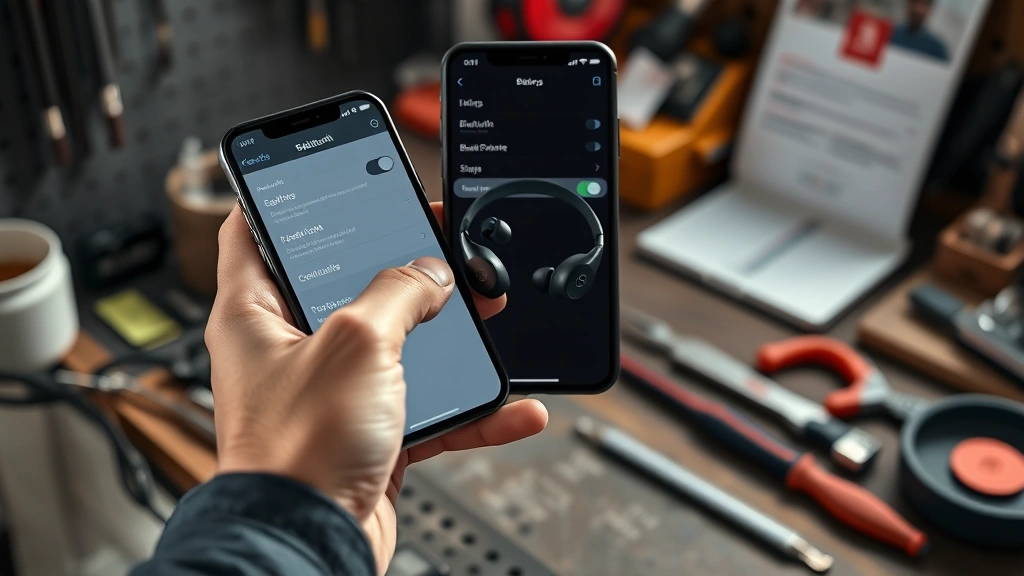
Connecting Beats to an Apple device is where things get really smooth. Once your Beats are in pairing mode, grab your iPhone or iPad and open the Settings app. Tap “Bluetooth” and wait for your Beats to appear in the list of available devices.
You’ll see your Beats model name pop up—might say “Beats Studio Pro” or “Beats Fit Pro” depending on what you’ve got. Tap on it, and the device will automatically start the pairing process. Within a few seconds, you’ll get a confirmation screen showing that your Beats are connected.
Here’s a pro tip: Apple devices remember your Beats after the first pairing. Next time you turn on your earbuds, they’ll automatically reconnect to your iPhone or iPad without any extra steps. It’s one of those seamless features that makes the Apple ecosystem so convenient.
Connect to Android Phones
Android pairing works similarly but with a few Android-specific steps. Make sure Bluetooth is enabled, then open your Settings app and look for “Connected devices” or “Bluetooth” (the exact name depends on your Android version and manufacturer).
Tap on “Pair new device” or the plus icon to start scanning. Your Beats should appear in the list within 10-15 seconds. Tap the device name and confirm the pairing request if a dialog pops up. Some Android phones ask you to enter a PIN code—just use “0000” if prompted.
Unlike iPhones, Android devices sometimes need a little nudge to remember your Beats. If they don’t auto-connect next time, just go back into Bluetooth settings and tap your Beats to reconnect. It’s still quick, but not quite as automatic as iOS.
Connect to Windows or Mac
Connecting to a computer is just as straightforward. On a Mac, click the Apple menu, go to System Settings, then Bluetooth. Make sure Bluetooth is on, and your Beats should show up in the available devices list within seconds. Click your Beats and confirm the pairing.
For Windows, right-click the Bluetooth icon in your system tray and select “Add a Bluetooth device.” Windows will scan for available devices. When your Beats appear, click them and follow any on-screen prompts to complete the connection.
Computer connections are handy for listening to music, watching videos, or taking calls on Zoom. The audio quality is identical to phone connections, so don’t worry about any degradation when you switch between devices.
Reconnect to Existing Device
Once your Beats are paired with a device, reconnecting is automatic in most cases. Just turn on your Beats, and they’ll search for the last device they were connected to. If that device has Bluetooth enabled, the connection happens in seconds without any manual intervention.
If your Beats don’t auto-connect, manually open Bluetooth settings on your device and tap your Beats from the paired devices list. They’ll reconnect immediately. This is also useful when you want to switch between multiple devices quickly—just disconnect from one and tap your Beats on another device.
Troubleshooting Connection Issues
Not everything goes smoothly every time. If your Beats won’t connect, start with the basics: restart both your Beats and your device. Power down your Beats completely, wait 10 seconds, then turn them back on. Restart your phone or computer as well.
If that doesn’t work, try “forgetting” the device on your phone and re-pairing from scratch. On iPhone, go to Bluetooth settings, tap the info icon next to your Beats, and select “Forget This Device.” Then put your Beats back in pairing mode and reconnect. On Android, go to Bluetooth settings, find your Beats, and tap “Unpair” or “Forget.”
Still stuck? Reset your Beats entirely. Most models have a factory reset button or require you to hold the power button for 15+ seconds. Check your manual or the official Beats support page for your specific model’s reset procedure. After a factory reset, your Beats will be completely wiped and ready to pair fresh.
Interference from other Bluetooth devices can also cause issues. If you’ve got multiple Bluetooth devices competing for attention, try turning off the ones you’re not using. Bluetooth operates on the 2.4GHz frequency, same as WiFi and some cordless phones, so clearing that airspace helps.
Manage Multiple Devices
One of the slick features of modern Beats is the ability to pair them with multiple devices. You can have your Beats connected to your iPhone, iPad, and Mac all at the same time. When you want to switch between them, just start playing audio on the device you want to use, and your Beats will automatically switch to it.
This is super convenient if you’re bouncing between work on your Mac and scrolling on your iPad. No need to manually disconnect and reconnect each time. Just hit play, and your Beats follow the audio.
If you want to remove a device from your Beats’ memory entirely, go into Bluetooth settings on that device and forget the Beats. Then put your Beats in pairing mode and pair them with a different device instead. This is useful when you’re selling your old phone or want to clean up your device list.
Frequently Asked Questions
How long does it take to pair Beats earbuds?
The entire pairing process typically takes 30 seconds to 2 minutes. Most of that time is just navigating your device’s settings. The actual Bluetooth handshake happens in seconds once you tap the device name.
Why won’t my Beats appear in Bluetooth settings?
Your Beats probably aren’t in pairing mode. Hold the power button for 5-10 seconds until you see a flashing light. If they still don’t show up, try restarting both your Beats and your device. Low battery on the Beats can also prevent them from appearing—charge them for 15 minutes and try again.
Can I use Beats with multiple devices simultaneously?
You can pair Beats with multiple devices, but they can only play audio from one device at a time. When you start playing music on a different device, your Beats will automatically switch to it. You can’t listen to two devices at once.
How do I disconnect Beats from a device?
Go to Bluetooth settings on that device and toggle Bluetooth off, or “forget” the Beats from the device list. Your Beats will remain paired with the device but won’t auto-connect until you manually reconnect them.
Do I need to pair my Beats every time I use them?
No. Once paired, your Beats automatically reconnect to your device when you turn them on (as long as Bluetooth is enabled on your device). You only need to manually pair them the first time or if you reset them.
What if my Beats keep disconnecting?
Try forgetting the device and re-pairing from scratch. If that doesn’t work, reset your Beats completely using the factory reset procedure for your model. Interference from other Bluetooth devices can also cause drops—try turning off nearby Bluetooth devices and see if the connection stabilizes.
Can I connect Beats to multiple phones at once?
You can pair Beats with multiple phones, but they can only connect to one phone at a time. To switch between phones, disconnect from one and reconnect to the other through Bluetooth settings.
Final Thoughts
Connecting your Beats earbuds is genuinely one of the easiest tech tasks you’ll do. The key steps are charging them, putting them in pairing mode, and tapping them in your device’s Bluetooth settings. From there, they’ll remember your device and auto-connect every time.
If you run into issues, remember that most problems solve themselves with a restart or a factory reset. And if you’re dealing with multiple devices, the auto-switching feature makes it seamless to bounce between your iPhone, iPad, Mac, and Android phone without thinking about it.
For more pairing guidance on similar devices, check out our how to pair Bose headphones guide for comparison. Once you’ve got your Beats connected, you’re ready to enjoy your music, podcasts, and calls with zero wires and maximum convenience. Happy listening.


