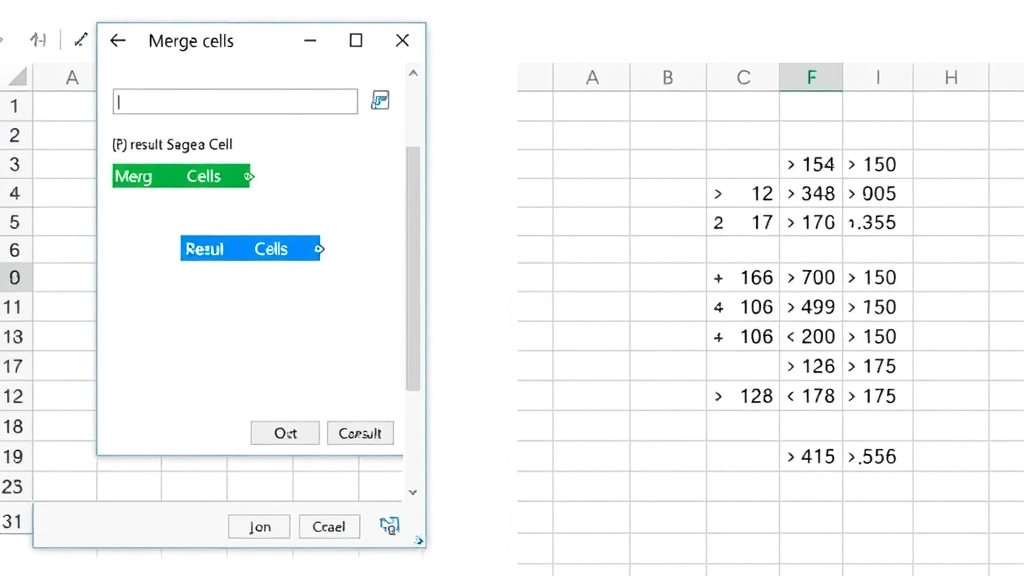
How to Combine Two Cells in Excel: Simple & Essential Guide

Combining data from two cells in Excel is one of the most practical skills you’ll master. Whether you’re merging first and last names, concatenating addresses, or joining text strings, knowing how to combine two cells in excel saves hours of manual data entry. This guide walks you through every method—from simple formulas to advanced techniques—so you can choose the approach that fits your workflow best.
Quick Answer
The fastest way to combine two cells in Excel is using the CONCATENATE function or the ampersand (&) operator. For example, =A1&" "&B1 merges cells A1 and B1 with a space between them. Alternatively, use the TEXTJOIN function (Excel 2016+) for more flexibility: =TEXTJOIN(" ",FALSE,A1,B1). Both methods create a new combined value without altering your original data.
- CONCATENATE function: Classic method, works in all Excel versions
- Ampersand (&) operator: Simplest syntax, most commonly used
- TEXTJOIN function: Most flexible, handles multiple cells easily
- Merge Cells feature: Visually combines cells (doesn’t combine data)
- Flash Fill: AI-assisted method for pattern recognition (Excel 2013+)
Method 1: Using the Ampersand (&) Operator
The ampersand operator is the simplest and most popular way to combine two cells in Excel. This method uses the & symbol to join text, numbers, and cell references together. It’s lightweight, fast, and works across all Excel versions without compatibility issues.
Step-by-step process:
- Click on an empty cell where you want the combined result to appear (e.g., cell C1)
- Type the formula:
=A1&B1 - Press Enter to execute the formula
- The combined content from A1 and B1 now appears in C1
To add spacing or punctuation between combined values, include it in quotes. For example, =A1&" "&B1 adds a space, while =A1&", "&B1 adds a comma and space. This flexibility makes the ampersand operator ideal for how to combine two cells in excel when you need precise formatting control.
Pro tip: You can combine multiple cells beyond just two. Use =A1&B1&C1&D1 to merge four cells simultaneously. The formula scales to any number of cells you need to join.
Method 2: Using CONCATENATE Function
The CONCATENATE function is Excel’s dedicated formula for combining text from multiple cells. While slightly more verbose than the ampersand operator, it’s the traditional approach that many Excel users learned first. The CONCATENATE function works identically across Windows and Mac versions.
Basic syntax:
=CONCATENATE(A1,B1)
To include separators like spaces or commas, add them as text strings:
=CONCATENATE(A1," ",B1)
Step-by-step instructions:
- Select an empty cell for your combined result
- Type:
=CONCATENATE( - Click cell A1, type a comma, then click cell B1
- Add separators in quotes between cell references as needed
- Close the parenthesis and press Enter
The CONCATENATE function is particularly useful when you’re learning how to combine two cells in excel because the syntax clearly shows each component. However, Microsoft now recommends TEXTJOIN for new spreadsheets since it offers more advanced features.
Limitation: CONCATENATE doesn’t handle empty cells as gracefully as TEXTJOIN. If one cell is blank, it won’t automatically skip it, potentially creating unwanted spacing.
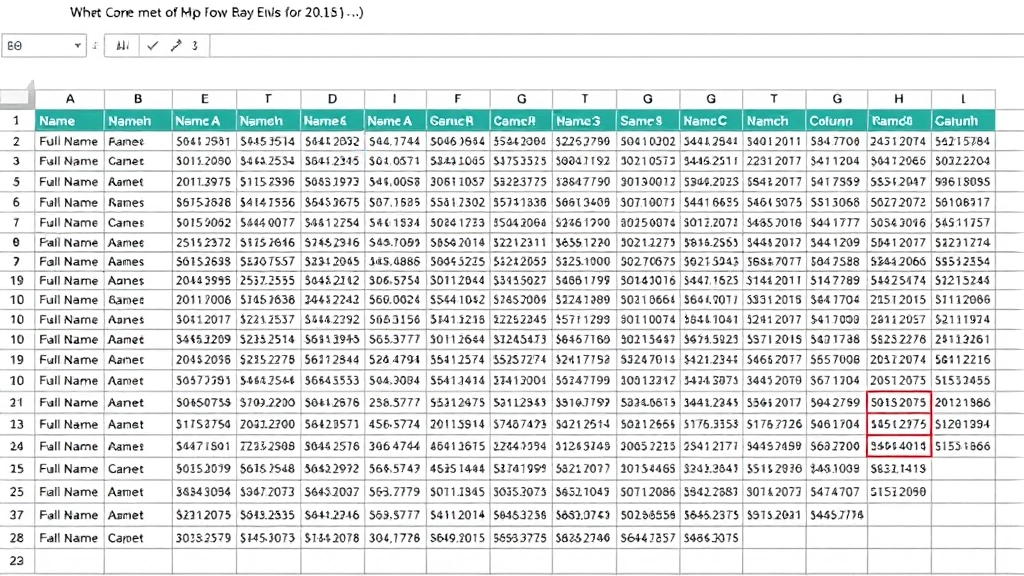
Method 3: Using TEXTJOIN Function
TEXTJOIN is the modern solution for combining cells in Excel 2016 and later versions. This function offers superior flexibility compared to older methods, automatically handling empty cells and allowing you to specify exactly how you want your data joined.
Basic syntax:
=TEXTJOIN(delimiter, ignore_empty, text1, [text2], ...)
The delimiter is what separates your combined values (space, comma, dash, etc.). The ignore_empty parameter (TRUE or FALSE) tells Excel whether to skip blank cells. When set to TRUE, empty cells are ignored; when FALSE, they’re included.
Practical example:
=TEXTJOIN(" ", TRUE, A1, B1) combines A1 and B1 with a space, ignoring any empty cells.
Why TEXTJOIN excels:
- Automatically skips empty cells when configured properly
- Handles multiple cells more elegantly than CONCATENATE
- Reduces formula complexity for large data sets
- Cleaner output without extra spaces from blank cells
When learning how to combine two cells in excel on modern versions, TEXTJOIN should be your first choice. It’s the most powerful and user-friendly option available.
Note: TEXTJOIN isn’t available in Excel 2013 or earlier versions. If you’re using older Excel, stick with the ampersand operator or CONCATENATE.
Method 4: Using Flash Fill
Flash Fill is an intelligent Excel feature (available in Excel 2013 and later) that recognizes patterns in your data and automatically fills in the rest. It’s perfect for how to combine two cells in excel when you want a quick, visual approach without writing formulas.
How to use Flash Fill:
- In your first result cell (C1), manually type the combined format you want (e.g., “John Smith” if combining first and last names)
- Start typing the same pattern in the next cell (C2)
- Excel will detect the pattern and suggest the rest
- Press Ctrl+E (Windows) or Cmd+E (Mac) to accept the Flash Fill suggestion
- Excel fills all remaining cells automatically
Flash Fill is remarkably intuitive and requires no formula knowledge. However, it works best with consistent, clear patterns. Complex formatting or irregular data may confuse the algorithm.
Advantage: Creates static values (not formulas), so the combined data doesn’t recalculate if source cells change. This is ideal when you need a final, fixed result.
Method 5: Merge Cells vs. Combine Data
A common misconception is confusing “merging cells” with “combining data.” These are two different operations, and understanding the distinction is crucial when learning how to combine two cells in excel.
Merging cells: Visually combines multiple cells into one larger cell. The data from only the first cell is retained; data from other cells is deleted. Merged cells can cause problems with sorting, filtering, and formulas.
Combining data: Joins the content from multiple cells into a single result using formulas. Both source cells retain their original data, and you create new combined content elsewhere.
When to use each:
- Merge cells: For headers, titles, or formatting purposes only—never for data consolidation
- Combine data: When you need to join actual information from multiple cells while preserving originals
For data work, always combine instead of merge. If you’ve already merged cells and need to unmerge them, select the merged cell, go to the Home tab, click Merge & Center, and select Unmerge Cells.
Learn more about advanced cell operations by reading our guide on how to merge two columns in Excel and how to move columns in Excel.
Practical Real-World Examples
Understanding how to combine two cells in excel becomes much clearer with real-world scenarios. Here are common situations where combining cells saves time and improves data quality.
Example 1: Full Names from First and Last Names
You have first names in column A and last names in column B. To create full names in column C:
=A1&" "&B1
This combines “John” and “Smith” into “John Smith.”
Example 2: Complete Addresses
Combine street address (A1) with city (B1) using a comma:
=A1&", "&B1
Result: “123 Main Street, Springfield”
Example 3: Product SKUs with Dates
Merge product code (A1) with date (B1) for inventory tracking:
=A1&"-"&TEXT(B1,"YYYYMMDD")
This creates unique identifiers like “SKU-20240115” for tracking purposes.
Example 4: Email Addresses from Name Parts
Create email addresses from first name (A1) and last name (B1):
=LOWER(A1&"."&B1&"@company.com")
Produces: “john.smith@company.com”
Example 5: Handling Numbers and Text
Combine text (A1) with numbers (B1) for reports:
=A1&": "&B1&" units"
Result: “Widget A: 150 units”
These examples show how to combine two cells in excel across different industries and use cases. The core principle remains the same—choose your separator, select your formula, and let Excel handle the rest.
Troubleshooting Common Issues
When learning how to combine two cells in excel, you may encounter problems. Here are solutions to the most common issues.
Issue 1: Formula Shows as Text Instead of Result
If your formula appears as text (e.g., “=A1&B1” instead of the combined result), the cell is formatted as text. Right-click the cell, select Format Cells, change to General format, and press Enter. The formula will now calculate properly.
Issue 2: Extra Spaces in Combined Results
Empty cells or extra spaces in source data create unwanted gaps. Use TEXTJOIN with ignore_empty set to TRUE: =TEXTJOIN(" ",TRUE,A1,B1). This automatically removes spacing from blank cells.
Issue 3: Numbers Appearing as Text
When combining numbers with text, they sometimes display as text strings. Use the VALUE function to convert: =A1&" "&VALUE(B1). This ensures proper number handling.
Issue 4: Special Characters Causing Errors
If your data contains quotes or apostrophes, they may break formulas. Use SUBSTITUTE to remove them: =SUBSTITUTE(A1&" "&B1,"'","").
Issue 5: Formula Not Copying Down Properly
When you copy a combining formula to other rows, cell references should auto-adjust. If they don’t, ensure you’re using relative references (A1, B1) not absolute ones ($A$1, $B$1). Click the cell with your formula and drag the fill handle down to copy it to multiple rows.
For additional data management help, check out our guides on how to add drop down lists in Excel, how to lock cells in Excel, and how to find duplicates in Excel.
FAQ
Q: Does combining cells delete the original data?
A: No. When you use formulas to combine cells, the original data in both cells remains unchanged. Only the result cell contains the combined content. If you want to delete the originals after combining, do so manually.
Q: Can I combine more than two cells?
A: Absolutely. All methods work with any number of cells. For example: =A1&B1&C1&D1 or =TEXTJOIN(" ",TRUE,A1:D1) combines four cells simultaneously.
Q: What’s the difference between combining and merging?
A: Combining uses formulas to join data from multiple cells into one result cell. Merging visually combines cells into one larger cell but keeps only the first cell’s data. For data work, always combine instead of merge.
Q: Which method is fastest for combining two cells in excel?
A: The ampersand operator (&) is fastest to type and executes instantly. TEXTJOIN is best for handling complex scenarios with multiple cells and empty values.
Q: Does Flash Fill work with all data types?
A: Flash Fill works best with consistent, recognizable patterns. It may struggle with irregular formatting, special characters, or complex logic. For unpredictable data, formulas are more reliable.
Q: Can I undo a combine operation?
A: Yes. Press Ctrl+Z immediately after combining to undo. If you’ve already saved, you’ll need to manually separate the combined data or restore from a backup.
Q: Is there a way to combine cells without using formulas?
A: Flash Fill offers a formula-free approach. You can also copy and paste special values, but formulas are the most flexible and reliable method for how to combine two cells in excel.
Q: What if one of my cells is empty?
A: The ampersand operator will create a result with a gap. Use TEXTJOIN with ignore_empty set to TRUE to automatically skip blank cells: =TEXTJOIN(" ",TRUE,A1,B1).
Q: Can I combine cells with different data types (text and numbers)?
A: Yes. Excel automatically converts numbers to text when combining with the & operator. Use VALUE or TEXT functions if you need specific formatting for numbers.
Q: How do I combine cells while keeping the original formatting?
A: Formulas create new text strings, so original formatting (colors, fonts) won’t carry over. If formatting is important, manually copy and paste after combining, or use VBA macros for advanced customization.
According to WikiHow, mastering cell combining is one of the first skills Excel users should develop. For more advanced data manipulation, Family Handyman and The Spruce offer detailed guides on organizing information efficiently. Additionally, Consumer Reports recommends learning multiple methods to choose the best approach for your specific needs, and HowStuffWorks provides comprehensive tutorials on spreadsheet fundamentals.
Learning how to combine two cells in excel is a foundational skill that opens doors to advanced data management. Whether you choose the simple ampersand operator, the flexible TEXTJOIN function, or the intelligent Flash Fill feature, you now have all the tools needed to merge data efficiently. Practice these methods with your own data, and you’ll soon be combining cells like a spreadsheet expert.