
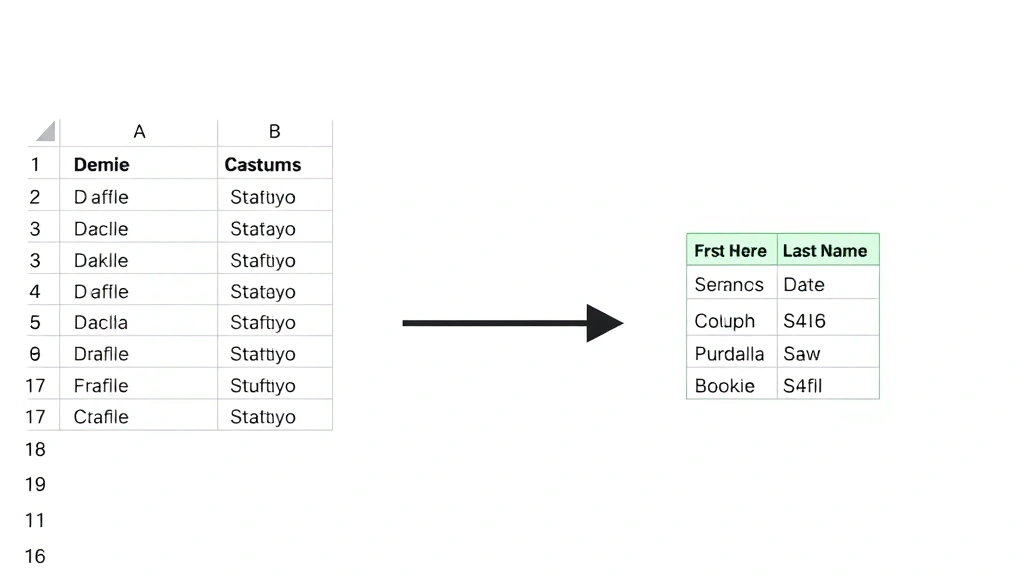
If you’ve ever stared at two separate columns in Excel and thought, “There’s got to be an easier way to merge this data,” you’re not alone. Combining columns is one of those tasks that looks complicated but is actually pretty straightforward once you know the right method. Whether you’re dealing with first and last names, addresses split across columns, or any other data that needs consolidating, how to combine 2 columns in excel is a skill that’ll save you hours of manual work.
The good news? You don’t need to be an Excel wizard. This guide walks you through every method—from simple formulas to advanced techniques—so you can pick the approach that fits your situation best.
The CONCATENATE Method: The Classic Approach
Let’s start with the OG formula that’s been around forever. CONCATENATE is like the reliable hammer in your toolkit—it doesn’t do anything fancy, but it gets the job done.
Here’s how it works:
- Click on the cell where you want your combined data to appear (usually a new column)
- Type:
=CONCATENATE(A1,B1) - Press Enter
- Drag the formula down to fill all rows
That’s it. If you want to add a space between the two columns, modify it like this: =CONCATENATE(A1," ",B1)
The CONCATENATE method is perfect for beginners because it’s literally spelling out what you’re doing. You’re telling Excel, “Take what’s in A1, then take what’s in B1, and stick them together.” No mystery.
Pro Tip: If your data has extra spaces or inconsistent formatting, clean it up first using the TRIM function. Something like
=CONCATENATE(TRIM(A1)," ",TRIM(B1))removes those annoying trailing spaces that mess up your combined data.
The Ampersand (&) Operator: The Shortcut
Real talk—most Excel pros don’t use CONCATENATE anymore. They use the ampersand (&) operator because it’s faster and cleaner to write.
Instead of =CONCATENATE(A1,B1), just type: =A1&B1
That’s literally half the keystrokes. And if you want a space? =A1&" "&B1
This method does exactly the same thing as CONCATENATE, but it feels less clunky. Think of the ampersand as Excel’s way of saying “and then.” You’re building a sentence: “Take A1 AND THEN B1.”
The ampersand approach works in every version of Excel and is honestly the method I’d recommend for most situations. It’s fast, it’s readable, and other people looking at your spreadsheet will immediately understand what you’re doing.
The CONCAT Function: The Modern Update
Excel 2016 introduced CONCAT as a cleaner alternative to CONCATENATE. It does the same job but with slightly better syntax.
The formula looks like: =CONCAT(A1,B1)
Or with a separator: =CONCAT(A1," ",B1)
Honestly? For basic combining of two columns, CONCAT and CONCATENATE are virtually identical. The real difference shows up when you’re working with ranges or multiple cells. But for how to combine 2 columns in excel at the beginner level, either works fine.
If you’re using a newer version of Excel (2016 or later), CONCAT is slightly preferred because it’s the newer standard. But if you’re on an older version or sharing files with people who are, stick with CONCATENATE or the ampersand method—they’re more universally compatible.
The TEXTJOIN Function: The Powerhouse for Complex Situations
Now we’re getting into the advanced stuff. TEXTJOIN is where things get interesting, especially if you’re combining multiple columns or dealing with messy data.
The syntax is: =TEXTJOIN(separator, ignore_empty, text1, [text2], ...)
For combining two columns with a space separator: =TEXTJOIN(" ", FALSE, A1, B1)
The magic word here is “ignore_empty.” Set it to TRUE, and TEXTJOIN will skip any blank cells. Set it to FALSE, and it’ll include them. This is huge if your data has gaps.
Example: You’re combining customer first names and middle names, but some people don’t have middle names. With TEXTJOIN set to TRUE, you won’t get weird extra spaces for those rows.
TEXTJOIN is available in Excel 2016 and later (and Excel for Microsoft 365). If you’re stuck on an older version, this won’t work, but honestly, if you’re doing serious data work, it’s worth upgrading just for functions like this.
Safety Warning: TEXTJOIN can be slow on really large datasets (like 100,000+ rows). If you’re working with massive files, test it on a smaller sample first to make sure performance is acceptable.
Copy & Paste Special Approach: When Formulas Aren’t the Answer
Sometimes you don’t want a formula—you want actual values combined into a single column. This is where Copy & Paste Special comes in.
Here’s the process:
- Create your combined data using any formula method above
- Copy the resulting column (Ctrl+C)
- Right-click and select “Paste Special”
- Choose “Values Only”
- Click OK
Now your combined data is locked in as actual text, not formulas. This is useful when you’re sending the file to someone else or when you want to delete the original columns without breaking anything.
The reason this matters: If you just use formulas and then delete column A, all your formulas break and you lose your combined data. By converting to values, you’re making it permanent.
I recommend this step especially if you’re identifying duplicates in Excel or doing any other cleanup work afterward. You want your combined column to stand on its own.
Flash Fill Method: Let Excel Figure It Out
Here’s a feature that blows people’s minds: Flash Fill. It’s available in Excel 2013 and later, and it basically lets Excel learn what you’re trying to do.
How it works:
- In your destination column, manually type the combined result for the first 1-2 rows
- Start typing the third row
- Excel will often suggest the pattern (you’ll see a grayed-out preview)
- Press Ctrl+E to accept the Flash Fill suggestion
For example, if column A has “John” and column B has “Smith,” you’d type “John Smith” in your destination cell. Then for the next row, type “Jane Doe.” Excel catches on and fills the rest automatically.
Flash Fill isn’t always reliable—sometimes Excel doesn’t recognize the pattern—but when it works, it’s the fastest method available. No formulas, no copying down, just done.
The downside: If your data changes, Flash Fill doesn’t update automatically like a formula would. It’s a one-time thing. So use it when your data is final, not when you’re still making changes.
Common Mistakes to Avoid When Combining Columns
Mistake #1: Forgetting the Separator
If you combine “John” and “Smith” without a space, you get “JohnSmith.” It looks terrible. Always include a separator—usually a space, comma, or hyphen depending on your data.
Mistake #2: Not Handling Empty Cells
If one of your columns has blanks, your formula might create weird results. Use TEXTJOIN with ignore_empty set to TRUE, or add an IF statement to check for blanks first.
Mistake #3: Deleting Original Columns Too Soon
If you delete the original columns before converting your formulas to values, everything breaks. Always convert to values first (using Paste Special), then delete the originals.
Mistake #4: Not Accounting for Data Type Differences
If one column has numbers and another has text, combining them can sometimes cause formatting issues. Usually it’s fine, but if you’re seeing weird results, check that your data types match.
Mistake #5: Ignoring Leading/Trailing Spaces
Seriously, use TRIM. Those invisible spaces will haunt you. They’ll mess up sorting, filtering, and matching. A simple =TRIM(A1) wrapped around your formula saves massive headaches later.
According to Family Handyman’s guide to organization, the same principle applies to data organization—cleanliness matters. Just like you wouldn’t build on a foundation with debris, don’t build formulas on messy data.
Bonus: Combining More Than Two Columns
Once you know how to combine 2 columns in excel, scaling up is easy.
With ampersand: =A1&" "&B1&" "&C1
With TEXTJOIN: =TEXTJOIN(" ", TRUE, A1, B1, C1, D1)
The logic is the same—you’re just adding more cells to the chain. TEXTJOIN becomes more valuable here because you can handle multiple columns with gaps more elegantly.
If you’re combining a lot of columns, TEXTJOIN is genuinely your best friend. The ampersand method gets unwieldy fast.
Real-World Examples
Example 1: First and Last Names
Column A: First names | Column B: Last names | Formula: =A1&" "&B1 | Result: Full names with space
Example 2: Address Parts
Column A: Street | Column B: City | Column C: State | Formula: =TEXTJOIN(", ", TRUE, A1, B1, C1) | Result: Complete address
Example 3: Product Codes
Column A: Category codes | Column B: Item numbers | Formula: =A1&"-"&B1 | Result: Formatted product codes like “ELEC-2847”
These are the kinds of tasks where combining columns saves you from doing it manually, which would take forever and introduce errors.
According to This Old House’s approach to efficiency, the best tool is one that saves time without sacrificing quality. That’s exactly what these Excel methods do.
Advanced Tips for Power Users
Using Helper Columns Strategically
If your data is complex, don’t be afraid to use multiple helper columns. Combine A and B in column D, then combine D and C in column E. It’s cleaner than one massive formula and easier to debug if something goes wrong.
Combining with Conditional Logic
You can nest IF statements with your combining formulas. For example: =IF(B1="",A1,A1&" "&B1) means “if B1 is empty, just use A1, otherwise combine them with a space.”
Using CONCATENATE with VLOOKUP
If you’re pulling data from multiple tables, you can combine CONCATENATE with VLOOKUP to merge data from different sources. This gets advanced quickly, but it’s powerful.
For more advanced data manipulation, check out how to wrap text in Excel or explore how to alphabetize in Excel for related tasks.
If you’re working with large datasets, you might also want to understand how to add up a column in Excel for summary calculations afterward.
For more detailed cell-level work, our guide on how to combine two cells in Excel covers cell-specific scenarios, and if you need to actually merge cells visually, check out our article on how to merge two columns in Excel.
Frequently Asked Questions
What’s the difference between combining and merging columns in Excel?
– Combining means taking data from two columns and putting it together into one cell (like “John” + “Smith” = “John Smith”). Merging is a visual formatting thing where you combine multiple cells into one larger cell. They’re different operations. Combining uses formulas; merging is about cell structure.
Can I combine columns without using formulas?
– Yes. Flash Fill (in Excel 2013+) can do it by learning from examples. You manually type a few combined results, and Excel fills the rest. It’s slower than formulas but requires no formula knowledge.
What if my columns have different data types (numbers and text)?
– Excel handles this automatically in most cases. Numbers get converted to text when combined. If you’re seeing weird formatting, use TRIM to clean up spaces, and make sure your formula includes proper separators.
How do I combine columns and keep the original data intact?
– Use formulas in a new column. The original columns stay untouched. If you want to delete the originals later, convert your formula results to values first (Paste Special > Values).
Which method is fastest for large datasets?
– The ampersand operator (&) is typically fastest because it’s the simplest. TEXTJOIN can slow down with 100,000+ rows. Flash Fill is unpredictable with large data. For massive files, use the ampersand method or consider breaking the data into chunks.
Can I combine columns in Excel Online or Google Sheets?
– Yes, but availability varies. Excel Online supports CONCATENATE and ampersand (&). Google Sheets has CONCATENATE and TEXTJOIN. The ampersand method works in both, so that’s your safest bet for cross-platform compatibility.
What if I need to combine columns with specific formatting (like dates)?
– Use the TEXT function to format the data before combining. For example: =A1&" "&TEXT(B1,"mm/dd/yyyy") ensures your date shows in the right format when combined.
How do I undo a combine operation if I make a mistake?
– If you used formulas, just delete the formula column and try again. If you converted to values, use Ctrl+Z to undo immediately. Once you close the file, you can’t undo, so be careful with that Paste Special step.
Can I combine columns based on a condition?
– Yes, use IF statements. For example: =IF(A1>0,A1&B1,B1) means “if A1 is greater than 0, combine A1 and B1, otherwise just use B1.” This lets you combine conditionally based on your data.
Is there a limit to how many columns I can combine?
– No hard limit, but formulas get unwieldy with too many columns. TEXTJOIN can handle dozens of columns elegantly. With ampersand, it gets messy after 5-6 columns. If you’re combining more than that, consider whether you really need everything in one cell.


