

Your Mac is running slower than a three-legged turtle, and you’re getting those dreaded “Your disk is almost full” warnings. Sound familiar? The thing is, how to clear disk space on mac isn’t just about deleting a few files—it’s about understanding what’s actually eating your storage and doing it the right way so you don’t accidentally nuke something important.
I’ve been helping people troubleshoot their Macs for years, and I can tell you: most people don’t realize how much junk accumulates in the background. Cache files, duplicate photos, old app installations, language packs you’ll never use—it all adds up fast. The good news? You can reclaim gigabytes of space without paying for sketchy “cleaning” apps or doing a full factory reset.
Let’s walk through how to clear disk space on mac the smart way.
Check Your Storage Status First
Before you start deleting anything, you need to see exactly what’s consuming your disk space. This is non-negotiable. Think of it like checking your bank account before you start cutting expenses—you need data before you make decisions.
Here’s how to get the full picture:
- Click the Apple menu (top-left corner)
- Select “About This Mac”
- Click the “Storage” tab
- You’ll see a colored bar showing how much space is used and what’s taking it up
That bar breaks down your storage into categories: Photos and Videos, Audio, Photos Library, Backups, Applications, Documents, and Other. The “Other” category is often the culprit—it’s where system files, caches, and random junk hide.
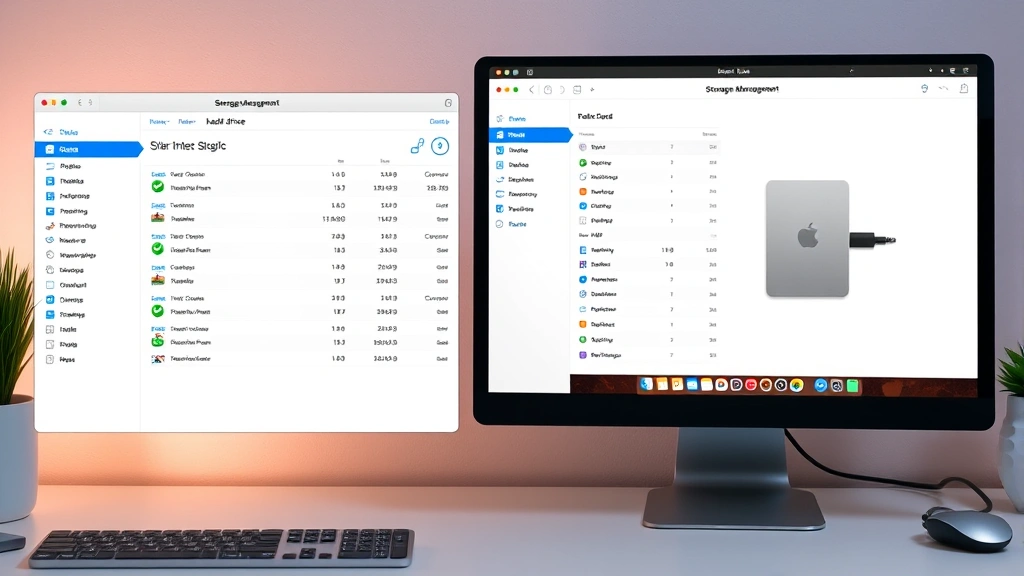
For a more detailed breakdown, macOS also has a built-in tool called “Storage Management.” Here’s how to access it:
- Go to System Settings (or System Preferences on older Macs)
- Click “General”
- Select “Storage”
- Click “Manage”
This tool shows you recommendations for freeing up space and lets you see what’s actually taking up room. It’s honestly pretty useful—and it’s free, which beats paying for third-party apps.
Pro Tip: Write down the current storage numbers before you start. This way, you can actually see how much space you’ve freed up. It’s satisfying, trust me.
Delete Large Files and Old Downloads
Your Downloads folder is probably a graveyard of installers, PDFs, and files you downloaded six months ago and forgot about. This is the easiest place to start clearing disk space on mac because you’ll find the biggest offenders here.
Start by opening Finder and navigating to your Downloads folder. Sort by “Size” (largest first) to see what’s taking up the most space. Old video files, disk images, and software installers are common culprits.
Here’s what to look for:
- .dmg files (disk images for Mac software installations)—these can be 500MB to 2GB each
- .zip archives you’ve already extracted
- Old project files from work or school
- Installation files for software you’ve already installed
- Duplicate files you’ve downloaded multiple times
Pro move: use how to select multiple files on Mac to batch-delete old downloads. Hold Command and click multiple files, then drag them to Trash.
While you’re at it, check your Documents folder for large files you don’t need anymore. Video projects, old backups, large presentations—if you haven’t touched them in a year, they’re probably safe to delete.
Safety Warning: Before you delete anything, make sure it’s not something you actually need. If you’re unsure, move it to an external drive first. Better safe than sorry.
Clean Out Your Trash (Yes, Really)
Here’s something I see all the time: people delete files but never empty their Trash. Your Trash folder is like a recycle bin—deleted files sit there taking up space until you permanently remove them.
This is embarrassingly simple, but it works:
- Look for the Trash icon in your Dock (bottom of the screen)
- Right-click it
- Select “Empty Trash”
- Confirm when prompted
That’s it. You just freed up whatever space those deleted files were using. Some Macs even have an option to automatically empty Trash after 30 days—check System Settings > General > Trash if you want to enable that.
I’ve seen people reclaim 20-50GB just by doing this one step. It’s wild how much stuff accumulates in there.
Remove Duplicate Photos and Videos
If you’re like most people, you’ve got duplicate photos everywhere. Screenshots, photos imported multiple times, burst shots you forgot about—they add up fast, especially with modern camera quality.
macOS has a built-in Photos app that can help you find and remove duplicates. Here’s the approach:
- Open the Photos app
- Click “View” in the menu bar
- Select “View Options”
- Enable “Show Duplicates” (if available in your macOS version)
- Review and delete duplicates
For older versions of macOS or if you want more control, try this manual method:
- Open Finder and navigate to your Pictures folder
- Look for duplicate photo libraries or folders
- Check file dates and sizes to identify which ones are redundant
- Move duplicates to Trash
Videos take up even more space than photos. If you’ve got old video projects, screen recordings, or downloaded clips you don’t need, now’s the time to delete them. A single 4K video can eat 5-10GB of space.
Pro Tip: Before deleting photos or videos, back them up to an external drive or cloud storage. Once they’re gone, they’re gone.
Uninstall Apps You Don’t Use

Every app on your Mac takes up storage, and some of them are surprisingly large. Games, creative software, and rarely-used utilities can consume gigabytes.
Here’s how to identify and remove them:
- Open Finder
- Click “Applications” in the sidebar
- Sort by “Size” to see which apps are taking up the most space
- Look for apps you haven’t used in months
- Drag them to Trash, or right-click and select “Move to Trash”
Some apps leave behind preference files and cache data even after you delete them. If you want to do a thorough job, you can manually remove these by navigating to:
~/Library/Preferences/(for preference files)~/Library/Caches/(for cached data)~/Library/Application Support/(for app support files)
To access these hidden folders, open Finder, press Command+Shift+Period (.), and they’ll appear. Look for folders with the app’s name and delete them.
Be careful here, though—if you delete something you shouldn’t, you can always restore it from Trash. Don’t delete anything you’re not 100% sure about.
Also, if you want to remove Microsoft Edge or other bloatware, this is the section where you’d do it. Many Macs come with apps you’ll never use.
Clear Browser Cache and Temp Files
Your web browsers store cache files, cookies, and temporary data to speed up loading. Over time, this can add up to several gigabytes. Clearing browser cache is one of the easiest ways to clear disk space on mac without losing anything important.
For Safari:
- Open Safari
- Click “Safari” in the menu bar
- Select “Settings”
- Click “Privacy”
- Click “Manage Website Data”
- Click “Remove All”
For Chrome:
- Open Chrome
- Click the three-dot menu (top-right)
- Select “Settings”
- Click “Privacy and security”
- Select “Clear browsing data”
- Choose the time range (“All time” for maximum space recovery)
- Check “Cached images and files”
- Click “Clear data”
Beyond browser cache, macOS also stores temporary system files. You can access these manually, but there’s a safer way: use the built-in Storage Management tool we mentioned earlier. It’ll identify and let you delete temporary files without you having to dig into system folders.
Safety Warning: Don’t delete files from system folders unless you know exactly what they do. Stick to Downloads, Trash, and browser caches.
Compress or Archive Old Documents
If you’ve got old projects, documents, or files you want to keep but don’t need frequent access to, compression is your friend. Zipping files can reduce their size by 50-80%, depending on the file type.
Here’s how:
- Select the file or folder you want to compress
- Right-click it
- Select “Compress [filename]”
- macOS creates a .zip file with the compressed data
- You can delete the original and keep the .zip
For even better compression on large archives, consider moving old files to an external drive or cloud storage. This is especially useful if you’ve got years of work files that you want to keep but don’t need on your Mac daily.
Services like iCloud Drive, Google Drive, or Dropbox let you store files in the cloud and access them when you need them. This is how many professionals handle how to clear disk space on mac—they move stuff to the cloud instead of deleting it permanently.
Use iCloud+ Smart Features
If you’re using a modern Mac with an Apple account, iCloud+ has some built-in features that can help you clear disk space on mac without losing anything.
iCloud Photos: This syncs your photo library to iCloud and can store optimized versions on your Mac, saving huge amounts of space. Here’s how to enable it:
- Open System Settings
- Click “[Your Name]” at the top
- Click “iCloud”
- Click “Photos”
- Enable “iCloud Photos”
- Choose “Optimize Mac Storage” (this keeps full-resolution copies in iCloud but stores smaller versions locally)
Desktop and Documents Sync: You can also sync your Desktop and Documents folders to iCloud, which keeps them backed up and accessible from other devices while freeing up local storage.
Mail Optimization: If you use Apple Mail, you can optimize your mail storage by removing old attachments and archived emails from your Mac while keeping them in iCloud.
These features are especially powerful if you’ve got a smaller Mac (like a MacBook Air with 256GB storage). They let you keep everything accessible without filling up your drive.
For more technical performance monitoring, you might also want to check CPU temp and other system metrics to ensure your Mac is running efficiently after you’ve cleared space.
Frequently Asked Questions
How much disk space should I have free on my Mac?
– Apple recommends keeping at least 10-15% of your total storage free for system operations and temporary files. If you’re running low on space, your Mac will slow down significantly. For a 256GB Mac, that means keeping at least 25-40GB free. For a 512GB Mac, aim for 50-75GB free.
Will clearing cache and temp files slow down my Mac?
– No, the opposite actually. Clearing cache and temporary files frees up space and can improve performance. Your Mac might take a few seconds longer to load websites or apps the first time after you clear the cache, but that’s it.
Is it safe to use third-party Mac cleaning apps?
– Be cautious. Many cleaning apps are overly aggressive and can delete files you actually need. The built-in tools in macOS are usually sufficient. If you do use a third-party app, research it thoroughly and read reviews from trusted sources like Macworld or MacRumors.
What’s the fastest way to clear disk space on mac?
– Empty your Trash, delete old Downloads, and remove unused apps. These three steps alone can free up 20-50GB for most people. If you need more space quickly, move large files to an external drive or cloud storage.
Can I recover files after I empty the Trash?
– Once you empty Trash, files are harder (but not impossible) to recover. If you accidentally delete something important, stop using your Mac immediately and use recovery software like Data Rescue or DiskWarrior. The longer you use your Mac after deleting a file, the less likely you’ll be able to recover it.
Should I delete system files to free up space?
– No. Leave system files alone unless you know exactly what they do. Deleting system files can break your Mac. Stick to user files: Downloads, Documents, photos, videos, and unused apps.
How often should I clear disk space on my Mac?
– Depends on your usage, but most people should do a cleanup every 3-6 months. If you download a lot of files or take many photos, you might need to do it more frequently. Set a calendar reminder to check your storage status monthly.
Does clearing disk space improve Mac performance?
– Yes, but only if you’re running critically low on space (less than 5% free). Once you have 10-15% free, performance improves noticeably. Your Mac needs breathing room to create temporary files and cache data.


