How to Check Windows Version: Easy & Essential Guide
Knowing your Windows version is essential for troubleshooting, installing software, and ensuring your system stays secure. Whether you’re dealing with compatibility issues, updating drivers, or simply curious about your operating system, learning how to check Windows version takes just seconds. This guide walks you through multiple methods—from the quickest keyboard shortcuts to detailed system information panels—so you can find your Windows version whenever you need it.
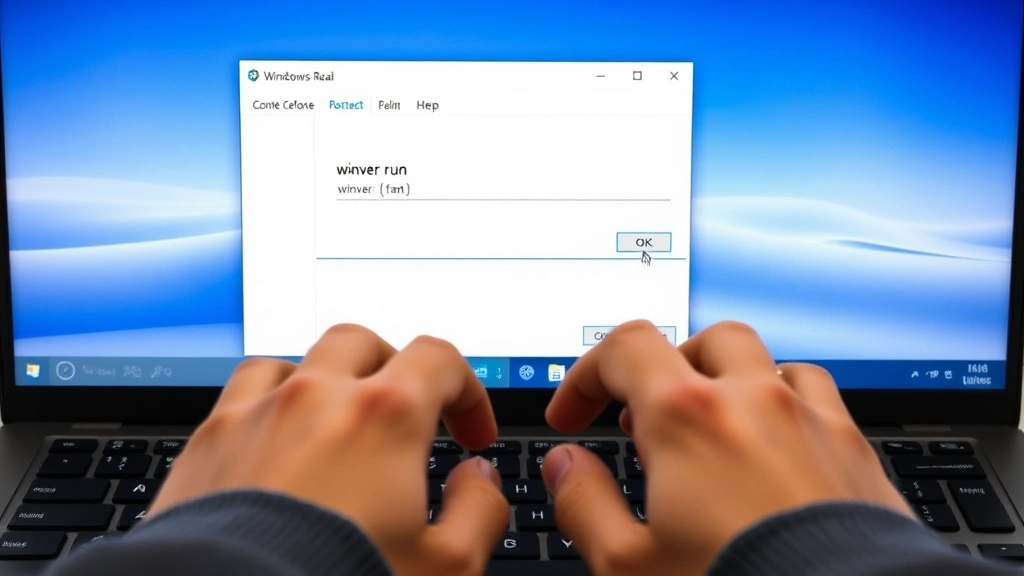
The fastest way to check your Windows version is using the Windows key + R keyboard shortcut, typing “winver,” and pressing Enter. Within moments, you’ll see your Windows version, build number, and system specifications displayed on your screen. If that doesn’t work, you can access Settings, use Command Prompt, or check System Properties for the same information.
Tools & Materials Needed
- Windows computer (any version)
- Keyboard with Windows key
- Mouse or trackpad (optional)
- Administrator access (for some methods)
- Internet connection (optional, for verifying information)
Using the Winver Command (Fastest Method)
The quickest way to check Windows version is through the Run dialog box. Press the Windows key and R simultaneously to open the Run window, then type “winver” without quotes and press Enter. A small window titled “About Windows” will appear instantly, displaying your Windows edition, version number, OS build, and system specifications.
This method works on Windows 10, Windows 11, and earlier versions. The information displayed includes your Windows 10 or Windows 11 version (like 21H2 or 22H2), the OS build number, and your system’s experience index. This is the go-to method for IT professionals and tech-savvy users because it’s immediate and comprehensive.
If you’re unfamiliar with what these numbers mean, don’t worry—we’ll break down version numbers and build information later in this guide. For now, just know that this single dialog box gives you most of the critical information you’ll need about your system.
Checking Through Windows Settings
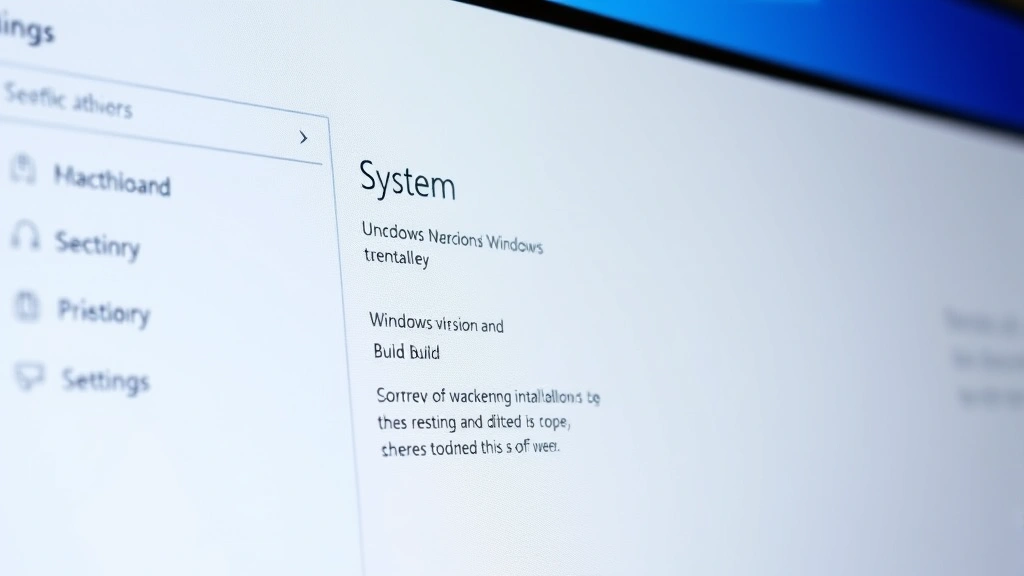
Windows Settings is another reliable way to check your Windows version with a user-friendly interface. Click the Start button, type “Settings” in the search box, and press Enter. Once Settings opens, click “System” on the left sidebar, then scroll down and click “About” at the bottom of the page.
In the “About” section, you’ll see your device name, processor, installed RAM, and system type. Scroll down further to find “Windows specifications,” which shows your Windows edition, version, OS build, and system administrator information. This method is ideal for users who prefer navigating through graphical menus rather than command-line tools.
The Settings method also allows you to check for updates while you’re in the system information area. If you notice your build number is older than expected, you can immediately navigate to Windows Update to ensure your system has the latest patches and security updates.
Finding Version in System Properties
System Properties is the traditional method for checking Windows version information and has been available since older Windows versions. Right-click “This PC” or “My Computer” on your desktop, select “Properties,” and a comprehensive system window opens. You’ll immediately see your Windows edition and version displayed prominently at the top.
This method also shows your processor type, RAM amount, and system specifications. If you need to know your motherboard information along with your Windows version, this is a good starting point before diving into more detailed system diagnostics. The System Properties window is especially useful when you need to reference multiple pieces of hardware and software information simultaneously.
You can also access System Properties by pressing Windows key + Pause/Break, which is a legacy shortcut that still works on most Windows systems. This opens the same window directly without navigating through right-click menus.
Using Command Prompt or PowerShell
Power users and system administrators often check Windows version using Command Prompt or PowerShell for scripting and automation purposes. Press Windows key + X, select “Command Prompt (Admin)” or “Windows PowerShell (Admin),” and type one of these commands:
- systeminfo – Displays comprehensive system information including Windows version, build number, and hardware details
- wmic os get caption,version,buildnumber – Shows Windows edition, version, and build number in a concise format
- Get-ComputerInfo – PowerShell command that displays detailed OS information
These command-line methods are particularly useful when you’re troubleshooting system issues, creating batch scripts, or managing multiple computers remotely. According to WikiHow’s technology guides, command-line methods are preferred by IT professionals for their reliability and scriptability.
The output from these commands provides the exact same information as the GUI methods but in a format that can be logged, parsed, or used in automated system management tasks. If you’re unfamiliar with command-line interfaces, don’t hesitate to use the Settings or Winver methods instead—they’re equally valid.
Checking Your PC Information
Windows 11 users have a streamlined “About your PC” page that consolidates all essential system information. Open Settings, navigate to “System,” and click “About” to see a clean, organized display of your Windows version, device specifications, and system details. This interface is designed to be more intuitive than previous Windows versions.
The About page shows your device name, processor, installed RAM, system type (32-bit or 64-bit), and Windows edition at a glance. Below that, you’ll find your Windows version and OS build number. You can also see links to important system tools like Device Manager and System Protection from this page.
If you’re upgrading your system or troubleshooting compatibility issues, this is the single best place to gather all the information you need. As reviewed by Consumer Reports’ technology section, understanding your system specifications is crucial before purchasing new software or hardware upgrades.
Understanding Windows Versions & Build Numbers
Windows version numbers can be confusing because Microsoft uses different naming conventions for different purposes. Your Windows version (like 21H2 or 22H2) indicates the release cycle, while your OS build number is a more specific identifier for your exact system update. Understanding these distinctions helps you determine compatibility and security status.
For example, Windows 10 version 22H2 is the latest major update for Windows 10, while Windows 11 version 23H2 represents the latest version for Windows 11. Build numbers are even more specific—a build number like 19045.3693 tells you exactly which patch and security update your system has installed. This level of detail is important when troubleshooting specific issues or ensuring you have critical security patches.
The relationship between versions and builds is hierarchical: your version tells you which major release cycle you’re on, while your build number tells you which specific updates within that cycle have been applied. Both pieces of information matter when determining software compatibility or diagnosing system issues. If you’re working with Excel or other Office applications, your Windows version affects compatibility and feature availability.
Why You Need to Know Your Windows Version
Knowing how to check Windows version is important for several practical reasons. Software compatibility is the primary reason—many applications require specific Windows versions or minimum build numbers to function properly. Before installing new software, checking your Windows version ensures you won’t waste time on incompatible programs.
Security is another critical reason to monitor your Windows version and build number. Microsoft releases regular updates and patches, and knowing your build number tells you whether you have the latest security fixes. If your build number is significantly older than the current version, you may be vulnerable to known security threats.
Hardware upgrades and driver installation also depend on knowing your Windows version. Some drivers are version-specific, and installing the wrong driver can cause system instability. When you contact technical support for troubleshooting, they’ll often ask for your Windows version and build number as their first diagnostic step. Additionally, if you’re considering upgrading your system or learning new software features, your Windows version determines which features are available to you.
According to HowStuffWorks’ technology section, staying informed about your operating system version is a fundamental aspect of computer maintenance and security. Regular version checks help you stay ahead of potential problems and ensure your system runs optimally.
FAQ
Q: What’s the difference between Windows 10 and Windows 11?
A: Windows 11 is the newer operating system with updated design, improved performance, and enhanced security features. Windows 10 is still supported with security updates. Your Windows version determines which one you’re running. If you need to find duplicates in Excel or use other Office applications, both versions support these tools, though Windows 11 offers slightly better optimization.
Q: How often should I check my Windows version?
A: Check your Windows version when installing new software, troubleshooting issues, or before major system changes. Most users don’t need to check frequently unless they’re actively managing system updates or dealing with compatibility problems.
Q: Can I upgrade my Windows version?
A: Yes, you can upgrade from Windows 10 to Windows 11 if your hardware meets the requirements. You can also update within your current version (like updating Windows 10 to the latest build). Check Windows Update in Settings to see available upgrades for your system.
Q: What does the OS build number mean?
A: The OS build number is a specific identifier for your exact system update. Higher build numbers indicate more recent updates and security patches. For example, build 19045.3693 is newer than build 19045.3000, indicating more recent updates have been applied.
Q: Why do I need administrator access for some methods?
A: Some commands and system tools require administrator privileges to access detailed system information or make changes. If you’re just checking your version, standard user access is usually sufficient for the Settings and Winver methods.
Q: Is my Windows version 32-bit or 64-bit?
A: When you check Windows version through System Properties or Settings, the system type is displayed as either “32-bit” or “64-bit.” Most modern systems are 64-bit, which supports more RAM and offers better performance. You can also find this information by searching “System Type” in Windows Settings.
Q: What should I do if my Windows version is outdated?
A: Open Settings, navigate to “Update & Security” (Windows 10) or “System > About” (Windows 11), and click “Check for updates.” Windows will automatically download and install the latest version and build for your system. Restart your computer when prompted to complete the update process.