
Your iPhone feels sluggish. Apps are crashing. Battery drains in hours instead of days. Your first thought? “Do I have a virus?” The short answer: iPhone viruses are rare, but malware and spyware absolutely exist. The good news? How to check for viruses on iPhone is straightforward once you know what to actually look for—and what’s probably just iOS being iOS.
Most people panic when their phone acts weird. They assume the worst. But here’s the reality: how to check for viruses on iPhone doesn’t require fancy third-party apps or complex diagnostics. Apple’s built-in security is genuinely solid. That said, you still need to know the warning signs and the actual steps to verify your device is clean.
Let me walk you through exactly what works, what doesn’t, and how to keep your iPhone safe moving forward.
Can iPhones Actually Get Viruses?
Let’s clear this up right away: true viruses on iPhone are almost nonexistent. A virus spreads by copying itself and infecting other files. iOS’s architecture—with its sandboxed apps and code signing requirements—makes this nearly impossible. It’s like trying to spread a biological virus in a sealed, sterilized room. Not happening.
But malware? Spyware? Adware? Those are real threats. They can slip in through compromised apps, phishing links, or jailbroken devices. The difference matters because it changes how you respond.
Pro Tip: According to Apple’s official security documentation, the App Store’s review process catches the vast majority of malicious apps before they ever reach users. But “vast majority” isn’t 100%, so vigilance still counts.
Think of it this way: iOS is the locked door. Malware is someone who found a key. Viruses are someone trying to pick the lock—technically possible in theory, but so difficult that it almost never happens in practice.
Warning Signs Your iPhone Might Be Infected
Before you panic, understand that most “infection symptoms” are actually just iOS quirks or hardware aging. But some red flags genuinely warrant investigation:
- Unexpected battery drain: Your phone dies at 40% or needs charging twice daily. (Though this is also a sign of aging battery health.)
- Overheating without reason: Your iPhone gets hot during normal use, not just gaming or video editing.
- Constant pop-ups or redirects: Safari opens ads you didn’t tap. Pages redirect to sketchy sites.
- Unfamiliar apps you didn’t install: Random apps appear on your home screen.
- Excessive data usage: Your bill spikes or your carrier warns you about unusual activity.
- Crashes and freezing: Apps close randomly. The phone becomes unresponsive.
- Strange behavior in Safari: Your homepage changed. Search engine switched without permission.
- Unusual location access: Apps ask for location permission when they shouldn’t need it.
The tricky part? All of these can happen without malware. A full storage drive causes crashes. An old battery drains fast. A buggy app update causes pop-ups. This is why you need to actually investigate, not just assume the worst.
How to Check for Viruses on iPhone: The Real Steps
Here’s the actual process for how to check for viruses on iPhone. No fluff. No unnecessary apps. Just what works.
Step 1: Check Your Battery Health
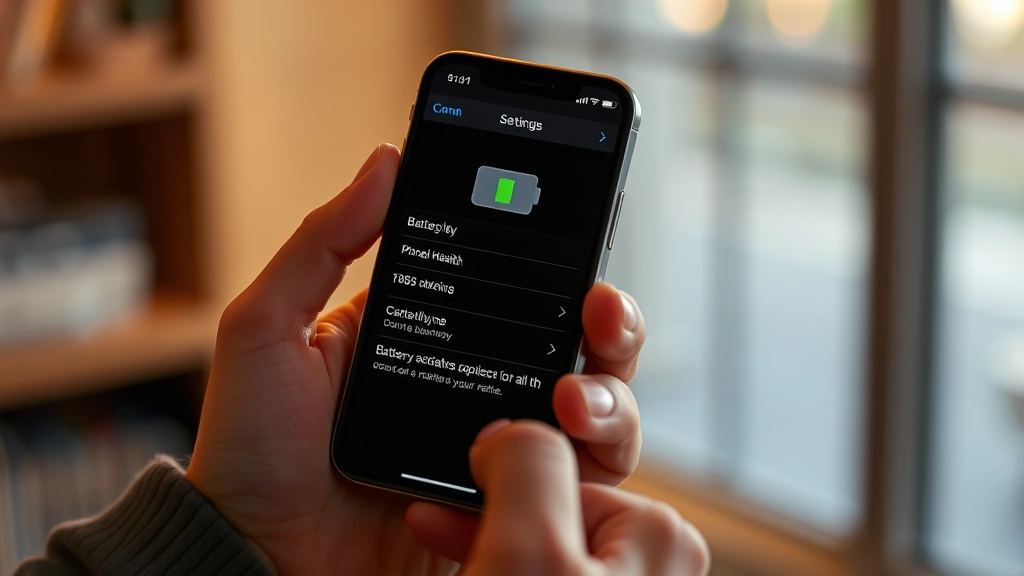
Battery degradation is the #1 cause of people thinking they have a virus. Go to Settings → Battery → Battery Health & Charging. If your maximum capacity is below 80%, that’s your culprit, not malware. Battery replacements run about $70 at Apple.
Step 2: Review Recently Installed Apps
Go to Settings → General → iPhone Storage. Look at the list sorted by size. Do you recognize every app? Tap each recent install and check the developer name. Scammers often use names that look legitimate but aren’t. If something seems off, delete it immediately by tapping “Offload App” then “Delete App.”
Step 3: Check Safari Settings
Open Safari → Settings (the gear icon, bottom right) → Search Engine. Is it Google, DuckDuckGo, or Bing? If it’s something random, you’ve got a problem. Also check Settings → Safari → Homepage. It should be blank or a site you chose, not some random page.
Step 4: Review App Permissions
Go to Settings → Privacy. Check Location, Contacts, Calendar, Photos, Microphone, and Camera. If apps you don’t use frequently have access, revoke it. Malware often requests permissions it doesn’t need to function. Legitimate apps ask for permission when you first use a feature.
Step 5: Force Restart Your iPhone
Sometimes malware hides in RAM. A force restart clears it. The process varies by model:
- iPhone X and newer: Press and hold Volume Up, then Volume Down, then hold the Side button until the “slide to power off” screen appears. Release and let it restart.
- iPhone 8 and earlier: Press and hold the Top (or Side) button until “slide to power off” appears.
This isn’t a cure-all, but it’s often the first real diagnostic step.
Using Built-In iOS Tools to Scan for Malware
Here’s what Apple doesn’t advertise: there’s no built-in “virus scanner” on iPhone. Apple’s approach is prevention, not detection. But you can use some native tools to investigate:
Check iCloud Security Status
Go to Settings → [Your Name] → iCloud. If your account was compromised, you’d see alerts here or in Mail. Apple’s servers monitor for suspicious activity on your account.
Review Signed-In Devices
Settings → [Your Name] → Password & Security → Devices. See every device signed into your Apple ID. If you spot a device you don’t recognize, tap it and select “Remove from Account.” This prevents someone from accessing your backups or data.
Check App Library for Hidden Apps
Swipe to the far right on your home screen to see the App Library. Malware sometimes hides apps here instead of the main home screen. Scroll through and look for anything unfamiliar. If you find something suspicious, delete it.
Safety Warning: Never download a “virus scanner” app from the App Store claiming to clean your iPhone. These are scams. Apple explicitly states that third-party antivirus apps cannot actually scan iOS system files—they can only monitor their own app’s behavior. They’re useless at best, privacy-invasive at worst.
When to Use Third-Party Security Apps
There are legitimate reasons to use security apps on iPhone, but “scanning for viruses” isn’t one of them. Here’s what actually makes sense:
- Password managers: Apps like 1Password or Bitwarden securely store passwords and flag weak ones.
- VPN services: If you use public WiFi regularly, a reputable VPN (like ExpressVPN or Mullvad) encrypts your traffic. This prevents man-in-the-middle attacks, not viruses.
- Phishing detection: Some email apps flag suspicious links better than Apple Mail.
Apps claiming to “remove viruses,” “boost performance,” or “clean junk files” from iOS are almost always misleading. iOS doesn’t accumulate “junk” the way Windows does. There’s no “cleaning” to be done.
If you’re genuinely worried about malware, the FBI’s cyber division recommends focusing on prevention rather than detection tools.
Cleaning Up After a Suspected Infection
If you found actual malware evidence—like unfamiliar apps, Safari redirects, or unexplained permissions—here’s the nuclear option:
Option 1: Selective Deletion (Safer)
- Delete any suspicious apps immediately.
- Clear Safari cache and browsing data (Settings → Safari → Clear History and Website Data).
- Change your Apple ID password from a computer, not the iPhone.
- Force restart the phone.
- Monitor for 48 hours. If the behavior stops, you’re probably clean.
Option 2: Full Reset (Nuclear)
If the problem persists, you’ll need to erase everything and restore from backup:
- Back up to iCloud (Settings → [Your Name] → iCloud → iCloud Backup → Back Up Now).
- Go to Settings → General → Transfer or Reset → Erase All Content and Settings.
- Set up the iPhone as new (don’t restore from backup yet).
- Restore from your backup after confirming the phone runs cleanly for a few hours.
This sounds extreme, but it’s the only way to guarantee removal of sophisticated malware. And honestly? It’s rare you’d ever need to do this.
Pro Tip: Before erasing, check when your backup was created. If you backed up after the infection started, restoring will reintroduce the malware. Back up after you’ve cleaned things up.
Prevention: Stop Viruses Before They Start
The best cure is prevention. These habits stop 99% of iPhone malware before it ever reaches your device:
Keep iOS Updated
Apple releases security patches constantly. Go to Settings → General → Software Update. Enable automatic updates (Settings → General → Software Update → Automatic Updates). Security patches are non-negotiable.
Only Download from the App Store
Unless you jailbreak your iPhone (which voids security protections), all apps come from Apple’s App Store. This single rule eliminates most malware risk. Third-party app stores and sideloading are where danger lives.
Verify Before You Tap
Phishing links are the #1 malware vector. Before clicking a link in email, text, or social media, hover over it (long-press) to see the actual URL. Does it match what the sender claims? If a “bank” email links to “bankofamerica.phishing.ru,” don’t tap it.
Be Skeptical of Permissions
When an app asks for location, camera, or microphone access, ask why. A flashlight app doesn’t need location. A note-taking app doesn’t need camera access. Deny suspicious requests. You can always grant permission later if needed.
Check Your Contacts and Accounts
Monthly, review Settings → Mail → Accounts. Are all the email accounts yours? Go to Settings → Contacts. Do you recognize everyone? Malware sometimes adds fake accounts or contacts for command-and-control purposes.
Use Strong Authentication
Enable two-factor authentication on your Apple ID (Settings → [Your Name] → Password & Security → Two-Factor Authentication). This prevents someone from remotely accessing your phone or data even if they steal your password.
Also enable Face ID or Touch ID for app purchases (Settings → [Your Name] → Media & Purchases → Face ID/Touch ID).
Monitor Cellular Data Usage
Go to Settings → Cellular. Scroll down and check data usage by app. If an app you rarely use is consuming gigabytes of data, it might be exfiltrating information. Delete it immediately.
Think of these habits like regular maintenance on a car. You don’t wait for the engine to fail—you change the oil, rotate the tires, and check the fluids. Same principle applies to your iPhone.
Frequently Asked Questions
Can I get a virus just by visiting a website on iPhone?
– No. Safari’s sandboxing prevents websites from directly installing malware. You’d need to download and install an app, or click a phishing link that tricks you into entering credentials. Visiting a malicious website alone won’t infect your iPhone.
Do I need antivirus software on my iPhone?
– No. Apple’s built-in security is sufficient for most users. Antivirus apps on the App Store cannot actually scan system files—they’re limited to monitoring their own behavior. They’re marketing ploys, not protective tools. Focus on the prevention habits listed above instead.
What does “jailbreaking” have to do with viruses?
– Jailbreaking removes iOS’s security restrictions, allowing installation of apps outside the App Store. This dramatically increases malware risk. If you’ve jailbroken your iPhone, you’re exponentially more vulnerable. Un-jailbreak immediately by erasing and restoring through iTunes or Apple Configurator.
Is it safe to use public WiFi on my iPhone?
– Somewhat risky without protection. Public WiFi networks are easily monitored. Use a reputable VPN if you must access sensitive accounts (banking, email) on public WiFi. Better yet, use cellular data for sensitive transactions and save public WiFi for browsing.
How do I know if my Apple ID was hacked?
– Check Settings → [Your Name] → Password & Security → Devices. You’ll see all devices signed into your account. If you spot unfamiliar devices, tap them and select “Remove from Account.” Also check Settings → [Your Name] → iCloud → Find My to ensure location sharing is correct. Apple also sends email notifications if your password changes or a new device signs in.
Can malware survive a factory reset?
– Extremely unlikely. A complete erase (Settings → General → Transfer or Reset → Erase All Content and Settings) removes everything, including sophisticated malware. The only exception would be if malware infected your iCloud backup, which is theoretically possible but practically rare. After erasing, set up as new before restoring backups to be safe.
Why is my iPhone so slow? Is it a virus?
– Probably not. Common causes: full storage (Settings → General → iPhone Storage), outdated iOS, too many background apps, or an aging battery. Check battery health first (Settings → Battery → Battery Health & Charging). If capacity is below 80%, that’s your culprit. Viruses typically cause specific symptoms like pop-ups or redirects, not general slowness.
What should I do if I clicked a suspicious link?
– Don’t panic. Clicking alone rarely causes infection. If the link opened a website, close Safari. If it prompted you to enter credentials, change that password immediately from a computer. Monitor your account for suspicious activity. If it tried to download an app, don’t install it—just delete the download. You’re almost certainly fine.
How often should I check my iPhone for viruses?
– If you follow the prevention habits (keep iOS updated, only use App Store apps, verify links), you don’t need to actively “check” regularly. However, monthly reviews of installed apps (Settings → General → iPhone Storage) and account access (Settings → [Your Name] → Devices) are good practice. Think of it like checking your car’s tire pressure—not constant, but regular.
Can I get malware from AirDrop or Bluetooth?
– AirDrop is safe—you control what you accept. Bluetooth is lower risk than WiFi but still requires pairing. The real danger is apps themselves, not the connection methods. Don’t pair your iPhone with untrusted Bluetooth devices (random car systems, sketchy chargers), and decline unexpected AirDrop requests from strangers.
Last updated: 2024. Information based on iOS 17 and current security best practices.


