
Duplicate data in Excel is like finding two identical nails in your toolbox—annoying, wasteful, and it messes up your counts. Whether you’re managing a customer list, inventory spreadsheet, or project data, duplicates sneak in and cause real headaches. The good news? How to check duplicates in Excel is straightforward once you know the right techniques. This guide walks you through every method, from the built-in tools to formulas that catch the sneaky ones.
Let’s be real: if you’ve got more than a few hundred rows, manual checking is a nightmare. Excel gives you several ways to spot duplicates fast, and I’ll show you which one works best for your situation.
Method 1: Conditional Formatting (Fastest Visual Method)
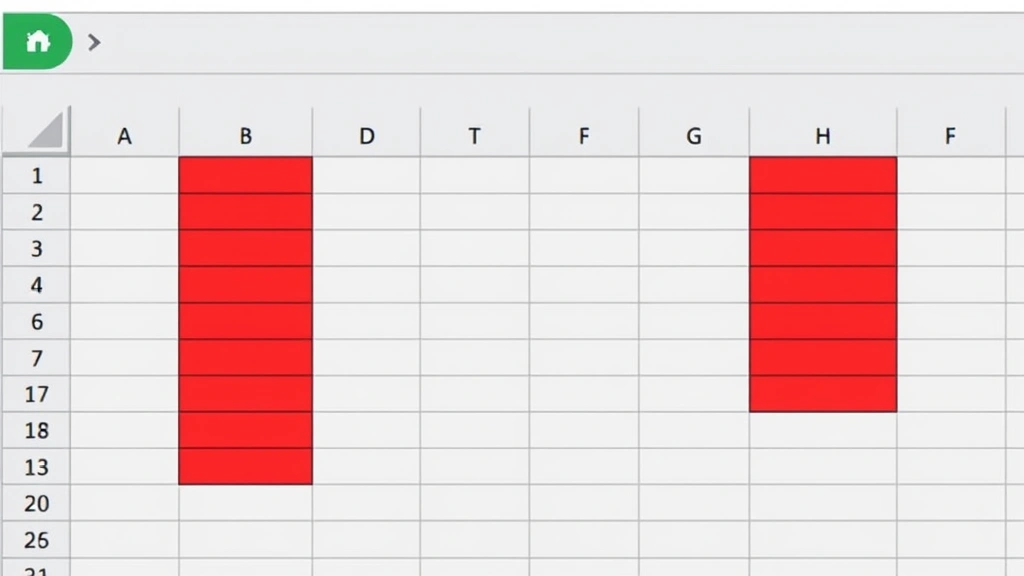
If you want to see duplicates highlighted instantly without changing your data, conditional formatting is your friend. Think of it like using a highlighter on a printed spreadsheet—you’re just marking the problem areas, not erasing anything yet.
Here’s how to check duplicates in Excel using conditional formatting:
- Select the range of cells you want to check. Click the first cell, then drag to the last one (or use Ctrl+Shift+End to grab everything).
- Go to the Home tab in the ribbon.
- Click Conditional Formatting → Highlight Cell Rules → Duplicate Values.
- Choose your highlight color (red is obvious, but pick what works for you).
- Click OK.
Done. Every duplicate value in that range lights up. It’s that simple. Excel automatically detects duplicates and colors them. The first occurrence usually stays plain, and the duplicates get highlighted—though you can customize this behavior if needed.
Pro Tip: If you’re checking multiple columns separately (like checking for duplicate names in Column A, then duplicate emails in Column B), run this method on each column individually. Otherwise, Excel treats the entire range as one dataset.
The beauty of conditional formatting is that it’s non-destructive. Your data stays intact. You’re just flagging the problem spots so you can decide what to do next. It’s perfect for auditing before you commit to any changes. According to FamilyHandyman.com‘s approach to systematic problem-solving, visual inspection is always the first step before taking action.
Method 2: Remove Duplicates Tool (Nuclear Option)
Excel has a built-in Remove Duplicates tool that’s fast but permanent. This is the nuclear option—it deletes duplicate rows. Use it only when you’re 100% sure you won’t need those duplicates back.
Steps to remove duplicates:
- Select your data range (including headers if you have them).
- Go to Data tab → Data Tools → Remove Duplicates.
- A dialog box opens showing all your columns. Uncheck any columns you want to exclude from the duplicate check.
- Click OK.
Excel deletes the duplicate rows and shows you how many it removed. That’s it. But here’s the catch: this action is permanent unless you undo immediately (Ctrl+Z). There’s no “undo” after you close the file.
Safety Warning: Always—and I mean always—save a backup copy of your spreadsheet before using Remove Duplicates. Seriously. I’ve seen people lose hours of work because they couldn’t recover deleted rows.
The Remove Duplicates tool works by comparing entire rows, not just single columns. So if you have two rows with the same name but different email addresses, it treats them as different records. This matters for how to check duplicates in Excel accurately.
Method 3: COUNTIF Formula (Most Flexible)
Want more control? Use the COUNTIF formula to flag duplicates yourself. This is the method I reach for when I need precision because I can customize exactly what counts as a duplicate.
Here’s the formula:
=COUNTIF($A$2:$A$100,A2)>1
How it works:
- The formula counts how many times the value in A2 appears in the range A2:A100.
- If the count is greater than 1, it returns TRUE (meaning it’s a duplicate).
- If it appears only once, it returns FALSE.
- The dollar signs ($) lock the range so it doesn’t change when you copy the formula down.
To use this method:
- Insert a new column next to your data (or use an empty column). Let’s say your data is in Column A, starting at A2.
- In cell B2, type the formula:
=COUNTIF($A$2:$A$100,A2)>1 - Press Enter.
- Copy the formula down to all rows with data. Click B2, then drag the fill handle (small square at the bottom-right corner) down to the last row.
- Now Column B shows TRUE for every duplicate and FALSE for unique values.
The COUNTIF approach lets you see which specific values are duplicated without deleting anything. You can then filter by TRUE values to see only the duplicates, or use this column as a basis for decisions about what to delete.
Pro Tip: If you want to count duplicates across multiple columns (like checking if a combination of first name + last name appears twice), use COUNTIFS instead:
=COUNTIFS($A$2:$A$100,A2,$B$2:$B$100,B2)>1
This formula method is particularly useful when you need to report on duplicates or when you want to keep the original data intact while flagging issues. It’s also the foundation for more advanced duplicate detection, as explained in resources like ThisOldHouse.com‘s detailed guides on systematic approaches.
Method 4: Pivot Tables (Best for Analysis)

Pivot tables aren’t just for summarizing data—they’re secretly one of the best tools for spotting duplicates because they group identical values together and show you counts.
How to use a pivot table to check duplicates in Excel:
- Select your data range.
- Go to Insert tab → Pivot Table.
- Choose where to place the pivot table (new sheet is usually cleaner).
- Drag the column you want to check for duplicates into the Rows area.
- Also drag that same column into the Values area (it automatically counts).
- Click OK.
The pivot table shows you every unique value and how many times it appears. Any value with a count greater than 1 is a duplicate. You can sort by count (highest first) to see your worst duplicates at the top.
Pivot tables are especially powerful when you’re analyzing why duplicates exist. You can see patterns. Maybe you notice that all duplicates have a space character issue, or they’re all from a particular data source. This insight helps you prevent duplicates in the future, not just clean up the current mess.
Method 5: Advanced Filter (Old School but Powerful)
Advanced Filter is an older Excel feature that some people forget about, but it’s incredibly useful for extracting unique values or filtering to show only duplicates.
To extract unique values only:
- Select your data range.
- Go to Data tab → Advanced (in the Sort & Filter group).
- Choose Filter in place or Copy to another location.
- Check the box for No duplicates.
- Click OK.
If you choose “Filter in place,” Excel hides the duplicate rows. If you choose “Copy to another location,” it creates a new list of unique values only. This is cleaner than the Remove Duplicates tool because you can see what’s being removed before you commit.
Advanced Filter is less intuitive than the other methods, but it’s reliable and works on very large datasets without slowing down. It’s also useful if you need to preserve your original data while working with a clean version.
Identifying vs. Removing Duplicates: Know the Difference
Here’s something critical that people get wrong: identifying duplicates and removing duplicates are two different things. You should almost always identify first, then decide what to remove.
When to just identify (not remove):
- You’re auditing data and need to understand the scope of the problem.
- Some “duplicates” might be legitimate (like two orders from the same customer).
- You need to investigate why duplicates exist before deleting them.
- You’re working with data you don’t fully own or understand yet.
When to remove:
- You’ve confirmed the duplicates are errors (like a data import that ran twice).
- You’ve backed up your original file.
- You’ve identified which column(s) define a duplicate.
- You’ve tested your approach on a sample first.
The safest workflow is: Backup → Identify → Analyze → Remove → Verify. Don’t skip steps. I’ve seen people lose data by rushing the removal step.
Common Pitfalls When Checking Duplicates in Excel
1. Forgetting about spaces and case sensitivity
Excel treats “John” and “john” as different values. It also treats “Smith ” (with a trailing space) differently from “Smith”. Before checking for duplicates, clean your data. Use the TRIM function to remove extra spaces, and consider using LOWER or UPPER to standardize case. This is a huge source of false negatives.
2. Checking only one column when you should check multiple
If you have a customer database with first name and last name in separate columns, checking just the first name for duplicates misses the real picture. Two different people named “John” aren’t duplicates. You need to check the combination. Use the COUNTIFS formula for this.
3. Not excluding headers from your duplicate check
If your data has headers (like “Name,” “Email,” “Phone”), make sure your formula or filter range starts below the headers. Otherwise, Excel might flag your header row as a duplicate if it matches any data value (unlikely but annoying).
4. Assuming the first occurrence is the “correct” one
Excel’s Remove Duplicates tool keeps the first occurrence and deletes the rest. But what if the first one is the bad data? Always review which record you’re keeping before you delete. Sometimes the duplicate has more complete information.
5. Forgetting that numbers and text that look the same are different
If one cell contains the number 123 and another contains the text “123,” Excel treats them as different. This causes missed duplicates. Convert everything to the same data type before checking. Use VALUE() for text-to-number conversion or TEXT() for number-to-text.
According to BobVila.com‘s methodology on precision and attention to detail, these small oversights compound into big problems. Always double-check your assumptions before processing data.
6. Not considering NULL or blank cells
If you have blank cells in your data, Excel might treat multiple blanks as duplicates or miss them entirely depending on your method. Decide upfront: are blank cells legitimate data, or should they be treated as missing? This affects your duplicate detection strategy.
7. Running duplicate checks on live data
Never run any of these methods on data that’s actively being used or updated. Always work on a copy. If you’re checking duplicates in a shared workbook, make sure no one else has it open, or you risk corrupting the file or losing changes.
Frequently Asked Questions
Can Excel automatically prevent duplicates from being entered?
– Yes. Use Data Validation. Select your range, go to Data tab → Data Validation, and set it to reject duplicate entries. This is preventative—it stops duplicates from happening in the first place rather than cleaning them up later. It’s like building a fence instead of fixing a broken gate.
What’s the difference between COUNTIF and COUNTIFS when checking duplicates?
– COUNTIF checks duplicates in a single column. COUNTIFS checks across multiple columns. Use COUNTIF for simple cases (like finding duplicate names). Use COUNTIFS when you need to match on multiple criteria (like duplicate combinations of first name AND last name).
If I use Remove Duplicates, can I undo it after closing the file?
– No. Once you close the file, undo history is gone. That’s why backups are non-negotiable. Always save a copy before removing duplicates. This is not optional—it’s insurance.
Why does Conditional Formatting sometimes miss duplicates?
– Usually because you didn’t select the entire range, or you have formatting issues (spaces, case sensitivity). Make sure your range includes all data you want checked, and consider using TRIM and LOWER functions to clean data first.
Can I check for duplicates across multiple sheets?
– The built-in tools only work within a single sheet. For multi-sheet checking, use formulas with COUNTIF that reference other sheets: =COUNTIF(Sheet2!$A:$A,A2)>0. This is more complex but doable.
What’s the fastest method for very large datasets (100,000+ rows)?
– Advanced Filter or pivot tables typically perform best on huge datasets because they’re optimized for large operations. Conditional formatting can slow down your computer with that much data. For truly massive files, consider using Excel’s built-in database features or moving to a database tool like Access.

Should I check for duplicates before or after sorting my data?
– Sorting first makes it easier to spot duplicates visually, but it’s not required. Most automated methods work on unsorted data. However, sorting can help you understand the structure of your data before you check for duplicates.
How do I check for duplicates in Excel on a Mac?
– The process is identical. The menu locations are the same, and all the formulas work the same way. Mac Excel has conditional formatting, Remove Duplicates, and COUNTIF just like Windows Excel. The keyboard shortcuts are slightly different (Command instead of Ctrl), but the functionality is the same.


