How to Check CPU Temp: Essential Tips for Easy Monitoring
Your CPU temperature is one of the most critical health indicators for your computer. Overheating can cause system crashes, data loss, and permanent hardware damage. Learning how to check CPU temp is essential for any computer user who wants to maintain optimal performance and extend their system’s lifespan. Whether you’re a gamer, content creator, or everyday user, monitoring your processor temperature takes just minutes and can save you thousands in repair costs.
Quick Answer: Use built-in tools like Windows Task Manager, Mac Activity Monitor, or free third-party software like HWiNFO, Core Temp, or Speccy to check your CPU temperature in real-time. Most modern systems display temperature readings within seconds of opening these applications. For Mac users, learning how to right-click on a Mac helps navigate system monitoring menus more efficiently.
Tools and Materials You’ll Need
- Windows PC or Mac computer with internet access
- Administrative access to your system
- Free monitoring software (optional but recommended)
- Thermal paste (only if you plan to clean your CPU cooler)
- Compressed air canister (for dust removal)
- Soft brush or cloth (for cleaning components)
- Screwdriver set (if opening your computer case)
Understanding Normal CPU Temperature Ranges
Before you start checking your CPU temperature, it’s important to understand what readings are considered normal. Most modern processors run safely between 30°C and 60°C (86°F to 140°F) during idle or light usage. When your system is under heavy load—such as during gaming, video editing, or rendering—temperatures can safely climb to 70°C to 85°C (158°F to 185°F) depending on your processor model.
Each CPU has a maximum safe temperature, known as the Tjunction max (Tj max), which varies by processor. Intel and AMD chips typically have different thermal thresholds. Your system will automatically throttle performance or shut down if temperatures exceed these limits to prevent permanent damage. Knowing your specific CPU model helps you understand its thermal characteristics and safe operating range.
As a general rule, how to check CPU temp regularly becomes important if you notice your system running hot, experiencing unexpected slowdowns, or if you’ve recently upgraded your cooling system. Baseline readings help you identify when something has changed in your system’s thermal performance.
Using Windows Built-In Tools to Check CPU Temp
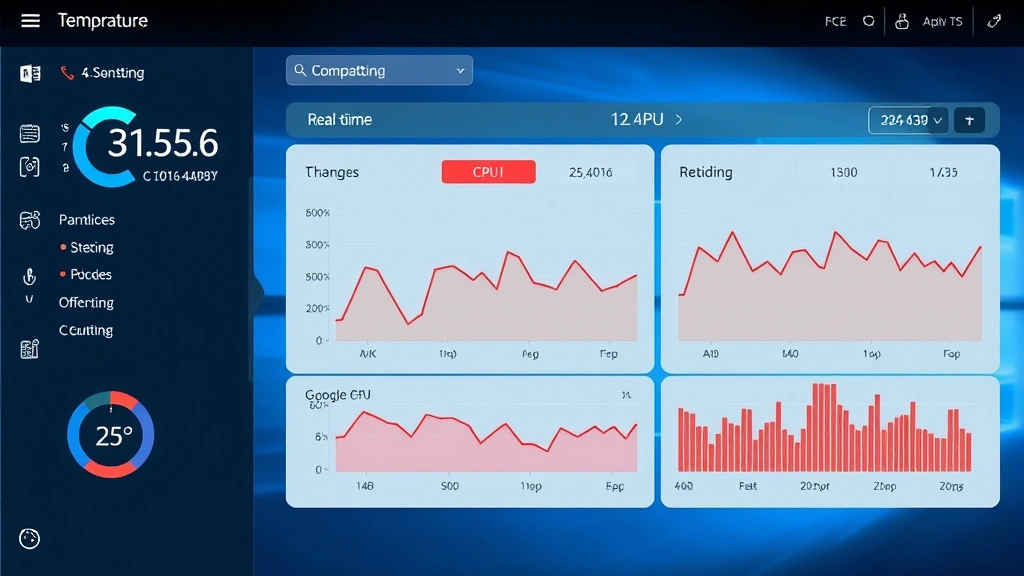
Windows Task Manager is the quickest way to check CPU temp on most Windows systems, though it requires Windows 11 or later for native temperature display. Open Task Manager by pressing Ctrl+Shift+Esc, then navigate to the Performance tab and select CPU. The temperature reading appears in the bottom-right corner of the window. This method provides real-time data without installing additional software.
For older Windows versions, BIOS/UEFI monitoring offers another native option. Restart your computer and enter BIOS by pressing Delete, F2, or F12 during startup (varies by manufacturer). Navigate to the Hardware Monitoring or System Health section to view CPU temperature. This method shows temperatures during boot and can help identify thermal issues before Windows loads.
Windows PowerShell provides a command-line option for tech-savvy users. Open PowerShell as Administrator and run: Get-WmiObject msacpi_thermalzonetemperature -namespace "root/wmi". This command retrieves thermal zone data, though the output requires some interpretation. For most users, Task Manager remains the simplest built-in solution for learning how to check CPU temp on Windows systems.
Monitoring CPU Temperature on Mac
Mac users can access CPU temperature through the Mac Activity Monitor, though Apple doesn’t prominently display this information by default. Open Activity Monitor from Applications > Utilities, then click the System Report button at the bottom. In the System Report window, navigate to Hardware to find temperature readings under various sensor categories. While not as straightforward as Windows, this method requires no additional software.
For more detailed temperature monitoring on Mac, you’ll need to use third-party applications. Apps like Macs Fan Control, Temperatures Pro, and iStat Menus provide real-time CPU temperature displays in your menu bar. These applications offer more granular control over fan speeds and thermal monitoring. Mac users who frequently perform intensive tasks benefit greatly from these utilities.
According to WikiHow’s comprehensive guides, Mac system monitoring requires navigating through multiple menus, making third-party solutions more practical for regular monitoring. If you’re unfamiliar with Mac navigation, understanding how to right-click on a Mac helps you access context menus in monitoring applications more efficiently.
Best Free Third-Party Monitoring Software
HWiNFO stands as one of the most comprehensive and reliable tools for checking CPU temperature across Windows systems. This free software displays detailed information about your processor, motherboard, GPU, and storage devices. The portable version requires no installation, making it ideal for quick diagnostics. HWiNFO’s sensor panel can be customized to show only CPU temperature, and it supports logging data over time for trend analysis.
Core Temp specializes in CPU monitoring and provides per-core temperature readings, which is valuable for identifying thermal imbalances. The application runs in your system tray and displays real-time temperatures with minimal system overhead. Core Temp also includes an alert system that notifies you when temperatures exceed user-defined thresholds, helping you catch potential problems early.
Speccy from the creators of CCleaner offers a user-friendly interface for how to check CPU temp along with comprehensive system information. The free version displays current temperatures, and the paid version adds logging and historical data tracking. Speccy’s clean design makes it accessible to users of all technical levels.
Open Hardware Monitor provides open-source temperature monitoring for both Intel and AMD processors. This lightweight application displays CPU, GPU, and motherboard temperatures in real-time. Its minimalist approach appeals to users who want essential data without unnecessary features or advertising.
Real-Time Temperature Monitoring During Gaming and Work
Monitoring CPU temperature during intensive activities reveals how your system performs under stress. Many gamers use overlay tools like MSI Afterburner or NZXT CAM to display real-time temperatures while playing without alt-tabbing to check separate applications. These overlays appear directly on your screen, showing CPU temp alongside GPU temperature and frame rates.
For content creators working with video rendering or 3D modeling, sustained temperature monitoring becomes crucial since these tasks push your CPU to its limits for extended periods. Setting up automated logging with tools like HWiNFO helps you identify thermal patterns and determine whether your cooling solution handles your workload adequately. If temperatures consistently approach 85°C during normal work, you may need to upgrade your CPU cooler or improve case airflow.
According to HowStuffWorks’ technology guides, thermal stress testing helps validate your system’s stability. Running benchmarking software like Prime95 or MemTest while monitoring CPU temperature shows how your processor behaves at maximum load. This information guides decisions about overclocking, cooling upgrades, or workload adjustments.
What to Do If Your CPU Temp Is Too High
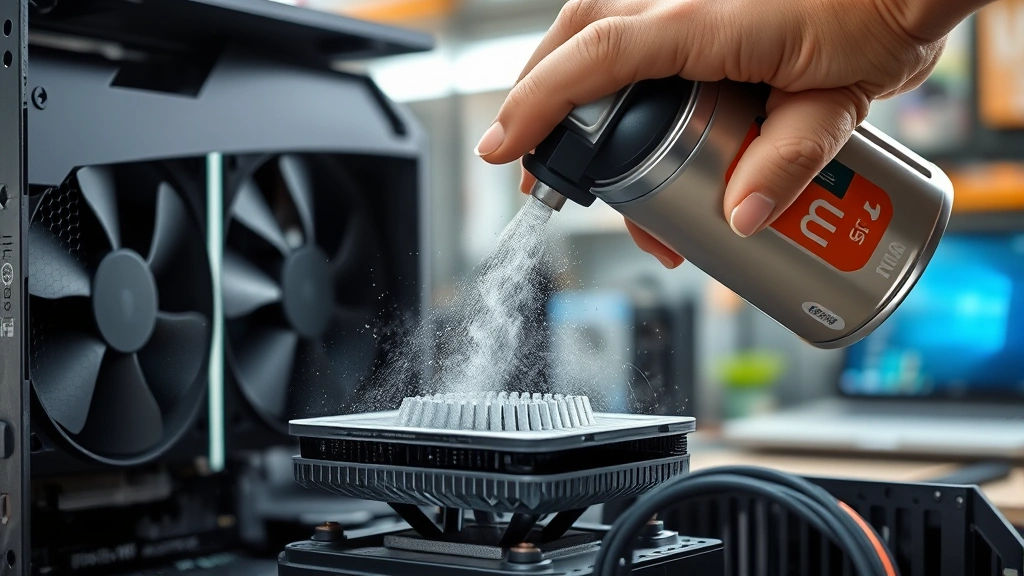
If your monitoring reveals consistently high CPU temperatures, immediate action prevents hardware damage. First, shut down your system and allow it to cool completely. High temperatures often indicate restricted airflow or dust accumulation on your CPU cooler. Open your computer case and inspect the cooler for visible dust buildup. Using compressed air to gently clean the heatsink fins and fan blades can dramatically improve cooling performance.
Check that your CPU cooler is properly mounted and making full contact with the processor. Over time, thermal paste degrades, reducing heat transfer efficiency. If your system is several years old, reapplying thermal paste between the CPU and cooler can restore cooling performance. Remove the old paste carefully with isopropyl alcohol, apply a small amount of quality thermal paste, and remount the cooler following manufacturer instructions.
Verify that your case has adequate airflow with intake fans drawing cool air in and exhaust fans pushing hot air out. Many users overlook simple solutions like removing case panels, adding additional fans, or repositioning existing fans. If your CPU temp remains high after cleaning and reapplying thermal paste, consider upgrading to a more capable cooler. Consumer Reports reviews of CPU coolers can help you select an appropriate replacement.
Preventing CPU Overheating Long-Term
Establishing a regular maintenance routine prevents most CPU temperature problems before they develop. Check your system’s cleanliness quarterly, especially if you have pets or live in a dusty environment. Dust accumulation reduces cooling efficiency more than any other factor, making preventive cleaning your most effective tool.
Maintain proper case placement by ensuring your computer has adequate clearance around intake and exhaust vents. Never place your system directly against walls or inside enclosed cabinets without ventilation. If you use your computer in a warm room, consider room temperature as a factor in CPU temperatures—a room at 30°C (86°F) will produce higher CPU temps than one at 20°C (68°F).
Monitor your CPU temperature regularly even when your system runs smoothly. Establishing baseline readings helps you identify when performance changes. If you notice temperature increases over time without obvious cause, this indicates dust accumulation or potential cooler degradation. Catching these issues early through regular monitoring prevents emergency shutdowns and data loss.
For laptop users, keeping vents clear and using elevated stands improves airflow significantly. Laptop cooling pads provide additional cooling capacity during intensive tasks. Unlike desktop systems, laptops have limited upgrade options, making preventive care especially important for maintaining safe operating temperatures.
Advanced Monitoring Techniques for Enthusiasts
Advanced users can implement sophisticated monitoring systems that track CPU temperature over extended periods. Setting up automated logging with HWiNFO or similar tools creates historical data that reveals thermal trends and helps predict when maintenance is needed. Exporting this data to spreadsheet applications allows detailed analysis of your system’s thermal behavior.
Overclocking enthusiasts use detailed temperature monitoring to find stable frequency and voltage settings. Real-time temperature data during stress testing reveals thermal limits and helps identify optimal cooling solutions for higher clock speeds. Many overclockers use multiple monitoring tools simultaneously to cross-verify readings and ensure accuracy.
Custom water cooling systems require more sophisticated monitoring since they add complexity to thermal management. Temperature sensors placed at different points in the loop—inlet, outlet, and CPU block—provide comprehensive understanding of cooling system performance. Some enthusiasts integrate temperature data with fan controllers that automatically adjust pump and fan speeds based on CPU temperature.
Creating custom alerts through monitoring software helps you catch temperature anomalies immediately. Setting notifications at 75°C warns you of potential issues before they become critical. Some advanced setups integrate with smart home systems, sending alerts to your phone if CPU temperatures exceed safe limits while you’re away from your computer.
FAQ
Q: Is 80°C safe for my CPU?
A: Most CPUs safely handle temperatures up to 85-100°C depending on the model, but 80°C during normal operation suggests your cooling could be improved. Aim for temperatures below 75°C during typical use.
Q: How often should I check my CPU temperature?
A: Check your CPU temp monthly during routine maintenance. Monitor it continuously if you notice system slowdowns, unusual fan noise, or after making hardware changes.
Q: Why does my CPU temperature spike suddenly?
A: Sudden temperature spikes indicate background processes using CPU resources, malware activity, or cooling system failure. Use task manager to identify resource-intensive applications.
Q: Can checking CPU temperature harm my computer?
A: No, monitoring software has minimal impact on system performance. Checking temperatures through BIOS or software is completely safe and non-invasive.
Q: What’s the difference between CPU temperature and core temperature?
A: CPU temperature typically refers to the overall processor temperature, while core temperature shows individual core readings. Modern CPUs have multiple cores that may run at slightly different temperatures.
Q: Do gaming laptops run hotter than desktop computers?
A: Yes, laptops have limited cooling capacity and airflow compared to desktops. Gaming laptops typically run 10-20°C hotter than equivalent desktop systems under the same load.
Q: Is thermal paste reusable?
A: No, thermal paste degrades over time and loses effectiveness. Always apply fresh thermal paste when remounting your CPU cooler.
Learning how to check CPU temp empowers you to take control of your system’s health and longevity. Regular monitoring combined with preventive maintenance keeps your processor running cool and your computer performing reliably for years to come. Start checking your CPU temperature today using the methods outlined above, and establish a routine that works for your usage patterns. As reviewed by Family Handyman’s technology maintenance guides, preventive monitoring saves both time and money compared to dealing with thermal failures after they occur. For Mac users managing multiple devices, knowing how to update apps on iPhone ensures your monitoring applications stay current with the latest features and security patches. Similarly, understanding how to turn off Apple Watch helps manage notifications from thermal monitoring apps across your Apple ecosystem. Whether you use an iPad for system monitoring like connecting Apple Pencil to iPad or traditional desktop interfaces, temperature monitoring remains one of the most valuable maintenance practices available to computer users.