
Ever wonder if someone’s trying to reach you but can’t get through? Or maybe you blocked a number months ago and forgot who it was? Learning how to check blocked numbers on iPhone is one of those skills that seems hidden in plain sight—it’s actually straightforward once you know where to look. The problem is Apple doesn’t make it super obvious, and most people don’t stumble across this feature by accident. This guide walks you through every method to view your blocked contacts, unblock them if needed, and manage your blocking settings like a pro.
Where Your Blocked Numbers Actually Live
Here’s the real talk: Apple stores your blocked numbers in a few different places depending on how you blocked them and which app you’re using. If you blocked someone through the Phone app, they live in Phone settings. If you blocked them through Messages, they’re tracked there too. The tricky part? These lists don’t always sync perfectly, so you might need to check multiple locations to get the full picture.
Think of it like having a bouncer at different doors of a club—the guy at the front entrance has his own list, and the person at the back has theirs. They’re working together, but they’re not necessarily comparing notes every second. Your iPhone works similarly. When someone calls and you block them, the Phone app logs it. When someone texts and you block them, Messages logs it separately. Sometimes a single contact gets blocked across multiple services; sometimes they’re only blocked in one place.
The good news? We’ll walk through all three main locations where blocked numbers hide. By the end of this, you’ll know exactly where to look and how to manage them.
Method 1: Check Blocked Numbers Through Settings
This is the most direct route, and it’s where Apple keeps the master list of blocked contacts. Here’s how to access it:
- Open the Settings app on your iPhone.
- Scroll down and tap Phone (or Messages or FaceTime, depending on which service you want to check).
- Look for the option labeled Blocked Contacts or Blocked.
- Tap it, and you’ll see a complete list of every number or contact you’ve blocked through that specific app.
If you’re checking the Phone app’s blocked list, you’ll see phone numbers or contact names. Same with Messages—it’ll show you the numbers or names of people you’ve blocked from texting you. The FaceTime blocked list works identically.
Here’s something important: if you block someone from the Phone app, they’re blocked from calling you, but they can still text you unless you separately block them in Messages. This catches a lot of people off guard. You think you’ve blocked someone completely, but they find a workaround by using a different service. That’s why checking all three locations matters.
One more pro tip—if you’ve blocked a contact and then later deleted that contact from your phone, the block still stays active. The number remains blocked even though there’s no contact card associated with it. This is actually useful because it means your blocking preferences persist even if you clean up your contacts.
Method 2: View Blocked Numbers in the Phone App
If you want to check your blocked list without diving into Settings, the Phone app itself has a shortcut. This method is faster if you’re just doing a quick check:
- Open the Phone app.
- Tap the Contacts tab at the bottom.
- Scroll to the top and look for the i icon (information icon) in a circle.
- Tap it.
- Select Blocked Contacts.
You’ll now see your full blocked list right there. From this screen, you can also unblock numbers directly by tapping Edit and then the red minus sign next to any contact you want to unblock.
This method is especially useful if you’re trying to remember who you blocked. Sometimes a number will come through as a call you missed, and you’ll think, “Wait, did I block this person?” Instead of digging through Settings, just pop open the Phone app and check your Contacts blocked list. It’s faster and you’re already in the app anyway.
A real-world scenario: Let’s say your ex keeps calling from different numbers. You block them each time. By checking this list regularly, you can see the pattern of numbers they’re using and potentially take additional steps, like reporting the harassment to your carrier or law enforcement if it’s serious. The FCC has resources on dealing with unwanted calls, and knowing your blocked list helps you document the problem.
Method 3: Check Blocked Contacts in Messages
Messages has its own blocking system, separate from the Phone app. Here’s how to see who you’ve blocked from texting you:
- Open the Messages app.
- Tap Edit in the upper left corner (or swipe left on any conversation).
- Look for any conversations with a blocked contact—they’ll show as “Blocked” with a small circle icon.
- To see your full blocked list in Messages, go to Settings > Messages > Blocked Contacts.
The Messages blocked list is particularly important because text-based harassment is common. Someone might not be able to call you, but if they’re not blocked in Messages, they can still send you texts. These show up as normal messages, which can be frustrating or even alarming depending on the situation.
Here’s something many people don’t realize: if you block someone in Messages, you won’t see their texts in your main conversation thread. They’ll still be able to send them (they won’t get a notification that they’re blocked), but you won’t receive them. It’s like a one-way mirror—they think they’re messaging you, but the messages are going into a void on your end.
For more information on protecting yourself from unwanted digital contact, the FTC has guidance on recognizing and reporting spam texts.
How to Unblock a Number You No Longer Need Blocked
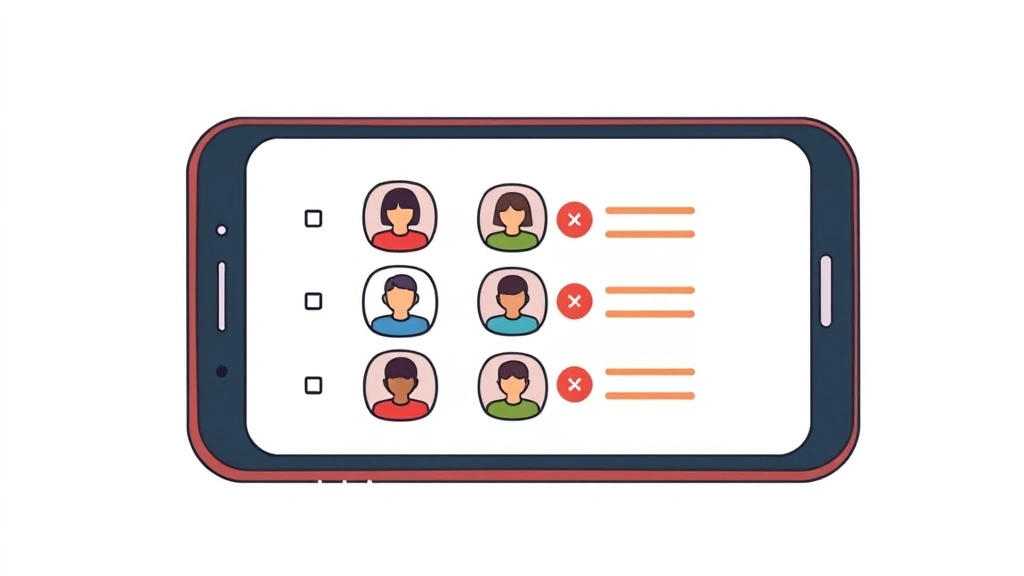
So you’ve checked your blocked list and realized you blocked someone you actually want to hear from again. Or maybe enough time has passed and you’re ready to let go of the grudge. Unblocking is simple:
- Go to Settings > Phone (or Messages or FaceTime).
- Tap Blocked Contacts.
- Find the number or contact you want to unblock.
- Swipe left on it (or tap Edit then the red minus sign).
- Tap Unblock.
Once you unblock someone, they can call, text, or FaceTime you again. If they try to reach you while they’re blocked, they won’t get a notification that they’re blocked—the call or message just fails to go through. But once unblocked, any future attempts will come through normally.
One thing to keep in mind: unblocking someone doesn’t automatically restore old messages or calls that came in while they were blocked. Those are gone. It just opens the door for future communication.
Real talk—unblocking an ex or someone you had conflict with can feel awkward. You might worry they’ll immediately start contacting you. But remember, unblocking is private. They won’t know you unblocked them unless they try to reach you and you respond. It’s not like unfriending someone on social media where they might notice. You’re in complete control of whether you actually engage with them after unblocking.
Why You Might Want to Block Numbers in the First Place
Understanding why people block numbers helps you manage your own blocked list better. The most common reasons include:
- Spam and robocalls—This is the #1 reason. Telemarketers, scam calls, and robocalls are relentless. Blocking them is self-defense.
- Personal conflict—Someone you know but don’t want to talk to anymore. An ex, a former friend, a difficult family member.
- Harassment—Someone repeatedly contacting you after you’ve asked them to stop. This can escalate to serious situations.
- Scam attempts—Numbers that are clearly trying to trick you into giving up personal information or money.
- Business boundaries—Blocking a work contact after hours or blocking clients who disrespect your time.
- Privacy protection—Some people block numbers just to keep their contact list clean and their phone experience peaceful.
If you’re dealing with serious harassment, blocking is just the first step. Apple’s safety resources include information on reporting harassment and protecting yourself. In extreme cases, you might need to involve law enforcement.
Managing Multiple Blocked Numbers Effectively
If you’ve got a long blocked list, managing it can get messy. Here are some strategies:
Regular audits—Every few months, review your blocked list. You might find numbers you don’t even remember blocking. Ask yourself: do I still need this blocked? If not, unblock it. A bloated blocked list is like a cluttered junk drawer—it works, but it’s inefficient.
Use contact names when possible—Instead of blocking a random number, try to identify who it is and block the contact by name. This makes your blocked list more meaningful. “Mom’s Ex-Boyfriend” is more useful than “555-0147.”
Document the reason—If a number is particularly problematic, take a screenshot or note the reason you blocked it. This is especially important if harassment is involved and you might need to show evidence later.
Enable “Filter Unknown Senders”—In Messages, you can enable a setting that filters texts from unknown senders into a separate tab. This reduces the number of unsolicited messages you see without necessarily blocking them. Go to Settings > Messages > toggle on Filter Unknown Senders.
Use Do Not Disturb wisely—Do Not Disturb is different from blocking. It silences notifications but doesn’t prevent calls or texts from coming through. Use it strategically for times when you want peace but don’t want to completely block anyone.
Common Mistakes People Make
After helping countless people manage their blocked lists, here are the mistakes I see most often:
Blocking someone in only one app—Someone blocks a contact in Phone but forgets to block them in Messages. Then they’re surprised when texts still come through. Remember: Phone, Messages, and FaceTime are separate blocking systems.
Thinking blocked contacts can’t reach you at all—This is a big misconception. When you block someone, they don’t get a notification saying “you’ve been blocked.” They just experience failed calls or undelivered messages. They might try a different number or app, thinking their first attempt was a technical glitch.
Forgetting about blocked numbers entirely—Some people block someone and then years later forget why. Then they wonder why that person never calls anymore. If you’re going to block someone, remember why. Write it down if you need to.
Blocking the wrong number by accident—This happens more than you’d think, especially when blocking numbers quickly during a spam call. Always double-check before hitting the block button. If you do block the wrong number, unblocking is easy, but it’s still annoying.
Not realizing blocked calls go to voicemail—When someone calls you and you’ve blocked them, the call goes straight to voicemail. They might leave a message, and you won’t hear it unless you specifically check your blocked voicemail. Some people don’t realize their blocked contacts can still leave messages.
Assuming blocking is permanent—It’s not. You can unblock anytime. This is actually good news because it means blocking is a flexible tool, not a permanent decision. You can block someone during a conflict and unblock them later if circumstances change.
Frequently Asked Questions
Can someone tell if I’ve blocked them on my iPhone?
– Not directly. When you block someone, they don’t get a notification saying “you’ve been blocked.” However, they might figure it out through indirect signs. Their calls go straight to voicemail, their texts don’t get responses, and if they try to FaceTime you, it might behave oddly. But Apple doesn’t send a “you’ve been blocked” alert. It’s not like social media where blocking is more obvious.
Do blocked calls go to voicemail?
– Yes. When someone you’ve blocked calls you, the call goes directly to their voicemail. They might leave a message, but you won’t be notified about it. You can check your voicemail manually, but you won’t get an alert that they called. It’s as if the call never reached your phone at all from your perspective.
If I block someone and then delete their contact, does the block stay active?
– Yes. Blocking and contact storage are separate systems. You can delete a contact and they’ll still be blocked. The block persists even if there’s no contact card associated with the number. This is actually useful for spam numbers you’ve blocked—you don’t need to keep them as contacts.
Can I see what blocked contacts tried to send me?
– No. Blocked messages don’t appear anywhere in your Messages app. Blocked calls don’t show up in your call log. It’s a complete block—you have no visibility into what they tried to send. This is by design for privacy and peace of mind.
What’s the difference between blocking and “Do Not Disturb”?
– Blocking prevents someone from reaching you at all (calls go to voicemail, texts don’t arrive). Do Not Disturb silences notifications but doesn’t prevent calls or texts—they still come through, you just don’t get alerts. Do Not Disturb is temporary and can be scheduled. Blocking is permanent until you unblock.
Can I block someone from FaceTime but not from calling?
– Yes. FaceTime has its own blocking system separate from Phone. You can block someone from calling you but still allow them to FaceTime you, or vice versa. Go to Settings > FaceTime > Blocked Contacts to manage FaceTime specifically.
If I block someone’s number, can they call from a different number?
– Absolutely. Blocking only blocks that specific number. If someone has access to another phone or can spoof a different number, they can still reach you. This is why if you’re dealing with serious harassment, blocking alone might not be enough—you might need to involve your carrier or law enforcement.
How many numbers can I block on my iPhone?
– There’s no hard limit published by Apple, but practically speaking, you can block hundreds of numbers without performance issues. Your iPhone stores this data locally, so it doesn’t affect cloud storage or iCloud limits. The real limit is how many numbers you can reasonably manage.
Will my blocked list sync across my devices?
– Partially. If you block someone in the Phone app on your iPhone, that block syncs to your iPad and Mac through iCloud if you’re signed into the same account. However, if you block them in Messages on your iPhone, that block might not automatically sync to your iPad. It’s inconsistent, which is frustrating. The safest approach is to block someone on each device where you want them blocked.
Can I block a number that’s not saved as a contact?
– Yes. You can block any number, whether it’s in your contacts or not. When you get a call or text from an unknown number, you can block it directly from the call log or message thread. You don’t need to save them as a contact first.


