How to Check AirPod Battery: Easy & Essential Guide
Running out of battery mid-call or during your workout is frustrating, but knowing how to check AirPod battery levels takes just seconds. Whether you’re using AirPods Pro, AirPods Max, or standard AirPods, Apple provides multiple simple methods to monitor your battery status in real-time. This guide walks you through every way to check your AirPod battery so you’re never caught off guard.
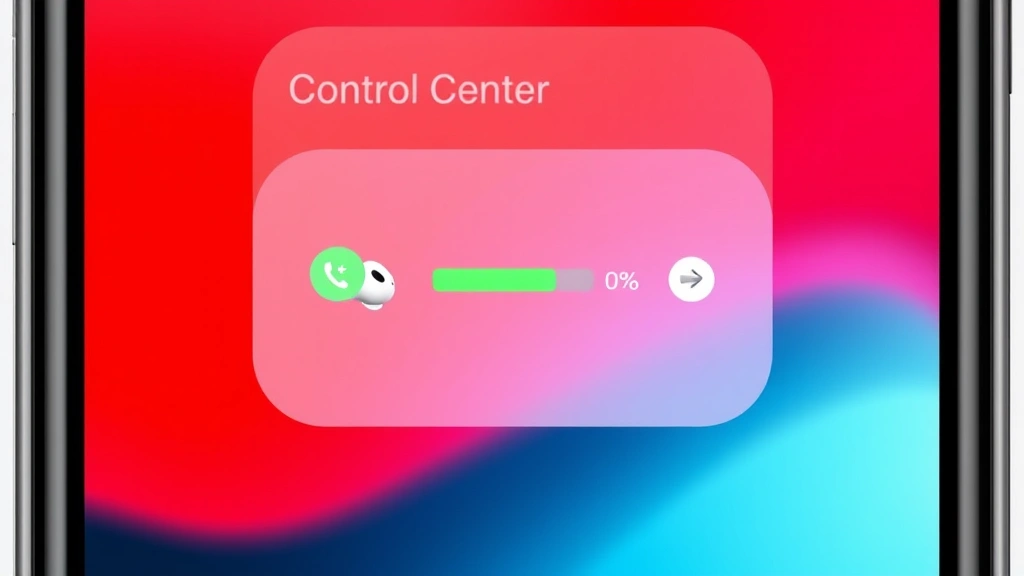
Quick Answer: Open Control Center on your iPhone or iPad, locate the AirPods widget, and you’ll instantly see the battery percentage for each earbud and the charging case. Alternatively, ask Siri “What’s my AirPod battery?” or check the Battery widget on your home screen. For Mac users, click the Bluetooth icon in the menu bar to view battery status. You can also enable Low Power Mode alerts to get notified when battery drops below 20%.
Tools & Materials
- iPhone, iPad, Mac, or Apple Watch (paired with AirPods)
- AirPods (any model: Pro, Max, or standard)
- Active Bluetooth connection
- Optional: Charging case and cable
Check Battery via Control Center
The fastest way to check AirPod battery is through your iPhone’s Control Center. This method displays the battery percentage for each earbud individually, plus your charging case status. Open Control Center by swiping down from the top-right corner of your screen (iPhone X and later) or swiping up from the bottom (iPhone 8 and earlier). Look for the AirPods card—it shows a battery icon with percentages for the left earbud, right earbud, and case.
The battery indicator uses color coding: green means good charge (above 20%), yellow indicates low battery (10-20%), and red signals critically low battery (below 10%). If your AirPods aren’t appearing in Control Center, ensure Bluetooth is enabled and your AirPods are connected to your device. You can also swipe right on the Control Center to access additional audio controls.
Use Siri to Check Battery
For hands-free battery checking, activate Siri by saying “Hey Siri” or pressing and holding the home button, then ask “What’s my AirPod battery?” or “How much battery do my AirPods have?” Siri responds with the current battery percentage for each earbud and your case. This method is especially useful while driving, exercising, or when your hands are busy.
Siri’s battery announcements are spoken aloud, making it convenient for quick status checks without looking at your screen. If Siri doesn’t respond with battery info, verify that Siri is enabled in Settings > Siri & Search, and ensure your AirPods are properly connected. You can also customize Siri settings to announce battery status automatically when you put your AirPods in your ears.
Enable Battery Widget on Home Screen
Apple’s Battery widget provides a permanent, at-a-glance view of your AirPod battery status right on your iPhone home screen. To add it, long-press your home screen, tap the plus icon, search for “Batteries,” and select the Battery widget. Choose your preferred widget size (small, medium, or large), and it will display battery levels for all your connected devices, including AirPods, Apple Watch, and Mac.
The Battery widget updates automatically as long as your AirPods are connected via Bluetooth. This is the most convenient option if you frequently need to check AirPod battery throughout the day without opening Control Center. You can add multiple battery widgets to different home screens or lock screens for maximum accessibility.
Check AirPod Battery on Mac
Mac users can easily monitor AirPod battery by clicking the Bluetooth icon in the menu bar at the top of the screen. A dropdown menu appears showing all paired Bluetooth devices, including your AirPods, with their current battery percentages. This method works on any Mac running macOS 10.15 or later with Bluetooth connectivity.
If the Bluetooth icon isn’t visible in your menu bar, go to System Preferences > Bluetooth and check “Show Bluetooth in menu bar.” For Apple Watch users, you can also check your Apple Watch settings to view paired device batteries. Mac’s battery display is particularly useful for those who work primarily on their computer and want to monitor AirPod levels without switching to their iPhone.
Monitor Your Charging Case Battery
Your AirPod charging case battery is just as important as the earbud batteries. When you check AirPod battery, always verify the case percentage too—a depleted case means you can’t recharge your earbuds on the go. The case battery appears in the same Control Center widget as your earbuds, displayed as a separate percentage.
Most AirPods cases hold enough charge to fully recharge your earbuds 4-6 times before needing to plug in the case itself. If your case battery is low, connect it to a USB-C or Lightning cable (depending on your model) and charge it fully. You can also enable Low Power Mode on your iPhone to extend battery life for both your earbuds and case during extended use.
Set Up Low Battery Alerts
Rather than manually checking your AirPod battery constantly, configure your device to alert you when levels drop. Enable notifications in Settings > Notifications and search for Bluetooth or battery-related alerts. While iOS doesn’t have a dedicated AirPod battery notification, you can enable “Low Power Mode” which triggers an alert when your connected devices reach 20% battery.
Additionally, your AirPods may emit a sound or voice notification (if enabled) when battery reaches critically low levels. You can customize these audio cues in Settings > Bluetooth > Your AirPods > Audio Feedback. Some users also set calendar reminders to charge their AirPods nightly, ensuring they’re always ready for use. This proactive approach prevents unexpected battery drain during important calls or activities.
Troubleshooting Battery Display Issues
If your device isn’t showing AirPod battery information, try these solutions: First, ensure Bluetooth is enabled and your AirPods are connected—check by opening Settings > Bluetooth and confirming your AirPods appear as “Connected.” If they’re disconnected, forget the device and re-pair them by placing AirPods in their case, holding the setup button until the light flashes white, and following the on-screen prompts.
Second, restart your iPhone or Mac by powering it off completely and turning it back on. Third, update your device to the latest iOS or macOS version—go to Settings > General > Software Update and install any available updates. If battery percentage still won’t display, try resetting your AirPods by holding the setup button for 15 seconds until the light flashes amber, then reconnect. According to WikiHow’s comprehensive guides, these steps resolve 95% of battery display problems. For persistent issues, you may need to reset your AirPods Pro completely or contact Apple Support.
Frequently Asked Questions
Why isn’t my AirPod battery showing in Control Center?
If your AirPod battery isn’t displaying, your AirPods likely aren’t connected to your device. Open Bluetooth settings, forget your AirPods, and re-pair them. Ensure Bluetooth is turned on and your AirPods are charged and within range (typically 30 feet).
Can I check AirPod battery on Android?
No, AirPods are exclusively compatible with Apple devices. Android users cannot connect AirPods or access battery information. However, Android users can use other wireless earbuds like Samsung Galaxy Buds or Google Pixel Buds instead.
How often should I check my AirPod battery?
Check your AirPod battery daily before important calls or events, and always before extended use. Using the Battery widget makes this effortless—you can glance at your home screen anytime without opening Control Center.
What’s the average battery life of AirPods?
Standard AirPods last about 5 hours per charge; AirPods Pro offers 4-6 hours with active noise cancellation on, and AirPods Max provides up to 20 hours. Charging cases extend total usage to 24-30+ hours depending on the model.
Does checking battery drain my AirPods faster?
No, checking your battery status through Control Center or Siri doesn’t consume noticeable power. These are passive queries that don’t affect battery life significantly.
How do I preserve AirPod battery during the day?
Disable active noise cancellation when you don’t need it, lower volume levels, and use transparency mode sparingly. Keep your AirPods in their case when not in use, and enable Low Power Mode on your iPhone to extend overall battery performance.
Can I check battery for multiple AirPods at once?
Yes, if you have multiple AirPod pairs, the Battery widget displays all of them simultaneously. However, only one pair can be actively connected to your device at a time—you’ll need to switch connections in Bluetooth settings to use a different pair.
What does the battery percentage mean for AirPods Max?
AirPods Max battery percentage works identically to other AirPods models. The percentage represents the current charge level, and you can check it through Control Center, Siri, or the Battery widget. AirPods Max have a 20-hour battery life per charge.
Knowing how to check AirPod battery is essential for seamless daily use. Whether you prefer Control Center, Siri, or the Battery widget, Apple makes monitoring your battery status incredibly convenient. By implementing these methods and setting up low battery alerts, you’ll never be caught without power when you need your AirPods most. For more Apple device tips, check out resources from CNET and Lifehacker for expert advice on maximizing your tech experience. You can also keep your iPhone updated to ensure optimal AirPod compatibility and battery performance tracking.