

Changing your YouTube channel name feels like it should be simple, right? But if you’ve ever tried to do it, you know there’s a surprising amount of confusion around the process. Maybe you rebranded your channel, started a new niche, or just got tired of that username you picked five years ago when you thought it was clever. Whatever the reason, you’re stuck staring at settings wondering where the actual “change name” button is hiding.
Here’s the real talk: how to change YouTube channel name is easier than you think once you know the difference between your Google Account name and your YouTube channel name. Most people get tripped up because YouTube changed how this works years ago, and old tutorials still float around the internet giving outdated advice. This guide cuts through the noise and shows you exactly where to click, what to expect, and what might go wrong.
Understand the Difference: Account Name vs. Channel Name
Before you touch anything, you need to understand one critical thing: your Google Account name and your YouTube channel name are not the same thing. This is where 90% of people get confused.
Your Google Account name is what you use to sign into Gmail, Google Drive, and all other Google services. It’s tied to your email address. Your YouTube channel name is what appears on your videos, in comments, and on your channel page. Think of it like this: your Google Account is your legal name on the deed to the house, but your YouTube channel name is the sign on the front door. You can change the sign without changing the deed.
YouTube used to require you to change your Google Account name to change your channel name. That was a nightmare because it affected everything else in your Google ecosystem. Now, thankfully, you can change just your channel name independently. This is a game-changer if you’ve got years of Gmail history tied to your account.
When you first created your YouTube channel, it probably defaulted to your Google Account name. But that doesn’t mean you’re stuck with it. You can update it anytime, and it won’t mess with your email or other Google services.
Step-by-Step: How to Change Your YouTube Channel Name
The process itself takes about two minutes. The confusion usually comes from finding the right menu option. Here’s the straightforward path:
- Sign into YouTube with your account
- Click your profile picture in the top right corner
- Select “Create a channel” or “Manage your Google Account” (depending on your setup)
- Go to the “Personal info” tab
- Find the “Name” field
- Edit your name and save
That’s it. But let’s walk through both desktop and mobile since the screens look different, and you might be reading this on your phone while sitting in bed wondering why you can’t find the option.
Desktop Instructions (Easiest Method)
Desktop is genuinely easier for this task because the menus are less cramped. Here’s exactly what you do:
- Open YouTube.com and make sure you’re signed in. Look for your profile picture in the top right corner of the screen.
- Click your profile picture. A dropdown menu appears with several options. You’ll see things like “Create a channel,” “Settings,” “Help,” and “Sign out.”
- Click “Create a channel” if you haven’t already created one, or click on your channel name if you see it listed. If you see “Manage your Google Account,” click that instead.
- You’ll be taken to your channel page or Google Account settings. If you’re in Google Account settings, look for the “Personal info” tab on the left side.
- Find the “Name” field. This is usually near the top under “Basic information.” You’ll see your current first and last name.
- Click the pencil icon or the name field itself to edit. A text box opens up. Delete your current name and type in your new channel name.
- Click “Save” when you’re done. YouTube will confirm the change, and you’re finished.
Real talk: sometimes the interface varies slightly depending on whether you have a custom URL set up or multiple channels. If you have multiple channels, make sure you’re editing the right one. You can see which channel you’re currently managing at the top of the page.
Pro Tip: Before you change your channel name, consider whether you want to set up a custom URL. A custom URL makes your channel easier to share and looks more professional. You can set one up in the “Basic info” section of your channel settings, but you need at least 100 subscribers and an account that’s been active for 30 days. If you’re just starting out, don’t stress about this yet.
Mobile Instructions (Phone & Tablet)
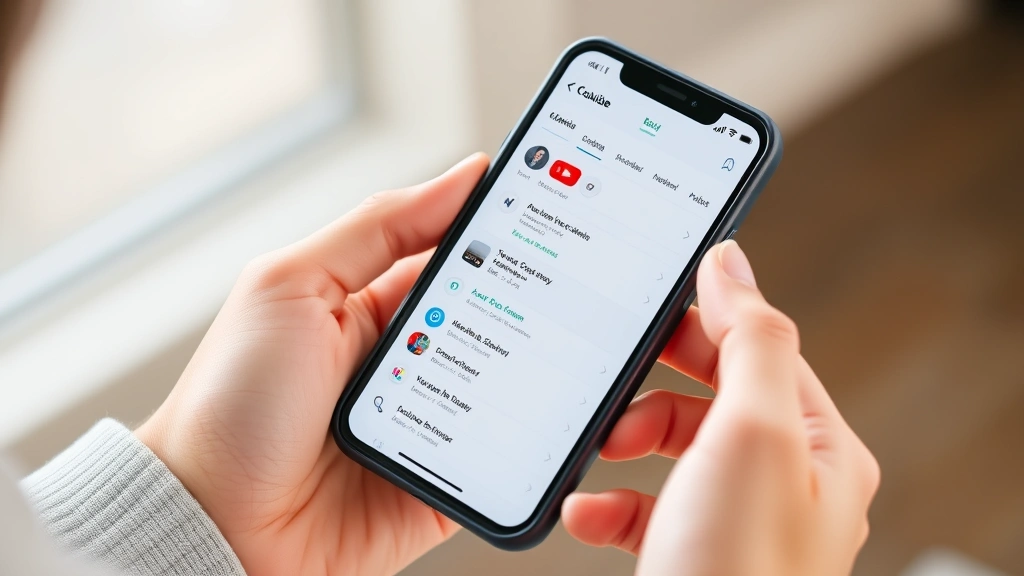
Mobile is a bit trickier because the interface is compressed, but it’s still doable. Here’s the path for both iPhone and Android:
- Open the YouTube app on your phone or tablet. Make sure you’re logged in.
- Tap your profile picture in the top right corner. It’s usually a small circle with your face or initial in it.
- Tap “Create a channel” or your existing channel name from the dropdown menu.
- Tap the user icon (looks like a silhouette) in the top left of your channel header.
- Tap “Manage my Google Account.” This takes you to your Google Account settings within the YouTube app.
- Tap the “Personal info” tab at the top of the screen. Swipe left if you don’t see it immediately.
- Tap your name field where it shows your current first and last name.
- Edit your name in the text boxes that appear. Type your new channel name.
- Tap “Save” when you’re done. The app will process the change and confirm it.
Mobile can be finicky sometimes. If you get stuck or the menus don’t look exactly like this, try switching to desktop mode in your browser instead. Open YouTube.com in your phone’s browser (not the app) and follow the desktop instructions. Sometimes that’s faster than wrestling with the app.
What Happens After You Change Your Channel Name
Once you hit save, here’s what changes and what stays the same:
What Changes Immediately:
- Your channel name appears with the new name on all future uploads
- Your channel page header shows the new name
- Comments you make going forward appear under the new name
- Your channel URL (if you have a custom one) stays the same, but your channel name displays differently
What Stays the Same:
- All your old videos remain on your channel with their original upload dates
- Your subscriber count doesn’t change
- Your watch history, playlists, and saved videos are unaffected
- Your email address and Google Account login stay exactly the same
- Your channel ID (the internal identifier YouTube uses) never changes
The Tricky Part: Old comments you made before the name change will still show your old name. YouTube doesn’t retroactively update your name on past comments. This is actually a good thing because it keeps the historical record intact, but it can look weird if you scroll through your old comment section and see both names.
If you’re worried about your brand consistency, don’t be. Most viewers won’t notice or care that you changed your name. They’ll just see the new name going forward. If you’ve built a significant audience that knows you by your old name, consider pinning a community post or making a short video explaining the rebrand. That’s good practice for keeping your subscriber base engaged.
Common Mistakes That Mess Things Up
These are the things that make people think they’ve done something wrong when really they just need to wait or look in a different place:
Mistake #1: Changing Your Google Account Name Instead of Your Channel Name
This is the biggest one. If you go into Google Account settings and change your full name there, it changes your name across Gmail, Google Drive, and everywhere else. That’s not what you want. You specifically need to change your YouTube channel name in the YouTube settings, not your Google Account name. The two are separate now, and that’s intentional.
Mistake #2: Expecting Instant Updates Everywhere
YouTube caches things. Your channel name might not update on third-party sites, embedded videos, or YouTube’s own recommendation algorithm immediately. Give it 24 hours. If it’s still showing your old name after a full day, then you can start troubleshooting. Usually, it’s just cache.
Mistake #3: Confusing Your Channel Name With Your Handle
YouTube also has a “handle” feature (the @username thing). That’s different from your channel name. You can have a handle without changing your channel name, and vice versa. Don’t mix these up or you’ll be searching for settings that don’t exist.
Mistake #4: Not Checking Which Channel You’re Editing
If you have multiple YouTube channels (and many creators do), it’s easy to accidentally edit the wrong one. Before you save, scroll up and confirm you’re looking at the correct channel name at the top of the page. There’s no undo button that works instantly, so double-check.
Mistake #5: Using Special Characters or Emojis
YouTube allows letters, numbers, spaces, and some punctuation, but not everything. If you try to use emojis, excessive special characters, or symbols that aren’t standard, YouTube will reject the name and ask you to try again. Keep it simple. Letters and numbers work. That’s your safest bet.
Safety Warning: Don’t use someone else’s name or a trademarked brand name without permission. YouTube will take action if you’re impersonating someone or infringing on intellectual property. This isn’t just a rule—it’s something they actively monitor and enforce.
Timing and Name Change Limits
YouTube doesn’t publicly state a hard limit on how often you can change your channel name, but here’s what the community knows from experience: you can change it as often as you want, but there’s usually a brief delay between changes. If you change your name and immediately try to change it again, YouTube might lock you out for a few hours or a day.
The practical takeaway: change your name once, wait at least 24 hours before changing it again. If you’re rebranding, get it right the first time. Test the name out in your head for a few days before you commit to it.
There’s also no limit on how many characters you can use for your channel name, but keep it reasonable. Most people stick with names under 30 characters because anything longer looks awkward on mobile devices and in search results. Good branding practices apply here too—shorter, memorable names perform better.
If you’re managing a business channel or a brand channel, you might want to coordinate this change with your team. Let people know the rebrand is happening so they’re not confused when they see the new name. You could also update your channel description and banner art at the same time to make the rebrand feel complete. If you’re running multiple channels, make sure each one has a distinct name so your audience doesn’t get confused about which channel they’re on.
Frequently Asked Questions
Will changing my YouTube channel name affect my videos or watch history?
– No. Your videos stay exactly where they are with the same view counts, likes, and comments. Your watch history, playlists, and saved videos are completely unaffected. The only thing that changes is the name that appears on your channel page and on new content you upload.
Can I change my channel name back to my old one?
– Yes, absolutely. There’s no penalty for changing your name back. YouTube doesn’t track how many times you’ve changed your name or care if you revert to a previous one. Just go through the same process and enter your old name. Keep in mind that if someone else has claimed that name in the meantime, you might not be able to use it.
How long does it take for my new channel name to show up everywhere?
– It shows up on your channel page almost immediately. However, YouTube’s systems take time to propagate the change everywhere. Search results, recommendations, and third-party sites might take 24-48 hours to catch up. This is normal and nothing to worry about.
If I change my channel name, will my subscribers still be able to find me?
– Yes, 100%. Your channel URL and channel ID never change, so anyone who’s subscribed to you will still be subscribed. They’ll just see your new name. If you have a custom URL (like youtube.com/@yourname), that stays the same too.
Can I use my channel name for something other than my real name?
– Absolutely. Your channel name doesn’t have to match your real name at all. You can use a brand name, a creative alias, or anything else you want. YouTube doesn’t require you to use your legal name for your channel. Just avoid impersonating someone else or using trademarked names without permission.
What if YouTube won’t let me change my channel name?
– This usually happens for one of three reasons: (1) You’re trying to use a name that violates YouTube’s policies, (2) You’ve changed your name too recently and need to wait a bit, or (3) There’s a technical glitch. Try waiting 24 hours and then trying again. If it still doesn’t work, check YouTube’s help center or contact their support team. Also, make sure you’re logged into the right account.
Do I need a custom URL to change my channel name?
– No. Your channel name and your custom URL are separate things. You can change your channel name without having a custom URL, and you can have a custom URL without changing your channel name. They work independently.
Will my old comments show my new channel name?
– No. Comments you made before the name change will still display your old name. This is by design—YouTube keeps the historical record intact. Only comments you make after the change will show your new name. Some people like this because it’s authentic to when the comment was made. Others find it confusing. Either way, you can’t change it retroactively.

Can I change my YouTube channel name on mobile?
– Yes, you can do it entirely on mobile using the YouTube app or by visiting YouTube.com in your mobile browser. The app method can be a bit clunky, so some people prefer opening YouTube.com in their phone’s browser and following the desktop instructions instead. Both work fine.
Is there a cost to change my YouTube channel name?
– No. It’s completely free. YouTube doesn’t charge for anything related to managing your channel, including name changes. If someone is asking you for money to change your channel name, they’re scamming you.


