
Your voicemail greeting is often the first impression callers get of you. Whether it’s outdated, unprofessional, or just plain awkward, knowing how to change your voicemail is a skill everyone should have in their back pocket. The good news? It takes about five minutes, and the process varies only slightly depending on your phone carrier or device. This guide walks you through every scenario—iPhone, Android, landline, and major carriers—so you’re never stuck with a greeting that doesn’t represent you.
How to Change Voicemail on iPhone
The iPhone makes changing your voicemail greeting straightforward—assuming you know where to look. Most people don’t realize the Phone app holds this power, tucked away in a menu most users never explore.
- Open the Phone app on your home screen.
- Tap the Voicemail tab at the bottom right (it looks like a cassette tape icon).
- Select “Custom” or “Greeting” at the top of the screen. You’ll see options for “Default” and “Custom.”
- Tap “Custom” if you haven’t already.
- Hit the red Record button and speak your greeting clearly into the microphone. Keep it between 10–20 seconds.
- Tap Stop when you’re finished.
- Play back your recording to make sure it sounds right. If not, tap Delete and try again.
- Tap Save to confirm.
That’s it. Your new greeting is live immediately. No waiting, no confirmation calls—it just works.
If you’re using an iPad with cellular capability, the process is identical. The only catch? You need an active cellular plan on that device.
How to Change Voicemail on Android
Android phones vary more than iPhones, so the exact steps depend on your manufacturer and carrier. However, the general path is consistent across most devices.
- Open the Phone app (usually pre-installed on your device).
- Look for the Voicemail icon or menu—this is typically three dots or a settings gear in the top corner.
- Select “Voicemail Settings” or “Voicemail Greeting.”
- Choose “Custom Greeting” (or “Personal Greeting” depending on your carrier).
- Tap Record and deliver your message clearly.
- Tap Stop when finished.
- Review and Save your greeting.
If you can’t find these options, check with your carrier’s app. Verizon, T-Mobile, and AT&T all offer dedicated voicemail apps that sometimes provide easier access to greeting settings than the default Phone app.
Pro tip: Android users with Google Voice have a slightly different process. Open Google Voice, tap the menu icon, go to Settings, then Voicemail, and select “Record a greeting.” Google Voice actually lets you record multiple greetings and assign them to different contacts—a feature iPhone users don’t get natively.
Carrier-Specific Instructions
Your carrier might have its own voicemail system that overrides your phone’s native settings. Here’s the breakdown:
Verizon
Verizon uses a hybrid system. You can record a greeting through your phone, but you can also call *86 from your Verizon line to access voicemail settings directly. Follow the automated prompts to record or change your greeting. Alternatively, use the My Verizon app to manage voicemail settings remotely.
AT&T
AT&T lets you dial *61 to access your voicemail menu. From there, you can record a new greeting by following the voice prompts. The AT&T Mobile app also provides a voicemail section where you can listen to, delete, or manage messages.
T-Mobile
T-Mobile’s voicemail is accessed by dialing your own number and waiting for the greeting, then pressing * during the greeting to interrupt and access the menu. You can also use the T-Mobile app’s voicemail feature. For detailed guidance, T-Mobile’s support page provides carrier-specific help.
Google Fi
If you’re on Google Fi, your voicemail integrates with Google Voice. Open the Google Voice app, tap the menu, go to Settings, then Voicemail, and record your greeting. This is one of the cleanest interfaces for managing voicemail among all carriers.
The key takeaway? If the standard phone method doesn’t work, your carrier’s app or a quick dial code will get you there.
Using Visual Voicemail

Visual voicemail is a game-changer if your carrier supports it. Instead of listening to messages sequentially, you see a list of callers and can jump to any message. Most carriers charge $3–5 monthly, but iPhone users often get it free.
Visual voicemail apps typically have their own greeting management systems. For example, if you’re using AT&T’s voicemail app, you’ll find a “Greeting” or “Settings” option within the app itself. Same goes for Verizon’s app. Check your specific app’s menu—it usually takes one or two taps to find the greeting recorder.
One thing to note: if you’re using visual voicemail, make sure your greeting is set there and on your phone. Some carriers sync these automatically; others don’t. It’s worth testing by calling yourself to confirm which greeting plays.
Common Mistakes to Avoid
People mess up voicemail changes more often than you’d think. Here are the pitfalls:
- Recording in a noisy environment: Your bathroom might have good acoustics, but your kitchen with the dishwasher running doesn’t. Find a quiet room and close the door.
- Speaking too fast: Slow down. Callers should be able to understand your name and instructions without replaying. Aim for a natural conversational pace.
- Not testing the greeting: Always call yourself back and listen to the full greeting. You might discover it’s too quiet, has background noise, or cuts off mid-sentence.
- Leaving an outdated greeting: “I’m on vacation until March 15th” in April looks unprofessional. Update it regularly.
- Forgetting to set “Custom” as active: You record a perfect greeting, but the default one still plays because you didn’t switch it to “Custom.” Double-check this step.
- Mixing up carrier vs. phone settings: Some carriers override phone-level settings. If your new greeting isn’t working, try the carrier’s voicemail portal directly.
Troubleshooting Tips
Is your new greeting not showing up? Here’s what to try:
Restart Your Phone
This sounds basic, but it works. Sometimes your phone needs to refresh its connection to the carrier’s voicemail system. Power off, wait 10 seconds, and power back on.
Check Your Carrier’s Voicemail Portal
Log into your carrier’s website or app and verify your greeting settings there. Some carriers have a web portal separate from the app where you can manage voicemail independently. If the web portal shows your old greeting, change it there and wait a few minutes for it to sync to your phone.
Dial Your Voicemail Directly
Call your own number and listen to what greeting plays. This tells you whether the issue is on your phone or with the carrier’s system. If the old greeting still plays, the change hasn’t propagated yet—wait 15–30 minutes and try again.
Contact Your Carrier
If you’ve waited an hour and the greeting still hasn’t updated, call your carrier’s customer service. They can manually reset your voicemail settings or check for system-level issues. This is rare, but it happens, especially after major iOS or Android updates.
Check for iOS or Android Updates
Outdated software sometimes causes voicemail glitches. Go to Settings > General > Software Update (iPhone) or Settings > System > System Update (Android) and install any pending updates.
Best Practices for Your Greeting
Now that you know how to change your voicemail, let’s talk about what to say. Your greeting is your voice’s first impression.
Keep It Professional but Personal
You don’t need a monotone, robotic greeting. A warm, friendly tone works best. Something like, “Hi, this is [Your Name]. I can’t take your call right now, but I’ll get back to you as soon as I can. Leave a message and your number, and thanks for calling!” is perfect for personal or professional use.
Include Key Information
Tell callers what to do: “Please leave your name, number, and the best time to reach you.” This simple instruction dramatically improves the quality of voicemail messages you receive.
Keep It Short
Aim for 10–20 seconds max. Callers are impatient. Long, rambling greetings get cut off or cause people to hang up without leaving a message.
Update It Seasonally
If you’re often out of the office, mention it. “I’m traveling until December 20th and will return calls then.” This sets expectations and reduces frustration.
Avoid Jokes or Clever Greetings
Unless you’re in a creative field, skip the funny voicemail bits. They age poorly and can come across as unprofessional to potential employers or clients.
Test the Audio Quality
Call yourself back after recording. Make sure there’s no background noise, the volume is consistent, and your voice is clear. Re-record if necessary—it takes 30 seconds and makes a huge difference.
For additional guidance on managing your digital presence, check out resources like Family Handyman’s tech section or This Old House’s smart home guides, which often include communication setup tips alongside home automation.
Frequently Asked Questions
Can I use a pre-recorded greeting instead of recording one myself?
– Most carriers offer default greetings with your name read by a computerized voice. On iPhone, you can select “Default” in the Voicemail tab to use this instead of a custom recording. However, a personal recording always sounds more professional and warm.
What if I don’t hear my new greeting when I call myself?
– Wait 15–30 minutes. Voicemail systems can take time to update. If it still doesn’t work after an hour, restart your phone or contact your carrier’s customer service.
Can I have different greetings for different contacts?
– Not natively on iPhone or most Android phones. However, Google Voice allows you to set multiple greetings and assign them to specific contacts or groups. This is one of Google Voice’s best features.
Is there a character limit for voicemail greetings?
– Not officially, but practically, keep it under 30 seconds. Most systems will cut you off around 60 seconds, and callers won’t wait that long anyway.
Can I change my voicemail greeting remotely if I don’t have my phone?
– Yes. Most carriers offer web portals where you can log in and manage voicemail settings. You can also call your voicemail number from any phone and use the menu to record a new greeting. Dial your own number, wait for the greeting, press *, and follow the prompts.
Why does my greeting sound echo-y or distorted?
– You’re likely recording in a room with hard surfaces (tile bathroom, empty bedroom). Try recording in a room with soft furnishings like a bedroom with carpet and curtains. Also, speak at a normal volume—don’t shout into the microphone.
Can I delete my custom greeting and go back to the default?
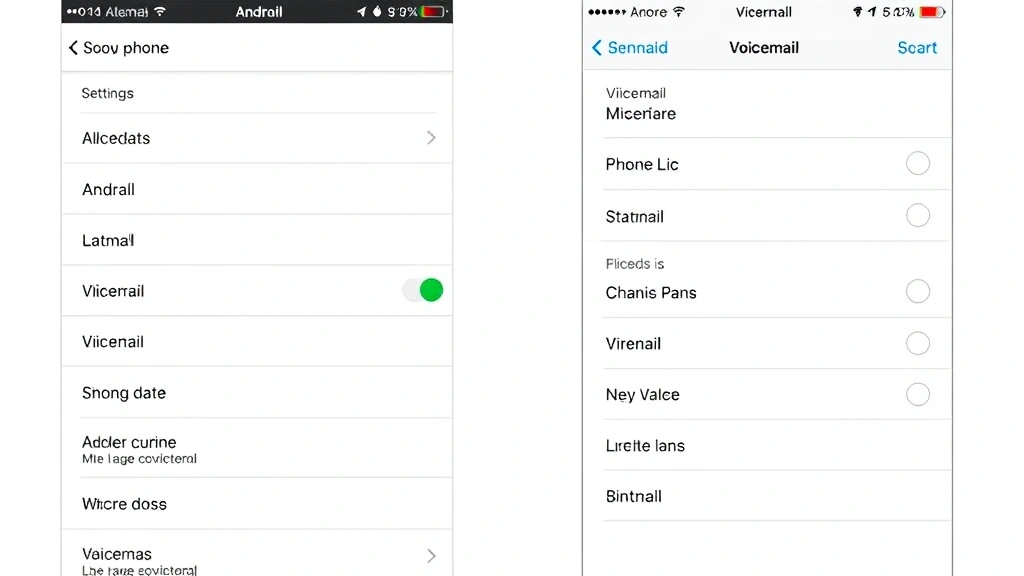
– Yes. On iPhone, go to Voicemail > Greeting and select “Default” instead of “Custom.” On Android or through your carrier’s app, look for a “Reset to Default” or “Delete Custom Greeting” option.
What’s the best time of day to record a voicemail greeting?
– Record when your environment is quietest. Early morning or late evening usually works best. Avoid recording during business hours when there’s background noise or when you’re tired and your voice sounds strained.


