
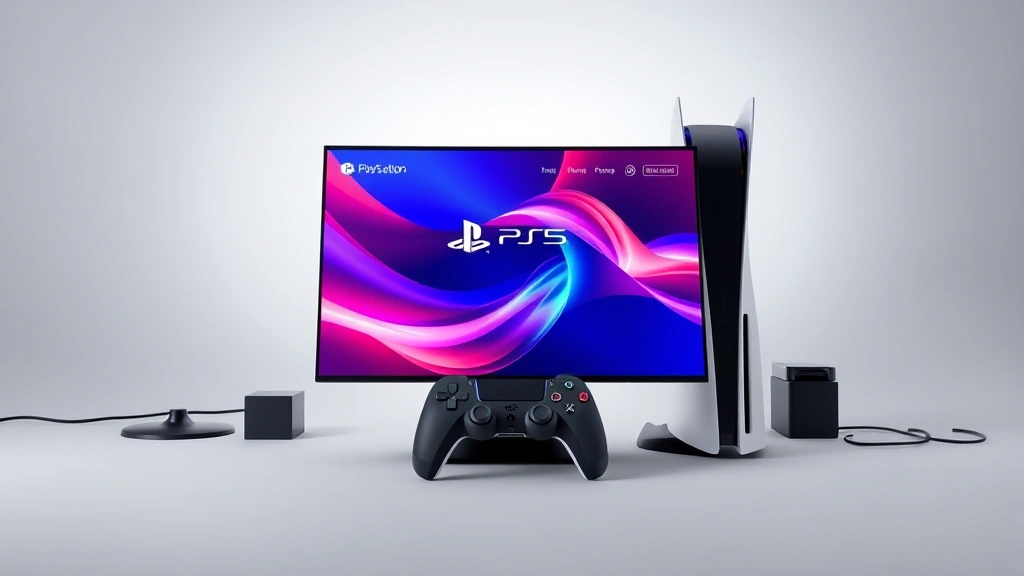
Learning how to change PS5 background is one of the quickest customizations you can make to personalize your gaming console. Whether you’re tired of the default blue aesthetic or want something that matches your gaming setup vibe, swapping out your PS5 background takes just a few clicks. In this guide, I’ll walk you through every method—from built-in themes to custom images—so you can make your console feel truly yours.
Table of Contents
Access Theme Settings First
Before you can start changing anything, you need to know where the settings live on your PS5. From your home screen, head to the gear icon in the top right corner—that’s your Settings menu. Once you’re in, scroll down until you find “Themes.” This is your command center for all background customization. Think of it like opening your workshop toolbox before starting a project; you need to know where everything is first.
The Themes section is broken into a few subsections: “Your Themes,” “Explore,” and “Create.” Each one serves a different purpose, and understanding the layout will save you time when you’re hunting for specific options. You’ll notice your current theme is highlighted at the top, which gives you a quick reference point for what’s actively running on your system right now.
Browse Built-in Themes
Sony includes several built-in themes right out of the box with your PS5. These are solid, professionally designed options that give your console a polished look without requiring any downloads. Navigate to “Your Themes” and you’ll see what came pre-installed. Most users have at least three to five options available depending on their region and system age.
The built-in themes typically include variations of the standard PS5 blue, a dark mode option, and sometimes exclusive themes tied to PlayStation franchises. These aren’t fancy, but they’re reliable and don’t eat up storage space. If you’re the type who likes to keep things simple and stock, these might be exactly what you need. Selecting one is as easy as highlighting it and pressing X—the change applies instantly to your home screen.
Download Free Themes
This is where things get fun. Sony’s PlayStation Store regularly offers free themes, and finding them is straightforward. From your Settings > Themes menu, select “Explore.” This opens a connection to the PS Store’s theme library. You’ll see categories like “New,” “Popular,” and “Free.” Filter by “Free” to see what’s currently available without spending a dime.
Free themes rotate regularly, so checking back every few weeks means you’ll discover new options constantly. Some are tied to games, movies, or seasonal events. Others are just creative designs from independent artists. When you find one you like, select it and choose “Download.” The file size is usually between 50-200MB, so it won’t hog your storage. Once downloaded, it appears in your “Your Themes” collection and is ready to activate immediately.
If you’re looking to enhance your gaming setup further, consider reading about how to build a gaming network at home to optimize your entire gaming environment alongside your new PS5 aesthetic.
Use Custom Images
Here’s where you get real control. The PS5 lets you upload custom images from a USB drive to use as backgrounds. This is the most personalized option available. To do this, you’ll need to prepare your image on a computer first. The PS5 accepts JPG and PNG files, and the recommended resolution is 3840×2160 pixels (4K), though it’ll work with smaller sizes too.

Create a folder on your USB drive called “PS5” and inside that, create a subfolder called “Images.” Drop your custom image files in there. Plug the USB drive into your PS5, then go to Settings > Themes > Create. Select “Import,” and your PS5 will scan the USB drive for compatible image files. Choose the one you want, and boom—you’ve got a completely custom background. This method is perfect if you want to display gaming screenshots, artwork, or photos that mean something to you personally.
Keep in mind that custom images work best when they’re high-contrast and not too busy. A cluttered background can make it harder to read your game library and system icons. Think about the overall composition—does it leave enough visual space for text and menu items to remain legible?
Manage Theme Storage
Every theme you download takes up storage space on your PS5. While themes are relatively small files, if you’re a collector who downloads dozens of them, you might want to manage your library. Go to Settings > Themes > Your Themes, and you’ll see all installed themes. You can delete ones you’re not using anymore by selecting them and choosing the delete option. This frees up space for games and other content that matters more.
A good rule of thumb is to keep only the themes you actually use or might rotate to seasonally. There’s no performance penalty for having multiple themes installed, but from a storage perspective, it’s cleaner to maintain a curated collection. If you ever want to reinstall a deleted theme, you can simply redownload it from the PS Store for free—nothing’s permanent.
Troubleshoot Common Issues
Sometimes things don’t go as planned. If a theme won’t download, make sure your internet connection is stable and your PS5 has enough free storage space. Themes typically need at least 500MB of available space to download successfully. If you’re still having trouble, try restarting your console and attempting the download again.
If a custom image won’t import from your USB drive, double-check the file format and folder structure. The image must be JPG or PNG, and it absolutely must be in PS5/Images/ folder path. Windows and Mac sometimes add hidden files that can interfere—try reformatting the USB drive and copying files fresh. Also, make sure your USB drive is formatted as FAT32 or exFAT; NTFS sometimes causes compatibility issues with PS5.
For those managing multiple devices, you might find our guide on how to change home screen on iPhone helpful for keeping your tech ecosystem consistent across platforms.
Theme Performance Tips
Here’s something people don’t always realize: some themes are more resource-intensive than others, especially animated ones. If you notice your PS5 menu feels slightly sluggish or takes longer to load, switching to a simpler, static theme might help. Animated themes look cool, but they do use a bit more processing power compared to static backgrounds.

If performance is your priority, stick with Sony’s built-in themes or simpler downloaded options. If you love the visual flair of animated themes and don’t mind the minimal performance hit, go for it—the difference is barely noticeable in real-world use. It’s all about finding your balance between aesthetics and functionality. Test a few different themes and pay attention to how responsive your menu feels with each one.
Frequently Asked Questions
Can I use any image as a PS5 background?
Not exactly. The PS5 accepts JPG and PNG files, and while technically any image in those formats will work, you’ll get the best results with images that are 3840×2160 pixels (4K resolution). Smaller images will still work but might appear stretched or pixelated. Avoid images with small text or intricate details since they can become hard to read at a distance.
How do I get more free themes?
Check the PS Store regularly through Settings > Themes > Explore > Free. Sony rotates free themes frequently, sometimes weekly or monthly. You can also follow PlayStation’s official social media accounts for announcements about new free themes. Some themes are tied to game launches or seasonal events, so staying in the loop helps you grab limited-time offerings.
Will changing my theme affect my game saves?
Not at all. Themes are purely cosmetic and don’t touch your game data, settings, or saves in any way. You can swap themes as many times as you want without any risk to your actual gaming content. This is one of the safest customizations you can make on your PS5.
Can I create my own theme?
You can create a custom background using your own image files (the “Create” option in Themes), but you can’t build a full custom theme with custom icons and animations like you might on other platforms. The PS5 limits theme creation to background images only. For full theme customization, you’re limited to what Sony and third-party designers offer through the PS Store.
Do themes cost money?
Most themes are free, but Sony occasionally offers premium themes for $1.99-$4.99. You’ll see the price clearly listed in the PS Store when browsing. Free themes are always available and rotate regularly, so you never need to pay for a theme if you don’t want to. The paid options are usually higher-quality or tied to popular franchises.
Final Thoughts
Changing your PS5 background is a simple way to make your console feel personalized and fresh. Whether you stick with Sony’s built-in themes, explore the free offerings in the PS Store, or upload your own custom images, you’ve got plenty of options to match your style. The whole process takes just a few minutes, and you can change it again whenever you want. For more tech customization tips, check out our guide on how to reprogram Firestick remote to keep your entire entertainment setup dialed in.
Don’t overthink it—pick something that makes you happy every time you boot up your console. Your PS5 background is one of the first things you see, so make it count. Experiment with different themes, try custom images, and find what resonates with you. The beauty of this feature is that nothing’s permanent, so you can keep evolving your setup as your mood changes.


