
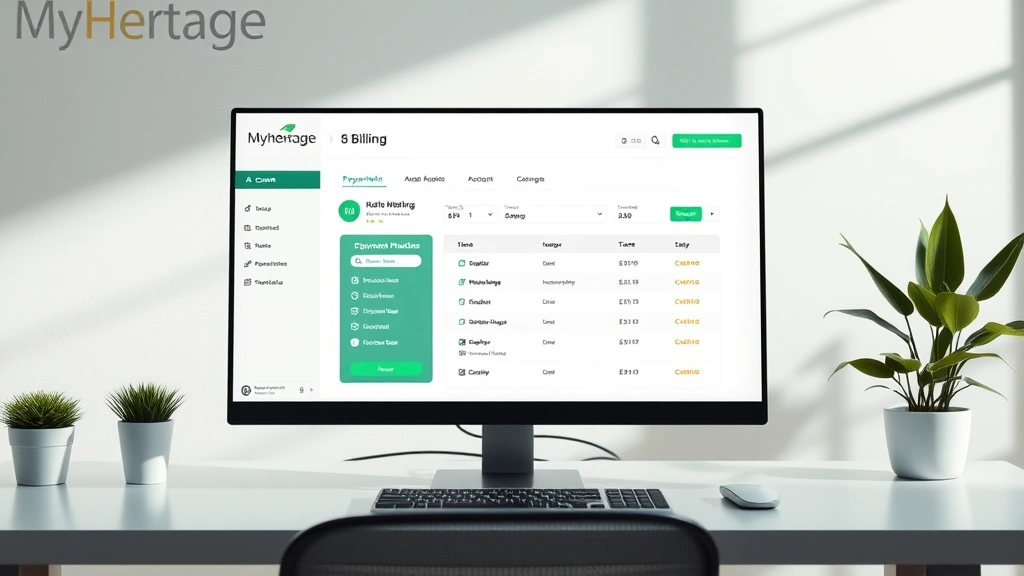
Learning how to change payment method on MyHeritage is one of those quick wins that saves you from subscription headaches down the road. Whether you’ve got a new credit card, switched banks, or just want to update your billing info, the process is straightforward and takes about five minutes flat. Let me walk you through it like we’re troubleshooting this together in the workshop.
Table of Contents
Why Update Your Payment Method
There are plenty of reasons you might need to update your billing information on MyHeritage. Maybe your credit card expired, your bank issued you a new one with a different number, or you’re switching to a debit card. Sometimes you’ve simply got fraud concerns and want to use a different payment source. Whatever the reason, keeping your payment method current ensures your subscription stays active without interruption. Nothing’s worse than getting locked out of your genealogy research because a payment failed silently in the background.
The beauty of updating your payment method is that it doesn’t affect your existing subscription or any of your family tree data. You’re just swapping out the card information—everything else stays intact. Think of it like replacing a worn-out tool handle; the tool still works, you’re just giving it a fresh grip.
Access Your Account Settings
Start by heading to the MyHeritage website and logging into your account. You’ll need your email address and password—the same credentials you use every time you access your family tree. Once you’re logged in, look for your profile icon or account menu, typically located in the top-right corner of the screen. This is your gateway to all account-related settings.
Click on that profile icon and you’ll see a dropdown menu with several options. You’re looking for something labeled “Account Settings,” “Settings,” or “My Account.” Different versions of the site might label this slightly differently, but it’s always in that general area. If you’re having trouble finding it, check the help section—MyHeritage keeps their navigation pretty intuitive, so it shouldn’t take more than a few seconds to spot.
Locate the Billing Section
Once you’re in Account Settings, you’ll see several tabs or menu options. Look for “Billing,” “Payment Methods,” “Subscription,” or “Billing & Subscription.” This is where all your payment information lives. Click on that section and you’ll see your current payment method displayed. It might show the last four digits of your credit card, the card type (Visa, Mastercard, etc.), and the expiration date.
If you’ve been using MyHeritage for a while, you might have multiple payment methods stored. That’s fine—the system lets you manage all of them from this central location. You can see which one is currently active (usually marked as “Default” or “Primary”) and which ones are just backups.
Remove Your Old Payment Method
Before adding a new payment method, you might want to remove the old one—especially if it’s expired or compromised. Find the payment method you want to delete and look for a “Remove,” “Delete,” or “Edit” button next to it. Click that button and MyHeritage will ask you to confirm the deletion. This is a safety feature to prevent accidental removal of payment info you still need.
Here’s the important part: if the payment method you’re removing is currently your default, you’ll need to set a different one as default before you can delete it. MyHeritage won’t let you remove your only active payment method, which makes sense—they need some way to charge you for your subscription. So if you’re replacing a card, add the new one first, set it as default, then remove the old one.
Add Your New Payment Method
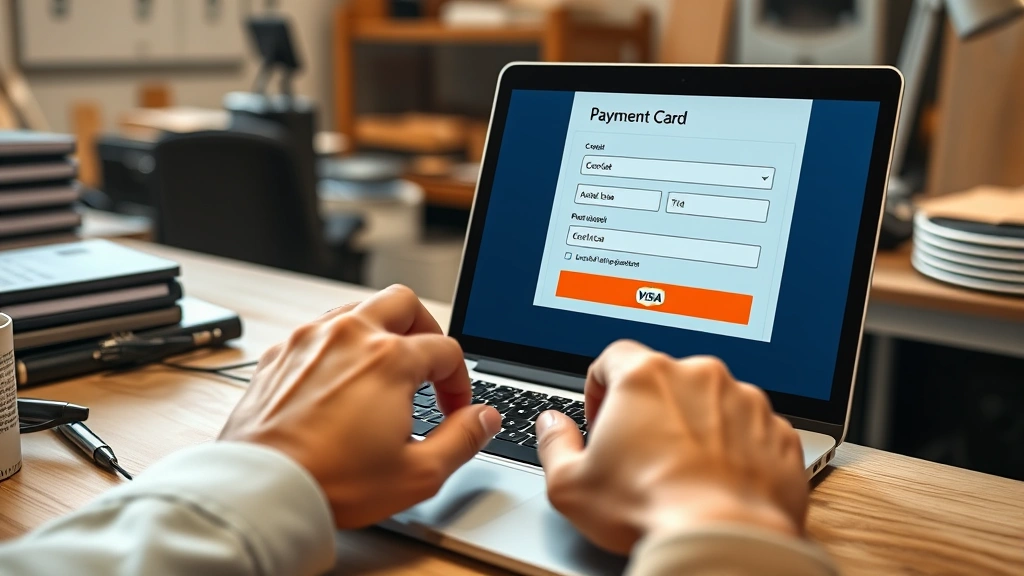
Look for an “Add Payment Method,” “Add Card,” or “+” button in your Billing section. Click it and you’ll be taken to a secure payment form. This is where you enter your new card information. You’ll typically need:
- Full name on the card
- Card number (16 digits for most credit cards)
- Expiration date (month and year)
- CVV security code (three digits on the back)
- Billing address (zip code at minimum)
Take your time here and double-check every digit. One wrong number and the card won’t be accepted. MyHeritage uses industry-standard encryption for this form, so your information is protected. The site never stores your full card number—it uses a secure token system instead, similar to what you’d see on any legitimate e-commerce site.
Verify Payment Details
After you’ve entered your new payment information, MyHeritage will process a verification. Sometimes they’ll run a small test charge (usually a dollar or less) to confirm the card is valid. Check your bank or credit card statement—you should see this tiny charge appear within a few hours. This isn’t a real charge; it’s just verification. The system will automatically reverse it once confirmed.
Once verified, your new payment method will appear in your Billing section. You can now set it as your default payment method if you haven’t already. Go back to your payment methods list, find the new card, and click “Set as Default” or similar. This ensures future subscription charges go to this card instead of the old one.
Troubleshoot Common Issues
Sometimes the payment method update doesn’t go smoothly. If you’re getting an error message when trying to add a new card, here are the usual culprits:
Card Declined: Your bank might be blocking the transaction because it looks unusual. Call your bank and let them know you’re updating a subscription payment. They can temporarily approve MyHeritage transactions.
Address Mismatch: The billing address you entered doesn’t match what your bank has on file. Double-check your zip code especially—that’s the most common mistake. If you’ve recently moved, update your address with your bank first.
Expired Card: Make sure the expiration date is correct. If your card expires this month, some systems won’t accept it. Use a card that’s valid for at least another six months.
Browser Issues: Clear your browser cache and cookies, then try again. Sometimes old cached data interferes with payment forms. If you’re using an older browser, try updating it or switching to a different one like Chrome or Firefox.
If none of these work, reach out to MyHeritage support directly. They can see what’s happening on their end and help troubleshoot. You might also consider contacting your bank—they can sometimes see rejection codes that help identify the problem.
Security Best Practices
When you’re managing payment methods online, treat it like you’re handling actual cash. Never share your card information via email or chat, even if someone claims to be from MyHeritage support. Legitimate companies never ask for full card details through unsecured channels.
Use a strong, unique password for your MyHeritage account—one you don’t use anywhere else. If someone compromises your MyHeritage login, they can access your payment methods. Consider enabling two-factor authentication if MyHeritage offers it; this adds an extra security layer.
Regularly check your billing statements and subscription status. If you see unexpected charges or notice your payment method changed without your action, contact MyHeritage immediately. Also, if you’re updating your payment method because your old card was compromised, contact your bank right away and request a new card with a different number.
Think of this like managing saved passwords securely—you want control over what’s stored and who can access it. The same principle applies to payment information. Keep it updated, keep it secure, and keep an eye on it.
Frequently Asked Questions
How long does it take to update my payment method?
The update is usually instant. Once you’ve entered your new card information and it’s been verified, it’s active immediately. You might see the verification charge appear on your bank statement within a few hours, but the payment method itself is ready to use right away.
Will changing my payment method affect my subscription?
No, your subscription continues without interruption. Changing your payment method is purely administrative—it doesn’t restart your subscription timer or affect any of your family tree data. Your subscription status remains exactly the same.
Can I have multiple payment methods on file?
Yes, MyHeritage lets you store multiple payment methods. You can set one as your default for automatic charges, and keep others as backups. This is handy if you want to use different cards for different purposes or have a backup ready if your primary card gets declined.
What if my payment method update keeps failing?
First, verify all the information is correct—especially the billing address and expiration date. If it still fails, try a different browser or clear your browser cache. If you’re still stuck, contact your bank to make sure they’re not blocking the transaction. As a last resort, reach out to MyHeritage support with details about the error message you’re receiving.
Is it safe to store my credit card on MyHeritage?
Yes, MyHeritage uses industry-standard encryption and security protocols. They don’t store your full card number—they use a tokenization system that keeps your data secure. That said, only store payment methods you’re comfortable with, and regularly monitor your statements for unauthorized charges.
Can I change my payment method on mobile?
Most of the time, yes. The MyHeritage mobile app usually has account settings accessible from the menu. However, some payment updates work better on the desktop website. If you’re having trouble on mobile, try accessing your account through a web browser instead.
What happens if my payment fails?
MyHeritage will typically send you an email notification that the charge failed. You’ll usually have a grace period to update your payment method before they suspend your subscription. Check your email regularly and update your payment info as soon as you get a failure notice.
Do I need to update my payment method if I’m canceling?
No, you don’t need to update anything if you’re canceling your subscription. Just go through the cancellation process. However, if you’re just pausing or downgrading your subscription, you might want to keep a valid payment method on file in case you reactivate later. Similar to how you’d want to keep your account active when managing other subscription services.
Wrapping It Up
Changing your payment method on MyHeritage is genuinely one of the easiest account management tasks you’ll encounter. The whole process takes just a few minutes, and once it’s done, you can get back to what really matters—building and exploring your family tree. Keep your billing information current, monitor your statements occasionally, and you’ll never have to worry about subscription interruptions.
The key takeaways: access your account settings, find the billing section, remove the old payment method if needed, add your new one, and verify it works. That’s it. If you run into trouble, the support team is there to help, and your bank can usually clear up any issues on their end. Just like any maintenance task, staying on top of this stuff prevents bigger headaches down the road. Now get back to discovering your ancestors!


