
Your voicemail greeting is often the first impression you make on callers. Whether you’re tired of that robotic default message, want to update your greeting for a new job, or just need to adjust your voicemail settings for better call management, knowing how to change my voicemail settings is a skill that takes five minutes but saves you from looking unprofessional every single day.
The frustration is real: you’ve probably had callers tell you your greeting is outdated, or you’re not even sure if your voicemail is working properly. Maybe you switched phones, changed carriers, or just want more control over how your messages are handled. The good news? Changing voicemail settings is straightforward once you know where to look, and it works differently depending on whether you’re on iPhone, Android, or using a carrier-specific service.
How to Change Voicemail on iPhone
If you’re using an iPhone, your voicemail settings live in the Phone app. Here’s the real process, step by step:
- Open the Phone app and tap the Voicemail tab (bottom right corner)
- Tap “Greeting” at the top of the screen
- Choose between “Default” or “Custom” – Default uses your carrier’s generic message, Custom lets you record your own
- If you select Custom, tap “Record” and speak your greeting clearly
- Tap “Stop” when finished, then “Save”
- Listen to your recording to make sure it sounds professional and isn’t too long (aim for 15-30 seconds max)
The key thing people miss: your iPhone voicemail greeting is tied to your phone number and carrier, not just your device. If you switch to a new iPhone, your greeting stays the same. If you want to change it, you go through the same steps.
Pro tip – if you’re not happy with your recording, tap “Record” again immediately. You can re-record as many times as you need without saving the first version.
Pro Tip: Before recording, write out what you want to say. Read it once silently to make sure it flows naturally. Then record. This prevents the awkward pauses and “umms” that make you sound unprepared.
You can also manage voicemail notifications in Settings > Phone > Voicemail. Toggle on “Show Voicemail Count” if you want a badge on the Phone app showing how many messages you have. This is especially useful if you miss notifications.
How to Change Voicemail on Android
Android is a bit trickier because the process varies depending on your carrier and which phone you’re using. However, here’s the general path that works for most Android devices:
- Open the Phone app (the default dialer, not Google Phone)
- Look for the menu (three dots) in the top right corner
- Tap “Settings” then “Voicemail”
- Select “Greeting” or “Voicemail Settings”
- Choose “Custom Greeting” and tap “Record”
- Speak your message clearly and tap “Stop” when done
- Tap “Save” to confirm
If you’re using Google Phone (the newer Google Dialer app), the steps are similar but the menu structure might be slightly different. Go to Settings > Voicemail > Greeting and follow the same recording process.
The real pain point with Android: if your carrier has their own voicemail system (like AT&T Call Protect, Verizon Message+, or T-Mobile Voicemail), you might need to access voicemail settings through their app instead. Check your carrier’s website or call customer service if the standard Phone app doesn’t show voicemail settings.
Safety Note: Don’t include personal information like your address or last four digits of your SSN in your voicemail greeting. Keep it simple: name, and maybe a brief message about when you’ll call back.
Changing Voicemail Through Your Carrier
Your cellular carrier (AT&T, Verizon, T-Mobile, etc.) also gives you voicemail options, sometimes more robust than what’s built into your phone. Here’s how to access carrier-level voicemail settings:
For Verizon: Call 611 from your phone, or go to My Verizon > Phone > Voicemail Settings. You can also download the Verizon Message+ app for more control.
For AT&T: Dial 611, or visit AT&T’s website and log into your account. Go to Phone > Voicemail to manage greetings and settings.
For T-Mobile: Open the T-Mobile app or call 611. Navigate to Voicemail Settings to customize your greeting and notification preferences.
For other carriers: Most regional carriers and MVNOs (like Mint Mobile, Google Fi, or Visible) have their own voicemail management portals. Check your carrier’s website or call their customer service line.
Why would you use carrier settings instead of your phone’s built-in voicemail? Carrier systems often offer advanced features like:
- Transcription services (your voicemail is converted to text)
- Selective call routing (different greetings for different callers)
- Do Not Disturb scheduling
- Message expiration settings
- Spam call filtering
These features vary by carrier, so check what’s available to you. Some carriers charge extra for premium voicemail features, but many include them with standard service plans.
Recording a Professional Voicemail Greeting

Now that you know how to change my voicemail, let’s talk about what actually goes into a good greeting. This matters more than you think – studies show that people form opinions about professionalism within the first few seconds of hearing your voice.
The anatomy of a solid voicemail greeting:
- Your name (so callers know they reached the right number)
- A brief, friendly tone (“Hi, thanks for calling!” goes a long way)
- When you’ll get back to them (“I’ll return calls within 24 hours” is realistic)
- An alternative contact method (optional, but helpful for urgent matters)
- A closing (“Thanks, talk soon!” is warmer than silence)
Example greeting: “Hi, this is [Your Name]. Thanks for calling. I’m away from my desk right now, but I’ll get back to you within 24 hours. If it’s urgent, you can email me at [email]. Thanks!”
That’s 20 seconds. Perfect.
What NOT to do:
- Don’t use music or sound effects (unless you’re in entertainment or creative fields)
- Don’t make jokes that might not age well
- Don’t mumble or speak too fast
- Don’t include your full phone number in the greeting (callers already have it)
- Don’t make it longer than 30 seconds – people get impatient
Record in a quiet room. Close the door, turn off fans or background noise, and speak at your normal volume. If you sound like you’re shouting or whispering, re-record.
Troubleshooting Common Voicemail Issues
Sometimes changing voicemail settings doesn’t go smoothly. Here are the most common problems and how to fix them:
Problem: “Voicemail isn’t recording calls”
Solution: Check that voicemail is actually set up on your account. Call your carrier’s customer service and confirm voicemail is active. Also, make sure your phone isn’t set to “Do Not Disturb” or “Airplane Mode” – these can interfere with voicemail functionality.
Problem: “My greeting isn’t saving”
Solution: Try clearing your phone’s cache. If you’re on iPhone, go to Settings > General > iPhone Storage and look for the Phone app. If you’re on Android, go to Settings > Apps > Phone > Storage > Clear Cache. Then try recording your greeting again. If it still doesn’t work, restart your phone.
Problem: “Callers say they hear the old greeting”
Solution: There can be a delay of 15-30 minutes for your new greeting to update across your carrier’s system. Wait a bit, then have a friend call to test. If it’s still showing the old greeting after an hour, try re-recording it or contact your carrier.
Problem: “I forgot my voicemail password”
Solution: Call your carrier’s customer service line (usually 611 from your phone). They can reset your voicemail password. You’ll need to verify your identity with the last four digits of your SSN or account information.
For more detailed troubleshooting, check your carrier’s official support pages. Verizon’s voicemail FAQ and similar resources from other carriers are surprisingly helpful.
Advanced Voicemail Settings to Know About
Beyond just recording a greeting, there are several advanced settings that can improve your voicemail experience:
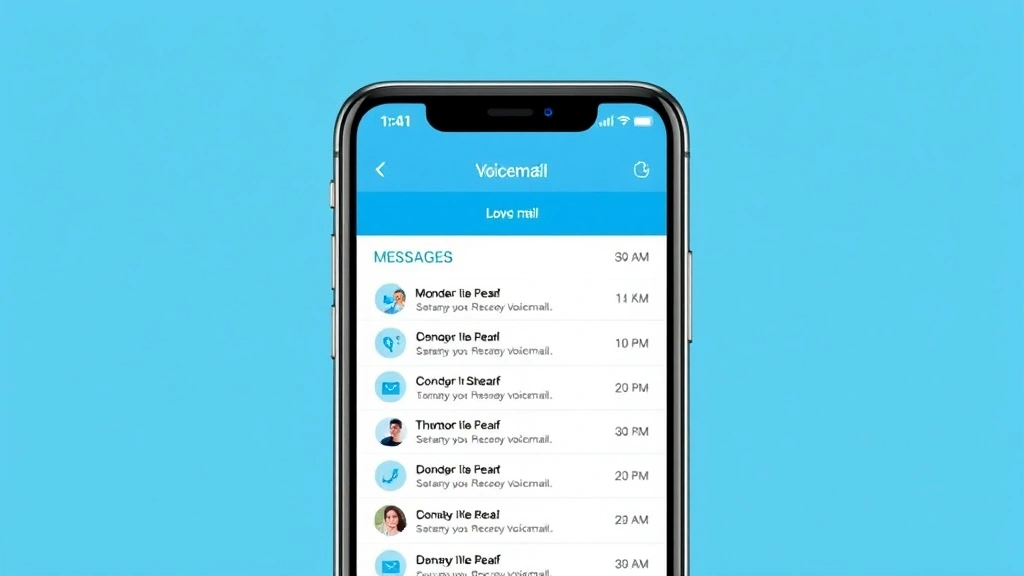
Visual Voicemail: Available on most modern phones, this displays your voicemails as a list so you can read transcriptions or listen in any order (instead of sequentially). It’s built into iPhone by default and available through carrier apps on Android.
Voicemail Transcription: Some carriers (and third-party apps) transcribe voicemails to text. This is incredibly useful if you’re in meetings or noisy environments. The accuracy isn’t perfect, but it’s usually good enough to get the gist of the message.
Do Not Disturb Settings: You can schedule times when calls go straight to voicemail. Useful for sleeping, working, or focused time. On iPhone, go to Settings > Focus > Do Not Disturb. On Android, it’s Settings > Notifications > Do Not Disturb.
Call Screening: Google Pixel phones and some other Android devices let you screen calls before they go to voicemail. The call is answered by Google Assistant, which asks the caller to state their name and purpose. You can then decide to answer or let it go to voicemail.
Spam Filtering: Most carriers now filter spam calls automatically. You can adjust these settings in your carrier’s app. If legitimate calls are being blocked, you can whitelist numbers.
If you want even more control, look into third-party voicemail apps like Google Voice, which offers transcription, call screening, and routing to multiple devices.
Understanding Visual Voicemail and Transcription
Visual voicemail changed the game. Instead of calling in and listening to messages sequentially (which is torture if you have 10 voicemails), you see them all listed out and can pick which ones to listen to first.
How it works: When someone leaves a voicemail, it appears as a notification on your phone. You tap it, and you can listen, delete, or save it. No need to dial into a voicemail system.
Transcription: This is where it gets really useful. Your carrier (or a third-party service) transcribes the voicemail to text. So you can read “Hey, it’s Mom, call me back when you get a chance” without listening to the audio.
Accuracy depends on the service. Carrier transcription is usually 70-85% accurate. Google Voice’s transcription is better (85-90%), but the service has been in flux. Always listen to the audio if the message is important – transcription can miss context or mishear words.
Not all carriers offer transcription by default. Check with your carrier to see if it’s included or if you need to pay extra. Some carriers include it with premium plans.
You can also use Google Voice as a workaround if your carrier doesn’t offer transcription. It’s free and works across iOS and Android.
Frequently Asked Questions
Can I have different voicemail greetings for different people?
– Yes, but it depends on your carrier and phone. Some carriers (like Verizon) offer selective call routing, which lets you set different greetings based on caller groups. You’d set this up in your carrier’s app or website. On iPhone, you can use Focus modes to create different greeting scenarios, though it’s not as seamless as carrier-level routing. For the most flexibility, Google Voice offers this feature natively.
How often should I update my voicemail greeting?
– Update it whenever your availability changes significantly. If you’re going on vacation, record a temporary greeting saying you’ll be back on a specific date. If you change jobs, update it. Otherwise, a general greeting that works year-round (like “I’ll return calls within 24 hours”) is fine. Don’t change it just for the sake of it – consistency is actually better for professionalism.
What if I want to delete my voicemail greeting and go back to default?
– On iPhone, go to Phone > Voicemail > Greeting and tap “Default.” On Android, go to Phone > Settings > Voicemail > Greeting and select “Default” or “Standard.” Your carrier’s default greeting will take over immediately.
Can I record a voicemail greeting from a different phone?
– Yes, but it’s carrier-dependent. Most carriers let you log into your account online or through their app and manage voicemail from any device. You might be able to record directly, or you might need to call a specific number to access voicemail settings. Check your carrier’s website for the exact process.
Why is my voicemail not working at all?
– First, confirm voicemail is active on your account (call customer service). Then, check that your phone isn’t in Do Not Disturb or Airplane Mode. Restart your phone. If it’s still not working, it might be a carrier issue – call 611 from your phone to troubleshoot with their support team. If you’re abroad, international roaming settings might be blocking voicemail.
Is voicemail transcription accurate?
– It’s usually 70-90% accurate depending on the service and audio quality. Background noise, accents, and technical jargon can confuse transcription. Always listen to the actual voicemail if the message is important. Think of transcription as a quick preview, not a replacement for listening.
Can I forward voicemail messages to email?
– Yes, some carriers and services offer this. Google Voice, for example, can email you voicemail transcriptions. Some carriers include this with premium voicemail plans. Check your carrier’s website or contact customer service to see if email forwarding is available to you.
What’s the difference between voicemail and visual voicemail?
– Regular voicemail requires you to call in (usually by pressing and holding 1 on your phone) and listen to messages in order. Visual voicemail displays messages as a list on your phone so you can listen to them in any order and see transcriptions. Visual voicemail is much more convenient and is now standard on most phones.


