
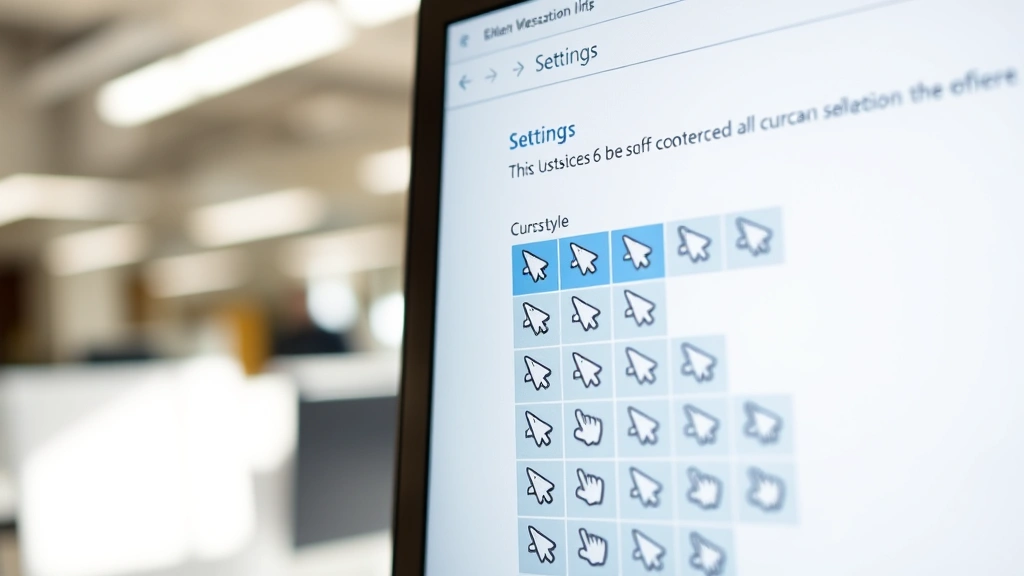
Your mouse cursor is one of those things you stare at for hours every single day, but most people never think about customizing it. Whether your default arrow feels boring, you’re struggling to see it against your background, or you just want something that matches your vibe—learning how to change mouse cursor is easier than you’d think. This guide walks you through every method, from simple built-in options to advanced custom cursors, so you can make your screen feel more like yours.
Change Cursor in Windows Settings (The Easiest Route)
Windows has built-in cursor options that most people never dig into. The good news? It takes about 30 seconds, and you don’t need admin rights or any special software.
Here’s the step-by-step process:
- Right-click on your desktop and select Personalize, or open Settings (Win + I) and navigate to Personalization.
- Click on Cursor in the left sidebar (this might be under “Devices” on older Windows versions).
- You’ll see a dropdown menu with preset cursor styles. Windows typically offers 5-10 built-in options, including larger cursors, inverted colors, and high-contrast versions.
- Click any option to preview it in real-time. Your cursor will change immediately.
- Scroll down to adjust cursor size and speed if needed.
That’s it. No restart required. The cursor change happens instantly, and you can swap back anytime.
Pro Tip: If you use Windows 11, the cursor customization menu is cleaner and more intuitive than Windows 10. Windows 10 users might need to dig a bit deeper—look for “Mouse” under Settings > Devices > Mouse if the direct path doesn’t work.
Change Cursor on Mac (System Preferences Route)
Mac makes cursor customization slightly different, but it’s just as straightforward. Apple’s built-in options are more limited than Windows, but they still give you solid choices.
Follow these steps:
- Click the Apple menu in the top-left corner and select System Preferences (or System Settings on newer macOS versions).
- Look for Accessibility in the sidebar.
- Select Display from the left menu.
- Under the “Cursor” section, you’ll find options to increase cursor size and adjust contrast.
- Check the box for “Shake mouse pointer to locate” if you want your cursor to grow larger when you shake your mouse—useful for finding it on a large display.
Mac doesn’t offer as many built-in cursor styles as Windows, but the sizing and contrast adjustments work well. If you want more dramatic changes, you’ll need to explore third-party options (more on that below).
One thing Mac users often overlook: if you connect an external mouse, the cursor behavior can change slightly. Make sure your mouse settings are synced in System Preferences > Mouse if you’re experiencing odd cursor behavior.
Install Custom Cursor Packs (The Fun Part)
This is where how to change mouse cursor gets creative. Custom cursor packs let you replace your standard arrow with literally anything—anime characters, animals, minimalist designs, or retro 90s vibes.
For Windows:
- Download a cursor pack from reputable sites like DeviantArt (search “cursor pack”) or Cursor.cc.
- Extract the .zip or .rar file to a folder on your desktop.
- Right-click one of the cursor files (.cur or .ani format) and select Install. Windows will automatically move it to the Cursors folder.
- Go back to Settings > Personalization > Cursor and scroll to find your new custom cursor in the dropdown.
- Select it and you’re done.
For best results, download cursor packs that include multiple cursor states—normal arrow, clicking hand, loading spinner, text selection, and resize arrows. A complete pack feels polished; a single cursor file can look incomplete.
For Mac:
Mac is trickier because it doesn’t natively support custom cursors the same way Windows does. Your best bet is using third-party apps:
- Cursor Pro ($4.99) – Allows custom cursor installation with a simple drag-and-drop interface.
- Mousepose – Highlights your cursor for presentations and screen recordings (bonus feature).
- Crosscursor – Free and lightweight, offers crosshair-style cursors.
Install the app, follow its instructions to add your custom cursor files, and activate your choice from the app’s menu.
Safety Warning: Only download cursors from trusted sources. Malicious cursor files can carry malware. Stick to established communities like DeviantArt, GitHub, or official cursor repositories. If a site asks for payment before downloading, that’s a red flag.
Accessibility & Visibility Options (For Real Usability)
Sometimes how to change mouse cursor isn’t about aesthetics—it’s about actually being able to see the darn thing. If you have vision challenges or use a high-resolution display where the default cursor disappears, these options are game-changers.
Windows Accessibility Features:
- Cursor Size: Drag the size slider in Settings > Cursor. Sizes range from tiny to absolutely massive (helpful for 4K displays or vision impairment).
- Cursor Color: Switch between white, black, or inverted colors depending on your background.
- Pointer Trails: Enable a trail that follows your cursor, making it easier to track movement. Found under Settings > Devices > Mouse > Pointer options.
- Snap to Default Button: Makes your cursor automatically jump to the default button in dialog boxes—saves clicks and makes the cursor easier to find.
Mac Accessibility:
- System Settings > Accessibility > Display > Cursor size slider.
- Enable “Shake mouse pointer to locate” to make your cursor grow when you wiggle your mouse.
- Increase contrast in the same menu for better visibility against light backgrounds.
If you’re dealing with repetitive strain or arthritis, a larger cursor combined with pointer trails can significantly reduce eye strain and improve accuracy. Don’t skip these options thinking they’re “just for older people”—they help anyone working at a computer for 8+ hours a day.
Gaming and App-Specific Cursors
Some applications let you customize cursors on a per-app basis. Games especially benefit from custom cursors because the default arrow can feel clunky during intense gameplay.
In-Game Cursor Settings:
Most modern games (Valorant, CS:GO, Minecraft, Fortnite) have built-in cursor customization in their graphics or gameplay settings. Look for options like:
- Cursor size multiplier
- Cursor color or outline
- Crosshair customization (which is different from the cursor, but related)
- Cursor speed sensitivity
For example, in Minecraft, you can install cursor resource packs that completely change how your crosshair looks. If you’re interested in optimizing your Minecraft setup, you might also want to check out how to allocate more RAM to Minecraft for smoother gameplay overall.
Browser and Office Apps:
Some web-based tools and productivity apps allow cursor customization through their settings. Discord, for instance, has theme options that can affect cursor appearance. Figma and other design tools sometimes include cursor customization for different tools (selection arrow, text cursor, etc.).
The key is checking the settings menu of any app where you spend significant time. You’d be surprised how many apps have hidden cursor options.
Troubleshooting Cursor Issues
Sometimes after changing your cursor, things go sideways. Here’s how to fix the most common problems.
Cursor Won’t Change:
- Restart your computer. I know it sounds basic, but Windows and Mac sometimes need a reboot to apply cursor changes fully.
- Make sure you’re not in Safe Mode or using accessibility features that override cursor settings.
- If you installed a custom cursor and it’s not appearing, the file might be corrupted. Delete it and re-download from the source.
- Check that the cursor file is in the correct format (.cur for Windows, .png or .tiff for Mac apps).
Cursor Disappears or Freezes:
This is usually a driver issue or a conflict with your mouse software.
- Update your mouse drivers: Go to Device Manager (Windows) or System Report (Mac) and look for any yellow exclamation marks next to mouse devices. Right-click and update the driver.
- If you’re using a gaming mouse with custom software (Logitech G Hub, Razer Synapse), that software might be conflicting with cursor changes. Try disabling it temporarily to see if that’s the culprit.
- Disable pointer trails and snap-to-default options—these can sometimes cause freezing on older systems.
Cursor Looks Pixelated or Blurry:
This happens when you use a high-resolution display with a low-resolution cursor file. The solution is simple: find cursor packs designed for high-DPI displays. Look for packs labeled “4K” or “Retina” on DeviantArt or cursor websites.
If you’re having broader display issues beyond just the cursor, you might want to check your CPU temperature to rule out overheating affecting your graphics performance. While that’s not directly related, overheating can cause all sorts of display glitches.
Real Talk: If your cursor is acting weird and you’ve tried everything above, it might be a hardware issue. A failing mouse or USB connection can cause erratic cursor behavior. Try a different mouse to rule that out before diving deeper into software troubleshooting.
Frequently Asked Questions
Can I use the same custom cursor on Windows and Mac?
– Not directly. Windows uses .cur and .ani files, while Mac apps typically use .png or .tiff. You’d need to convert the cursor file format, which requires special software or online converters. It’s easier to just find separate cursor packs designed for each OS. Most popular cursor designers release versions for both platforms anyway.
Will changing my cursor affect my computer’s performance?
– No. Cursor changes are purely cosmetic and use negligible system resources. Even animated cursors (like loading spinners) have minimal impact. You could change your cursor 50 times a day and never notice a performance difference.
Is it safe to download cursor packs from the internet?
– Yes, if you download from reputable sources like DeviantArt, GitHub, or established cursor websites. Avoid random sketchy sites that ask for personal information or require payment upfront. Stick to communities with user reviews and ratings. If you’re paranoid, scan downloaded files with VirusTotal before installing.
How do I restore my default cursor if I mess something up?
– Windows: Go back to Settings > Cursor and select the original Windows default option. Mac: System Settings > Accessibility > Display and toggle all customizations off. If you’ve installed a custom cursor that’s broken, just delete the file from your Cursors folder (Windows: C:\Windows\Cursors) or uninstall the third-party app (Mac).
Can I have different cursors for different monitor setups?
– Not natively on Windows or Mac. Your cursor choice applies system-wide. However, some third-party cursor management apps offer per-monitor customization, though they’re usually overkill for most users. If you’re serious about this, look for advanced cursor manager software on GitHub.
Why does my cursor feel slow or laggy after changing it?
– This usually means your cursor file is too large or has too many animation frames. Animated cursors with dozens of frames can cause slight lag on older computers. Switch to a simpler, static cursor pack. If the lag persists, it’s probably not the cursor—check your mouse DPI settings or update your mouse drivers.
Can I create my own custom cursor?
– Absolutely. You’ll need image editing software like Photoshop, GIMP (free), or even online tools. Create your design at 32×32 pixels (or larger for high-DPI displays), save it as a .png, then convert it to .cur format using a free online converter. For Mac, just save it as a .png and use a cursor manager app to apply it. It’s more work than downloading a pack, but totally doable if you want something unique.
Do cursor changes affect gaming performance or accuracy?
– No. Your cursor appearance doesn’t affect how your mouse is detected or how fast it responds. If you’re playing competitive games, cursor appearance is purely personal preference. Some gamers prefer minimal cursors to reduce visual clutter, but that’s about visibility, not performance.
One thing that does matter in gaming: your actual mouse DPI and polling rate. If you want to optimize your gaming setup beyond just the cursor, make sure your mouse software is configured correctly and your mouse pad is clean. Speaking of which, if your mouse pad is grimy, learning how to clean your mouse pad can actually improve tracking accuracy more than any cursor change will.
Can I use animated cursors, and will they drain my battery on a laptop?
– Yes, you can use animated cursors. They use so little power that battery drain is completely negligible. An animated cursor might cost you a fraction of a percent of battery life over an 8-hour workday. Go wild with animations if you like them.
What if my cursor changes don’t save after restart?
– This usually means the cursor files weren’t installed in the correct system folder. For Windows, make sure custom cursors are in C:\Windows\Cursors (not your Downloads folder). For Mac apps, follow the specific app’s installation instructions—each app handles cursors differently. If files keep disappearing, your antivirus might be quarantining them. Check your antivirus settings and add the cursor folder to the whitelist.


