
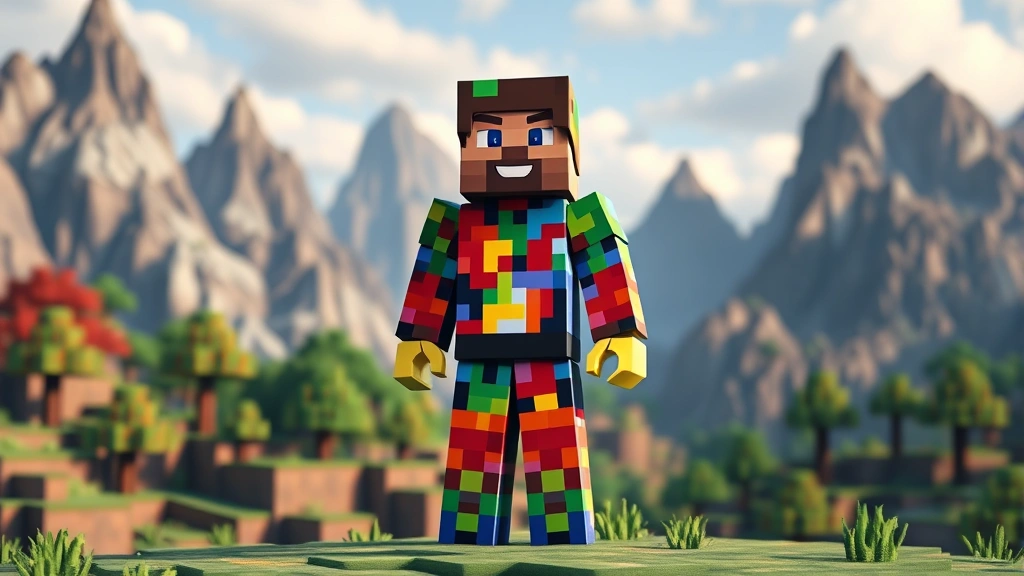
Learning how to change Minecraft skin is one of the first customization moves any player makes, and honestly, it takes just a few minutes once you know where to look. Whether you’re tired of Steve’s default mug or want to rock a custom character you designed, I’ve got you covered with the exact steps that work on Java Edition, Bedrock, and console versions.
Table of Contents
Java Edition Method
Java Edition is where most PC players hang out, and changing your skin here is straightforward. Head to the official Minecraft launcher—this is your command center for all things Java. Click on your username in the top-right corner, then select “Skins.” You’ll see options to browse the Minecraft skin library or upload your own custom skin file.
If you’re grabbing a skin from the library, just click it and hit apply. Done. For custom skins, you’ll need a PNG file that’s 64×64 pixels (classic) or 64×32 pixels (slim arms). Upload it, preview how it looks, and boom—you’re wearing something new next time you launch the game.
One pro tip: make sure your skin file is named correctly and in PNG format. JPG won’t cut it here. Also, if you’re having trouble seeing your new skin in-game, try logging out and back in, or restart the launcher entirely. Sometimes the cache needs a refresh.
Bedrock Edition Method
Bedrock Edition players on Windows 10/11, Xbox, PlayStation, or Nintendo Switch have a slightly different workflow, but it’s still dead simple. Open the game and go to the main menu, then find “Profile” or “Character Creator.” This is where Bedrock keeps all your customization options.
You can either browse pre-made skins from the marketplace (some free, some paid) or create a custom character using the in-game character editor. The editor lets you mix and match body parts, colors, and accessories without needing any external files. If you want to use a custom skin file from elsewhere, you’ll need to import it through the character creation menu.
Bedrock skins are typically stored as PNG files too, but the process is more integrated into the game itself. The nice part? Your skin syncs across all your Bedrock devices if you’re logged into the same Microsoft account. Play on Switch in the morning, Xbox at night—your skin follows you.
Console & Mobile Changes
Console players on PlayStation or Xbox follow the Bedrock path since those versions run Bedrock Edition. Launch the game, hit the main menu, and navigate to your profile or character settings. You’ll see the same character creator options—no custom file uploads needed unless you’re transferring a Bedrock skin you already own.
Mobile players on iOS or Android also use Bedrock, so the process mirrors what I described above. The touchscreen interface makes it a bit different, but the core steps are identical: open settings, find character or profile, browse or create a skin, and apply it.
One thing to remember: if you’re playing on a console or mobile device, you’re limited to skins available through the Minecraft marketplace or the character creator. You can’t just upload random PNG files like you can on Java Edition. This is by design for security and consistency reasons.
Custom Skin Creation
Want to design your own skin from scratch? You’ve got options. The easiest route is using an online skin editor like Minecraft Skin Studio or Skincraft—no downloads required, just open your browser and start painting. These tools give you a 3D preview so you can see how your design looks on your character before you commit.
For more control, download a skin template (64×64 PNG) and use Photoshop, GIMP, or even Paint.NET to customize it. The template shows you exactly which pixels map to which body parts—head, arms, legs, torso—so you know what you’re editing. It’s pixel art, so zoom in and get granular with your colors.
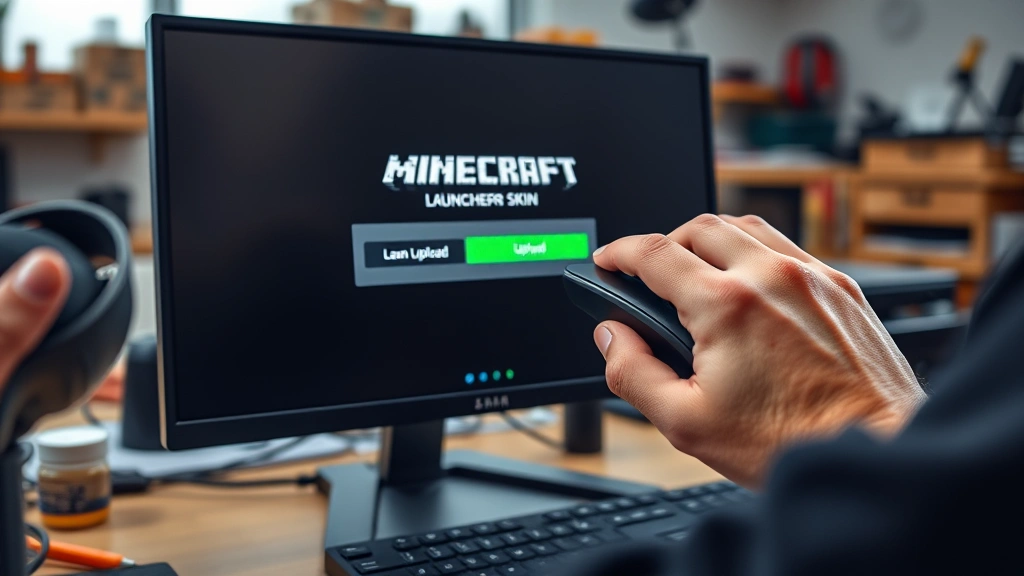
If you’re not artistically inclined, no sweat. Websites like Planet Minecraft and Skindex host thousands of user-created skins you can download for free. Just grab a PNG, upload it to your launcher, and you’re golden. This is also a great way to find inspiration before you try making your own.
Best Skin Websites
Let me point you toward the reliable spots. NameMC is solid for browsing player skins and finding what’s trending. Planet Minecraft has a massive skin database with filters for style, theme, and popularity. Skindex is another heavyweight with clean organization and easy downloads. All three are free and safe—no sketchy ads or malware.
For creating skins, Minecraft Skin Studio and Skincraft are browser-based and intuitive. If you want something more advanced, Blockbench is a professional modeling tool that works with Minecraft formats. It’s free and open-source, perfect if you’re getting serious about custom content creation.
Pro move: before downloading any skin file from third-party sites, scan it with your antivirus or use a tool like VirusTotal. Most reputable sites are clean, but it’s always smart to double-check, especially if you’re grabbing from smaller community sites.
Troubleshooting Tips
Your new skin not showing up? First, check that your file is actually PNG format—sometimes files get saved as something else without you noticing. Open the file properties to verify. Second, make sure the dimensions are correct: 64×64 or 64×32 pixels for Java Edition, and similar specs for Bedrock.
If you’re on Java and the skin still won’t upload, try these moves: clear your launcher cache, restart the launcher completely, or try uploading through the official Minecraft website instead of the launcher. Sometimes the direct website upload works when the launcher doesn’t.
For Bedrock players having sync issues, verify that you’re logged into the correct Microsoft account and that your internet connection is stable. Skins sync in the background, so if you switched accounts or lost connection during upload, it might not have gone through. Sign out and back in to force a refresh.
File Formats & Sizes
Let’s talk specs. Java Edition accepts PNG files in two sizes: 64×64 pixels (classic look with thicker arms) or 64×32 pixels (slim arms, like Alex). The file size should be under 100KB—most skins are way smaller than that. If your PNG is bloated, compress it before uploading.
Bedrock Edition also uses PNG but handles it through the in-game character creator, so you don’t need to worry about exact dimensions the same way. The game manages the technical stuff for you. Just make sure your file isn’t corrupted and you’re good.
Here’s a common mistake: saving your skin as JPG instead of PNG. JPG won’t work. PNG is required because it supports transparency, which Minecraft skins need for the layered look. If you’re designing in Photoshop or GIMP, export as PNG, not JPG.
Frequently Asked Questions
Can I change my skin on console?
Yes, absolutely. Console versions (PlayStation, Xbox, Nintendo Switch) run Bedrock Edition, so you access skin options through the main menu under Profile or Character Creator. You can browse marketplace skins or use the character editor to customize your look.

Will my skin show up for other players?
On Java Edition, yes—other players see your custom skin in multiplayer. On Bedrock, it depends on the server or realm settings, but generally yes. Some older servers might not support custom skins, but modern servers do. If you’re playing on a server and your skin doesn’t show, the server might have restrictions in place.
How do I make my skin transparent?
When you’re editing your PNG in an image editor, use the eraser tool or delete pixels to create transparency. PNG supports alpha channels, so transparent areas will show as see-through on your character. This is how capes and layered details work.
Can I sell my custom skin?
No, not really. Minecraft skins are for personal use. You can share them for free on community sites, but selling them violates Minecraft’s terms. Mojang owns the Minecraft IP, and while they’re cool about fan content, profiting from it directly isn’t allowed.
What if my skin won’t upload?
Check the file format (must be PNG), dimensions (64×64 or 64×32), and file size (under 100KB). Clear your launcher cache, restart everything, and try again. If it still fails, try uploading through the Minecraft website directly instead of the launcher app.
Do I need a paid account to change skins?
For Java Edition, yes—you need a legitimate Minecraft account. For Bedrock, you need a Microsoft account (free). You don’t need to pay extra to change your skin; it’s included with your purchase of the game.
Can I use copyrighted characters?
Technically you can create them for personal use, but uploading them to public skin sites might get them taken down if the copyright holder requests it. Stick to original designs or well-established fan content that’s been around for years without issue.
Conclusion
Changing your Minecraft skin is genuinely one of the easiest customizations in the game. Whether you’re grabbing a pre-made skin from a community site, designing your own pixel art masterpiece, or using the in-game character creator, the process takes minutes. Java Edition players have the most flexibility with custom PNG uploads, while Bedrock players get a more streamlined experience with the built-in character editor.
The key is knowing which method applies to your version—Java, Bedrock, console, or mobile—and having the right file format (PNG) if you’re uploading custom work. Once you nail this, you’ll be swapping skins whenever the mood strikes. Want to learn more about optimizing your Minecraft experience? Check out our guide on how to make baby villagers grow faster to level up your gameplay even more.
If you ever get stuck on the technical side of things, remember that the launcher or game menu always has help options. And if you’re managing multiple accounts or devices, understanding how to find saved passwords on iPhone can help you keep track of your login info across platforms. Happy skin hunting, and enjoy your fresh new look in the game!


