
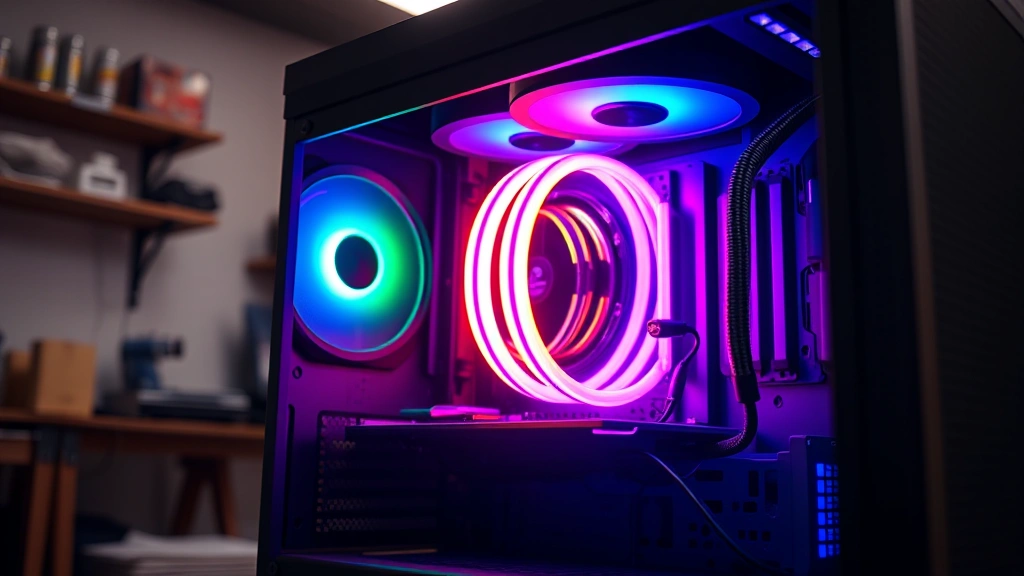
Learning how to change Lian Li Strimer color is easier than you might think, and it opens up endless customization possibilities for your PC build. Whether you’re running a single-color setup or want to sync your RGB lighting across your entire system, the Strimer Plus and Strimer Plus Pro cables give you total control over your aesthetic. In this guide, I’ll walk you through every method to get those cables looking exactly how you want them.
Table of Contents
What Is the Lian Li Strimer?
The Lian Li Strimer is a premium RGB lighting cable system designed to add visual flair to your PC build. Unlike standard power cables, these bad boys feature addressable RGB LEDs integrated directly into the cable itself. You’ve got the Strimer Plus (for 24-pin motherboard power) and the Strimer Plus Pro (which adds 8-pin CPU power cables to the mix). They’re not just pretty—they’re fully customizable, meaning you can change colors, effects, and synchronization on the fly.
Installing the Control Software
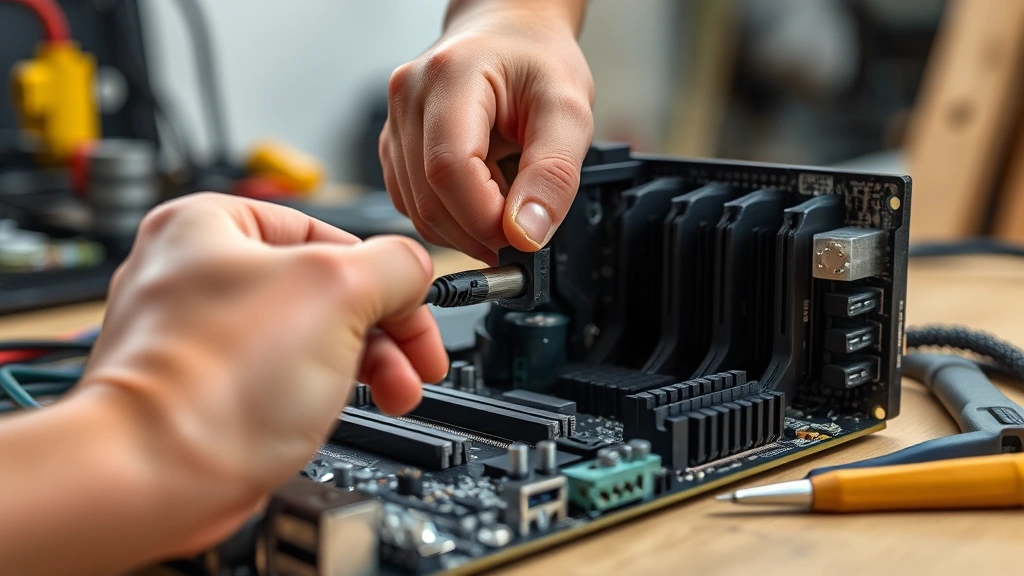
Before you can start tweaking colors, you need to get the software installed. Head over to the Lian Li website and download the L-Connect 3 software—this is the hub for all your RGB control. The installation is straightforward: grab the .exe file, run it, and follow the prompts. Once it’s installed, plug your Strimer cables into a USB 2.0 header on your motherboard using the included USB connector. Fire up L-Connect 3, and it should automatically detect your cables. If it doesn’t recognize them immediately, check your USB connection and make sure the cable isn’t damaged.
One pro tip: if you’re running multiple RGB devices, L-Connect 3 can manage them all in one place. This makes synchronizing your setup way simpler than jumping between different apps. The software updates regularly, so keep an eye out for new features and compatibility fixes.
Changing Colors in the App
Once L-Connect 3 is running and your Strimer is detected, changing colors is dead simple. Open the app, find your Strimer device in the device list, and click on it to open the control panel. You’ll see a color wheel or RGB slider interface depending on which version you’re running. Click any color on the wheel, and your cables light up instantly. Want to dial in a specific shade? Use the RGB sliders to input exact values—perfect if you’re trying to match your motherboard’s accent color or your case’s lighting setup.
The app also includes preset color options if you want to skip the custom color hunting. Solid colors, breathing effects, and pulsing modes are all just a click away. Save your favorite configurations as profiles so you can switch between them without re-tweaking every setting.
Syncing with Other RGB Gear
This is where things get really cool. If you’ve got other RGB components—like your RAM, case fans, or AIO cooler—you can synchronize everything through L-Connect 3. The software supports most major RGB ecosystems, so your Strimer cables can pulse and change in perfect harmony with your entire build. Open the sync settings, select which devices you want to link, and choose your effect. Now when you change one color, everything updates together.
Not all RGB devices play nicely with L-Connect 3, though. Check the compatibility list on Lian Li’s site to confirm your gear will work. If you’re mixing brands, you might need to use separate software for different components—but Strimer integrates beautifully with most modern systems. This is similar to how you’d pair multiple devices to work as one unified system.
Using the Hardware Controller
If you prefer not to boot into software every time you want to change your lighting, grab the optional L-Connect 3 Hub Controller. This little box sits in your case and lets you adjust colors using physical buttons. Press the power button to cycle through your saved profiles, use the brightness controls to dial in intensity, and access the menu for more granular adjustments. It’s perfect for quick tweaks without opening the software.
The controller connects via USB to your motherboard, just like the cable itself. You can program multiple profiles directly into the controller’s memory, so you’ve got instant access to your favorite setups. Some users even program different profiles for different times of day—bright whites for work mode, softer blues for gaming sessions.
Creating Custom Color Profiles
Building your own lighting profile takes about five minutes and gives you total creative control. In L-Connect 3, click “Create Profile” and give it a name—something like “Gaming Mode” or “Chill Vibes” works great. Set your base color, choose your effect (static, breathing, pulsing, etc.), and adjust the speed if applicable. Some profiles let you layer multiple colors for gradient effects or chase patterns.
Once you’ve dialed in something you love, save it. You can create unlimited profiles and switch between them anytime. This is especially useful if you like different aesthetics for different moods—work during the day, gaming at night, or showing off your build to friends. The flexibility here is genuinely impressive, much like how you’d program different settings into a device for different scenarios.
Common Issues and Fixes
Sometimes things don’t go smoothly, and that’s okay. If L-Connect 3 isn’t detecting your Strimer, first check the USB connection. Reseat the USB header connector on your motherboard—sometimes it’s just not fully seated. If that doesn’t work, try a different USB 2.0 header. Some boards have finicky headers, and switching to another port often solves the problem.
If the cables light up but won’t change colors, restart the software. Close L-Connect 3 completely, wait 10 seconds, and reopen it. If colors change but look dim or washed out, check the brightness slider in the app—it might be set too low. For more persistent issues, uninstall L-Connect 3, restart your PC, and reinstall the latest version from Lian Li’s website. This clears out any corrupted files and usually fixes stubborn problems.
Advanced Lighting Effects
Beyond solid colors, the Strimer supports several advanced effects that make your cables really pop. The breathing effect gradually fades colors in and out, creating a calming, pulsing look. The chase effect makes colors run along the cable length—perfect for a dynamic, energetic vibe. The spectrum effect cycles through the full color wheel, giving you a rainbow effect that’s hypnotic and eye-catching.
You can adjust the speed of these effects to match your mood. Slow, deliberate breathing looks sophisticated and professional. Fast-paced chasing looks aggressive and gaming-focused. Mix and match effects across multiple profiles, and you’ve got a lighting setup that’s truly personalized. According to Family Handyman, the key to great customization is experimenting until you find what feels right.
Cable Care and Maintenance
Your Strimer cables are durable, but they’re not indestructible. Keep them away from sharp bends—the LEDs inside can break if the cable is kinked too severely. When routing cables through your case, use cable ties or velcro straps to secure them gently. Avoid placing heavy components on top of the cables, and don’t yank them out of connectors roughly.
Dust buildup can dim the LEDs over time, so every few months, gently wipe down the cable with a soft, dry cloth. If you need to disconnect the cables for maintenance or upgrades, label the connectors so you know where everything goes when you reconnect. The USB connection should stay clean and dry—if it gets wet, let it dry completely before powering on your system again. Treat your Strimer cables like you would any premium component, and they’ll keep looking sharp for years.
Frequently Asked Questions
Can I change Lian Li Strimer colors without software?
Not without the optional hardware controller. The cables themselves don’t have built-in buttons, so you need either L-Connect 3 software or the physical controller to adjust colors. The software is free, though, so it’s an easy solution.
Do Strimer cables work with non-Lian Li cases?
Absolutely. The Strimer Plus and Strimer Plus Pro are universal power cables that work in any PC case. They connect to standard 24-pin motherboard headers and 8-pin CPU headers, so compatibility isn’t an issue.
Will changing colors affect my PC’s performance?
No. The RGB lighting is completely independent of your system’s power delivery and performance. Changing colors or effects won’t impact your CPU, GPU, or any other component. It’s purely aesthetic.
How many color profiles can I save?
L-Connect 3 allows unlimited profiles in the software. If you’re using the hardware controller, you can store several profiles directly in its memory for quick access without opening the app.
Are Strimer cables safe to use?
Yes, they’re fully certified and tested. The cables meet all standard power delivery requirements, and the LED integration doesn’t compromise safety or performance. They’re just regular power cables with LEDs added.
Can I sync Strimer with my motherboard’s RGB?
If your motherboard supports L-Connect 3, yes. Check Lian Li’s compatibility list to confirm. Some older boards might not be compatible, but most modern Lian Li and partner boards work seamlessly.
What if my Strimer cable stops lighting up?
First, check the USB connection and reseat it. If that doesn’t work, try a different USB 2.0 header on your motherboard. If the cable still won’t light, contact Lian Li support—there might be an internal LED failure, which they’ll likely replace under warranty.
Final Thoughts
Learning how to change Lian Li Strimer color is genuinely straightforward, and the payoff is huge. Your PC build goes from looking stock to looking genuinely custom and professional. Whether you’re going for a sleek minimalist look with solid colors or a wild gaming aesthetic with chasing effects, the Strimer cables deliver. Download L-Connect 3, plug in your cables, and start experimenting. You’ll have your setup looking exactly how you want it in minutes. According to This Old House, the best projects are the ones where you take time to customize every detail—and your PC lighting is no exception. For more technical tweaks and troubleshooting, Bob Vila recommends always checking official manufacturer guides first. Now get out there and make your build shine.


