
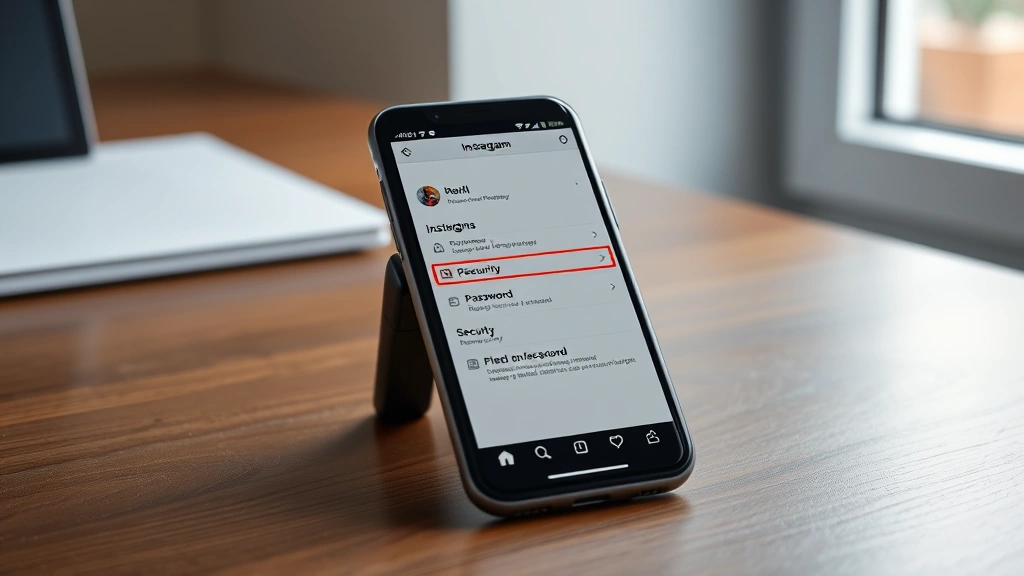
Learning how to change IG pw is one of the easiest ways to keep your Instagram account secure and fresh. Whether you’ve forgotten your password, suspect unauthorized access, or just want to update it regularly, changing your Instagram password takes less than five minutes on any device. In this guide, I’ll walk you through the exact steps to change your password safely, plus some pro tips to make sure your account stays locked down.
Table of Contents
- Why Change Your Password Regularly
- Change Password on Mobile App
- Change Password via Web Browser
- What If You Forgot Your Password
- Security Best Practices After
- Enable Two-Factor Authentication
- Troubleshooting Common Issues
- Logout From Other Devices
- Creating Strong Instagram Passwords
- Frequently Asked Questions
Why Change Your Password Regularly
Your Instagram account is basically a digital extension of yourself—it holds your photos, messages, followers, and personal connections. Changing your password isn’t just about paranoia; it’s smart account maintenance. Hackers are constantly working to breach accounts, and reusing passwords across multiple sites (which most people do) means one compromised site puts all your accounts at risk.
I recommend changing your password at least every three to six months, especially if you’ve shared it with anyone or used it on a public computer. Think of it like changing the locks on your house—you want to make sure only the people you trust have access.
Change Password on Mobile App
The easiest way to change your Instagram password is right from the mobile app. Here’s the exact process:
Step 1: Open Instagram and tap your profile icon in the bottom right corner. You’ll see your profile picture and username at the top.
Step 2: Tap the menu icon (three horizontal lines) in the top right, then scroll down and select “Settings and privacy.”
Step 3: Tap “Password and security” or “Account” depending on your app version. Look for “Password” in the menu.
Step 4: Tap “Change password.” Instagram will ask you to enter your current password first—this is a security measure to prevent someone else from changing it if they get your phone.
Step 5: Enter your new password twice to confirm it matches. Make sure it’s at least 6 characters and includes a mix of letters, numbers, and symbols for maximum security. Hit “Change password” and you’re done.
That’s it. The whole process takes about two minutes, and your account is immediately updated across all devices.
Change Password via Web Browser
If you prefer using a computer or want a slightly different interface, you can change your password through Instagram’s website. This method is equally straightforward:
Go to instagram.com and log in to your account. Click your profile picture in the top right corner and select “Settings.” On the left sidebar, click “Password and security” or “Edit profile.” Find the “Change password” option and click it.
Enter your current password, then type your new password twice. Instagram will confirm the change immediately. This method works identically to the mobile app, so use whichever platform feels more comfortable to you.
Pro tip: If you’re using a public computer, always log out completely after changing your password. Better yet, avoid changing passwords on public WiFi networks—use your phone’s data or a trusted home network instead.

What If You Forgot Your Password
No worries—Instagram makes recovery straightforward, though it requires a bit more verification. On the login screen, tap “Forgot password?” Enter your username, email, or phone number associated with your account.
Instagram will send you a password reset link via email or SMS. Click the link, and you’ll be taken to a page where you can create a completely new password. This is actually a good opportunity to create something stronger than before.
If you don’t receive the email, check your spam folder or wait a few minutes—sometimes it takes a moment to arrive. If you still can’t access your email or phone number, you may need to go through Instagram’s account recovery process, which involves providing photo ID or other verification. This is similar to how you’d retrieve deleted text messages on Android—sometimes you need backup verification methods.
Security Best Practices After
Once you’ve changed your password, don’t just move on. Take a few extra minutes to secure your account further. First, check your login activity. Go to Settings > Security > Login activity to see where and when your account was accessed. If you spot anything suspicious—logins from places you’ve never been or times you weren’t online—that’s a red flag.
Next, review your connected apps and websites. Some apps ask permission to access your Instagram account (like photo editing tools or scheduling apps). If you see anything you don’t recognize, revoke access immediately. This is as important as making sure your Find My iPhone is turned off if you’re concerned about privacy—it’s about controlling who has access to your data.
Finally, update your recovery email and phone number if they’ve changed. This ensures you can always regain access to your account if something goes wrong.
Enable Two-Factor Authentication
This is the single best thing you can do for your account security. Two-factor authentication (2FA) means that even if someone gets your password, they can’t log in without a code from your phone.
To enable it, go to Settings > Security > Two-factor authentication. Instagram offers two methods: an authentication app (like Google Authenticator or Authy) or SMS codes sent to your phone. I recommend the authentication app because it’s more secure than SMS, which can be intercepted.
Once enabled, every time someone tries to log in from a new device, Instagram asks for a verification code. It’s a tiny extra step that makes your account exponentially harder to hack.
Troubleshooting Common Issues
Sometimes things don’t go smoothly. If Instagram says your password is too weak, make sure it’s at least 6 characters and includes a variety of character types. If you get an error message saying “Password changed recently,” Instagram has a 24-hour waiting period between password changes for security reasons—just try again tomorrow.
If you’re locked out of your account entirely, use the “Forgot password?” option. If that doesn’t work, you might need to verify your identity through Instagram’s support system. This is similar to the process for sending secure email in Outlook—sometimes you need to prove you are who you say you are.
If you’re getting messages that your account has been compromised, change your password immediately and enable 2FA. Then check your connected apps and remove anything suspicious.
Logout From Other Devices
After changing your password, you might want to log out of Instagram on all your devices and then log back in. This forces a fresh authentication and ensures no one else is lurking in an old session.
Go to Settings > Security > Where you’re logged in. You’ll see every device currently logged into your account with timestamps and locations. Tap “Log out” on any device you don’t recognize or don’t use anymore. This is especially important if you’ve recently lent your phone to someone or used a shared computer.
Creating Strong Instagram Passwords
Here’s what makes a password actually strong: at least 12 characters (longer is better), a mix of uppercase and lowercase letters, numbers, and symbols. Avoid using personal information like birthdays, pet names, or your username. Don’t use common words or sequential numbers.
Instead, try creating a passphrase—something like “MyDog$Loves#Pizza2024” is both strong and memorable. Or use a password manager like Bitwarden or 1Password to generate and store complex passwords. This is as important as knowing how to cancel a Canva subscription if you’re concerned about account security—it’s about taking control of your digital life.
Never write your password down on paper or share it via text message. If you need to give someone access to your account, use Instagram’s “Authorized partners” feature instead, which lets them manage your account without knowing your password.
Frequently Asked Questions
How often should I change my Instagram password?
Every three to six months is ideal, or immediately if you suspect any unauthorized access. If you reuse passwords across multiple accounts, change it more frequently since one breach compromises everything.
Will changing my password log me out everywhere?
Not automatically, but I recommend manually logging out of all devices after changing your password for maximum security. This ensures no old sessions remain active.
Can I change my password if I’m logged out?
Yes, use the “Forgot password?” option on the login screen. Instagram will send a reset link to your registered email or phone number.
What’s the difference between a strong and weak password?
Weak passwords are short, use common words, or contain personal information. Strong passwords are 12+ characters with mixed case letters, numbers, and symbols. Avoid anything you could find in a dictionary.
Is two-factor authentication necessary?
Not required, but highly recommended. It adds a critical security layer that makes your account nearly impossible to hack, even if someone gets your password.
What should I do if I forgot my new password?
Use the “Forgot password?” option again on the login screen. Instagram will send another reset link to your recovery email or phone number.
Can I change my password on a shared computer safely?
It’s not ideal, but if you must, always log out completely afterward and clear your browser history. Better yet, use your phone or a trusted personal device.
Will I need to log back in to other apps connected to Instagram?
Not necessarily for apps using Instagram login. However, if an app stores your Instagram password directly (which is bad practice), you might need to reconnect it. Check your connected apps in Settings.


