
Canceling a Roku subscription shouldn’t feel like you’re trying to unlock a puzzle box. But honestly? A lot of people get stuck because the process isn’t always obvious, and Roku makes you jump through a few hoops depending on which subscription you’re trying to cancel. Whether you’re ditching a premium channel, cutting the cord on Roku Channel, or removing a payment method, we’ll walk you through exactly what to do—no confusion, no runaround.
The good news: how to cancel roku subscription is straightforward once you know where to look. The bad news: there are actually multiple ways to do it, and the steps change slightly depending on whether you’re using a Roku device, the mobile app, or the web portal. We’ll cover all of them.
Understanding Roku Subscriptions vs. Channels
Before you start canceling, let’s clear up what you’re actually dealing with. Roku has two different things that look similar but work differently: Roku subscriptions and premium channels. This confusion is where most people get tripped up.
Roku Subscriptions are billed directly through your Roku account. Think of this as Roku Channel Plus or any subscription you add through the Roku ecosystem itself. When you cancel a Roku subscription, you’re stopping recurring charges from Roku, Inc.
Premium Channels are third-party services like HBO Max, Paramount+, Apple TV+, or Hulu that you access *through* Roku. These are technically separate subscriptions—you’re paying the channel provider, not Roku. Canceling one of these is different from canceling a Roku subscription.
The distinction matters because the cancellation steps are different. You might cancel the Roku app but still have HBO Max charging you. Or you might cancel a Roku subscription but forget to remove your payment method, leading to surprise charges if you re-subscribe later.
Pro Tip: Before you cancel anything, log into your Roku account online and review your “Billing” or “Subscriptions” section. You’ll see exactly what’s active, what’s being charged, and when. It takes 30 seconds and saves a lot of headaches.
How to Cancel Roku Subscription on Your Roku Device
This is the most direct way to cancel, especially if you’re sitting right in front of your TV. Here’s the step-by-step:
- Press the Home button on your Roku remote to go to the main menu.
- Scroll up and select “Settings” (usually in the top row).
- Go to “Subscriptions” or “Manage Subscriptions.” (On newer Roku devices, this might be under “Apps” → “Manage Subscriptions.”)
- You’ll see a list of all active subscriptions tied to your account. Select the one you want to cancel.
- Click “Cancel Subscription” or “Unsubscribe.” Roku will ask you to confirm—usually with a warning that you’ll lose access immediately.
- Confirm the cancellation. You’re done. The subscription stops right there.
The whole process takes about two minutes. One thing to watch: Roku sometimes shows a “pause” option instead of outright cancellation. Pausing delays charges but doesn’t fully cancel—you’ll need to actually unsubscribe if you want it gone for good.
If you have multiple Roku devices in your home, they all share the same account. Canceling on one device cancels it for all of them. But here’s the catch: if someone else in your household has a different Roku account on the same device, they won’t see the cancellation. This is important if you’re sharing a TV with family.
Cancel Roku Subscription via Mobile App
Not near your Roku device? No problem. The mobile app works just as well, and sometimes it’s even faster.
- Open the Roku app on your iPhone or Android phone.
- Tap the profile icon (usually in the bottom right corner).
- Select “Subscriptions” or “Manage Subscriptions.”
- Find the subscription you want to cancel in the list.
- Tap it and select “Cancel Subscription.”
- Confirm the cancellation. You’ll get a confirmation message.
This method is actually my go-to because you can do it anywhere—no need to be home. The mobile app also makes it easier to see your billing history and check when charges occurred.
One heads-up: if you’re canceling a subscription that’s tied to a family account, make sure you’re logged into the right account. Roku’s app switches between accounts, and it’s easy to accidentally cancel someone else’s subscription if you’re not paying attention.
Cancel Roku Subscription on the Web
The web portal gives you the clearest view of everything. If you want to see all your subscriptions at once and manage multiple ones, this is the best approach.
- Go to Roku.com and sign in with your account credentials.
- Click your account name in the top right (or look for “Account” in the menu).
- Select “Subscriptions” or “Manage Subscriptions.”
- You’ll see every subscription linked to your account, including renewal dates and amounts.
- Click “Cancel Subscription” next to the one you want to remove.
- Confirm the cancellation. You’ll see a confirmation email within minutes.
The web method is especially useful if you’re trying to figure out why you’re being charged for something. You can see the exact amount, the renewal date, and which Roku account it’s tied to. This is also where you can check if there are any promotional periods ending soon.
Pro move: take a screenshot of your subscription list before you cancel anything. If there’s ever a billing dispute, you’ll have proof of what you had and when you canceled it.
Canceling Premium Channels (HBO Max, Paramount+, etc.)
Here’s where people often get confused. If you subscribed to HBO Max, Paramount+, Apple TV+, or any other premium channel *through* Roku, the cancellation process is slightly different.
These channels are technically separate subscriptions. You can cancel them from Roku, but you might also need to cancel them directly with the provider to make sure they’re fully gone.
To cancel a premium channel through Roku:
- Go to Settings on your Roku device (or use the mobile app).
- Select “Subscriptions” and find the premium channel you want to cancel.
- Click “Manage Subscription” or “Unsubscribe.”
- Roku will ask if you want to cancel. Some channels let you pause instead—choose what you want.
- Confirm. You’re unsubscribed from Roku’s end.
But here’s the thing: some premium channels bill through Roku, but others bill directly. If you signed up for HBO Max through the HBO Max app (not through Roku), canceling it on Roku won’t stop the charges. You’ll need to go directly to HBO Max to cancel.
To check who’s billing you, look at your credit card statement. If the charge says “Roku” or “Roku Inc.,” then Roku is handling the billing. If it says “HBO Max” or “Paramount,” then you need to cancel directly with them. This is why a lot of people end up paying for subscriptions they thought they canceled—they canceled it on one platform but not the other.
Safety Warning: Always check your credit card or bank statement after canceling. Even though you canceled, sometimes there’s a delay in the charge stopping. If you see a charge 2-3 days after canceling, contact Roku support immediately. Don’t assume it went through.
Removing Payment Methods and Billing Info
Canceling a subscription is one thing. Removing your payment method is another. If you’re leaving Roku entirely or just want to make sure nothing can charge you accidentally, you should remove your card.
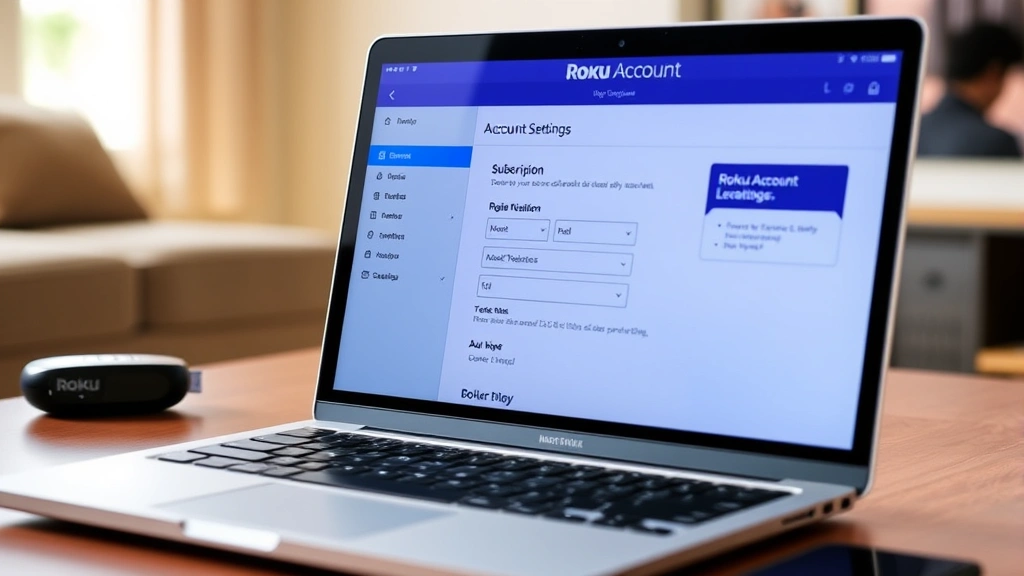
- Go to Roku.com and sign into your account.
- Click “Account” in the top right.
- Select “Payment Methods” or “Billing.”
- You’ll see all saved cards and payment info. Click the “X” or “Remove” button next to the one you want to delete.
- Confirm the removal. That card is now disconnected from your Roku account.
Here’s something important: you can’t remove your payment method if you have active subscriptions. Roku requires at least one valid payment method on file for any account with active charges. So if you’re trying to remove your card and it won’t let you, it means something’s still subscribed. Go back and cancel all active subscriptions first, then remove the card.
If you’ve already canceled everything but Roku still won’t let you remove the card, wait a few hours. Sometimes there’s a sync delay between the cancellation and the payment method removal. Try again later.
Troubleshooting Common Cancellation Issues
“I canceled but I’m still being charged.”
This is the most common problem. First, check if the charge is coming from Roku or the channel provider directly. Look at your bank statement—who’s listed as the merchant? If it says “Roku,” then the cancellation didn’t go through. Log back into your Roku account and check the Subscriptions section. If it still shows as active, try canceling again. If it shows as canceled but you’re still being charged, contact Roku support with a screenshot of the cancellation confirmation and the charge on your bank statement. They can refund you.
If the charge is from the channel provider (like “HBO Max Inc.”), then you canceled it on Roku but not directly with the provider. You need to go to their website and cancel there too.
“The Cancel button isn’t showing up.”
This usually means one of two things: either the subscription is already in the process of canceling, or there’s a technical glitch. Try logging out of your Roku account completely and logging back in. Sometimes that refreshes the interface. If the button still doesn’t appear, try canceling from a different device (like the web portal instead of your TV). If nothing works, contact Roku support.
“I canceled during my free trial and got charged anyway.”
Free trials are tricky. Some services charge you on day one and refund if you cancel before the trial ends. Others don’t charge until the trial is over. If you canceled during the trial but got charged, contact Roku support immediately. They’re usually good about refunding trial charges if you can show you canceled in time. Keep your cancellation confirmation email—you’ll need it as proof.
“My family member canceled my subscription.”
If you share a Roku account with someone else, anyone with access can cancel subscriptions. If this is a problem, you have two options: create your own Roku account (so only you control it), or ask the person to stop. If it’s a shared family account and you want to keep some privacy, Roku allows multiple user profiles on one device. Each profile can have its own subscriptions.
For more detailed support on account and billing issues, check Roku’s official support page, which has live chat and phone support options.
What Happens After You Cancel
Okay, you’ve hit that cancel button. What actually happens?
Immediately: Your access to the subscription stops right away. If you were watching something, you might get kicked out or see a message that the content isn’t available. You won’t be able to access premium content from that channel.
Within 24 hours: You’ll get a confirmation email from Roku. Keep this. It’s your proof of cancellation if there’s ever a billing dispute.
On your next billing cycle: No charge appears. If your subscription was set to renew on the 15th and you canceled on the 10th, you won’t see a charge on the 15th.
If you change your mind: You can resubscribe anytime. Your watch history and preferences are usually saved, so you can pick up where you left off. However, if the subscription was a promotional rate (like $2.99 for the first month), resubscribing might not include that deal. Check the terms.
One last thing: canceling doesn’t delete your Roku account. Your account stays active, and you can still use free Roku features. You’re just removing the paid subscription from it. If you want to fully delete your Roku account, that’s a different process (and honestly, most people don’t need to do that).
Frequently Asked Questions
Can I cancel a Roku subscription anytime, or is there a contract?
– No contract. You can cancel anytime, and it takes effect immediately. There’s no penalty for canceling early. Even if you’re in the middle of a billing cycle, you won’t get a refund for the time remaining, but you also won’t be charged again.
Will canceling my Roku subscription delete my account?
– No. Canceling a subscription just removes that specific charge from your account. Your Roku account stays active, and you can still use free features. You can also resubscribe anytime.
What’s the difference between canceling and pausing a subscription?
– Pausing temporarily stops charges but keeps your subscription active. When you unpause, it resumes. Canceling permanently removes the subscription. If you want to come back later, you have to resubscribe. Use pause if you think you’ll want it back soon; use cancel if you’re done with it.
Do I need to cancel subscriptions on every Roku device I own?
– No. All your Roku devices are connected to the same account, so canceling on one device cancels it for all of them. You only need to do it once.
How long does it take for a canceled subscription to stop showing up in my account?
– Usually immediately on the device where you canceled it. But it might take a few hours to disappear from other devices or the web portal due to sync delays. If it’s still showing as active after 24 hours, contact support.
Can I get a refund if I canceled too late and was charged for a month I didn’t use?
– Roku’s official policy is no refunds for partial months. However, if you canceled well before your renewal date and still got charged, contact support with proof. They have discretion to issue refunds for billing errors. It doesn’t hurt to ask.
What if I subscribed to a premium channel through the channel’s own app, not through Roku?
– Then you need to cancel directly with that channel, not through Roku. Roku can’t cancel subscriptions that aren’t billed through Roku. Go to the channel’s website or app and look for account settings or subscription management.
Is there a way to prevent accidental recharges after I cancel?
– Yes. Remove your payment method from your Roku account after canceling all subscriptions. That way, even if someone tries to resubscribe, it can’t go through without adding a new card. Just remember: you can’t remove your payment method while you have active subscriptions.
Why does Roku show a different price than what’s on my credit card?
– Sometimes there are taxes or regional pricing differences that Roku doesn’t show upfront. Always check your bank statement to see the actual charge. If there’s a big discrepancy, contact support.


