
How to Cancel Kindle Unlimited: Simple and Essential Guide
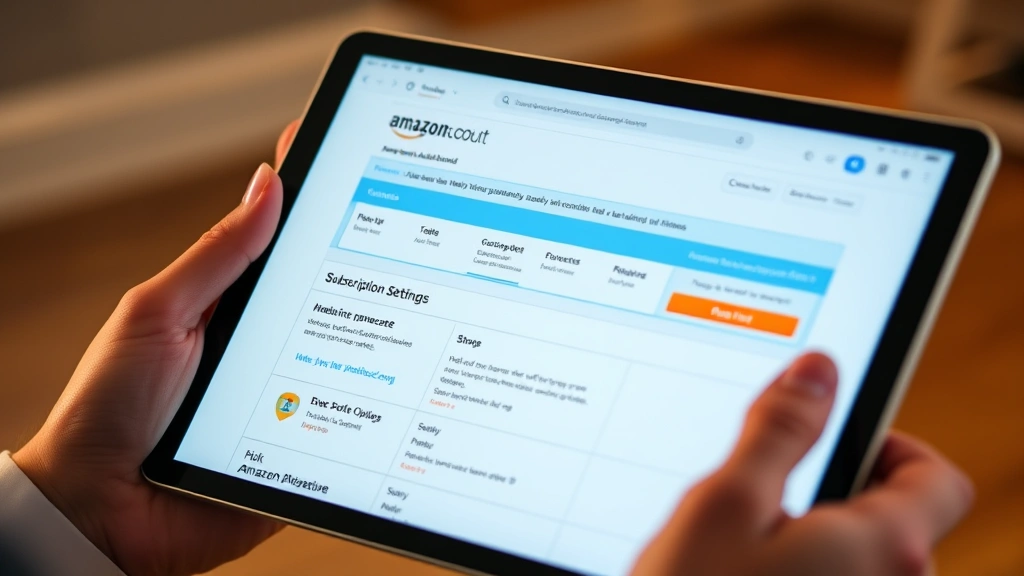
Kindle Unlimited offers unlimited access to millions of eBooks, but if you’ve decided it’s no longer right for you, canceling is straightforward. Whether you’re looking to save money, reduce subscriptions, or simply aren’t using the service enough, learning how to cancel Kindle Unlimited takes just a few minutes. This guide walks you through every step, from accessing your account settings to confirming your cancellation, ensuring you won’t be charged after you’re ready to leave.
Quick Answer: To cancel Kindle Unlimited, log into your Amazon account, navigate to “Manage Your Memberships and Subscriptions,” find Kindle Unlimited, and click “Cancel Membership.” You’ll have the option to confirm immediately or keep access until your billing date ends. The entire process takes fewer than five minutes and can be done on any device with internet access.
Tools and Resources You’ll Need
- Active Amazon account with Kindle Unlimited subscription
- Internet-connected device (computer, tablet, or smartphone)
- Your Amazon login credentials
- Optional: Record of your current billing cycle end date (found in account settings)
Step-by-Step Cancellation Process for How to Cancel Kindle Unlimited
The process to cancel Kindle Unlimited is designed to be user-friendly, though Amazon does include a few retention steps to encourage you to stay. Start by ensuring you’re logged into your Amazon account on any web browser or the Amazon mobile app. The cancellation process is identical whether you use a computer, tablet, or phone, making it accessible no matter where you are. According to WikiHow’s subscription management guides, most digital services follow similar cancellation patterns, and Amazon’s approach is straightforward compared to many competitors.
Navigate to the Amazon homepage and look for the “Account & Lists” menu, typically found in the top-right corner. From there, select “Your Account” to access your personal dashboard. This is where all your subscriptions and memberships are managed, including your Kindle Unlimited account. If you’re using the mobile app, tap the menu icon (three horizontal lines) and scroll down to find account settings. Taking time to familiarize yourself with this menu will make the cancellation process smoother.
How to Access Your Account Settings
Once you’re in your Amazon account dashboard, look for the section labeled “Memberships and Subscriptions” or “Digital Content and Devices.” This section consolidates all your active subscriptions, making it easy to manage multiple services in one place. If you have other Amazon subscriptions like YouTube TV or Audible membership, you’ll find them listed here as well, giving you a complete overview of your active commitments.
Click on “Manage Your Memberships and Subscriptions” to view all active services. This page displays your current subscriptions, renewal dates, and payment methods. Kindle Unlimited will appear as a separate entry with details about your membership status. The interface is clean and organized, allowing you to quickly identify which service you want to modify. Each subscription shows the next billing date, which is helpful information before you decide whether to cancel immediately or let your current subscription run through its billing cycle.
Locating Kindle Unlimited in Your Subscriptions
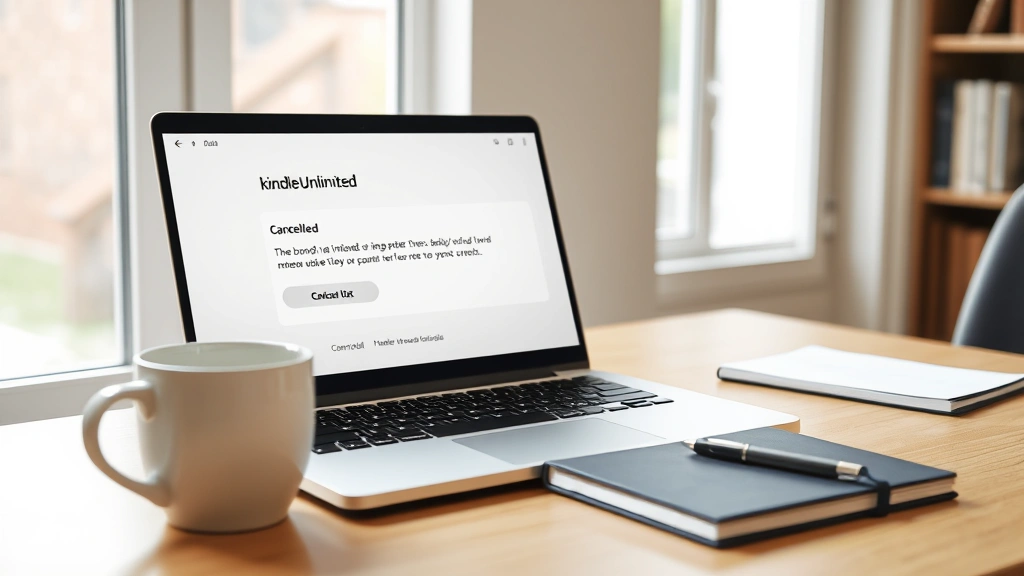
Scroll through your memberships list until you find “Kindle Unlimited.” The entry will show your current subscription status, typically displaying “Active” along with your next billing date. Next to the Kindle Unlimited entry, you’ll see an “Actions” button or a three-dot menu icon. Click this to reveal your options, which should include “Cancel Membership” or “End Membership.” This button is your gateway to initiating the cancellation process for how to cancel Kindle Unlimited.
Before clicking cancel, take a moment to note your billing cycle end date. This information is crucial because Amazon gives you the option to either cancel immediately or allow your subscription to continue until the end of your current billing period. Many users prefer the latter option, as it ensures they maintain access to their library until they’ve finished reading current books. Understanding this choice beforehand helps you make an informed decision about when your cancellation becomes effective.
Confirming Your Cancellation
After clicking the cancel option, Amazon will present you with a confirmation screen. This screen typically includes retention offers—Amazon may offer discounts, extended trial periods, or other incentives to convince you to keep your subscription. These offers are optional, and you’re under no obligation to accept them. Simply proceed with the cancellation if you’re certain about your decision. As reviewed by Consumer Reports, understanding your cancellation options empowers you to make choices that align with your budget and reading habits.
You’ll have two primary cancellation options: “Cancel Now” or “Cancel at End of Billing Period.” Selecting “Cancel Now” ends your membership immediately, and you’ll lose access to the Kindle Unlimited library once the cancellation is processed. Choosing “Cancel at End of Billing Period” allows you to continue reading your borrowed books until your current subscription cycle ends, after which your membership automatically terminates. Most users opt for the latter to maximize their membership value through the final billing date.
After confirming your choice, Amazon will display a confirmation message indicating that your cancellation request has been processed. You should also receive a confirmation email at the address associated with your Amazon account. This email serves as proof of your cancellation and includes details about when your access will end. Save this email for your records, especially if you need to reference it later for billing disputes or account management.
What Happens After You Cancel How to Cancel Kindle Unlimited
Once you’ve canceled Kindle Unlimited, your access to the service depends on which cancellation option you selected. If you chose “Cancel Now,” your membership ends immediately, and you can no longer borrow new books from the Kindle Unlimited library. However, any books you’ve already borrowed remain on your device and are readable as long as they were downloaded before the cancellation. This is an important distinction—canceling doesn’t erase books you’ve already acquired; it simply prevents you from borrowing new titles.
If you selected “Cancel at End of Billing Period,” you retain full access to Kindle Unlimited until your current subscription cycle ends. This means you can continue borrowing new books, reading, and enjoying all membership benefits as normal. On the final day of your billing cycle, your access automatically terminates without requiring further action. Your library of borrowed books will become inaccessible on that date, so plan accordingly if you’re currently reading something you want to finish.
Amazon typically processes cancellations within 24 hours, though confirmation is usually immediate. If you’re charged after your cancellation date, contact Amazon customer service to request a refund. Most refund requests are processed quickly, especially if you can provide your cancellation confirmation email. It’s worth noting that you can resubscribe to Kindle Unlimited at any time if you change your mind, and you may even receive a special offer to return as a former member.
Alternative Options Before Canceling
Before you finalize your cancellation of Kindle Unlimited, consider whether downgrading or pausing might better suit your needs. Amazon occasionally offers discounted subscription rates for existing members, particularly if your account shows inactivity. Contact Amazon customer service through your account settings to ask about promotional rates or temporary membership pauses. Some members find that reducing their subscription cost is more appealing than canceling entirely, especially if they occasionally enjoy reading.
Another alternative is to reduce your active library by returning borrowed books early. Kindle Unlimited allows you to return books before the standard lending period ends, freeing up your borrowing slots for new titles. This strategy can enhance your membership value if you find yourself not reading everything you borrow. Additionally, Amazon Prime members should verify whether they have access to the Prime Reading program, which offers a rotating selection of free books as part of their Prime membership—a benefit that might satisfy your reading needs without requiring Kindle Unlimited.
Consider your reading habits over the past few months. If you’ve borrowed fewer than five books per month, the $11.99 monthly subscription cost may not justify the expense. However, if you’re simply overwhelmed by choice or experiencing reading fatigue, taking a break and returning later might be more beneficial than permanently canceling. You can always revisit this decision, and Amazon makes it easy to reactivate your membership whenever you’re ready to resume unlimited reading.
Troubleshooting Common Issues When You Cancel Kindle Unlimited
If you encounter difficulties accessing the cancellation option, ensure you’re logged into the correct Amazon account. Some users have multiple accounts, and Kindle Unlimited might be associated with a different email address than they expect. Verify which account holds your subscription by checking your recent Kindle Unlimited charges on your credit card statement. The email associated with those charges is the account where your subscription exists.
If the “Cancel Membership” button doesn’t appear or is grayed out, try clearing your browser’s cache and cookies, then logging in again. Technical glitches occasionally prevent buttons from functioning properly, and refreshing your session usually resolves the issue. If you’re using the Amazon mobile app, try accessing cancellation through the web browser instead, or vice versa. According to Family Handyman’s technology troubleshooting section, switching platforms often resolves interface issues.
Should you still be unable to cancel after these steps, contact Amazon customer service directly. You can reach them through the “Contact Us” link at the bottom of any Amazon page, or by using the chat feature within your account settings. Amazon’s customer service representatives can manually process cancellations and answer questions about your billing. Be prepared to provide your account email address and the last four digits of your payment method for verification purposes.
Frequently Asked Questions About Canceling Kindle Unlimited
Q: Will I lose all my books if I cancel Kindle Unlimited?
A: No. Books you’ve already borrowed remain on your device and are readable indefinitely. You simply cannot borrow new books after cancellation. If you’ve purchased books separately (not through Kindle Unlimited), those remain in your library permanently regardless of subscription status.
Q: Can I get a refund if I just subscribed?
A: Amazon’s refund policy varies, but if you’ve subscribed within the last 48 hours and haven’t used the service significantly, you may be eligible for a refund. Contact customer service to request one—they’re often willing to accommodate new subscribers who change their minds quickly.
Q: How long does it take for my cancellation to become effective?
A: Cancellations typically process within 24 hours. If you chose “Cancel Now,” access ends immediately or within a few hours. If you selected “Cancel at End of Billing Period,” your access continues until your next billing date, which could be weeks away depending on when you subscribed.
Q: Will I be charged again after I cancel?
A: No. Once you cancel, you won’t be charged again unless you manually resubscribe. If you’re charged after cancellation, contact Amazon immediately to dispute the charge and request a refund.
Q: Can I cancel through the Kindle app on my device?
A: No. Kindle app cancellations must be processed through your Amazon account online or via the mobile Amazon app, not the Kindle reading app. This is an important distinction that prevents accidental cancellations from the reading interface.
Q: What if I want to cancel just for a month?
A: Amazon doesn’t offer monthly pauses, but you can cancel and resubscribe as often as you like. Former members often receive special offers to return, sometimes including discounted first months. This approach gives you flexibility to take breaks when needed.
Q: Are there any penalties for canceling Kindle Unlimited?
A: No penalties exist. You can cancel anytime without fees or restrictions. Amazon may offer retention discounts, but you’re never obligated to accept them or continue your subscription against your wishes.
Learning how to cancel Kindle Unlimited empowers you to manage your digital subscriptions effectively. Whether you’re cutting costs, changing reading habits, or simply trying a different service, the cancellation process is straightforward and penalty-free. By following these steps, you’ll complete your cancellation in minutes and regain control of your subscription expenses. Remember that you can always resubscribe later if your circumstances change, making this decision entirely reversible.


