How to Cancel Canva Subscription: Easy & Essential Guide
Canva’s subscription plans offer powerful design tools, but they’re not right for everyone. Whether you’ve found an alternative design platform, completed your projects, or simply want to cut expenses, knowing how to cancel Canva subscription is essential. The good news? Canceling is straightforward and can be done in just a few minutes from your account settings. This guide walks you through every step, including what to expect after cancellation, how to avoid accidental renewals, and answers to common questions.
Quick Answer: To cancel your Canva subscription, log into your account, navigate to your billing settings, select your active subscription, and click “Cancel subscription.” You’ll retain access until your current billing period ends, and you can reactivate anytime. The process takes less than two minutes and requires no customer service contact.
Tools & Materials Needed
- Active Canva account (Premium, Teams, or Enterprise)
- Device with internet access (computer, tablet, or smartphone)
- Login credentials (email and password)
- Optional: Screenshot capability for documentation
- Optional: Email access for confirmation receipt
Step-by-Step: How to Cancel Canva Subscription
Canceling your Canva subscription is a user-friendly process that doesn’t require contacting support. Follow these detailed steps to cancel Canva subscription successfully. The entire process typically takes two to three minutes, and you’ll receive confirmation immediately.
- Log into your Canva account: Visit canva.com and sign in using your email address and password. If you’re already logged in, you can proceed directly to the next step.
- Access your account menu: Click your profile picture or avatar in the top-right corner of the screen. A dropdown menu will appear with several options.
- Select “Account” settings: From the dropdown menu, click “Account” to access your profile and billing information.
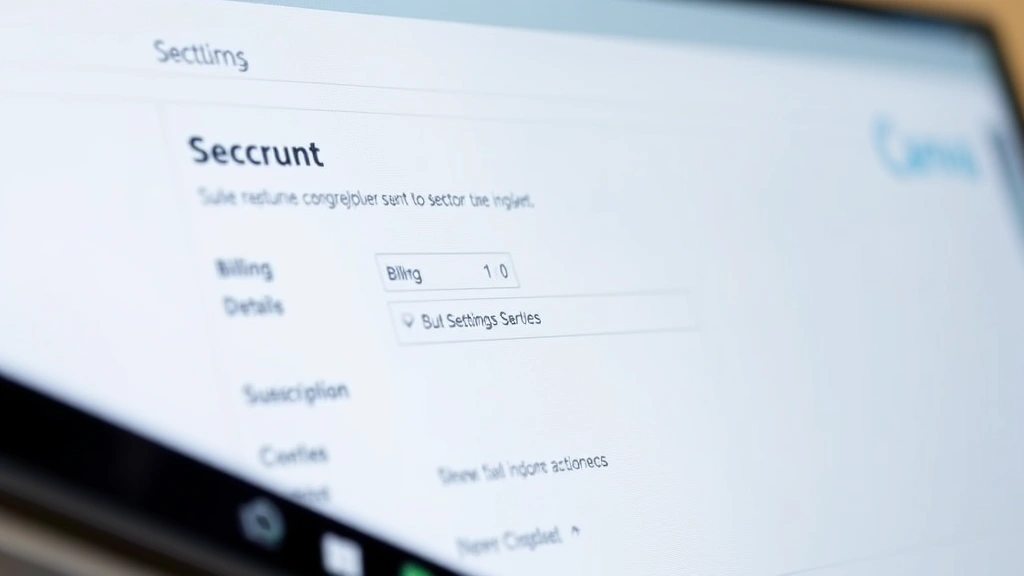
- Navigate to billing or subscription settings: Look for a “Billing” or “Subscription” tab. This section displays your current plan, billing date, and payment method.
- Locate your active subscription: You’ll see your current plan listed (Premium, Teams, or Enterprise). Next to it, you’ll find a “Manage subscription” or “Cancel subscription” button.
- Click the cancellation option: Select the cancellation button. Canva may ask why you’re leaving—this feedback is optional but helps them improve their service.
- Confirm your cancellation: Review the cancellation summary, which shows your access end date. Click “Cancel subscription” again to finalize the process.
- Receive confirmation: You’ll see a success message, and Canva will send a confirmation email to your registered address within minutes.
Unlike some services that require contacting customer support, how to cancel Canva subscription is entirely self-service. You won’t encounter hidden fees or be pressured to keep your subscription active. If you change your mind within your billing period, you can reactivate your plan at any time.

Canceling on Desktop vs. Mobile Devices
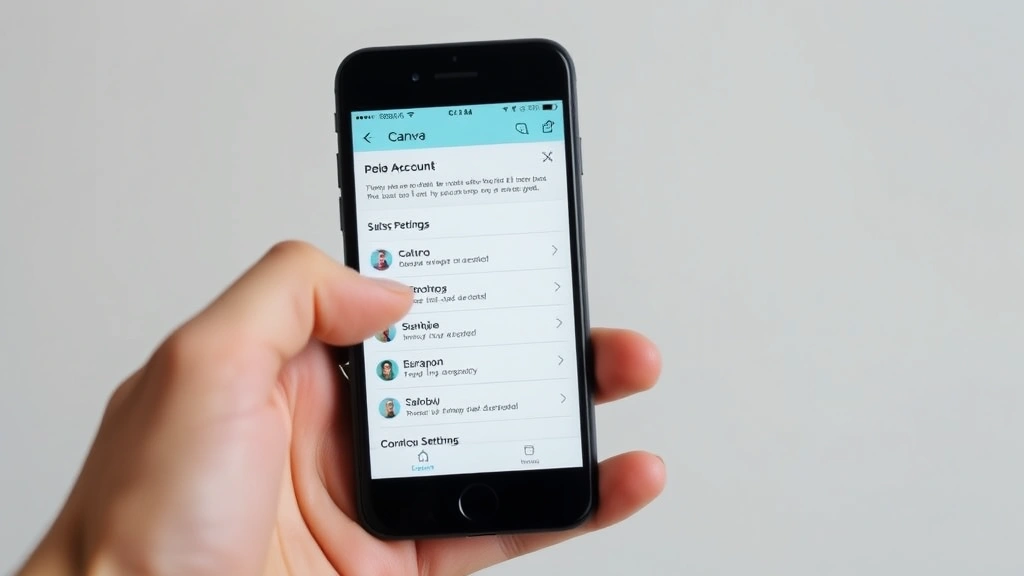
The steps to cancel Canva subscription are nearly identical whether you’re using a desktop computer, tablet, or smartphone. However, slight interface differences exist depending on your device. Desktop users will have the clearest view of all billing options, while mobile users might need to scroll through menus more carefully.
Desktop Cancellation Process
On a desktop computer, the cancellation process is most straightforward. After logging in, click your profile picture in the top-right corner, select “Account,” then navigate to the “Billing” section. The “Manage subscription” button is prominently displayed, making it easy to locate and click. Desktop users benefit from a larger screen, which reduces the chance of missing important information before confirming cancellation.
Mobile App Cancellation Process
If you’re using the Canva mobile app on iOS or Android, the process is similar but accessed through a menu icon. Tap the three-line menu icon (hamburger menu) at the bottom of the screen, select your profile icon, then navigate to “Account” and “Billing.” From there, locate your subscription and tap “Manage subscription.” The mobile interface is touch-optimized, so buttons are larger and easier to tap accurately.
Browser-Based Mobile Cancellation
You can also cancel through the mobile web browser by visiting canva.com on your phone. This method works identically to the desktop process but may require pinching to zoom for better visibility of smaller text and buttons. Many users find this approach easier than navigating the mobile app menus.
Regardless of which device you use, how to cancel Canva subscription follows the same fundamental steps. Choose whichever platform you’re most comfortable with, as the cancellation is processed identically across all platforms.
What Happens After You Cancel Canva
Understanding what occurs after you cancel Canva subscription helps you prepare for the transition. Your access doesn’t immediately disappear; instead, you’ll retain premium features until your current billing period ends. This grace period allows you to download designs, export projects, and gather any files you need before reverting to the free plan.
Access Timeline After Cancellation
When you cancel, Canva doesn’t revoke your premium access instantly. You’ll maintain full Premium features until your next billing date. For example, if you cancel on the 15th and your billing date is the 30th, you’ll have premium access for another 15 days. This courtesy period gives you time to complete projects and export high-quality files.
Reverting to the Free Plan
After your billing period ends, your account automatically converts to Canva’s free plan. The free version includes access to thousands of templates, basic design tools, and limited storage. You won’t lose your account or previous designs—they’ll remain accessible, though you may not be able to edit them with premium features. You can still view and download designs created during your subscription period.
Saving Your Work Before Cancellation
Before your access expires, download and save any important designs. Canva allows you to export designs in multiple formats (PNG, PDF, MP4 for videos). If you’ve created brand-specific templates or marketing materials, exporting them ensures you have backups independent of your Canva account. This is especially important for business users or content creators.
If you realize you need premium features again, reactivating your subscription is just as easy as canceling. Your designs and account history will be waiting for you, and you can resume your subscription at any time without losing data.
How to Prevent Accidental Resubscription
A common concern when you cancel Canva subscription is accidentally resubscribing. While Canva doesn’t automatically re-enroll users, taking preventive steps ensures you won’t be charged unexpectedly. This is particularly important if you share your payment method with family members or use your account sporadically.
Verify Cancellation Confirmation
Always check your email for a cancellation confirmation from Canva. This email serves as proof that your subscription has been terminated. If you don’t receive a confirmation within 15 minutes of canceling, log back into your account to verify the cancellation was processed. Sometimes confirmation emails land in spam folders, so check there if you don’t see it in your inbox.
Update Your Payment Method
If you’re concerned about accidental charges, consider updating or removing your payment method from your Canva account. However, keep in mind that you may want to keep a payment method on file if you plan to reactivate your subscription later. Alternatively, you can remove the payment method and re-add it only when you’re ready to resubscribe.
Set Calendar Reminders
Create a calendar reminder for the date your cancellation takes effect. This helps you monitor your account and verify that you’re no longer being charged. Check your bank or credit card statements for the next two billing cycles to confirm no charges appear.
Monitor Your Account Regularly
Log into your Canva account occasionally to confirm your plan status shows “Free” or “Inactive.” The account settings page clearly displays your current plan and next billing date. If you see a future billing date after canceling, contact Canva support immediately to investigate.
Troubleshooting Common Cancellation Issues
While how to cancel Canva subscription is usually straightforward, some users encounter minor issues. Here are solutions to common problems that might arise during the cancellation process.
Can’t Find the Cancel Button
If you can’t locate the cancellation option, ensure you’re in the correct account section. Navigate to Account → Billing specifically. If you’re on a Teams or Enterprise plan, the cancellation process may differ slightly. Teams plan administrators can manage subscriptions through team settings, while Enterprise customers should contact their account manager.
Cancellation Button Is Grayed Out
A grayed-out cancellation button typically indicates you’re viewing a free account or a trial period. Free accounts don’t have active subscriptions to cancel. If you’re on a trial, you can still cancel to prevent automatic conversion to a paid plan after the trial ends.
Receiving Unexpected Charges After Cancellation
If you’re charged after canceling, check your confirmation email for the cancellation effective date. If charges appear after that date, contact Canva support with your confirmation email and bank statement. They can investigate and process refunds if the charge was in error. According to Consumer Reports, documenting all communications with support strengthens refund claims.
Account Access Issues After Cancellation
If you’re locked out of your account or can’t access your designs after cancellation, reset your password through the login page. If that doesn’t work, contact Canva support. Provide your email address, account creation date, and any recent design names to help them verify your identity and restore access.
Alternatives to Cancellation: Downgrading Plans
Before you cancel Canva subscription entirely, consider whether downgrading might better suit your needs. Canva offers multiple plan tiers, and switching to a lower plan is often easier than canceling and losing access to premium features entirely.
Premium Plan Options
Canva’s primary paid plan is Premium, which offers unlimited uploads, access to 100+ million stock photos and videos, and advanced design tools. If you only occasionally use premium features, this plan might be more cost-effective than canceling and losing access entirely. The annual plan option provides savings compared to monthly billing.
Teams Plan for Collaboration
If you work with others, Canva’s Teams plan might be more valuable than the individual Premium plan. Teams allows multiple users to collaborate on designs, share brand kits, and manage permissions. This plan is ideal for small businesses, marketing departments, or creative agencies. If you’re canceling because of cost, Teams might actually be comparable in price while offering more functionality.
Free Plan Features
Canva’s free plan is surprisingly robust, offering thousands of templates, basic design tools, and 5GB of storage. If you use Canva infrequently or only for simple projects, the free plan might be sufficient. You can always upgrade later if you find yourself needing premium features.
How to Downgrade Instead of Canceling
To downgrade rather than cancel, navigate to your billing settings and look for a “Change plan” or “Downgrade” option instead of “Cancel subscription.” You’ll be presented with available plans and can select one that fits your needs. Downgrading takes effect on your next billing date, and you’ll be refunded for any unused portion of your current plan.
Downgrading offers a middle ground between maintaining premium access and cutting costs entirely. It’s worth considering before you cancel Canva subscription completely, especially if you think you might need design tools in the future.
Refund Policy and Billing Questions
Understanding Canva’s refund policy helps you make informed decisions about your subscription. Like most software-as-a-service platforms, Canva’s refund policies have specific terms and conditions.
Standard Refund Policy
Canva generally does not offer refunds for monthly subscriptions once they’ve been charged. However, if you cancel within a certain window of your billing date or if you’re charged in error, you may be eligible for a refund. The best approach is to cancel immediately after your billing date if you want to minimize the time you’re paying for unused services.
Annual Subscription Refunds
Annual subscriptions have different refund terms than monthly plans. If you purchase an annual plan and cancel within the first 30 days, you may be eligible for a full refund. After 30 days, refunds are typically not available, but you can still cancel and retain access until your annual renewal date. This makes annual plans less risky than they initially appear.
Trial Period Refunds
If you’re on a free trial and are charged unexpectedly, contact Canva support immediately. Trial-to-paid conversions should only occur if you explicitly authorize them. If you’re charged during a trial period, you’re likely eligible for a full refund.
Contacting Support for Billing Issues
For refund requests or billing disputes, visit Canva’s help center or contact their support team directly. Provide your account email, transaction ID (from your bank or payment processor), and a clear explanation of your issue. According to WikiHow’s guide to managing subscriptions, keeping detailed records of all communications strengthens your case.
If you’re unsure about your billing status, it’s better to reach out to support than to worry. Canva’s support team is responsive and can clarify your account status, answer billing questions, and process refunds when applicable.
Protecting Yourself: Best Practices for Subscription Management
Learning how to cancel Canva subscription is just one part of managing your digital subscriptions effectively. Implementing broader subscription management practices protects you from unexpected charges across all services.
Create a Subscription Inventory
Maintain a list of all active subscriptions, including billing dates, costs, and cancellation policies. This inventory helps you identify which services you actually use and which ones drain your budget unnecessarily. Update it quarterly to reflect any changes.
Use Subscription Management Apps
Apps like Truebill, Trim, or Subtrack automatically track your subscriptions and alert you to upcoming charges. These tools can identify duplicate subscriptions and help you cancel services you’ve forgotten about. Some even negotiate lower rates on your behalf.
Review Statements Monthly
Check your bank and credit card statements monthly for unexpected charges. This practice catches billing errors quickly and allows you to dispute them before they compound. Set a calendar reminder to review statements on the same day each month.
Use Separate Payment Methods
Consider using a dedicated credit card or digital payment method for subscriptions. This separation makes it easier to track subscription expenses and simplifies cancellations if the card is compromised. Virtual card numbers offered by some banks add an extra layer of security.
Like canceling other services such as how to cancel Audible membership, how to cancel YouTube TV, and how to cancel Kindle Unlimited, managing your Canva subscription requires attention to detail and proactive monitoring. These practices apply across all subscription services you use.
Frequently Asked Questions
Will I lose my designs if I cancel Canva?
No, your designs remain in your account after cancellation. You can still view and download them using the free plan. However, you won’t be able to edit them with premium features unless you reactivate your subscription. This is why it’s important to export and save important designs before your premium access expires.
Can I cancel Canva anytime, or are there restrictions?
You can cancel your Canva subscription anytime without penalties. There are no long-term contracts or early termination fees. Monthly subscriptions can be canceled immediately, while annual subscriptions can be canceled anytime but won’t be refunded unless you’re within the 30-day refund window.
What’s the difference between canceling and pausing my subscription?
Canva doesn’t offer a “pause” feature like some services do. When you cancel, your subscription ends, and you revert to the free plan. If you want to maintain your subscription without using it, you’d need to keep it active. However, you can reactivate at any time if you cancel.
Do I need to contact customer support to cancel?
No, you can cancel entirely through your account settings without contacting support. The self-service cancellation process is designed to be quick and straightforward. You only need to contact support if you encounter issues or have billing questions.
How long does it take for my cancellation to take effect?
Cancellation takes effect immediately in your account settings, but you retain premium access until your current billing period ends. For example, if you’re billed on the 15th of each month and cancel on the 5th, you’ll have premium access until the 15th. After that date, your account converts to the free plan.
What if I accidentally cancel my subscription?
If you accidentally cancel, you can reactivate your subscription immediately by navigating back to your billing settings and selecting “Reactivate” or “Upgrade to Premium.” Your designs and account history will be intact. If you reactivate before your access period ends, you won’t be charged again.
Can I get a refund after canceling?
Refunds depend on when you cancel and your subscription type. Monthly subscriptions are generally non-refundable after being charged, but annual subscriptions may be refundable within 30 days of purchase. Contact Canva support with your transaction details to request a refund if you believe you’re eligible.
Is there a way to cancel without using my account?
You must use your Canva account to cancel your subscription. If you’ve lost access to your account, use the “Forgot password” feature to reset it, then proceed with cancellation. If you can’t recover your account, contact Canva support with proof of identity and they’ll assist you.
Will Canva try to stop me from canceling?
Canva may ask for feedback about why you’re canceling, but they won’t pressure you to stay. The cancellation process is straightforward and user-friendly. Some services offer discounts or plan changes during cancellation, so review any offers, but you’re not obligated to accept them.
How do I know my cancellation was successful?
You’ll see a confirmation message immediately after canceling, and Canva will send a confirmation email within minutes. Check your account billing settings—your plan should show as inactive or expired. You’ll also notice that your next billing date disappears from your account.
For additional guidance on managing subscriptions, check out resources like Lifehacker’s subscription management tips and Family Handyman’s guides on managing household services. Similar cancellation processes apply to other design and productivity tools, so the skills you develop canceling Canva transfer to managing other subscriptions.
Remember, how to cancel Canva subscription is a simple, reversible process. Whether you’re switching to another design tool, taking a break from design work, or cutting expenses, you can cancel confidently knowing your data is safe and you can reactivate whenever needed. Like managing subscriptions for how to cancel Fortnite Crew or how to archive Amazon orders, taking control of your digital services empowers you to manage your time and money more effectively.