
Learning how to cancel call forwarding is one of those tech tasks that seems more complicated than it actually is—but once you know the steps, you’ll wonder why you didn’t do it sooner. Whether you’ve set up call forwarding on your smartphone, landline, or VoIP service and now want to turn it off, this guide walks you through every method so you can disable it in minutes, not hours.
Call forwarding can be incredibly useful when you need it, but it can also eat up your phone battery, create confusion about where calls are actually going, and sometimes lead to missed calls if the forwarded number isn’t available. The good news? Canceling it is straightforward once you know where to look.
Table of Contents
Cancel Call Forwarding on iPhone
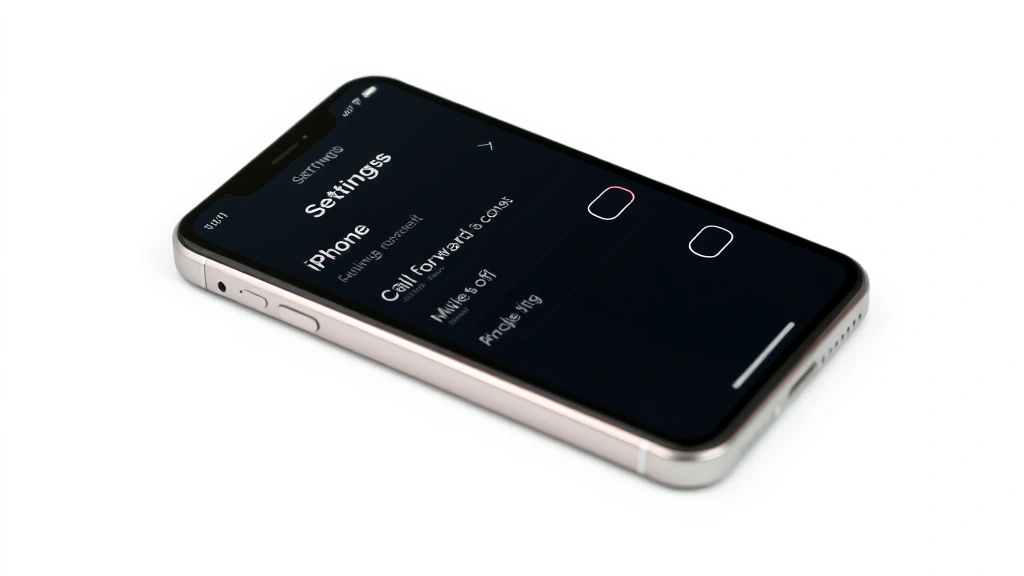
If you’re using an iPhone, the process to cancel call forwarding is built right into your Settings app—no need to call your carrier or navigate through confusing menus. Here’s exactly what to do:
Open the Settings app and scroll down until you find Phone. Tap it. Now look for Call Forwarding in the menu. When you tap that option, you’ll see a toggle switch next to it. If the switch is green or highlighted, that means call forwarding is currently active. Simply tap the toggle to turn it off. The switch should now appear gray or inactive, which means your call forwarding has been successfully disabled.
The beauty of this method is that it works on any iPhone model running a recent version of iOS. You don’t need to restart your phone or do anything else—the change takes effect immediately. If you can’t find the Call Forwarding option in your Phone settings, it’s possible your carrier doesn’t support this feature through the phone’s native settings, which means you’ll need to contact them directly.
Disable Call Forwarding on Android
Android phones handle call forwarding differently depending on your carrier and phone manufacturer, but the general process is similar. Start by opening your Phone app (the one you use to make calls). Look for the three dots or menu icon, usually in the top right corner, and tap it to access Settings.
From there, you’re looking for an option labeled Call Forwarding, Forwarding Settings, or sometimes Additional Settings. Once you find it, you should see a toggle or radio button next to the forwarding option. Select the option that says Disable, Off, or None. Some Android phones will ask you to confirm this action—just tap Yes or Confirm.
If you’re having trouble locating these settings on your Android device, try this alternative: dial #21# and press call. This is a universal code that will check whether call forwarding is active on your number. To disable it, dial ##21# and press call. This works on most carriers, though some regional carriers may use different codes.
Check Your Carrier Settings
Sometimes call forwarding settings are managed through your carrier’s network rather than your phone’s local settings. This is especially true if you set up forwarding through your carrier’s website or customer service line. To cancel call forwarding at the carrier level, you’ll need to log into your account online or call their customer service.
Visit your carrier’s website (Verizon, AT&T, T-Mobile, etc.) and log into your account. Look for a section labeled Phone Settings, Call Management, or My Services. From there, find the call forwarding option and disable it. Alternatively, you can call your carrier’s customer service number—it’s usually on the back of your bill or on their website—and ask a representative to turn off call forwarding on your account. They can do it in seconds and will confirm when it’s been disabled.
This method is particularly important if you’ve been having issues disabling forwarding through your phone’s settings, as the carrier-level setting might be overriding your phone’s local setting.
Turn Off Landline Forwarding
If you have a traditional landline (home phone), the process for canceling call forwarding is a bit different. Most landline services allow you to manage call forwarding through a series of dialing codes. The most common code is *73. Simply pick up your phone, dial *73, and press the call button. You should hear a confirmation tone or message indicating that call forwarding has been turned off.
If that code doesn’t work, try #73# instead, as some phone systems use this variation. If neither of those codes works, contact your landline provider directly. They can access your account and disable forwarding remotely. You’ll typically find your provider’s number on your monthly phone bill.
For VoIP landline services like Vonage or Ooma, you’ll usually need to log into your online account portal and navigate to call settings from there. The interface varies by provider, but the general concept is the same: find the call forwarding setting and toggle it off.
Disable VoIP Call Forwarding
VoIP services (Voice over Internet Protocol) like Google Voice, Skype, or business phone systems have their own call forwarding management systems. For Google Voice, sign into your account at voice.google.com, click on Settings in the top right, then select Calls. Under the Forwarding options section, you’ll see a list of phone numbers where calls are being forwarded. Simply uncheck the boxes next to any numbers you want to stop forwarding to, or click the X icon to remove them entirely.
For Skype, open the app, go to Settings, select Calls, and look for Call forwarding. You’ll see a toggle switch—flip it to off. For business VoIP systems, the process varies more widely, so you may need to contact your IT department or system administrator for help.
The key thing to remember with VoIP services is that call forwarding settings are usually managed through the web portal or app rather than through your device’s native phone settings. This gives you more control but also means you need to know where to look.
Troubleshooting Common Issues
Sometimes you’ll disable call forwarding and find that calls are still being redirected somewhere. This usually happens because there are multiple layers of forwarding active. For example, you might have forwarding enabled on your phone AND through your carrier’s network. You need to disable both.
Start by checking your phone’s native settings again. Then contact your carrier to confirm they don’t have forwarding active on their end. If you’re using a VoIP service, make sure you’ve disabled it there too. It’s also worth checking if you have any apps installed that might be managing call forwarding—some third-party calling apps can set up their own forwarding rules.
Another common issue: you’ve disabled call forwarding, but you’re not seeing the change take effect immediately. Most carriers apply changes within a few minutes, but occasionally it can take up to an hour. If it’s been longer than that and calls are still being forwarded, contact your carrier’s customer service to troubleshoot further. They can check your account settings and confirm whether the change was actually applied.
One more thing to check: make sure you’re not confusing call forwarding with other call management features like call waiting, call blocking, or do not disturb mode. These are separate features that won’t affect where your calls are being routed.
How to Verify It’s Off
Once you’ve disabled call forwarding, you’ll want to confirm it actually worked. The easiest way is to have someone call you from another phone and verify that the call comes directly to your number—not to the forwarded number. Make sure you answer, and ask the caller if they reached you directly or if they heard any unusual messages or delays.
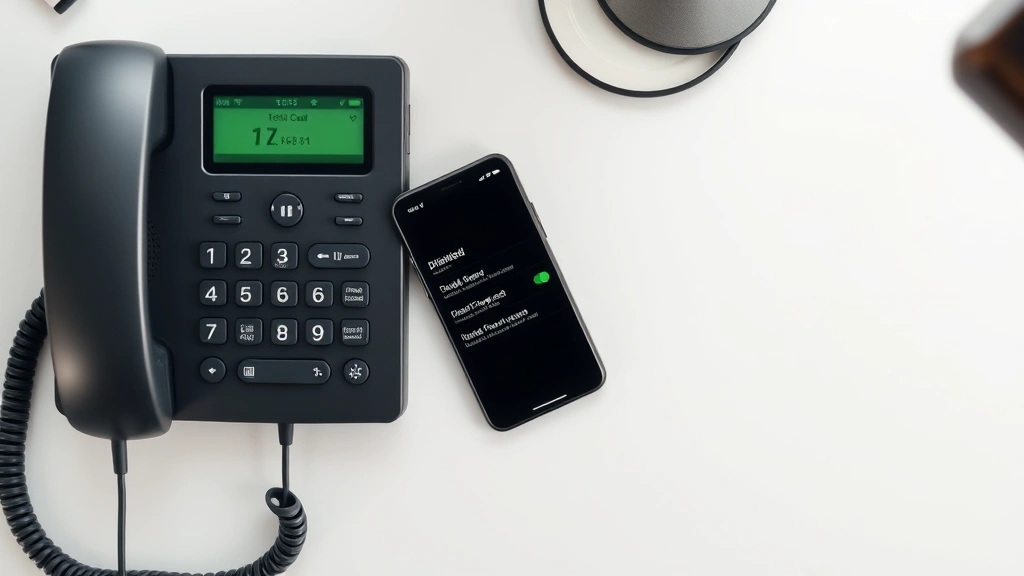
Another verification method is to check your phone’s settings one more time. Go back to the call forwarding setting and confirm the toggle is off or the setting shows as disabled. For carrier-level forwarding, log back into your carrier’s website and double-check that forwarding is no longer listed as active.
If you want to be extra thorough, use the dialing codes mentioned earlier to check the status. Dial #21# on an iPhone or Android to query whether call forwarding is active. Your phone will display a message indicating the current status. This is particularly useful if you’re unsure whether your changes actually took effect.
For those who set up forwarding through a VoIP service, go back into the service’s settings and visually confirm that the forwarding numbers have been removed or the feature is toggled off. A quick screenshot of the disabled setting can also serve as documentation if you need to reference it later.
Frequently Asked Questions
Will canceling call forwarding affect my voicemail?
No, canceling call forwarding won’t affect your voicemail. Voicemail is a separate service that captures calls when you don’t answer. Call forwarding redirects calls to another number before they reach your voicemail. Disabling forwarding means calls will come directly to your phone instead of being sent elsewhere, but they’ll still go to voicemail if you don’t answer.
Can I schedule call forwarding to turn off automatically?
Most standard call forwarding doesn’t have built-in scheduling, but some advanced phone systems and VoIP services do offer this feature. Check your carrier’s website or your phone’s settings to see if scheduling options are available. Alternatively, you can use third-party apps designed for call management that may offer more granular control over when forwarding is active.
What if I need to re-enable call forwarding later?
Re-enabling call forwarding is just as easy as disabling it. Go back to your phone’s settings or your carrier’s website, find the call forwarding option, and toggle it back on. You’ll be prompted to enter the phone number where you want calls forwarded. Make sure you have that number ready before you start the process.
Why would my calls still be forwarded after I disabled it?
This usually means forwarding is enabled at multiple levels. Check your phone’s settings, your carrier’s settings, and any third-party apps you’re using. It’s also possible that your carrier hasn’t processed your change yet—wait a few minutes and try again. If the problem persists, contact your carrier’s customer service for assistance.
Does canceling call forwarding use less battery?
Yes, disabling call forwarding can help preserve battery life. When call forwarding is active, your phone is constantly checking whether calls need to be redirected, which requires ongoing network communication. Turning it off reduces this background activity and can extend your battery life, especially on older phones or in areas with weak signal.
Can I forward calls to different numbers for different contacts?
Standard call forwarding doesn’t allow this level of customization—it forwards all calls to the same number. However, some VoIP services and advanced phone systems do offer conditional call forwarding or call routing rules that let you forward calls from specific contacts to different numbers. Check your service provider’s documentation to see if this feature is available.


