Let’s be honest—YouTube can feel like a minefield sometimes. You’re scrolling through your recommendations, and suddenly there’s a channel you never want to see again. Maybe it’s clickbait garbage, conspiracy theories, or just content that makes you cringe. The good news? You don’t have to suffer through it. Learning how to block YouTube channels takes about 30 seconds and gives you back control of your feed. This guide walks you through every method—whether you’re on desktop, mobile, or using parental controls—so you can curate your YouTube experience without the noise.
Why Block YouTube Channels?
Before we jump into the how, let’s talk about the why. Blocking channels isn’t just about being picky—it’s about mental health, productivity, and protecting yourself (or your kids) from harmful content. YouTube’s algorithm is designed to keep you watching, which means it’ll recommend increasingly extreme content if you engage with it. One rabbit hole can lead to another, and suddenly you’re three hours deep in something you didn’t intend to watch.
Maybe you want to block YouTube channels because:
- You’re tired of clickbait and sensationalism cluttering your recommendations
- A channel promotes misinformation or conspiracy theories
- You’re setting boundaries for family members (especially kids)
- You want to reduce screen time by eliminating temptation
- A creator’s recent behavior or statements don’t align with your values
- You’re trying to break a habit of watching a specific type of content
The beauty of blocking is that it’s not permanent. You can unblock channels later if you change your mind. It’s a tool for taking control, not a punishment.
How to Block a Channel on Desktop
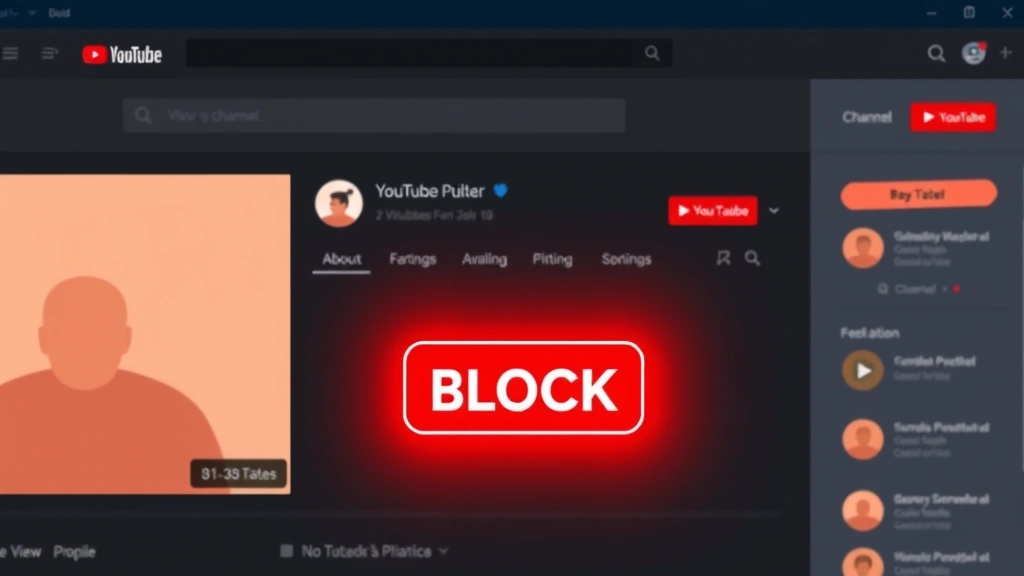
The desktop method is the most straightforward way to block YouTube channels. Here’s the exact process:
- Find the channel you want to block. Search for it or navigate to any video from that creator.
- Click on the channel name or icon to go to the channel’s main page.
- Look for the three-dot menu icon in the top-right corner of the channel header (next to the Subscribe button).
- Click the menu and select “Block user” or “Don’t recommend channel” (the exact wording depends on your YouTube version).
- Confirm your choice when prompted. YouTube will ask if you’re sure—click “Block” to confirm.
That’s it. Once blocked, you won’t see videos from that channel in your recommendations, search results, or homepage. If you’re logged into YouTube, this setting syncs across all your devices.
Here’s a pro tip: if you’re watching a video and want to block the channel without visiting their page, you can click the three-dot menu on the video itself and select “Don’t recommend channel.” It’s faster and achieves the same result.
Pro Tip: Blocking a channel doesn’t notify the creator. They won’t know you’ve blocked them, so there’s no awkwardness. It’s purely for your own experience.
Blocking Channels on Mobile (iOS & Android)
Mobile blocking is slightly different because the interface is more compact, but it’s just as easy. Whether you’re on iPhone or Android, the process is nearly identical.
For iPhone (iOS):
- Open the YouTube app and find a video from the channel you want to block.
- Tap on the channel name at the top of the video.
- In the channel header, tap the three-dot menu icon (⋯).
- Select “Don’t recommend channel” or “Block user.”
- Confirm when prompted.
For Android:
- Open the YouTube app and navigate to the channel or a video from that channel.
- Tap the channel name to go to their page.
- Tap the three-dot menu in the top-right corner.
- Choose “Don’t recommend channel” or “Block.”
- Confirm your action.
The mobile experience is nearly identical because YouTube’s design is responsive. The key difference is that you’re tapping instead of clicking, and the menu might be slightly repositioned depending on your screen size.
Important Note: Make sure you’re tapping the channel’s three-dot menu, not the video’s menu. The video menu has different options and won’t let you block the channel.
Using YouTube’s “Don’t Recommend Channel” Feature

YouTube’s “Don’t Recommend Channel” feature is subtly different from a full block, and understanding the distinction matters. When you use this option, you’re telling YouTube’s algorithm to stop suggesting that channel—but it doesn’t prevent you from finding it if you search for it directly. It’s a softer approach than blocking.
Here’s when you’d use each:
- “Don’t Recommend Channel”: Use this for channels you’re not interested in but aren’t harmful. Maybe it’s a gaming channel when you prefer cooking content, or a channel that’s just not your style.
- “Block User”: Use this for channels you want completely removed from your experience—misinformation, offensive content, or anything that bothers you enough to want it gone entirely.
To access the “Don’t Recommend Channel” option specifically:
- Hover over (or tap) a video from the channel in your recommendations or search results.
- Click the three-dot menu that appears on the video thumbnail.
- Select “Don’t recommend channel.”
- YouTube will remove that channel from your recommendations immediately.
This method is great because you can do it without even clicking into the channel. It’s a quick way to clean up your feed as you scroll.
Parental Controls and Family Blocking
If you’re managing YouTube for kids or teens, blocking channels becomes a parental responsibility. YouTube has built-in parental controls that let you restrict access to specific channels and content types. This is where things get more powerful than individual blocking.
Setting up YouTube Restricted Mode (for your own account):
- Sign into YouTube and go to Settings (click your profile icon → Settings).
- Click on “Restricted Mode” in the left sidebar.
- Toggle “Restricted Mode: On” to enable it.
- Click “Save” at the bottom of the page.
Restricted Mode filters out content flagged as potentially mature. It’s not perfect, but it’s a solid baseline for younger viewers. According to YouTube’s official support documentation, Restricted Mode uses automated systems and community flagging to identify potentially inappropriate content.
For Family Link (Google’s family management tool):
If you’re managing a child’s Google account, you can use Family Link to block specific channels:
- Open the Family Link app on your device.
- Select your child’s account.
- Go to “Apps & Games” or “YouTube” (depending on your app version).
- You’ll see options to manage content restrictions and approved content.
- From YouTube’s settings within Family Link, you can block channels directly.
Family Link also lets you set screen time limits and approve or disapprove apps, giving you granular control over your child’s YouTube experience.
Safety Warning: No parental control is foolproof. Talk to your kids about online safety and why certain content is restricted. Education is just as important as technology.
Third-Party Tools and Extensions
If YouTube’s built-in blocking features don’t meet your needs, third-party extensions can provide additional control. Be cautious here—only use extensions from trusted sources, as they have access to your browsing data.
Popular browser extensions for YouTube blocking:
- Video Blocker: A Chrome extension that lets you block channels, keywords, and even specific videos. It’s lightweight and highly customizable.
- Unhook: Removes YouTube’s recommendations, subscriptions feed, and notifications to reduce distraction. It’s not specifically for blocking channels, but it’s great for digital wellness.
- BlockTube: Blocks videos and channels based on keywords, channel names, or video titles. Useful if you want to block multiple channels at once.
How to install a browser extension (Chrome example):
- Go to the Chrome Web Store and search for the extension by name.
- Click “Add to Chrome.”
- Review the permissions it’s requesting.
- Click “Add extension” to confirm.
- The extension will appear in your toolbar—click it to configure your blocking rules.
Extensions are powerful, but they only work in your browser. They won’t sync to the YouTube app on your phone or other devices. For comprehensive blocking across all platforms, stick with YouTube’s native features.
According to research from Pew Research Center, many users implement custom tools to manage their online experience, reflecting growing concerns about algorithmic recommendations.
Troubleshooting Common Issues
“The block button isn’t showing up.”
This usually means you’re not on the channel’s main page or you’re looking at the wrong menu. Make sure you’re clicking the channel name (which takes you to their profile page) and then looking for the three-dot menu in the channel header, not on individual videos. If you’re still stuck, try refreshing the page or clearing your browser cache (here’s a guide on clearing cache that applies to browsers too).
“I blocked a channel, but I’m still seeing their videos.”
This can happen if:
- You blocked the channel on one device, but you’re watching on another where you’re not signed in. Blocking syncs across devices only when you’re logged into your YouTube account.
- Videos from that channel are being shared by other channels or playlists. YouTube doesn’t block videos shared by other creators.
- The channel has multiple accounts or rebranded. Each channel name is separate, so you’d need to block each one individually.
“How do I unblock a channel?”
Good news—unblocking is just as easy as blocking. Go to your YouTube Settings, find “Blocked users” or “Blocked channels,” and click “Unblock” next to the channel you want to restore. The exact location varies slightly depending on your device, but it’s always in Settings.
“Can I block channels on YouTube TV?”
YouTube TV (the live streaming service) has different blocking options than regular YouTube. You can block channels through the YouTube TV settings, but the process is slightly different. If you’re considering canceling YouTube TV altogether, here’s a guide on how to cancel YouTube TV.
“Why is the ‘Don’t Recommend Channel’ option sometimes not available?”
YouTube occasionally updates its interface, and the exact menu options can vary. If you can’t find this option, try the full block method instead. Both achieve similar results—removing the channel from your recommendations.
Frequently Asked Questions
Does blocking a YouTube channel prevent me from searching for it?
– No. When you block a channel, you’re removing it from recommendations and your feed, but you can still search for it and watch videos if you want to. It’s not a search restriction. If you need stronger parental controls that prevent searches, use YouTube’s Restricted Mode or Family Link instead.
Can I block multiple channels at once?
– YouTube’s native interface requires you to block channels one at a time. However, if you use a browser extension like BlockTube, you can often add multiple channels to a blocklist at once. It’s more efficient if you have a lot of channels to block.
Will a creator know I blocked them?
– No. Blocking is completely private. The creator has no way of knowing you blocked their channel. YouTube doesn’t notify creators about blocks, and it doesn’t affect their channel statistics or visibility to other users.
If I block a channel, will it affect my YouTube recommendations overall?
– Blocking a single channel won’t dramatically change your recommendations, but blocking multiple channels in a category (like conspiracy theory channels or extreme political content) can shift your recommendations toward different content. YouTube’s algorithm learns from what you block and what you watch.
Can I block a channel on YouTube Kids?
– YouTube Kids is managed through Family Link. Parents can approve or block specific channels and content types through the Family Link app. It’s more restrictive than regular YouTube, which is intentional for younger audiences.
What’s the difference between blocking and unsubscribing?
– Unsubscribing removes a channel from your subscriptions list, but you might still see their videos in recommendations or search results. Blocking goes further—it removes them from recommendations entirely. You can unsubscribe without blocking, or do both.
If I block a channel on my phone, does it block it on my computer too?
– Yes, as long as you’re signed into the same YouTube account on both devices. Blocks sync across all devices where you’re logged in. If you’re using YouTube without signing in, blocks won’t carry over.

Can I block live streams from specific channels?
– Blocking a channel prevents you from seeing any of their content, including live streams. Once blocked, their live streams won’t appear in your recommendations or notifications. If you want to block just their live streams but still see regular uploads, that’s not possible with YouTube’s built-in tools—you’d need a third-party extension.
Final Thoughts: Learning how to block YouTube channels is one of the simplest ways to take control of your YouTube experience. Whether you’re cleaning up your recommendations, protecting your kids, or just tired of certain creators, blocking takes seconds and makes a real difference. Start with YouTube’s native blocking features—they’re powerful enough for most people. If you need more control, explore extensions or parental controls. The key is remembering that you’re in charge of your feed, not the algorithm.