
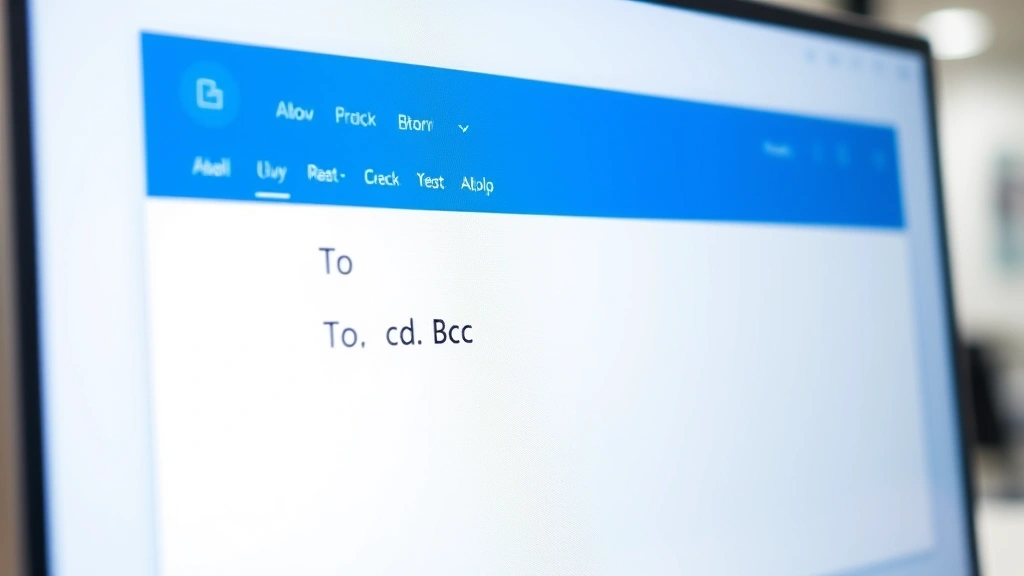
Ever hit “Send” and realized you just exposed someone’s email address to a room full of strangers? Yeah, that’s awkward. Learning how to blind copy in Outlook is one of those skills that saves you from that exact nightmare—and honestly, it’s embarrassingly simple once you know where to look. Whether you’re managing a mailing list, sending sensitive information, or just being respectful of people’s privacy, blind copy (BCC) is your best friend. This guide walks you through every version of Outlook and shows you exactly when and why you’d want to use it.
What Is Blind Copy and Why Does It Matter?
Blind copy isn’t some fancy tech term—it’s just a way to send an email to someone without letting everyone else see that they got it. Think of it like sending a letter in a sealed envelope inside another envelope. The outer envelope (To/CC fields) shows who’s getting the main message, but the inner envelope (BCC field) is hidden from view.
Here’s the practical difference:
- To: Everyone sees who you’re sending to directly.
- CC (Carbon Copy): Everyone sees who else got a copy.
- BCC (Blind Carbon Copy): Nobody sees who’s in this field—not even the people on the To or CC lines.
Why care? Because privacy matters. If you’re sending an email to 50 people about a company announcement, do they all need to see each other’s email addresses? No. If you’re following up with a client and want to loop in your manager quietly? BCC handles that. If you’re protecting someone’s information from being harvested by spammers? BCC is the answer.
The real talk: BCC gets a bad reputation because some people use it sneakily—forwarding emails without the original sender knowing, for example. But used properly, it’s just professional email etiquette. It’s the difference between announcing something to a room versus quietly letting someone know what’s happening.
How to Blind Copy in Outlook Web
Outlook Web (the browser version you access at outlook.office.com or outlook.com) is probably what most people use now, and the blind copy feature is dead simple here.
- Open Outlook Web and click the New Message button (usually top-left).
- Start typing your message or recipient in the To field.
- Look for the Cc & Bcc link—it’s usually right below the To field, in smaller text.
- Click it. The BCC field will appear.
- Add the email addresses you want to blind copy into the BCC field.
- Finish your message and hit Send.
That’s it. Seriously. The BCC field stays visible once you’ve clicked it, so you can keep adding people if needed. If you want to hide it again, just click the Cc & Bcc link again to collapse it.
Pro Tip: If you’re using Outlook Web and the Cc & Bcc link doesn’t show up, check your browser settings. Some older browsers or strict security settings can hide it. Try refreshing the page or switching browsers if you’re stuck.
How to Blind Copy in Outlook Desktop (Windows)
Desktop Outlook (the app you download and install on your computer) has been around forever, and Microsoft keeps changing where things are. Here’s how it works in the current versions:
- Open Outlook and click New Email (or press Ctrl+N).
- In the message window, look at the ribbon at the top. You should see To, Cc, and Bcc buttons. If you don’t see Bcc, it might be hidden.
- If the Bcc button isn’t visible, go to the Options tab in the ribbon and look for Show Bcc or Bcc (it varies by version). Click it to reveal the field.
- Click the Bcc button to open the Bcc field in your message.
- Type or paste the email addresses you want to blind copy.
- Compose your message and send as normal.
Some older versions of Outlook (2016, 2019) might have the Bcc button on the main ribbon already. Newer versions (2021, Microsoft 365) sometimes hide it by default, which is why step 3 matters. It’s not missing—just tucked away.
Safety Note: Desktop Outlook sometimes remembers your Bcc recipients if you use the same field repeatedly. Always double-check your Bcc line before hitting Send, especially if you’re sending multiple emails in a row. You don’t want to accidentally BCC the wrong person.
How to Blind Copy on Outlook for Mac
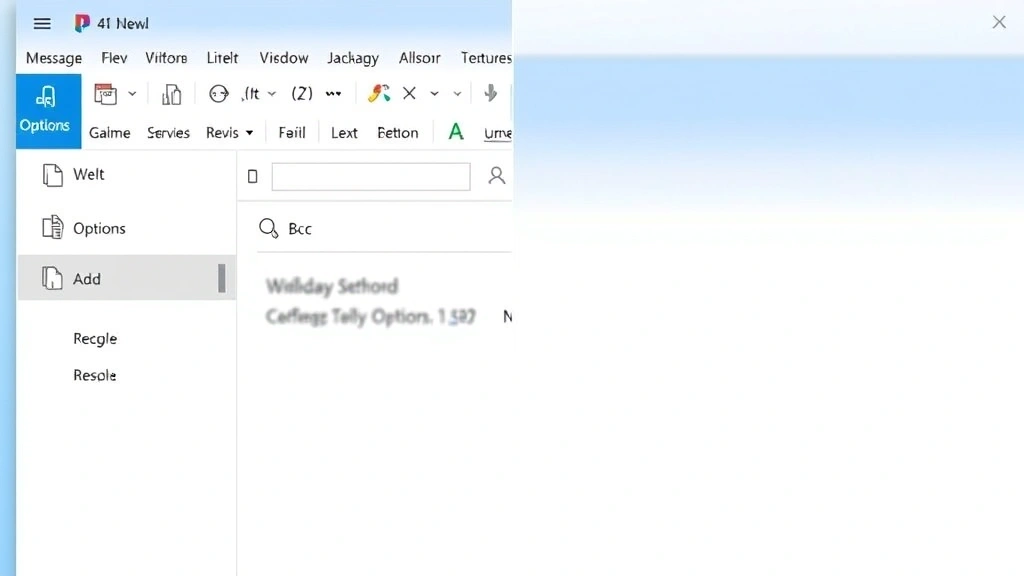
Mac users, don’t feel left out. The process is nearly identical, just with Mac-specific navigation:
- Open Outlook and click New Message.
- In the compose window, look at the top menu bar. Click Message in the menu.
- Select Add Bcc Header from the dropdown.
- The Bcc field will now appear in your message, usually below the Cc field.
- Add your blind copy recipients and send.
Alternatively, some Mac versions let you right-click in the header area and select “Add Bcc” from the context menu. If you can’t find the Message menu option, try that.
One quirk with Mac Outlook: once you add the Bcc field, it stays there for future messages. You don’t have to re-enable it each time, which is actually convenient.
How to Blind Copy in Outlook Mobile
Mobile email can be tricky because screens are small and buttons get hidden. Here’s how to find BCC on your phone:
iPhone/iPad (Outlook App):
- Open the Outlook app and tap the compose button (pencil icon).
- Tap in the To field to start adding recipients.
- Look for a Cc/Bcc button or link—usually appears as a small text link below the To field.
- Tap it to reveal the Bcc option.
- Add your blind copy recipients and send.
Android (Outlook App):
- Tap the compose button (usually a + or pencil icon).
- Tap the To field.
- Look for Cc/Bcc text—tap it to expand.
- Enter your blind copy addresses and send.
Mobile Outlook sometimes hides the Bcc option if you haven’t used it before. If you can’t find the Cc/Bcc link, try tapping the three-dot menu (⋮) in the compose window—sometimes it’s tucked there instead.
Best Practices and Common Mistakes
Knowing how to blind copy in Outlook is one thing. Knowing when and how to use it properly is another. Here are the real-world scenarios where BCC shines—and where it can backfire.
When BCC Is Perfect:
- Group announcements: Sending the same message to 20+ people? BCC them. They don’t need each other’s email addresses.
- Protecting privacy: If someone’s email address is sensitive or they’ve asked to stay private, BCC is respectful.
- Looping in a manager quietly: Need your boss to see something without the recipient knowing? BCC works.
- Mailing lists: Any time you’re distributing information to a group, BCC is the standard.
- Follow-ups: If you’re sending the same email to multiple people and don’t want them to know who else got it, BCC is your move.
Common Mistakes (Don’t Do These):
- Forwarding emails without permission: Using BCC to secretly forward someone’s message to a third party is unethical and can damage trust. If you need to share something, ask first.
- Mixing To/Cc with BCC confusingly: If you put someone in the To field and someone else in BCC, the To person might reply-all and confuse everyone about who was supposed to get the message.
- Forgetting the BCC field exists: If you meant to BCC someone and accidentally put them in To, the whole group sees it. Double-check before sending.
- Using BCC to hide things from your organization: It might feel clever, but if discovered, it erodes trust. Use BCC for legitimate privacy reasons, not to be sneaky.
- Not testing it first: If you’re new to BCC, send a test email to yourself (with yourself in the To field and a friend’s address in BCC) to confirm they don’t see each other.
Here’s the golden rule: BCC is for protecting privacy, not for hiding things. There’s a difference. One is professional; the other is manipulative.
Security and Privacy Considerations
BCC is great for privacy, but it’s not encryption. If you’re sending sensitive information (passwords, financial data, health information), BCC alone isn’t enough. Consider pairing it with email encryption in Outlook, which adds a layer of security that BCC doesn’t provide.
According to Microsoft’s official documentation, BCC is meant for privacy, not security. The BCC field is still transmitted with the email—it’s just not visible to the main recipients. If someone hacks the email server or intercepts the message, they can still see who’s in BCC.
For truly sensitive communications, organizations handling regulated information (like healthcare or finance) should use encryption or secure portals instead of relying on BCC alone.
That said, for everyday professional use—protecting people’s email addresses from spam harvesters, keeping group announcements clean, or quietly looping someone in—BCC is perfectly fine and actually expected.
Real Talk: If someone’s using BCC to spy on you or hide things from you, that’s a workplace culture problem, not a technology problem. BCC is a tool. Like any tool, it can be used well or poorly.
One more thing: if you’re managing distribution lists or group emails in Outlook, you can set them up so that individual addresses are hidden from recipients. That’s basically BCC on autopilot for large organizations.
Frequently Asked Questions
Can the BCC recipients see who else is in the BCC field?
– No. BCC recipients can only see themselves in the To/Cc/Bcc lines. They can’t see other BCC recipients. That’s the whole point of blind copy—it keeps the list private.
If I BCC someone, will they know they were BCC’d?
– Not automatically. They’ll receive the email just like anyone else. However, if they reply-all or if the conversation continues, they might figure it out based on context. BCC isn’t invisible forever—it just hides the initial recipient list.
Can I use BCC in Outlook’s Reply or Reply All functions?
– Yes, but it’s rare. When you reply or reply-all, you can add the Bcc field just like in a new message. This is useful if you want to loop someone in on a reply without the original sender knowing, though use this cautiously—it can feel sneaky.
What’s the difference between BCC and CC?
– CC (Carbon Copy) shows everyone who got the email. BCC hides the recipient list. Use CC when people should know who else is involved; use BCC when privacy matters.
Is there a limit to how many people I can BCC?
– Technically, no hard limit, but practically, yes. Most email servers limit messages to 500-1000 recipients total (To + Cc + Bcc combined). If you’re sending to thousands of people, use a mailing list or email marketing tool instead. Also, sending to too many people at once can trigger spam filters.
Can I schedule an email with BCC in Outlook?
– Yes. In Outlook Web and Desktop, you can use the “Delay Delivery” or “Schedule Send” feature. Set up your BCC recipients, then schedule the send time. The BCC field works exactly the same with scheduled emails.
What happens if I BCC someone and they reply?
– Their reply goes only to the To field recipients, not to the BCC recipients. This is important to understand. If you BCC your manager on an email and the recipient replies, your manager won’t see the reply unless they’re also in the To or Cc field.
Is BCC considered unprofessional?
– Not at all. In professional settings, BCC is standard practice for group emails, protecting privacy, and managing distribution lists. It’s only unprofessional if you use it to spy on people or hide things unethically.
Can I make BCC the default in Outlook?
– No, and that’s intentional. Microsoft designed it so you have to consciously choose BCC each time, reducing the risk of accidentally sending something to the wrong person.
Does Outlook’s mobile app work the same way as desktop for BCC?
– Yes, functionally it’s identical. The interface is different because of screen size, but the BCC field works exactly the same. Add recipients, they won’t see each other, send.


