How to Archive an Amazon Order: Simple & Essential Guide
Managing your Amazon purchase history can feel overwhelming, especially after years of buying everything from household essentials to electronics. Learning how to archive an Amazon order is one of the most practical ways to keep your account organized and protect your privacy. Archiving removes orders from your main purchase history without deleting them permanently, giving you a cleaner view of active purchases while maintaining a complete record for future reference. This guide walks you through every method to archive Amazon orders on any device, plus expert tips for managing your entire order history efficiently.
Quick Answer
To archive an Amazon order, open the “Returns, Orders & Accounts” section on the Amazon app or website, find the order you want to hide, tap or click the three-dot menu, and select “Archive Order.” On desktop, you can also access this through “Your Orders” in your account menu. Archived orders won’t appear in your regular order list but remain accessible in the “Archived Orders” section for up to 10 years. The process takes seconds and works for any completed order.
Why You Should Archive Amazon Orders
Archiving Amazon orders serves multiple practical purposes beyond simple organization. Your “Your Orders” page can become cluttered after thousands of purchases, making it difficult to find recent items, track returns, or monitor active subscriptions. Archiving an Amazon order removes old or completed purchases from view without losing the data permanently. This is especially useful if you want to keep your account history private when sharing your device, or if you need a quick reference for only your current and recent purchases.
Privacy is another compelling reason to archive orders. If family members or guests use your device, archived orders won’t appear in casual browsing of your purchase history. Additionally, archiving helps you maintain accurate warranty and return information by separating completed transactions from items you might still need to manage. According to WikiHow’s comprehensive guides on account management, organizing digital records is a critical step in maintaining online privacy and security.
Unlike deleting, archiving preserves your complete purchase history for tax records, warranty claims, or future reference. Amazon keeps archived orders accessible for up to 10 years, so you can retrieve them anytime without permanent loss. This balanced approach gives you the best of both worlds: a clean, manageable order list with complete historical data always available.
How to Archive Orders on the Amazon Mobile App
The Amazon mobile app makes archiving incredibly straightforward with just a few taps. Open the Amazon app and tap the menu icon (three horizontal lines) in the bottom right corner. Navigate to “Returns, Orders & Accounts,” then select “Your Orders.” Scroll through your purchase list to find the order you want to archive. When you’ve located it, tap the three-dot menu icon next to the order, and select “Archive Order” from the dropdown menu. Confirm your choice, and the order immediately disappears from your main order list.
For iOS users, the process is identical—the interface is designed to be consistent across all mobile devices. The archived order won’t appear in your regular browsing, but you can always retrieve it later if needed. If you’re archiving multiple orders, repeat this process for each one. The mobile app is often the fastest way to archive an Amazon order because it’s optimized for quick actions and minimal navigation.
One helpful tip: archive orders in batches during a monthly review. Set aside 10 minutes to go through your recent purchases and archive anything completed and settled. This prevents your order list from becoming overwhelming and keeps your account organized. If you can’t find the three-dot menu, make sure you’re using the latest version of the Amazon app—older versions may have different layouts.
How to Archive Orders on Desktop Browser
Archiving orders on a desktop computer offers a slightly different workflow but is equally simple. Log into your Amazon account and hover over “Account & Lists” in the top right corner. Click on “Your Orders” from the dropdown menu. You’ll see your complete purchase history listed chronologically. Find the order you want to archive, and click the three-dot menu button on the right side of that order’s entry. Select “Archive Order” from the available options, and the order will be removed from your main list immediately.
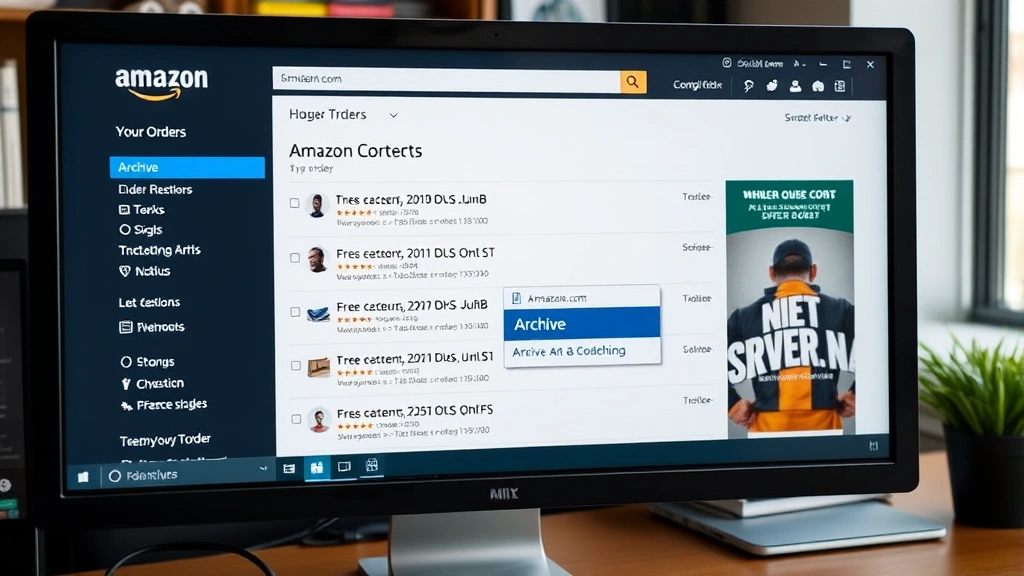
The desktop interface allows you to see more orders at once compared to mobile, making it easier to identify which purchases to archive. You can scroll through months or years of orders quickly and decide which ones deserve archiving. This method is particularly useful if you need to archive a large number of orders or if you prefer working on a larger screen. The web browser version of how to archive an Amazon order provides the same functionality with a slightly more spacious layout.
If you don’t see the three-dot menu immediately, try hovering over the order entry—it may appear on hover. Some browsers may require you to refresh the page if the menu doesn’t load. Desktop archiving is also the best approach if you’re using accessibility tools or screen readers, as the interface tends to be more compatible with assistive technology than the mobile app.
How to View and Unarchive Orders
Archived orders aren’t gone forever—they’re simply hidden from your main view. To access your archived orders, go to “Your Orders” just as you would to archive new items. Look for a filter option or sorting menu, usually located near the top of the page. On the mobile app, tap “Filter” and select “Archived Orders.” On the desktop website, you’ll find a similar filter option in the toolbar. Click it to display only your archived purchases. All your hidden orders will appear, allowing you to review, reorder, or restore them to your main list.
To unarchive an order, simply find it in your archived orders list and tap or click the three-dot menu again. Select “Unarchive Order,” and it will return to your regular “Your Orders” section. This flexibility means you can experiment with archiving without any permanent consequences. Many users unarchive orders seasonally—for example, unarchiving holiday decorations in October or winter supplies in November. The ability to easily toggle between archived and active states makes managing your order history stress-free.
Amazon stores archived orders for approximately 10 years, so even old purchases remain retrievable for warranty verification, insurance claims, or nostalgic browsing. This long retention period ensures you won’t lose important purchase records even if you archive them immediately after buying.
Bulk Archiving Multiple Orders
If your order history spans years and you want to clean it up significantly, archiving one order at a time can feel tedious. Unfortunately, Amazon doesn’t currently offer a true “select all” bulk archiving feature through the standard interface. However, you can efficiently archive multiple orders by working systematically through your order list. Start with the oldest completed purchases—items from several years ago that you’ll rarely need to reference. Archive them in batches of 5-10, which takes only a few minutes.
A strategic approach is to archive orders by category or time period. For example, archive all orders from 2020 in one session, then move to 2021, and so on. This organized method prevents you from accidentally archiving something you need and creates a logical structure to your archived history. You might also archive all orders for items you’ve already used up or discarded—consumables, gifts you’ve given away, or clothing from previous seasons. As noted in Lifehacker’s productivity guides, batch processing similar tasks dramatically improves efficiency and reduces decision fatigue.
Another efficient strategy is to archive orders during your monthly budget review or when reconciling expenses. Combine your archiving session with checking order status, confirming charges, and updating your records. This multitasking approach makes the process feel purposeful rather than tedious. Keep in mind that you can always unarchive orders later, so don’t hesitate to archive liberally—the worst case is you need to unarchive something.
Troubleshooting Archive Issues
Most users experience zero problems when archiving orders, but occasional technical glitches can prevent the feature from working correctly. If you can’t find the three-dot menu next to an order, first verify that the order is actually eligible for archiving. Amazon only allows archiving of completed orders—items still in transit, pending delivery, or with active returns cannot be archived. Check the order status to confirm it shows as delivered or completed. If the status is uncertain, wait a few days for the order to fully process before attempting to archive.
If the three-dot menu appears but “Archive Order” isn’t listed as an option, your app or browser may be outdated. Update the Amazon app from your device’s app store, or clear your browser cache and refresh the page if using a web browser. Clearing cache often resolves display issues where menu options don’t load properly. If problems persist, try logging out of your Amazon account completely, closing the app or browser, and logging back in. This full reset frequently fixes temporary glitches.
For persistent issues, contact Amazon Customer Service through the “Contact Us” option in your account settings. Explain that you cannot archive orders and provide details about which order you’re trying to archive. Amazon’s support team can investigate whether there’s an account-level restriction or technical issue preventing archiving. In rare cases, orders may have holds or flags that prevent archiving until resolved. Customer Service can also manually archive orders if the self-service feature isn’t functioning properly for your account.
Privacy and Security Considerations
While archiving orders improves privacy by hiding purchases from casual viewing, it’s important to understand its limitations. Archiving an order does not delete your purchase data from Amazon’s servers or remove it from your account records for Amazon’s internal use. Amazon still maintains complete records of all archived purchases for their analytics, recommendations, and business purposes. If you’re concerned about Amazon having access to your purchase history, archiving won’t address that—you’d need to explore Consumer Reports’ privacy recommendations for more comprehensive data management strategies.
Archiving is most effective for hiding orders from family members or guests who might browse your device. If someone picks up your phone or uses your computer, they won’t see archived purchases in your regular order list. This is particularly valuable if you buy gifts for household members and want to maintain surprise. However, if someone has access to your account password, they can view archived orders just as easily as you can by filtering for them.
For maximum privacy, combine archiving with other security measures. Use a strong, unique password for your Amazon account. Enable two-factor authentication through your account settings. Regularly review your login activity in the “Login & Security” section to spot unauthorized access. If you share a device with others, use separate user accounts or profiles rather than relying solely on archiving. According to Family Handyman’s guides on digital organization, layered security approaches provide better protection than any single method alone.
If you’re selling a device or giving it to someone else, archiving orders isn’t sufficient—you must completely sign out of your Amazon account or perform a factory reset to remove all account data. Similarly, if you suspect your account has been compromised, change your password immediately and review your order history for unauthorized purchases before archiving anything.
FAQ
Q: Can I recover an archived order after archiving it?
A: Yes, absolutely. You can unarchive any order at any time by filtering for archived orders and selecting the unarchive option. Amazon stores archived orders for up to 10 years, so recovery is always possible.
Q: Does archiving an order affect my warranty or return eligibility?
A: No. Archiving is purely a display preference and doesn’t change your return window, warranty status, or any other order details. You can still file returns and access warranty information for archived orders.
Q: Why would I archive an order instead of deleting it?
A: Amazon doesn’t offer true deletion of orders—archiving is the closest option. Archiving keeps the data safe for future reference (taxes, warranties, recalls) while hiding it from regular view. This preserves your complete purchase history.
Q: Can I archive orders on the Amazon website using a computer?
A: Yes. Log into Amazon.com, go to “Your Orders” from the Account & Lists menu, find the order, click the three-dot menu, and select “Archive Order.” The process is identical to the mobile app.
Q: What happens if I archive an order and later need to return it?
A: You can still file returns for archived orders. Simply unarchive the order or access it through the archived orders filter, then proceed with the return process normally. Archiving doesn’t restrict any account functions.
Q: Does Amazon notify me when I archive an order?
A: No. Archiving is silent—Amazon doesn’t send confirmation emails or notifications. The order simply disappears from your main list and appears in your archived orders section.
Q: Can I archive orders automatically or set up recurring archiving?
A: Amazon doesn’t currently offer automatic archiving. You must manually archive each order or batch of orders. However, you can develop a routine—such as archiving monthly—to keep your order list manageable.
Q: If I archive an order, can Amazon still use it for recommendations?
A: Yes. Archiving only affects what you see—Amazon’s internal systems still use archived purchases for personalized recommendations, targeted advertising, and analytics. Your purchase history remains complete on Amazon’s end.
Learning how to archive an Amazon order is a simple yet powerful way to take control of your account organization and privacy. Whether you’re managing years of accumulated purchases or simply want a cleaner interface, the archiving feature provides flexibility without sacrificing your complete purchase records. Start archiving today, and enjoy a more streamlined Amazon experience that reflects only your current and recent purchases.
If you’re also interested in managing other aspects of your Amazon account, you might want to explore how to cancel Kindle Unlimited or how to cancel Audible membership for comprehensive account management. For broader digital organization, check out our guide on how to mass delete emails on Gmail to apply similar organizational principles across your digital life. Additionally, if you need to manage communications, our article on how to retract an email in Outlook covers similar account management techniques.