How to Archive Amazon Orders: The Simple & Essential Guide

Your Amazon order history can quickly become cluttered with dozens of completed purchases, making it difficult to find what you need when you need it. Learning how to archive Amazon orders is a straightforward way to keep your account organized while maintaining a complete purchase record. Archiving removes orders from your main view without permanently deleting them, so you can always retrieve them later if needed.
Quick Answer: To archive Amazon orders, open the “Returns, Orders & Accounts” section in the Amazon app or website, select “Your Orders,” find the order you want to hide, click the three-dot menu icon, and choose “Archive Order.” You can archive individual orders or multiple orders at once. Archived orders remain in your account history but won’t clutter your active orders list.
- Amazon account (web or mobile app)
- Active internet connection
- Access to your Amazon login credentials
- 5-10 minutes per archiving session
Why Archive Your Amazon Orders?
Archiving Amazon orders serves several practical purposes for maintaining a clean, organized account. When you have hundreds of orders spanning years of purchases, your order history becomes difficult to navigate, especially when you’re searching for a specific recent transaction or return. How to archive Amazon orders effectively helps you separate active concerns from historical records.
Archiving also improves your shopping experience by reducing visual clutter. Your “Your Orders” page will display only the orders that matter most to you right now—recent purchases, items you’re tracking, or products you might want to reorder. This makes it easier to manage returns, track shipments, and keep tabs on items awaiting delivery. Additionally, if you’re concerned about account security or privacy, archiving old orders can help you maintain a cleaner digital footprint within your Amazon account.
Unlike deleting, archiving preserves your complete purchase history for warranty claims, tax records, or future reference. This is especially important if you need to prove purchase dates for insurance or return eligibility purposes.
How to Archive a Single Amazon Order
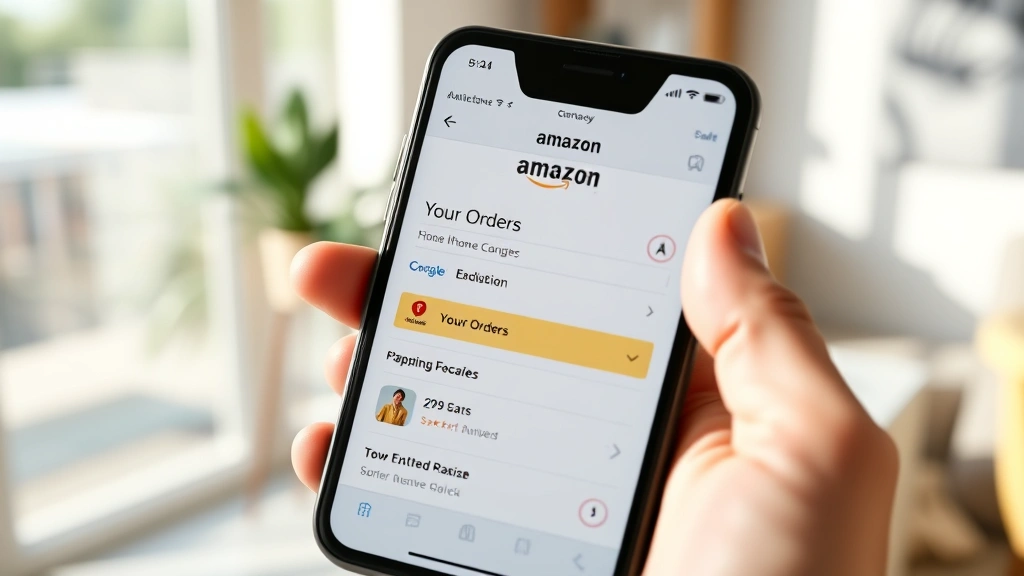
Archiving a single order on Amazon’s website is a quick, intuitive process that takes just a few clicks. Start by logging into your Amazon account and navigating to the “Returns, Orders & Accounts” section, typically found in the upper-right corner of the page. Click on “Your Orders” to access your complete order history, which displays your most recent purchases first.
Locate the specific order you want to archive by scrolling through your list or using the search function to filter by date, order number, or item name. Once you’ve found the order, look for the three-dot menu icon (⋯) on the right side of that order entry. Click this icon to reveal a dropdown menu with several options. Select “Archive Order” from the menu. Amazon will immediately move this order to your archived section, and it will no longer appear in your main order list.
The beauty of this method is its simplicity—there’s no confirmation dialog or warning message. The order disappears from your active view instantly. If you accidentally archive an order you wanted to keep visible, don’t worry; you can unarchive it just as easily by finding it in your archived orders section and selecting “Unarchive Order.”
How to Archive Multiple Orders at Once
If you have numerous orders to archive, Amazon allows you to select and archive multiple orders simultaneously, saving considerable time. On the “Your Orders” page, look for checkboxes that appear to the left of each order entry. Click the checkbox next to each order you want to archive. As you select multiple orders, an action bar typically appears at the top or bottom of your screen.
Once you’ve selected all the orders you want to archive, click the “Archive Orders” button in the action bar. Amazon will process all selected orders at once and move them to your archived section. This bulk-archiving feature is particularly useful when you’re doing a major account cleanup or want to archive orders from a specific time period, such as all orders from last year.
To make bulk archiving easier, consider archiving orders in batches based on date ranges. For example, archive all orders from 2022 first, then move on to 2021, and so forth. This systematic approach helps ensure you don’t accidentally skip orders while also giving you time to review each batch before proceeding.
Archiving Orders on Mobile Devices
The Amazon mobile app makes how to archive Amazon orders equally simple whether you’re using an iPhone or Android device. Open the Amazon app and tap the menu icon (three horizontal lines) in the bottom-right corner. Select “Returns, Orders & Accounts,” then tap “Your Orders” to view your purchase history.
Find the order you want to archive and swipe left on the order entry (on iOS) or long-press the order (on Android). A menu will appear with archiving options. Tap “Archive Order” to move it from your active list. The process is nearly identical to the web version, though the gesture-based interface makes it feel more natural on a mobile device.
Mobile archiving is particularly convenient when you’re on the go or want to quickly organize your orders while browsing. You can archive orders as soon as you receive delivery confirmations or after you’ve completed returns, keeping your account organized in real-time. If you prefer using the mobile web version of Amazon instead of the app, the desktop process applies—use the three-dot menu and select archive from the dropdown.
How to Find and Retrieve Archived Orders
Archived orders don’t disappear forever; Amazon keeps them accessible for your reference. To view your archived orders, go to “Your Orders” and look for a filter or view option. On the desktop website, you’ll typically see a dropdown menu or toggle that lets you switch between “Active Orders” and “Archived Orders.” Click on “Archived Orders” to see all the orders you’ve hidden from your main view.
If you need to unarchive a specific order and bring it back to your active list, simply find it in the archived section, click the three-dot menu, and select “Unarchive Order.” The order will reappear in your main “Your Orders” section, making it visible again alongside your other active purchases. This flexibility means you can organize your orders exactly as you prefer without any permanent consequences.
Archived orders retain all their original information, including order numbers, item details, prices, and tracking information. You can still access return windows, download invoices, and manage replacements from archived orders. This makes archiving a purely organizational tool that doesn’t affect your ability to manage or reference past purchases.
Best Practices for Managing Your Order History
Developing a consistent archiving strategy helps you maintain a clean, organized Amazon account over time. Consider archiving orders once they’ve been delivered, inspected, and you’ve confirmed you’re satisfied with the purchase. This keeps your active orders list focused on items that still require attention, such as pending shipments or items awaiting return decisions.
Another effective approach is to archive orders by time period. Once a quarter or annually, review orders from several months ago and archive those you no longer need to monitor. This prevents your order history from becoming overwhelming while ensuring recent purchases remain visible for quick reference. If you frequently order similar items, you might also archive older versions to keep only the most recent purchase visible—useful for items you reorder regularly, like household supplies or office equipment.
For business accounts or frequent Amazon shoppers, consider using Amazon’s filtering and search features alongside archiving. You can search for specific items, dates, or order numbers without relying solely on archiving. This combination of tools gives you maximum flexibility in managing your account. Additionally, if you use multiple Amazon accounts (personal, business, household), apply consistent archiving practices across all accounts to maintain familiarity and reduce confusion.
According to WikiHow’s comprehensive guides, organizing digital accounts regularly prevents information overload and improves user experience. Similarly, maintaining your Amazon order history is an extension of good digital housekeeping. If you’re interested in broader account management, you might also explore how to mass delete emails on Gmail, which applies similar organizational principles to your email inbox.
Troubleshooting Common Archiving Issues
If you can’t find the archive option for a specific order, it may be because the order is still within Amazon’s active return window or is currently being processed. Amazon restricts archiving for orders that are still in transit or pending delivery. Once the order has been delivered and the return window has opened (typically 30 days), the archive option should become available.
If the three-dot menu doesn’t appear next to an order, try refreshing your browser or closing and reopening the Amazon app. Sometimes the interface needs to reload to display all available options. Ensure you’re logged into the correct Amazon account, as orders may not appear if you’re viewing a different account than the one that made the purchase.
For orders that appear to be stuck or won’t archive despite meeting all requirements, contact Amazon Customer Service through the “Contact Us” option in your account settings. According to Consumer Reports’ guidance on managing online accounts, customer service teams can usually resolve archiving issues within minutes. If you’re also managing other subscriptions, learning how to cancel Kindle Unlimited or how to cancel Audible membership demonstrates similar account management skills that help you maintain control over your Amazon ecosystem.
Browser compatibility can occasionally affect archiving functionality. If you’re using an older browser version, try updating to the latest version or switching to a different browser. Clear your browser cache and cookies, then attempt archiving again. Mobile app users should ensure they’re running the latest version of the Amazon app, as older versions may lack certain features or have bugs that prevent archiving.
FAQ
Can I permanently delete orders from Amazon instead of archiving them?
No, Amazon doesn’t offer a permanent deletion option for orders. Archiving is the closest alternative, as it hides orders from your main view while preserving them in your account history. This design protects your purchase records for warranty claims, tax purposes, and return eligibility verification.
Will archiving an order affect my ability to return it?
No, archiving doesn’t impact your return eligibility. As long as you’re within Amazon’s return window (typically 30 days for most items), you can return an archived order just as easily as an active one. Simply access your archived orders section to initiate a return.
Can other people see my archived orders?
No, your archived orders are private and only visible to you when you log into your account. Family members with household access may see them if you’ve enabled shared account features, but they won’t appear in any public-facing sections of your profile.
Is there a limit to how many orders I can archive?
Amazon doesn’t impose a limit on the number of orders you can archive. You can archive your entire order history if desired, though most users keep recent orders active for easier tracking and reference.
How do I know if an order is archived?
Archived orders won’t appear in your main “Your Orders” list. To confirm an order is archived, switch to the “Archived Orders” view. You’ll see all hidden orders there with their complete information intact.
Can I set up automatic archiving for old orders?
Amazon doesn’t currently offer automatic archiving features. You must manually archive orders or use the bulk-select method to archive multiple orders at once. However, as noted by Lifehacker’s productivity tips, establishing a regular archiving routine (monthly or quarterly) achieves similar organizational benefits to automation.
What happens to archived orders if I close my Amazon account?
If you permanently close your Amazon account, all orders—both active and archived—are deleted according to Amazon’s data retention policies. Before closing your account, download any important order information or invoices you might need for future reference.
Can I search within my archived orders?
Yes, Amazon’s search function works across both active and archived orders. Use the search bar to find specific items, order numbers, or dates, and the results will include archived orders if they match your search criteria. This makes it easy to locate archived orders without manually browsing through them.
Learning how to archive Amazon orders is an essential skill for maintaining a well-organized account. Whether you’re archiving single orders or managing bulk cleanup sessions, the process is straightforward and reversible. By implementing consistent archiving practices, you’ll keep your order history manageable while preserving important purchase records for future reference. Start with your oldest orders and work forward, or tackle them in batches—whatever method works best for your shopping habits and organizational preferences.