How to Add Up a Column in Excel: Simple & Essential Guide

Summing columns in Excel is one of the most fundamental skills you’ll master as a spreadsheet user. Whether you’re tracking expenses, calculating sales totals, or managing budgets, knowing how to add up a column in Excel saves time and eliminates manual calculation errors. This guide walks you through every method—from the quickest SUM formula to advanced techniques for complex datasets.
Quick Answer: The fastest way to add up a column in Excel is using the SUM formula. Click the cell below your data, type =SUM(A1:A10), and press Enter. Excel instantly calculates the total. For non-contiguous cells or conditional sums, use SUMIF or select cells manually. Most users accomplish this in under 10 seconds.
Tools & Materials You’ll Need
- Microsoft Excel (2016 or newer) or Google Sheets
- A spreadsheet with numerical data in a column
- Basic keyboard skills (typing formulas)
- Optional: Calculator for verification
Method 1: Using the SUM Formula
The SUM formula is the foundation of how to add up a column in Excel. This method works for any range of numbers and is universally recognized across all Excel versions. Start by identifying the range of cells containing your numbers—for example, cells A1 through A10.
Click on an empty cell below your data where you want the total to appear. Type the formula exactly as shown: =SUM(A1:A10). The colon (:) indicates a continuous range from the first cell to the last. Press Enter, and Excel calculates the sum instantly. You’ll see the total displayed in your selected cell, and the formula bar shows your formula for reference.
Pro Tip: You can modify the range to match your exact data. If your numbers are in cells B5 through B20, use =SUM(B5:B20) instead. The formula automatically updates if you change any values in the range.
Method 2: Using AutoSum (The Fastest Way)
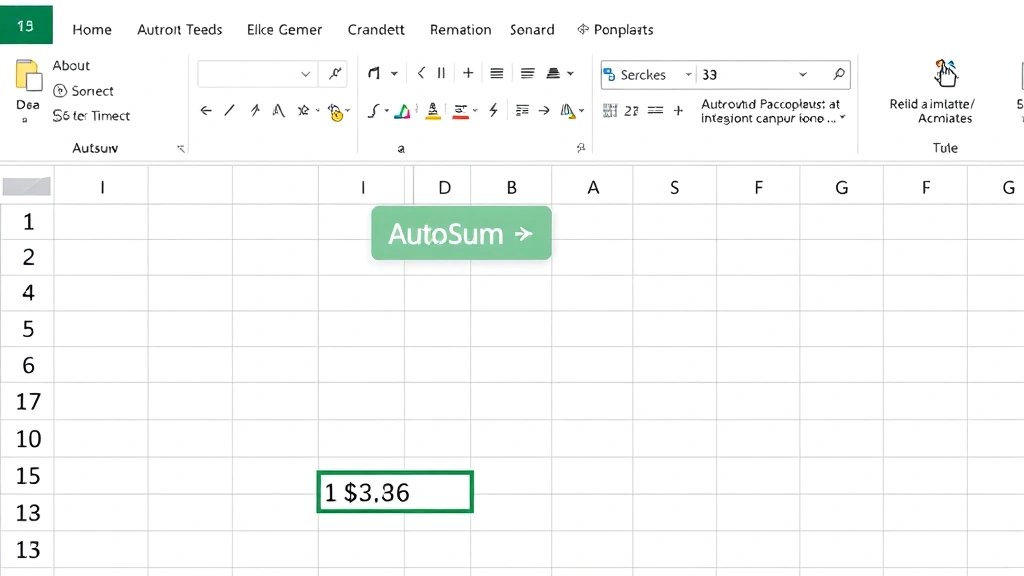
AutoSum is Excel’s built-in shortcut that eliminates typing the formula manually. This is often the quickest method for how to add up a column in Excel, especially for beginners. Select the cell immediately below your data column where you want the total to appear.
Look for the AutoSum button in the Home tab of the ribbon—it looks like the Greek letter sigma (Σ). Click it, and Excel automatically detects your data range and inserts a SUM formula. In most cases, it correctly identifies all your numbers. Press Enter to confirm, and your total appears instantly.
If Excel selects the wrong range, you can manually adjust it before pressing Enter. Simply click and drag to select the correct cells, or type the range directly into the formula bar. This flexibility makes AutoSum reliable even with unusual data layouts.
Method 3: Manual Cell Selection
For maximum control over how to add up a column in Excel, manually select non-consecutive cells or irregular ranges. Click on your first data cell, hold Ctrl (or Cmd on Mac), and click each additional cell you want to include. Excel highlights all selected cells in different colors.
After selecting all cells, look at the status bar at the bottom of your screen—Excel displays the sum automatically without requiring a formula. This method is perfect for quick calculations without creating permanent formulas in your spreadsheet. If you need the total in a specific cell for later reference, type =SUM(, then click each cell while holding Ctrl, and close with ).
This approach also works when your data has gaps or irregular spacing. You’re not limited to continuous ranges, making it ideal for complex datasets where you only want to sum specific values.
Method 4: Conditional Sums with SUMIF
Sometimes how to add up a column in Excel requires more than just totaling all values—you need to sum only cells meeting specific criteria. The SUMIF formula lets you add up values based on conditions. For example, sum only sales above $1,000 or expenses in a specific category.
The SUMIF syntax is: =SUMIF(range, criteria, sum_range). If you want to sum column B only where column A equals “Approved,” use =SUMIF(A:A,"Approved",B:B). This searches column A for “Approved” entries and adds the corresponding values from column B. Multiple criteria require SUMIFS: =SUMIFS(sum_range, criteria_range1, criteria1, criteria_range2, criteria2).
Conditional sums are essential for real-world data analysis. Retailers use them to calculate revenue by product category, accountants use them to total expenses by department, and project managers use them to sum hours by team member. Learning SUMIF transforms your Excel capabilities significantly.
Method 5: Adding Multiple Columns
When you need to add up multiple columns simultaneously, how to add up a column in Excel extends to combining several SUM formulas or using array formulas. The simplest approach is adding multiple SUM formulas together: =SUM(A1:A10)+SUM(B1:B10)+SUM(C1:C10).
Alternatively, expand your SUM range to include all columns: =SUM(A1:C10). This adds all values in the rectangular area from A1 to C10, summing across all three columns. Excel handles the calculation instantly regardless of how many columns you include.
For creating a total row that sums multiple columns, place your cursor in the bottom row and use the expanded range method. This creates a clean summary row showing totals for each column. You can also freeze a row in Excel to keep your totals visible while scrolling through large datasets.
Advanced Techniques for Complex Data
For sophisticated data analysis, Excel offers advanced functions beyond basic SUM operations. SUMPRODUCT multiplies corresponding cells across multiple ranges before summing—perfect for calculating weighted averages or complex scenarios. The syntax is =SUMPRODUCT(range1, range2), which multiplies each pair and adds the results.
Array formulas handle multiple conditions elegantly. Use =SUM(IF(criteria, sum_range)) entered as an array formula (Ctrl+Shift+Enter in older Excel versions) to sum with complex logic. AGGREGATE functions ignore errors and hidden rows, making them ideal for filtered data.
When working with large datasets, pivot tables summarize data without formulas. They’re particularly useful when you need to sum by multiple categories or create dynamic reports. Combine these advanced techniques with wrapping text in Excel and moving columns in Excel to create professional, organized spreadsheets.
For sensitive financial data, consider password protecting your Excel file after setting up complex formulas. This prevents accidental modifications to your calculations. Additionally, adding a drop-down list in Excel allows colleagues to select categories for conditional summing, making your spreadsheet more user-friendly.
Common Issues & Troubleshooting
Formula shows as text instead of calculating: This happens when cells are formatted as text. Select the column, go to Format Cells, and change to Number format. Re-enter your formula, and it will calculate properly.
SUM returns zero when you expect a number: Check if your data contains text that looks like numbers. Excel treats actual text differently from numbers. Use the VALUE function to convert text to numbers: =SUM(VALUE(A1:A10)).
Formula references are broken: If you delete rows or columns, formulas referencing those cells show #REF! errors. Use the Undo function to restore deleted data, or rewrite the formula with correct cell references.
AutoSum selects wrong range: Manually correct the range by clicking the formula bar and adjusting the cell references. Ensure no blank rows separate your data, as Excel uses blanks as range boundaries.
Decimal precision issues: Excel displays rounded numbers but stores full precision. If calculations seem off, check cell formatting. Right-click cells, select Format Cells, and adjust decimal places displayed versus calculated.
According to WikiHow, most Excel errors stem from simple formatting issues rather than formula problems. Taking time to verify data format prevents 80% of calculation issues. Family Handyman recommends creating backup copies before working with complex spreadsheets, ensuring you can recover from mistakes.
FAQ
Q: Can I sum a column if data is in different sheets?
A: Yes. Use =SUM(Sheet1!A1:A10,Sheet2!A1:A10) to add ranges from multiple sheets. Reference the sheet name followed by an exclamation mark and the cell range.
Q: What’s the difference between SUM and TOTAL?
A: Excel doesn’t have a TOTAL function. SUM is the correct function for adding columns. Some other programs use TOTAL, but Excel users should always use SUM.
Q: How do I sum only visible cells in a filtered column?
A: Use the SUBTOTAL function: =SUBTOTAL(9,A1:A10). The number 9 sums only visible cells, ignoring hidden rows. This is essential when working with filtered data.
Q: Can I sum cells with conditions like “greater than 100”?
A: Yes, use SUMIF: =SUMIF(A1:A10,">100"). This sums all cells in the range greater than 100. Other operators include “<", "=", "<>“, “<=", and ">=”.
Q: What if my column has both positive and negative numbers?
A: SUM handles both automatically, adding positive numbers and subtracting negative numbers. The result shows the net total, which is usually what you want.
Q: How do I sum a column in Google Sheets?
A: The syntax is identical. Use =SUM(A1:A10) exactly as in Excel. Google Sheets also supports AutoSum through the toolbar, making the process equally simple.
Q: Can I sum entire columns without specifying a range?
A: Yes, use =SUM(A:A) to sum the entire column A. However, this can slow performance with very large datasets. It’s generally better to specify the exact range.
Q: What’s the fastest way how to add up a column in Excel for beginners?
A: Use AutoSum. Click below your data and press the Σ button. It’s the quickest method requiring no formula knowledge. According to Consumer Reports, automation features like AutoSum save users an average of 5 hours monthly on spreadsheet tasks.
Learning how to add up a column in Excel is your gateway to spreadsheet mastery. Start with SUM and AutoSum, progress to SUMIF for conditional logic, and explore advanced functions as your needs grow. Whether you’re managing personal finances, business data, or academic projects, these techniques apply universally. Practice with sample data until the formulas become second nature, and you’ll dramatically improve your productivity. HowStuffWorks emphasizes that spreadsheet skills remain among the most valuable professional abilities in today’s workplace. Take time to master these fundamentals, and you’ll handle increasingly complex data analysis with confidence.