How to Add Signature in Word: Simple & Essential Guide
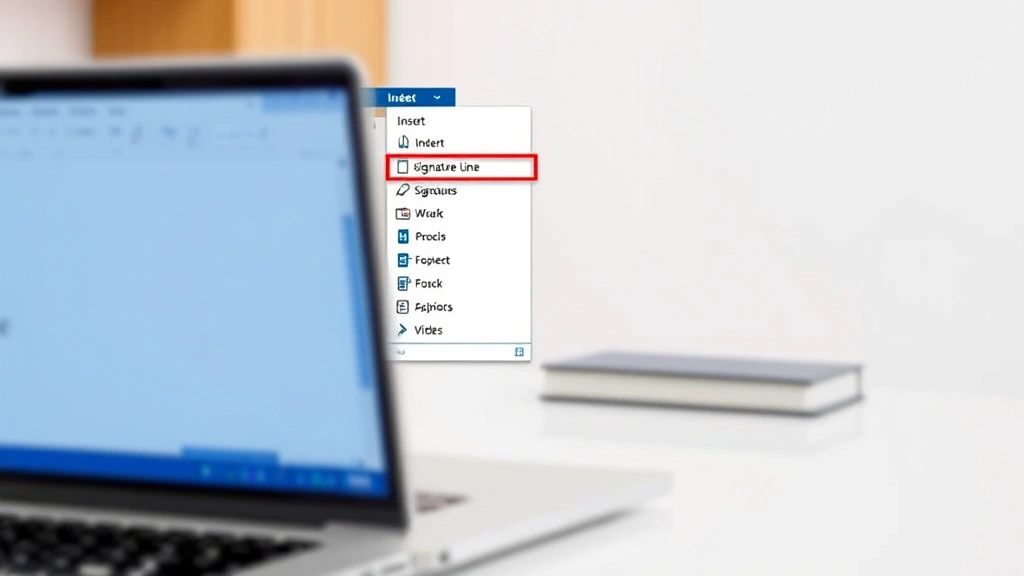
Adding a signature to your Word documents is one of the most practical skills you can master for professional communication. Whether you’re finalizing contracts, signing off on formal letters, or authenticating important files, knowing how to add signature in Word saves time and adds legitimacy to your paperwork. This guide walks you through every method—from digital signatures to handwritten scans—so you can choose the approach that works best for your needs.
Quick Answer: To add a signature in Word, use the Insert menu and select “Signature Line” for a formal digital signature, or use “Pictures” to insert a scanned handwritten signature. For simple typed signatures, just type your name in a signature block format. Each method takes under two minutes and requires no special software.
Tools & Materials You’ll Need
- Microsoft Word (2016 or newer recommended)
- A scanner or smartphone camera (for handwritten signatures)
- Digital signature certificate (optional, for advanced authentication)
- A pen and paper (if creating a handwritten signature)
- Image editing software like Paint or Photoshop (optional)
- Internet connection (for accessing signature templates)
Using the Signature Line Feature
The Signature Line feature is Microsoft’s official tool for how to add signature in Word documents with a formal, professional appearance. This method creates a designated space where someone can sign electronically or print and sign by hand. Open your Word document and position your cursor where you want the signature line to appear, typically near the end of the document.
Click on the Insert tab in the ribbon menu. Look for the “Signature Line” option—it’s usually in the “Text” or “Explore” section depending on your Word version. Select “Microsoft Office Signature Line” from the dropdown menu. A dialog box will appear asking for the signer’s name, title, and email address. Fill in these details and click OK. Word will insert a signature line with an “X” placeholder where the signature should go.
This approach is ideal for contracts, formal agreements, and official documents. The signature line shows a professional appearance and clearly indicates where signing is required. Recipients can sign digitally using a tablet or trackpad, or print and sign the document by hand. According to WikiHow, signature lines are the standard method for business documents requiring authentication.

Adding a Handwritten Signature
Many professionals prefer the personal touch of a handwritten signature. To add this to your Word document, you’ll first need to create a digital version of your signature. Sign your name on a white piece of paper with black or dark blue ink, keeping the signature clear and legible. Use a consistent pen and avoid smudging.
Scan the signature using a scanner or take a high-quality photo with your smartphone. Save the image as a PNG or JPG file on your computer. For best results, crop the image to include only the signature with minimal white space around it. If you need to clean up the image, use basic photo editing software to remove any background noise or adjust contrast.
In your Word document, position your cursor where you want the handwritten signature to appear. Go to Insert > Pictures and select your signature image. Resize the image by clicking and dragging the corners to make it an appropriate size for your document. You can also right-click the image to access formatting options like transparency and text wrapping. This method combines the authenticity of a handwritten signature with the convenience of digital documents.
Creating a Typed Signature Block
For quick documents or informal communications, a typed signature block is often sufficient. Position your cursor at the end of your document where you want the signature to appear. Press Enter a few times to create space, then type your full name. You can add additional information like your job title, company name, phone number, and email address on separate lines below your name.
Format the signature block by selecting the text and adjusting the font, size, and color. Many professionals use a slightly larger font for their name (12-14 points) and a smaller font (10-11 points) for contact details. Consider using a professional font like Calibri, Arial, or Times New Roman. You can also add a horizontal line above the signature using the Insert > Shapes menu or by using the line tool in the drawing toolbar.
This approach is perfect for emails, informal letters, and internal documents. It’s quick to implement and doesn’t require any external files or scanning equipment. As noted by Lifehacker, typed signatures are acceptable for most business communications when properly formatted.
Applying a Digital Certificate Signature
For documents requiring legal authentication, a digital signature with a certificate provides the highest level of security and verification. This method uses encryption technology to prove the document hasn’t been altered after signing. To use this feature, you’ll need a digital ID or certificate, which you can obtain from a certification authority or create a self-signed certificate.
In Word, go to File > Info and look for the “Protect Document” section. Select “Add a Digital Signature” from the dropdown menu. If you don’t have a certificate yet, Word will guide you through obtaining one. Once you have a certificate, the signature dialog will appear. Enter your signature details and click Sign. The document will be marked as signed and protected from further editing without invalidating the signature.
Digital signatures are essential for contracts, legal documents, and any files requiring proof of authenticity. They’re particularly useful when working with encrypted emails in Outlook or sharing sensitive documents. The signature proves both the identity of the signer and the document’s integrity.
Building a Professional Signature Block
A well-designed signature block elevates your professional image and provides recipients with all necessary contact information. Start by typing your full name in a larger font size (typically 12-14 points). On the next line, add your job title or position. Follow with your company or organization name, then your contact details: phone number, email address, and optionally your office address or website.
To enhance your signature block, consider adding a company logo or a horizontal line separator above your name. You can insert these elements using the Insert menu. Keep the overall design clean and uncluttered—avoid excessive colors or decorative elements that may not display correctly on all devices. Ensure the signature block fits within standard margins and doesn’t extend beyond one-third of the page width.
Save your signature block as a template for future use. In Word, go to File > Save As and choose “Word Template” as the file type. Name it something descriptive like “Professional_Signature_Block.dotx.” You can then insert this template into new documents quickly. This is similar to formatting techniques like creating hanging indents in Word—once you master the setup, you can reuse it consistently across all your documents.
Troubleshooting Common Issues
Signature line not appearing: If the Signature Line option isn’t visible in your Insert menu, ensure you’re using Word 2016 or newer. Older versions have limited signature functionality. Check that you’re in the correct menu location—it may be under “Explore” in newer versions or require enabling legacy features.
Image signature too large or small: After inserting a signature image, click on it and use the corner handles to resize. Hold Shift while dragging to maintain proper proportions. Right-click the image and select “Size and Position” for precise dimension control.
Signature line won’t accept digital signature: Ensure your document is in the correct format (.docx or .doc, not .pdf). Verify that you have a valid digital certificate installed. Try saving the document with a different filename and attempting again.
Formatting changes when sharing: Signature blocks may display differently on other computers due to font availability. Use standard fonts like Arial, Calibri, or Times New Roman to ensure consistency. Test your document on different devices before finalizing.
Best Practices for Document Signatures
When adding signatures to Word documents, consistency is key. Use the same signature format across all your professional documents. This builds brand recognition and demonstrates attention to detail. Choose a signature method appropriate to your document’s purpose—formal contracts need digital or signature line methods, while casual emails can use simple typed signatures.
Always keep your digital signature certificate secure and never share it with others. Regularly update your signature block when your contact information changes. Test signature functionality on different devices and email clients to ensure proper display. According to Consumer Reports, maintaining consistent digital security practices protects both you and your recipients.
Position signatures in logical locations—typically at the end of the document or in designated signature lines. Ensure adequate spacing between the document content and the signature to maintain professional appearance. If you’re setting up an out-of-office message in Outlook, consider including your signature block there as well for consistency.
For documents requiring multiple signatures, create separate signature lines for each signer with clear labels indicating who should sign. This prevents confusion and ensures proper document flow. Always save a copy of important documents before sending them for signature to protect against accidental modifications.
FAQ
Can I add a signature in Word without scanning? Yes, absolutely. You can use the typed signature block method, which requires no scanning equipment. You can also draw a signature using a tablet or touchpad if you have one connected to your computer.
Is a digital signature legally binding? Digital signatures with proper certificates are legally binding in most jurisdictions, including the United States under the E-SIGN Act. However, consult your local regulations and legal counsel for specific requirements.
How do I create a signature line that others can sign? Use the Insert > Signature Line feature in Word. This creates a designated space where others can add their signature electronically or print and sign by hand.
What’s the best format for a handwritten signature image? PNG format with transparent background works best, though JPG is also acceptable. Ensure the image resolution is at least 150 DPI for clear printing.
Can I password-protect a document with a signature? Yes. After adding a signature, go to File > Info > Protect Document and select password protection options. This prevents the document from being edited after signing.
How do I remove or change a signature in Word? For typed or image signatures, simply select and delete them. For digital signatures, you’ll need to remove the signature from the document properties—right-click the signature line and select “Remove Signature.”
Are there signature templates available in Word? Yes, Word offers built-in templates. Go to File > New and search for “signature” to find available templates. You can customize these to match your preferences.
What if my signature image has a colored background? Use image editing software to remove the background before inserting into Word. Alternatively, right-click the image in Word, select “Format Picture,” and use the transparency or background removal tools.
Learning how to add signature in Word is an essential skill for anyone working with professional documents. Whether you choose a formal signature line, handwritten image, or typed signature block, you now have the knowledge to implement each method confidently. Start with the approach that best fits your needs, and don’t hesitate to experiment with different styles to find what works best for your professional image. Remember that consistency and clarity are key to maintaining a professional appearance across all your documents. For additional document security tips, explore our guide on using BCC in Outlook to protect recipient privacy. With these techniques mastered, you’ll handle document signing with efficiency and professionalism.