
Want to know how to add music to Google Slides? You’re not alone. Whether you’re building a presentation for work, school, or just want to make your slideshow more engaging, adding audio can transform a static deck into something people actually want to watch. The good news: it’s way easier than you think, and you don’t need any fancy software or technical skills.
The challenge most people face is figuring out where the audio option even lives in Google Slides, and then troubleshooting why their music won’t play. We’ll walk through all of that here—the straightforward method, the workarounds, and the gotchas to avoid.
Method 1: Insert Audio Directly from Your Computer
This is the most straightforward way to add music to Google Slides. You upload an audio file directly to your presentation, and it becomes part of the slide. Here’s exactly how to do it.
- Open your Google Slides presentation. Navigate to the slide where you want the music to play.
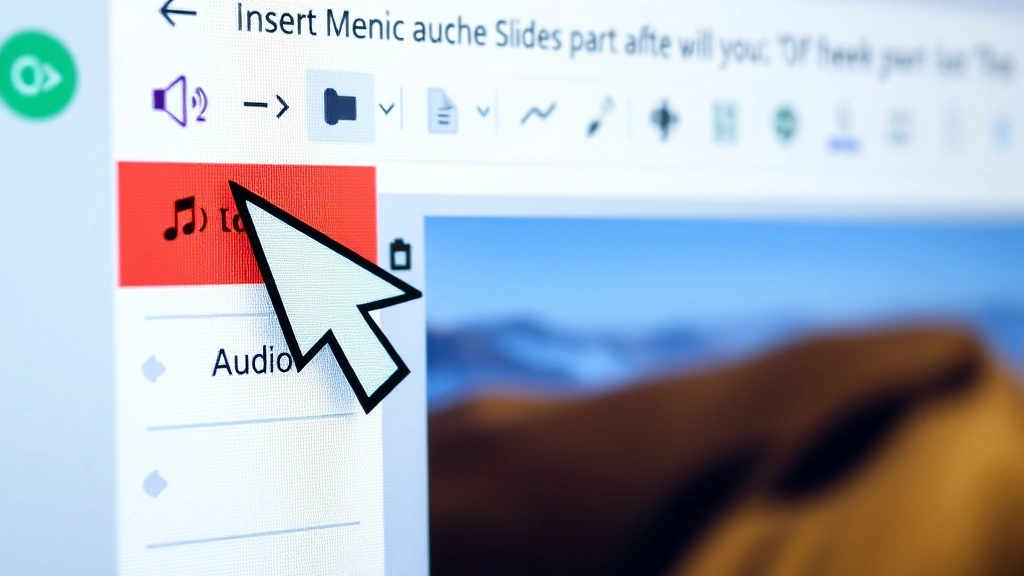
- Click on the “Insert” menu at the top of the screen.
- Select “Audio” from the dropdown menu. (If you don’t see this option, you might be using an older version of Google Slides or a different browser—try refreshing or switching to Chrome.)
- Choose “Upload from computer.” A file browser will open.
- Select your audio file from your computer. Google Slides accepts MP3, WAV, OGG, and M4A files.
- Click “Select.” The audio file will upload and appear on your slide as a small speaker icon.
- Resize and position the speaker icon wherever you want it on the slide. You can drag it around or resize it by grabbing the corners.
- Test it. Click the speaker icon to preview the audio before you present.
That’s it. When you present in slideshow mode, clicking the speaker icon will play the audio. The audio will play from that point forward until it finishes or you manually stop it.
Pro tip: If you want background music that plays automatically when the slide appears, you’ll need to use Method 2 or 3 instead. The direct upload method requires manual clicking to start playback.
Safety Note: Make sure you have the rights to use any music you’re adding. Copyright infringement is real, especially in professional or educational settings. Stick to royalty-free music libraries or music you own.
Method 2: Embed Audio from YouTube
If your music is available on YouTube (or you’ve uploaded it there), you can embed it directly into your Google Slides. This method is great because YouTube handles the hosting, and you don’t have to worry about file sizes.
- Find the audio or music video on YouTube that you want to use.
- Copy the URL from the address bar.
- In Google Slides, click “Insert” → “Video.”
- Paste the YouTube link into the search box or URL field.
- Click “Select” to embed it on your slide.
- Resize and position the video player as needed. You can make it small if you only want the audio, or larger if you want to show the video too.
When you’re in slideshow mode, the video player will appear on your slide, and you can click play to start the audio. This method works well for presentations where you want to include both audio and visual content.
Real talk: YouTube videos sometimes have ads or regional restrictions. Test this method before your actual presentation to make sure the video loads and plays correctly in your environment.
Method 3: Link Audio Files from Google Drive
This is the workaround method that a lot of power users prefer. Instead of uploading directly to Slides, you upload your audio to Google Drive first, then create a shareable link. It gives you more control and makes it easier to update files later.
- Upload your audio file to Google Drive. Right-click in Google Drive, select “File upload,” and choose your audio file.
- Right-click the uploaded file and select “Get link.”
- Make sure the link is set to “Anyone with the link can view.” (This ensures the audio will play during your presentation.)
- Copy the link.
- In Google Slides, click “Insert” → “Audio” → “By URL.”
- Paste the Google Drive link into the field.
- Click “Select.” A speaker icon will appear on your slide.
This method is particularly useful if you’re collaborating with others or need to update the audio file later. Just replace the file in Google Drive, and the link in your presentation automatically pulls the new version.
Supported Audio File Formats
Not all audio formats work with Google Slides. Here’s what’s supported:
- MP3 – The most common format. Works everywhere.
- WAV – Uncompressed audio. Larger file sizes, but high quality.
- OGG – Open-source format. Less common, but supported.
- M4A – Apple’s audio format. Works fine in Google Slides.
If your audio file is in a different format (like FLAC, AAC, or WMA), you’ll need to convert it first. Free tools like Audacity or Online Convert can handle this in seconds.
File size matters too. Google Slides doesn’t have a strict limit, but extremely large files (over 100 MB) might cause upload problems. If you’re dealing with a huge audio file, compress it first using Audacity or another audio editor.
Troubleshooting Common Issues
The Audio Won’t Upload
This usually happens for one of three reasons:
- File format issue: Make sure your file is MP3, WAV, OGG, or M4A. If it’s something else, convert it first.
- File size is too large: Try compressing the audio. Audacity is free and works great for this.
- Browser or connection issue: Refresh the page, clear your browser cache, or try a different browser. Chrome works best with Google Slides.
The Audio Plays During Editing but Not During Presentation
This is usually a sharing or permission issue. If you used the Google Drive method, double-check that the link is set to “Anyone with the link can view.” If you’re presenting on a different device or account, make sure that device has access to the file.
Audio Plays Too Quietly or Too Loudly
Google Slides doesn’t have built-in volume controls for audio. You’ll need to adjust the volume in your original audio file using an editor like Audacity before uploading. Alternatively, you can adjust your computer’s system volume during the presentation.
The Speaker Icon Is Ugly or In the Way
You have a few options. You can resize it to be very small (almost invisible), position it off to the side, or cover it with a shape or image. Some presenters hide the speaker icon behind a button-shaped graphic to make it look intentional.
Pro Tip: If you want background music that plays automatically without clicking, use a video file instead of audio-only. Upload a silent video with an audio track, and set it to autoplay. It’s a hack, but it works.
Best Practices for Presentation Audio
Keep It Relevant
Music should enhance your message, not distract from it. If you’re presenting quarterly earnings, upbeat background music might work. If you’re presenting at a funeral or memorial service, it probably shouldn’t. Think about your audience and context.
Test Everything Beforehand
The day of your presentation is not the time to discover that your audio doesn’t work. Test your slides on the actual device and in the actual room where you’ll be presenting. Check speakers, volume levels, and playback. According to Family Handyman’s best practices for preparation, thorough testing prevents 90% of presentation disasters.
Use Royalty-Free Music
Websites like YouTube Audio Library, Epidemic Sound, Artlist, and Free Music Archive offer thousands of tracks you can use legally. Most are free or cheap, and they’re all cleared for presentations.
Consider Your Audience’s Hearing
Not everyone hears the same way. Some audience members might be deaf or hard of hearing. If your audio contains important information (not just background music), consider adding captions or a transcript. This is both inclusive and professional.
Don’t Let Audio Overshadow Your Words
If you’re speaking while music plays, make sure the music is quiet enough that people can hear you. A good rule of thumb: you should be able to have a normal conversation over the background music. If you can’t, it’s too loud.
Know Your Backup Plan
Internet connections fail. Speakers break. Audio files corrupt. Have a plan B. Maybe that’s a USB drive with a backup, or a printed handout, or a simplified version of your presentation that doesn’t rely on audio. This Old House’s approach to contingency planning applies to presentations too: always have a backup.
Frequently Asked Questions
Can I add music that plays automatically when a slide appears?
– Not directly with the audio insert feature. However, you can use a YouTube video (even a silent one with an audio track) and set it to autoplay. Or use Method 3 with a Google Drive link and configure it to autoplay through the video player. It’s a workaround, but it works.
What if I want different music on different slides?
– Add a separate audio file to each slide using any of the three methods above. Each slide can have its own audio. Just make sure to test that they don’t overlap or conflict during playback.
Can I edit or trim the audio within Google Slides?
– No. Google Slides doesn’t have audio editing tools. You’ll need to trim or edit your audio in a separate program (like Audacity) before uploading. This is actually a good thing—it keeps your presentation file smaller and faster.
Will the audio work if I download my presentation as a PowerPoint file?
– Sometimes. It depends on the method you used and how you downloaded it. Audio embedded directly usually transfers okay, but YouTube videos and Google Drive links might not. If you need to share as PowerPoint, embed the audio directly using Method 1.
How do I make the speaker icon invisible?
– You can’t make it completely invisible, but you can make it very small (resize it to almost nothing) or cover it with a transparent shape. Some presenters position it off the slide entirely, then click in that area during presentation mode to trigger playback.
Can I add music to Google Slides on a mobile device?
– The mobile app has limited audio support. For best results, use a computer or tablet with the full Google Slides interface. Mobile editing works, but audio insertion can be buggy.
Is there a limit to how many audio files I can add?
– Technically no, but practically yes. Each audio file increases your presentation’s file size and can slow down loading. Keep it reasonable—five to ten audio files per presentation is fine. Beyond that, consider whether you really need all of them.
What’s the best way to add music to Google Slides for a wedding or event?
– Use royalty-free music from YouTube Audio Library or a similar service. Test it thoroughly on the actual speakers and room setup. Keep the volume moderate so it doesn’t overwhelm conversation. And have a backup speaker or phone in case the main system fails. For more on how to add music to Google Slides, check out our detailed guide on adding music to Google Slides.
Can I sync music to slide transitions?
– Not automatically. Google Slides doesn’t have built-in sync tools. You’d need to manually time your slide clicks to match the music, or use a third-party tool. For most presentations, it’s not worth the complexity.
How do I know if my audience can actually hear the audio?
– Ask. Seriously. Before you start, ask if everyone can hear the volume okay. If you’re in a large room, test from the back. If you’re online, ask participants to confirm they can hear it. It takes 10 seconds and prevents awkward silences.
What if I want to add sound effects instead of music?
– Same process. Sound effects are just short audio files. Use any of the three methods above. Freesound.org and Zapsplat have thousands of free sound effects you can download.
Can I add narration or voiceover to Google Slides?
– Yes. Record your voiceover as an MP3 or WAV file, then use Method 1 to add it to your slides. Or use Google Slides’ built-in “Speaker Notes” feature and read from those during your presentation (though that’s not the same as embedding audio).
Will adding audio make my presentation file huge?
– It depends on the audio quality and length. A 3-minute MP3 at standard quality (128 kbps) is usually 2-3 MB. A 30-second sound effect might be 100 KB. Google Slides files with audio are typically larger than text-only presentations, but not prohibitively so. If file size is a concern, compress your audio before uploading.
What’s the difference between adding audio and adding a video?
– Audio is just sound; you see a speaker icon. Video is sound plus visuals; you see a video player. For presentations, audio is cleaner and less distracting if you only need sound. Video is better if you want to show something visual (like a demo or interview).
Can I add music from Spotify directly to Google Slides?
– Not directly. Spotify doesn’t allow embedding in Google Slides. You’d need to download the song (if you have the rights), convert it to MP3, and upload it. Or find the song on YouTube and embed that instead. If you’re interested in music distribution, check out our guide on how to post music on Spotify.
What if my audio file is corrupted or won’t play?
– Try converting it to a different format using Audacity or an online converter. If that doesn’t work, the file itself might be damaged. Re-download or re-record it and try again. If it still doesn’t work, contact Google Support—though honestly, re-recording is usually faster.

Bottom line: Adding music to Google Slides is straightforward once you know where to look. Use Method 1 for direct uploads, Method 2 for YouTube content, or Method 3 for more control. Test everything before your presentation, use royalty-free music, and keep your audio relevant to your message. You’ve got this.
For more advanced presentation tricks, you might also find value in exploring how to enhance visual elements in your presentations, or check out how to add professional touches like signatures to your documents. And if you’re interested in video effects, our guide on how to get effects on Google Duo covers similar territory.


