
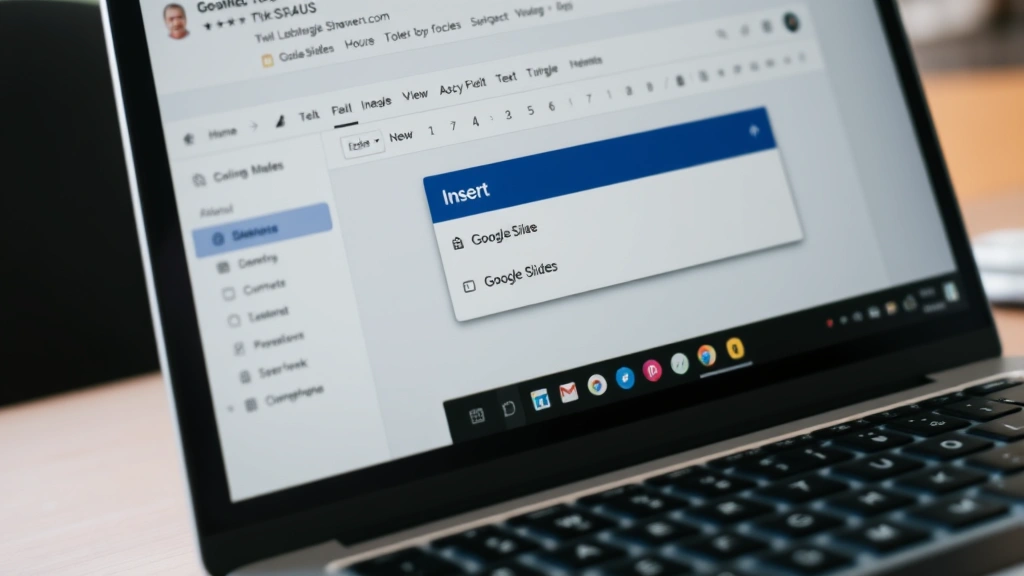
Let’s be real—a presentation without audio is like a sandwich without filling. It’s technically complete, but something’s missing. Whether you’re pitching to clients, teaching a class, or presenting at a conference, knowing how to add music to Google Slides can transform your deck from forgettable to memorable. The good news? It’s way easier than you think, and you don’t need to be tech-savvy to pull it off.
The challenge most people face isn’t that it’s complicated—it’s that they don’t know the method exists or they’re unsure which approach works best for their situation. Maybe you’ve tried embedding audio and it didn’t work. Maybe you’re worried about file compatibility. Or maybe you just want the simplest path from zero to hero. This guide walks you through every legitimate way to add music to Google Slides, troubleshoots common problems, and shows you the pro moves that’ll make your presentations stand out.
Method 1: Embed Music from YouTube (The Easiest Route)
This is the path of least resistance for most people, and honestly, it works like a charm. When you embed a YouTube video into Google Slides, the audio plays right along with it. You don’t need the video to be visible—you can hide it or make it tiny. The beauty here is that YouTube’s infrastructure handles all the heavy lifting.
Here’s exactly how to do it:
- Open your Google Slides presentation and click on the slide where you want the music
- Go to Insert in the menu bar
- Select Video
- Search for the song or audio track you want (YouTube will search its library)
- Click the video/audio result and select Insert
- The embedded player will appear on your slide
- Resize it to be small or move it off the visible area if you only want audio
- When you present, click play on the embedded player during your slideshow
The real talk? This method works best for background music that plays while you’re talking or transitioning between slides. You have full control over when it starts and stops, and it won’t auto-play (which is actually a feature—auto-playing audio can startle your audience).
One thing to watch: make sure the YouTube video is publicly available or unlisted. If it’s private, the embed won’t work during your presentation. Also, internet connection matters here. If you’re presenting offline or in a location with spotty WiFi, this method might fail you. That’s why we have backup methods.
Method 2: Insert Audio via Google Drive (The Reliable Method)
This approach gives you more control and works offline (sort of—you still need Google Drive access, but the file is stored locally). The catch? You need to upload your audio file to Google Drive first, and Google Slides doesn’t directly support audio files the way it supports images or videos. But there’s a workaround that professionals use.
The process:
- Upload your audio file to Google Drive (MP3, WAV, M4A, etc.)
- Right-click the file and select Open with → Google Drive (or let it open in the default viewer)
- Once it opens, you’ll see a play button and file details
- Copy the file’s sharing link (click Share and set permissions)
- Back in your Google Slides, go to Insert → Video
- Paste the Google Drive file link into the search box
- Select the audio file from results and insert it
This method is more reliable than YouTube because you control the file completely. No copyright strikes, no unexpected video removal, no ads. It’s also better for professional presentations where you want a clean, branded experience.
The downside? It’s a few more steps, and the audio file needs to be in a format Google Drive recognizes. Also, your audience will see a generic audio player icon on your slide, which might not look as polished as a custom design.
Method 3: Link to External Audio Files (The Advanced Route)
If you want maximum flexibility, you can embed HTML audio code directly into your slides using Google Apps Script. This is for people who are comfortable with a little code—nothing crazy, just copy-paste territory.
Here’s the simplified version:
- Go to Tools → Script Editor in your Google Slides
- Paste this code into the editor:
<audio controls><source src="YOUR_AUDIO_URL" type="audio/mpeg"></audio> - Replace
YOUR_AUDIO_URLwith the direct link to your audio file - Save and run the script
- The audio player will be inserted into your slide
This method works with audio hosted anywhere—your own server, Dropbox, OneDrive, or any CDN. It’s the most powerful approach but requires a bit more technical know-how. For most people, Methods 1 or 2 are sufficient.
Best Practices for Presentation Audio

Adding music is one thing. Adding it well is another. Here are the moves that separate amateur presentations from professional ones:
Volume Control: Always test your audio levels before presenting. What sounds good on your laptop speakers might be ear-splitting through a projector’s audio system. Aim for audio that’s audible but doesn’t overpower your voice. Think of it like seasoning food—you want to enhance, not dominate.
Timing: Don’t let music start auto-playing when your slide loads. This catches people off guard and makes you look unprepared. Instead, use manual controls. Click play when you’re ready, and stop it when you’re done. It shows intentionality.
Copyright & Licensing: This is critical. Using copyrighted music without permission is a legal risk, even in a presentation. Stick to royalty-free music, Creative Commons licensed tracks, or music you own. Resources like Freepik and Pexels have solid free music libraries. If you’re using YouTube music, the platform handles licensing for you, so that’s one less thing to worry about.
File Format: Google Slides prefers MP3 and WAV files. If you’re converting audio, use a tool like Audacity (free and open-source) to ensure compatibility.
Backup Plan: Always have a backup. If your internet fails during a presentation, embedded YouTube videos won’t work. Keep a local copy of your audio file or know how to quickly switch to a different method. Professional presenters never rely on a single point of failure.
Troubleshooting Common Issues
Audio Won’t Play During Presentation: First, check your internet connection. If you’re using YouTube embeds, a weak connection will cause playback issues. Second, test the audio in edit mode before you present. Click the play button and make sure you hear sound. If you don’t, the file might be corrupted or the link might be broken.
Sound Works in Edit Mode But Not in Presentation Mode: This usually means a permissions issue. Make sure anyone viewing your presentation has access to the audio file (if it’s stored in Google Drive). Go to Share on your presentation and check that viewers have the right permissions.
Audio File Is Too Large: Google Slides has file size limits. If your presentation is getting bloated, compress your audio using Audacity or an online tool. Aim for 128 kbps bitrate for decent quality without excessive file size.
Embedded Player Looks Ugly: You can’t customize the built-in player much, but you can resize it, move it off-screen, or cover it with a shape. Right-click the player, select Format options, and adjust the appearance. Some presenters hide the player entirely and use keyboard shortcuts to control playback.
YouTube Video Has Copyright Claims: If the song is claimed by a copyright holder, YouTube will flag it. The video might still embed, but you could face issues if you’re recording or sharing the presentation. Stick to music explicitly labeled as free or licensed for reuse.
Where to Find Free & Licensed Music
You need good audio to work with. Here are the best sources for royalty-free and Creative Commons music:
- YouTube Audio Library: Go to YouTube Studio, click Create → Audio Library. Thousands of free tracks sorted by mood and genre. No copyright strikes, no licensing headaches.
- Unsplash Music: Free, high-quality tracks from independent artists. All licensed for commercial use.
- Pixabay Music: Over 2,000 free background music tracks. Download and use in any project.
- Free Music Archive: Curated collection of Creative Commons music. Great for finding specific moods or genres.
- Epidemic Sound: Paid subscription ($9.99/month) but unlimited downloads and commercial use. Worth it if you present frequently.
When you find a track, always check the license. Some require attribution, some don’t. Some are free for personal use but not commercial. Read the fine print—it takes 30 seconds and saves you potential legal headaches later.
Frequently Asked Questions
Can I add multiple audio tracks to one slide?
– Yes, but it gets messy. You can insert multiple YouTube videos or audio files, but they’ll all have separate play buttons. For a polished look, stick to one audio element per slide. If you need background music plus narration, record them together as a single file and insert that.
Will the audio play automatically when I advance to that slide?
– No, not with the standard methods. You have to manually click the play button. This is actually good—it prevents audio from blasting unexpectedly. If you want auto-play, you’d need to use the Google Apps Script method and modify the code, which is beyond most users’ needs.
What if my audience can’t hear the audio during the presentation?
– Check three things: (1) Your device’s volume is turned up. (2) The presentation room’s audio system is working (test it beforehand). (3) The audio file or YouTube link is accessible. If it’s a Google Drive file, confirm everyone has viewing permissions. If it’s YouTube, make sure the video isn’t region-blocked or private.
Can I use copyrighted music from Spotify or Apple Music?
– No. Those platforms’ terms of service don’t allow embedding in presentations. You’d be violating copyright law. Use only royalty-free music, Creative Commons licensed tracks, or music you created yourself. The legal risk isn’t worth it.
How do I remove audio from a slide?
– Click the audio player or embedded video on your slide and press Delete. That’s it. The file itself stays in your Google Drive or YouTube—you’re just removing the player from that specific slide.

Can I edit the audio directly in Google Slides?
– No. Google Slides is for presentations, not audio editing. If you need to trim, cut, or adjust your audio, use Audacity (free) or a similar tool before uploading it to Google Slides.
What’s the best way to add background music to a presentation without it being distracting?
– Keep it subtle. Use instrumental music or ambient soundscapes rather than songs with vocals. Set the volume low enough that people can still hear you clearly. Start the music at the beginning of a section and stop it when you’re done talking about that topic. Think of it as seasoning, not the main dish.


