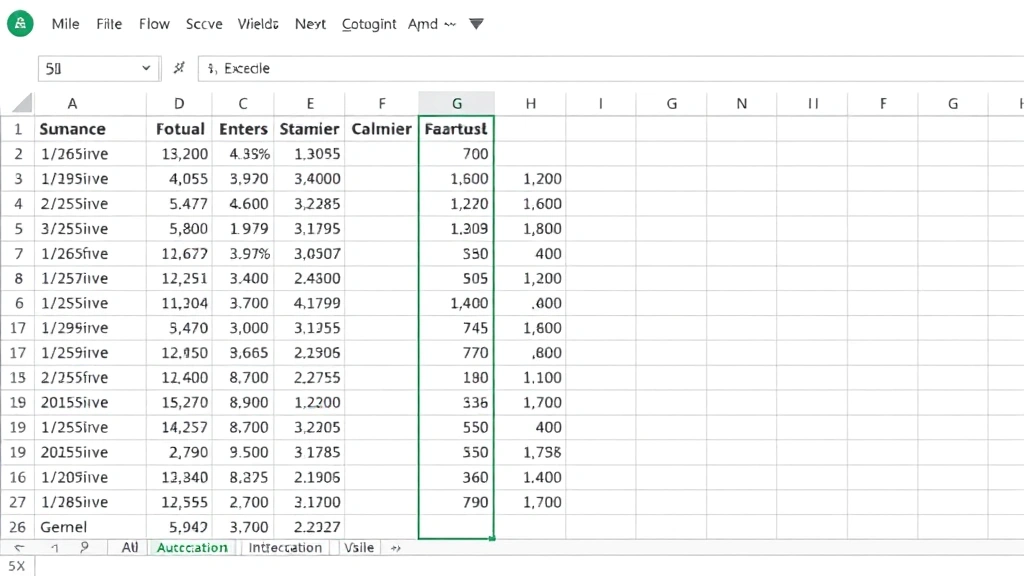
How to Add Columns in Excel: Easy & Amazing Guide
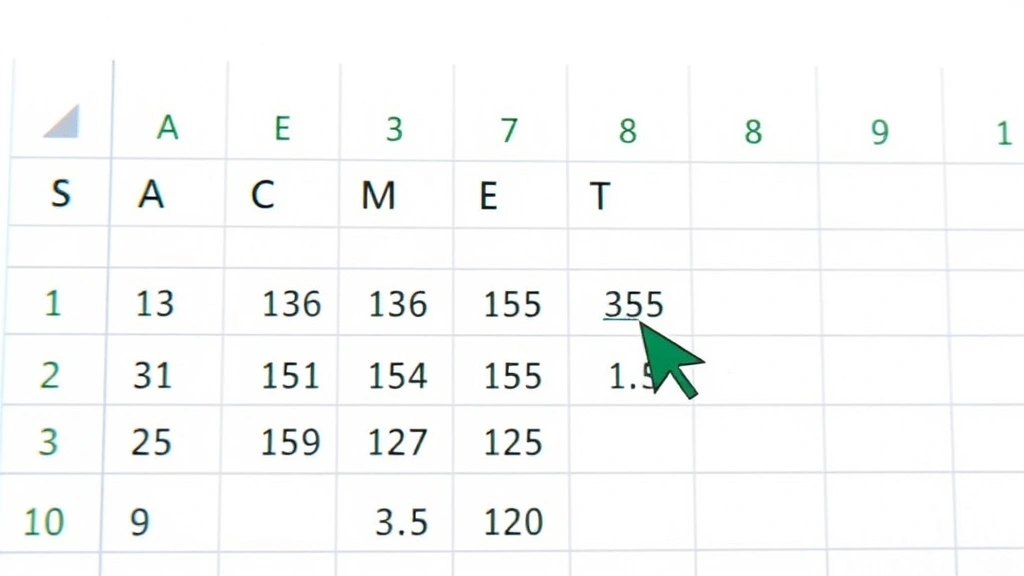
Adding columns in Excel is one of the most fundamental skills you’ll need when working with spreadsheets. Whether you’re organizing data, expanding your dataset, or restructuring your worksheet, knowing how to add columns in Excel quickly and efficiently can save you hours of manual work. This comprehensive guide walks you through every method—from simple right-click insertions to advanced techniques for managing multiple columns at once.
In just a few clicks, you can insert new columns anywhere in your spreadsheet, move existing data, and organize your information exactly how you need it. Let’s dive into the practical steps that make this task effortless.
Quick Answer
To add a column in Excel, right-click on the column header where you want to insert a new column and select “Insert” from the context menu. Your new column will appear to the left of the selected column. Alternatively, use the Insert menu from the top ribbon, select “Insert Sheet Columns,” and choose your desired location. For multiple columns, select multiple column headers before inserting.
Tools & Materials You’ll Need
- Microsoft Excel (2016 or later, or Excel Online)
- A spreadsheet with existing data or a blank workbook
- Mouse or trackpad for navigation
- Keyboard for shortcuts (optional but helpful)
- Basic understanding of Excel navigation
Method 1: Right-Click to Insert a Single Column
The most straightforward way to add columns in Excel is using the right-click context menu. This method is intuitive and works across all Excel versions. Start by opening your spreadsheet and locating the column header (the letter at the top) where you want your new column to appear.
Step-by-step instructions:
- Click on the column header letter to select the entire column
- Right-click on the selected column header
- From the context menu, click “Insert”
- A new column will automatically insert to the left of your selected column
- The existing columns shift right to make room
This method is perfect for quick insertions when you’re working with smaller datasets. The new column appears empty and ready for your data. If you need to insert the column to the right instead, simply select the column that’s one position to the right of where you want it, then follow the same steps.
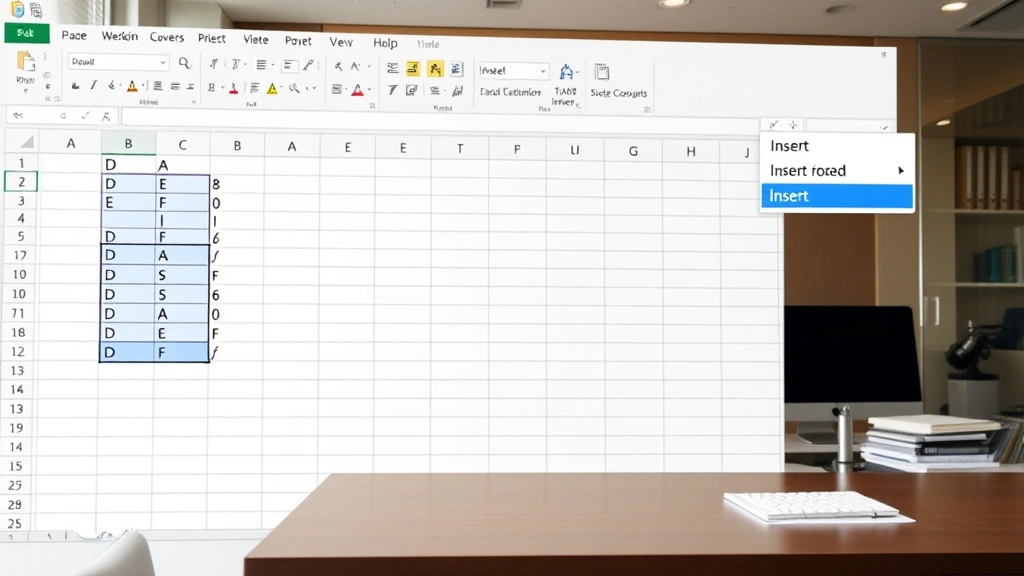
Method 2: Using the Insert Menu from the Ribbon
For those who prefer using the menu system, Excel’s ribbon provides a dedicated Insert option. This approach works especially well when you want to see all your options before proceeding. According to WikiHow’s comprehensive guides, using the ribbon menu ensures you’re accessing official Excel features.
Follow these steps:
- Select the column where you want to insert a new column
- Click the “Home” tab if you’re not already there
- Look for the “Insert” button in the ribbon (usually in the Cells group)
- Click the dropdown arrow next to Insert
- Select “Insert Sheet Columns”
- Your new column appears to the left of the selected column
This method gives you more visibility into what you’re doing and is excellent for users who are still learning how to add columns in Excel. The ribbon method also allows you to see related options like “Insert Sheet Rows” for comparison.
Method 3: Adding Multiple Columns at Once
When you need to add several columns simultaneously, selecting multiple column headers before inserting saves time and keeps your workflow efficient. This technique is particularly useful when restructuring large spreadsheets or preparing templates for data entry.
Here’s how to do it:
- Click on the first column header where you want columns inserted
- Hold down Shift and click on additional column headers to select multiple columns
- For example, clicking Column C and Shift-clicking Column E selects columns C, D, and E
- Right-click on any of the selected column headers
- Choose “Insert” from the menu
- Excel will insert the same number of new columns as you selected
This approach is much faster than inserting columns one at a time. If you need to add three columns, select three column headers, and Excel will create three new columns in one action. This is a game-changer when you’re learning how to add columns in Excel at scale.
Method 4: Inserting Columns at the End of Your Data
Sometimes you want to add columns after all your existing data rather than in the middle. This is the simplest approach and requires no selection of existing columns. Simply click on the first empty column header to the right of your data and start entering information.
If you want to formally insert a column in this location, click on the empty column header and use any of the previous methods. Excel recognizes that this column is empty and will add a new column to its left. This method is ideal when you’re expanding your dataset without disrupting existing information. No data shifts, and you maintain perfect organization of your current spreadsheet.
How to Add Columns Without Losing Data
One of the biggest concerns when learning how to add columns in Excel is accidentally losing important data. The good news: Excel’s insert function automatically shifts existing data to the right, protecting everything you’ve entered. Your data never disappears—it simply moves to make room for the new column.
Best practices to ensure data safety:
- Always select the column where you want the new column to appear (not the one containing data you want to keep)
- Use Ctrl+Z immediately if you accidentally insert in the wrong location
- Save your file before making bulk column additions
- Consider using how to freeze panes in Excel to keep headers visible while working
- Review your data after insertion to confirm everything shifted correctly
Excel’s undo function (Ctrl+Z) is your safety net. If you insert a column in the wrong spot, simply press Ctrl+Z and try again. This reversible action means you can experiment without fear of permanent data loss.
Tips for Organizing Columns Efficiently
Beyond just knowing how to add columns in Excel, organizing them strategically makes your spreadsheet more functional and professional. Consider your workflow and data relationships when deciding where to insert new columns. Related data should be adjacent whenever possible.
Organization strategies include:
- Group similar data types together (all financial data in adjacent columns, for example)
- Place calculation columns immediately after the data they reference
- Use how to move columns in Excel to reorganize after insertion if needed
- Add header rows with clear, descriptive names
- Consider using how to create a drop down list in Excel for consistent data entry in new columns
- Use consistent formatting across related columns
As reviewed by The Spruce’s organization experts, proper column arrangement reduces errors and improves data analysis. Taking time to plan your column structure upfront saves troubleshooting later.
Common Mistakes to Avoid
Even experienced users sometimes make mistakes when adding columns in Excel. Understanding these common pitfalls helps you work more efficiently and avoid frustration.
Mistakes to watch for:
- Selecting the wrong column: Remember, new columns insert to the LEFT of your selection. Select the column to the right of where you want the new column
- Forgetting to select the entire column: Click the column header letter, not just a cell within the column
- Not saving before major changes: While undo works well, saving protects against unexpected closures
- Inserting instead of appending: If you want columns at the end, simply use empty columns rather than inserting
- Losing track of data: Use how to lock a row in Excel to keep headers visible when scrolling
The most common error is selecting the wrong column because users forget that insertions happen to the LEFT of the selection. Double-check your column selection before clicking Insert.
Advanced Column Management
Once you’ve mastered basic column insertion, exploring advanced techniques elevates your Excel proficiency. These methods help manage complex spreadsheets with multiple data sources and intricate relationships.
Advanced techniques for adding columns in Excel:
- Inserting with formulas: Add a new column and immediately populate it with formulas referencing adjacent columns
- Using how to combine two cells in Excel techniques: Merge data from existing columns into your new column
- Conditional formatting: Apply formatting rules to new columns for automatic highlighting or color-coding
- Data validation: Use how to create a drop down list in Excel to restrict entries in new columns
- Finding and removing duplicates: Use how to find duplicates in Excel to clean new column data
- Pivot tables: Reorganize data across new columns using pivot table functionality
According to HowStuffWorks’ technology section, mastering these advanced features transforms you from a basic user into an Excel power user. These techniques handle complex data scenarios that simple insertion alone cannot address.
FAQ
Q: Can I undo adding a column if I make a mistake?
A: Yes! Press Ctrl+Z immediately after inserting a column to undo the action. Excel maintains an undo history, so you can reverse multiple recent actions if needed.
Q: What’s the difference between inserting and appending columns?
A: Inserting creates a new column and shifts existing columns right. Appending simply uses an empty column at the end of your data without shifting anything. Use insertion when you need columns in specific positions; use appending for data expansion.
Q: Can I insert a column between every existing column?
A: Yes, but you’ll need to do this strategically. Insert columns one at a time or in groups, working from right to left to avoid confusion about which columns shift.
Q: Does inserting a column affect my formulas?
A: Excel automatically adjusts formulas when you insert columns. If a formula referenced Column C and you insert a column before it, the formula updates to reference the new Column C position.
Q: How many columns can I insert at once?
A: You can select and insert up to the number of empty columns available in your spreadsheet. Excel allows up to 16,384 columns total, so you can insert hundreds at once if needed.
Q: Is there a keyboard shortcut for inserting columns?
A: There’s no universal keyboard shortcut, but you can use Alt+I+C in some Excel versions. The right-click method is generally faster and more reliable across all versions.
Q: What happens to my column letters when I insert new columns?
A: All column letters shift right automatically. If you insert a column between A and B, the original B becomes C, C becomes D, and so on. This is automatic and doesn’t require any action from you.
Q: Can I insert columns in Excel Online?
A: Yes! Excel Online supports all the same column insertion methods as desktop Excel. The right-click method works identically in the browser version.