
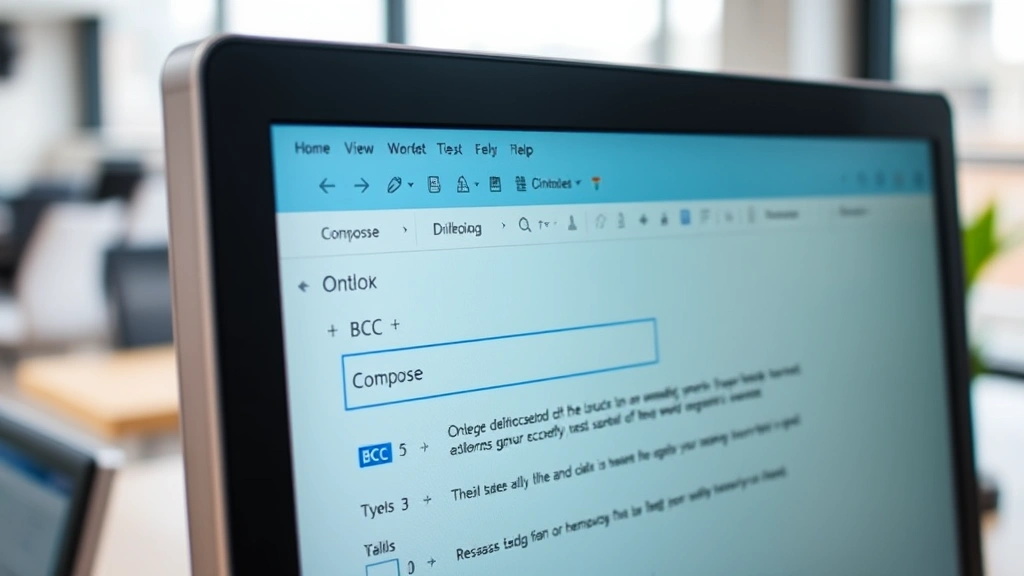
Ever sent an email to a group and realized halfway through that you’ve exposed everyone’s email address to everyone else? Yeah, that’s awkward. The BCC field in Outlook is your secret weapon to avoid that disaster. If you’ve been scratching your head wondering how to add BCC in Outlook, you’re not alone—it’s one of those features that should be obvious but somehow isn’t. The good news? Once you know where to find it, you’ll never look back.
BCC stands for “Blind Carbon Copy,” and it’s basically the ninja move of email. When you add someone to the BCC field, they get the email, but nobody else can see that they received it. No other recipients know they’re on the email chain. It’s perfect for protecting privacy, avoiding reply-all disasters, and keeping sensitive communications under wraps. Let’s walk through exactly how to make this work in Outlook.
What Is BCC and Why Should You Care?
Before we dive into the mechanics, let’s talk about why BCC matters. Think of email recipients in three categories: To, CC, and BCC. The “To” field is for primary recipients—the people you’re directly addressing. The “CC” field (Carbon Copy) is for people who need to see the conversation, and everyone can see who’s CC’d. BCC is different. It’s hidden.
Here’s the real-world scenario: You’re sending a newsletter to 200 customers. If you put all 200 addresses in the “To” field, every single person can see every other person’s email address. That’s a privacy nightmare and a goldmine for spammers. BCC solves this instantly. Everyone gets the email, but nobody sees the full recipient list.
Or imagine you’re forwarding a job opportunity to several colleagues, but you don’t want them to feel like they’re in competition with each other. BCC keeps things discreet. You can also use BCC to send yourself a copy of an important email for your records without the other recipients knowing you did it.
Pro Tip: BCC is also your defense against accidental reply-all catastrophes. If someone’s in the BCC field and they hit reply-all, their response only goes to the original sender, not to everyone on the list.
How to Add BCC in Outlook on Windows Desktop
Let’s start with the most common scenario: you’re using Outlook on your Windows computer. The process is straightforward, but the BCC field isn’t visible by default—that’s the main confusion point.
- Open Outlook and click “New Email.” You can do this by pressing Ctrl+N or clicking the “New Email” button in the ribbon.
- Look for the “To” field. You’ll see it at the top of the compose window. Click on it to start entering recipients.
- Find the “Bcc” button in the ribbon. This is the key step. In the Outlook ribbon (the toolbar at the top), look for the “Bcc” button. It’s usually in the “Show Fields” section or sometimes labeled as “Options.” Click it.
- The BCC field now appears. Once you click “Bcc,” a new line will appear in your compose window between the “Cc” and message body. This is where you add blind carbon copy recipients.
- Enter the email addresses. Click in the BCC field and type the email address or addresses you want to add. You can add multiple recipients by separating them with semicolons.
- Compose your message and send. Write your email as normal. When you hit send, everyone will receive it, but BCC recipients will be completely hidden from the other recipients.
If you’re using Outlook 2016 or newer, the “Bcc” button is typically in the “Show Fields” group on the “Message” tab. If you can’t find it, right-click on the ribbon and select “Customize the Ribbon.” Then add the Bcc button manually.
Safety Warning: Double-check your BCC field before sending. It’s easy to accidentally put someone in the “To” field when you meant to put them in BCC. Once you hit send, there’s no undo.
How to Add BCC in Outlook on Mac
Mac users, don’t worry—the process is nearly identical, just with slightly different menu locations.
- Open Outlook and create a new email. Press Cmd+N or click “New Email” in the toolbar.
- Click the “Bcc” button in the ribbon. On Mac, the Bcc button is usually visible in the toolbar by default. If you don’t see it, look in the “Message” tab or the formatting options.
- The BCC field appears. Just like on Windows, a new line will show up in your compose window.
- Add your BCC recipients. Click in the BCC field and type the email addresses. Separate multiple addresses with semicolons.
- Finish composing and send. Write your message and hit send when you’re ready.
If the Bcc button isn’t visible on your Mac version, go to “View” in the menu bar and look for an option to show additional fields or buttons. You can also try clicking the three-dot menu (if available) to find more options.
How to Add BCC in Outlook Web (Outlook.com)

Using Outlook through a web browser? The process is slightly different but equally simple.
- Log in to Outlook.com. Navigate to your Outlook inbox in your web browser.
- Click “New Mail.” This button is usually at the top left of the inbox.
- Click “To” to expand recipient options. In the compose window, you’ll see the “To” field. Click on it or look for a dropdown arrow next to it.
- Select “Bcc” from the options. You should see options for “To,” “Cc,” and “Bcc.” Click on “Bcc” to add that field.
- Enter your BCC recipients. Type the email addresses into the BCC field that now appears.
- Compose and send. Write your email and click “Send.”
In Outlook Web, the BCC field sometimes appears automatically if you’ve used it before. If you’re a frequent BCC user, Outlook will remember and keep the field visible in future emails.
How to Add BCC in Outlook Mobile
Mobile email is trickier because screen space is limited, but Outlook Mobile does support BCC.
- Open Outlook on your phone. Launch the Outlook app on iOS or Android.
- Tap the compose button. Usually a pencil icon or “New Email” button.
- Tap the “To” field. This will show your recipient options.
- Look for “Bcc” in the options menu. On most mobile versions, you’ll see a menu with “To,” “Cc,” and “Bcc” options. Tap “Bcc.”
- Add your BCC recipients. Enter the email addresses you want to blind carbon copy.
- Send your email. Compose your message and send as usual.
If you don’t see the BCC option immediately, try tapping the three-dot menu (⋯) or looking for an “Add Cc/Bcc” option. Different versions of the app have slightly different layouts.
BCC Best Practices and When to Use It
Now that you know how to add BCC in Outlook, let’s talk about when and how to use it responsibly. BCC is powerful, but like any powerful tool, it can be misused.
When BCC is appropriate:
- Sending newsletters or announcements to large groups where recipients don’t need to see each other’s addresses
- Protecting privacy in sensitive communications
- Keeping yourself informed on conversations without alerting other participants
- Forwarding opportunities to multiple people without them knowing they’re in competition
- Sending yourself a copy of important emails for your records
When BCC is not appropriate:
- Using it secretly to monitor employees or colleagues (this is unethical and potentially illegal)
- Sending someone a BCC copy without their knowledge in a professional setting where transparency is expected
- Using it to hide forwarding information in a way that deceives recipients
- Copying someone’s email address without permission to add to mailing lists
Think of BCC like a professional courtesy. It’s not about being sneaky—it’s about respecting privacy and preventing email chaos. When you’re sending a mass email, BCC protects everyone’s privacy. When you’re forwarding an opportunity, BCC lets people respond to you without feeling like they’re competing. The key is transparency about why you’re using it.
Pro Tip: If you’re using BCC to keep yourself in the loop on a conversation, consider whether the other participants should know. In many professional settings, transparency is better than hidden copies. When in doubt, ask yourself: “Would the other people be okay with knowing I’m receiving a copy?”
For additional email security considerations, check out our guide on how to send a secure email in Outlook. BCC is one layer of privacy, but there are other ways to protect sensitive communications.
Troubleshooting Common BCC Issues
The BCC button isn’t showing up
– On Windows: Check the “Options” tab in the ribbon. You might need to customize your ribbon to add the Bcc button. Right-click the ribbon and select “Customize the Ribbon,” then add the Bcc field from the available options.
– On Mac: Go to “View” in the menu bar and look for “Show Bcc Field” or similar options.
– On Outlook Web: Click the dropdown arrow next to “To” to reveal Cc and Bcc options.
I accidentally sent an email with everyone’s addresses visible instead of BCC
– Unfortunately, once an email is sent, you can’t unsend it in most cases (though Outlook does have a limited “Undo Send” feature if you act within a few seconds). In the future, always double-check your recipient fields before hitting send. Take a breath, verify, then send.
BCC recipients are getting replies from other people on the email
– This shouldn’t happen if BCC is set up correctly. If someone replies to an email where they were BCC’d, they’ll only reply to you, not to the entire group. If you’re seeing different behavior, check that the BCC field is actually being used and not the CC field.
I’m using Outlook with an Exchange account and BCC isn’t working
– Make sure your Exchange administrator hasn’t disabled BCC functionality (rare, but possible in highly restricted corporate environments). Contact your IT department if you suspect this.
Mobile app won’t let me add BCC
– Update your Outlook app to the latest version. Older versions sometimes have limited features. If it still doesn’t work, try using Outlook Web on your phone’s browser instead.
For more Outlook tips, you might also want to learn how to set an out of office on Outlook to manage expectations when you’re away.
According to Family Handyman, understanding your tools thoroughly prevents mistakes. The same applies to email—knowing your features prevents costly communication errors. This Old House emphasizes the importance of doing things right the first time, and that philosophy applies perfectly to email security.
Microsoft’s official Outlook support documentation provides additional resources if you encounter issues specific to your version. For privacy-conscious users, OSHA guidelines on workplace communication (while focused on safety) emphasize the importance of clear, transparent communication—which BCC supports when used ethically.
Frequently Asked Questions
Can BCC recipients see who else is on the email?
– No. That’s the entire point of BCC. BCC recipients can see the “To” and “Cc” fields, but they cannot see anyone else who’s in the BCC field. Each BCC recipient only knows they received the email—they don’t know who else did.
What happens if someone BCC’d replies to my email?
– If someone in the BCC field clicks “Reply,” their response only goes to you (the sender), not to everyone on the original email. This is actually one of the safety features of BCC—it prevents accidental reply-all disasters.
Is it legal to BCC someone without telling them?
– It depends on context. In most business settings, BCC is legal and common. However, in some jurisdictions, secretly recording or monitoring someone’s communications without consent can be illegal. Use BCC for legitimate privacy reasons (like protecting recipient addresses in a newsletter), not for secret surveillance.
Can I set BCC as a default in Outlook?
– Not directly. Outlook doesn’t have a “always use BCC” setting because it’s meant to be a deliberate choice. However, you can create email templates with BCC fields pre-populated if you send BCC emails frequently.
What’s the difference between CC and BCC?
– CC (Carbon Copy) is visible to everyone. If you CC someone, all other recipients can see that person’s email address. BCC (Blind Carbon Copy) is hidden from everyone except you and the BCC recipient. Use CC when transparency is fine, use BCC when you want to protect privacy.
How many people can I put in the BCC field?
– Technically, you can BCC hundreds of people. However, most email providers have limits (typically 500-1000 recipients per email). If you’re sending to a very large list, consider using a mailing list service or newsletter platform instead of BCC.
Will my company’s email administrator see if I use BCC?
– Yes, email administrators and IT departments can see BCC usage in email logs. BCC isn’t hidden from system administrators—only from the other email recipients. If your workplace has strict email policies, check with IT before using BCC for sensitive communications.
Can I use BCC with Gmail if I’m accessing it through Outlook?
– If you’ve set up a Gmail account in Outlook (using IMAP or POP), you can use BCC normally. The feature works the same way regardless of which email service you’re using.
Is there a keyboard shortcut to add BCC in Outlook?
– Not a direct shortcut, but you can use Ctrl+N to create a new email, then use Tab to navigate to the BCC field once it’s visible. For frequent BCC users, creating a custom keyboard shortcut through Windows settings or AutoHotkey is possible but requires additional setup.
Why would I use BCC instead of just creating a group email?
– BCC is more flexible. You can BCC different people on different emails without managing distribution lists. It’s also better for one-off communications where creating a permanent group doesn’t make sense. Plus, BCC keeps your recipient list private, which is important for protecting customer or colleague privacy.
Now you’ve got the complete picture on how to add BCC in Outlook. Whether you’re protecting privacy, preventing reply-all disasters, or just keeping things organized, BCC is one of those features that becomes invaluable once you start using it regularly. The key is remembering it’s there and using it thoughtfully. Start with your next newsletter or group email, and you’ll quickly see why this feature exists.


